Movimento do processo

Descrição

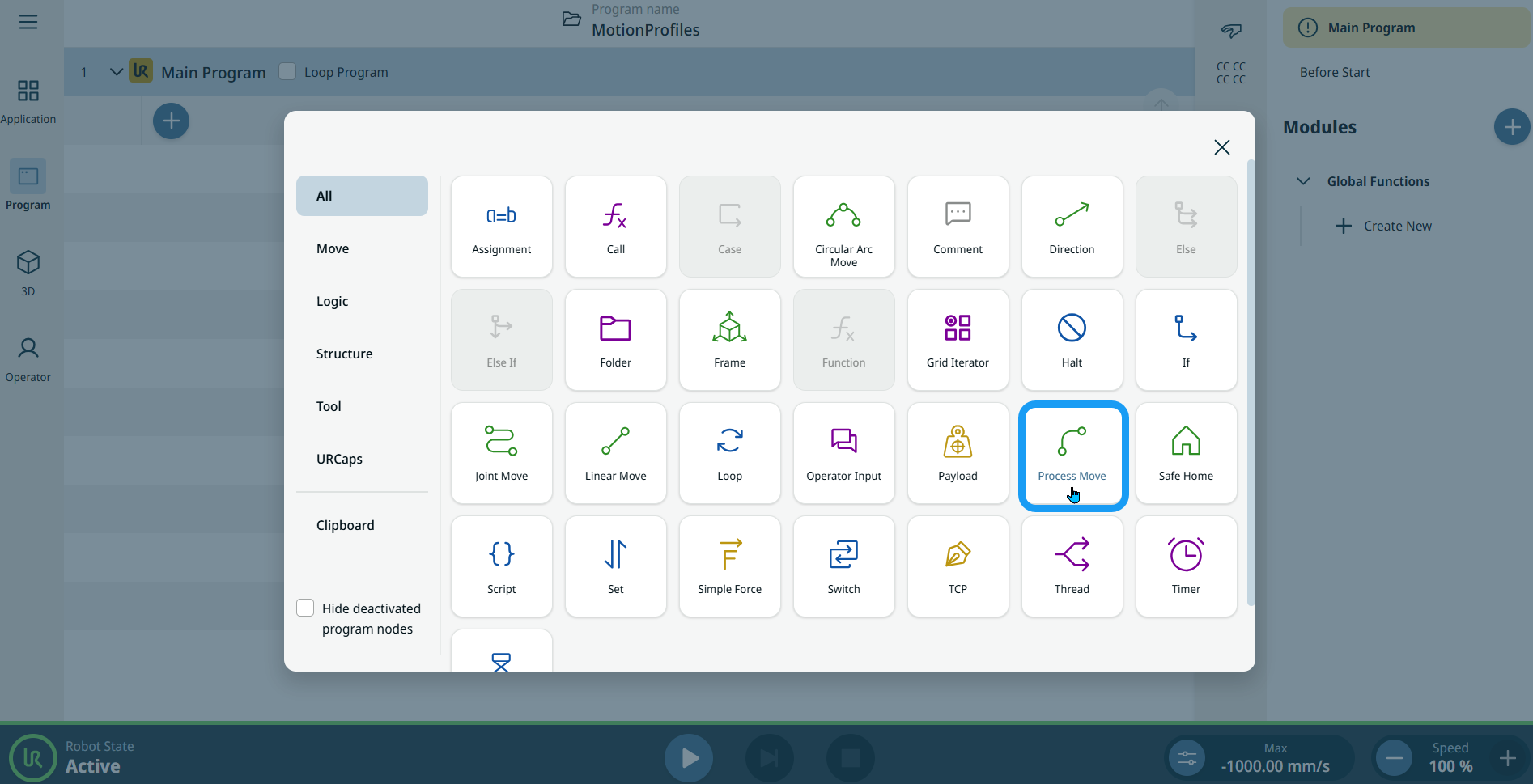
The Process Move command enables you to program a linear movement with constant speed through a number of points. You must set blend radius to make sure that the robot moves at a constant speed between each move node. You can specify a reference frame and a transform pose.


To access Process Move command
  1. Go to the main program screen. Consulte Command Nodes.

  2. Tap the Process Move icon in the Commands toolbox.


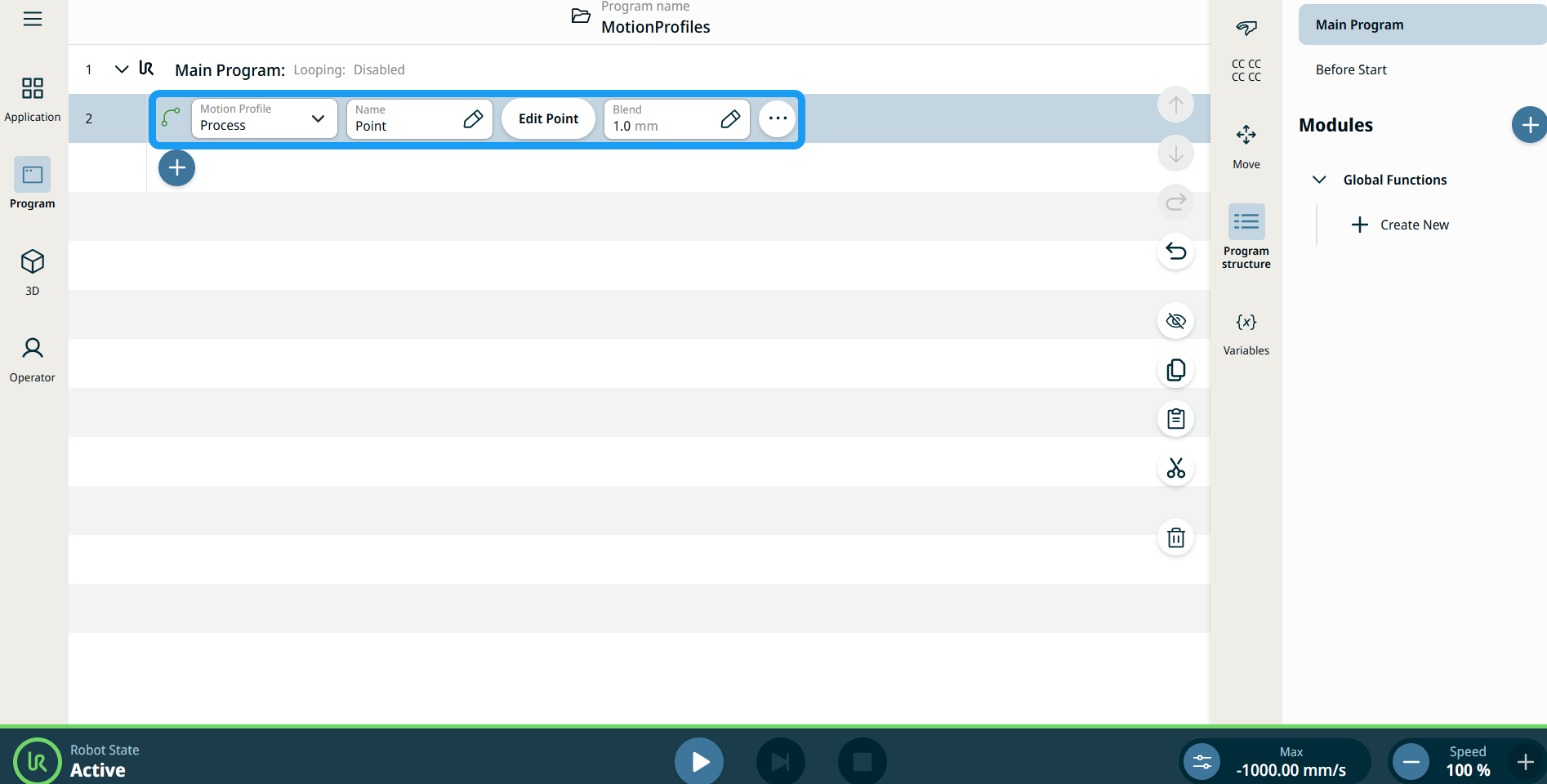
    A node is inserted into the program tree. The node has three editable fields, Edit Point button, and ellipsis icon.

    These are the three fields:

    • Perfil de movimento

    • Nome

    • Misturar


  1. In the Motion Profile field, you can choose either Custom or Process.

    Custom motion profile enables you to define movement data in Joint Move and Linear Move nodes.

    Process motion profile is a predefined motion in Joint Move and Linear Move nodes.

  2. Tap the Name field.

    Three tabs appear:

    • Valor

    • Variável

    • Expressão

  3. Enter data in the Value, Variable, and Expression tabs, and tap Confirm. See Value-Variable-Expression Tabs.

  4. Tap Edit Point.

    A new screen appears with the robot arm interface.

  5. Tap the Blend field.

    Three tabs appear:

    • Valor

    • Variável

    • Expressão

  6. Enter data in the Value, Variable, and Expression tabs, and tap Confirm. See Value-Variable-Expression Tabs.


Etiquetas de perfil de movimento nos nós de movimento

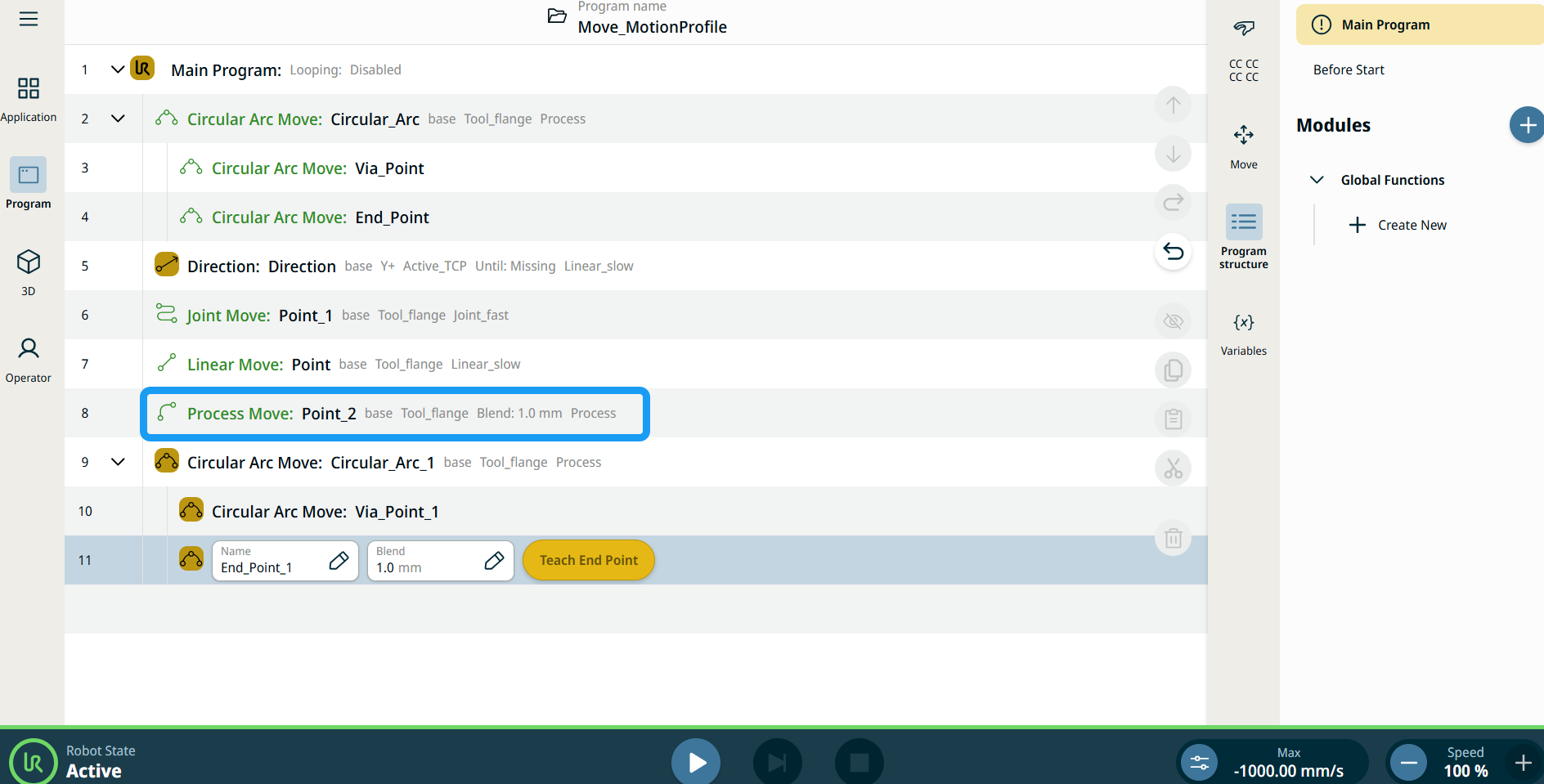
Todos os comandos de Mover relacionados a nós na árvore do programa apresentam o perfil Movimento associado a cada nó. Esta funcionalidade permite aos utilizadores ver o Perfil de Movimento selecionado num nó Move. Esta funcionalidade está implementada nos seguintes nós de comando:

Os nós com perfil de movimento personalizado apresentarão os valores de velocidade e aceleração em vez do perfil de movimento.


To use More Option

  1. Tap the ellipsis icon.

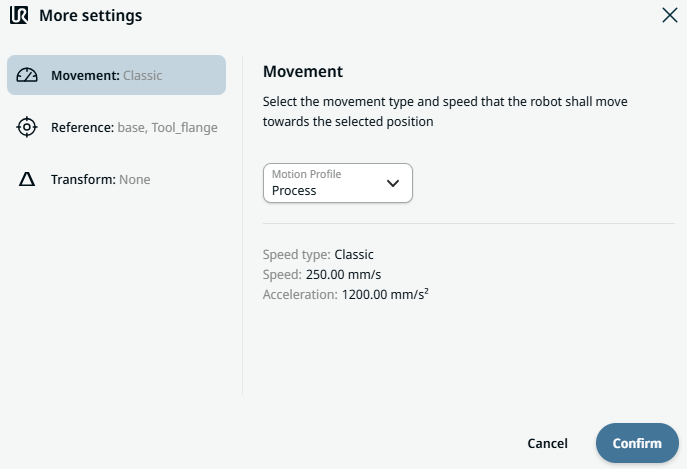
    More settings screen appears with three settings:

    • Movimento

    • Referência

    • Transformar

  2. Tap the Movement setting on the left side.

    A Motion Profile field with selections Custom and Process is on the right side.

  3. If Custom is selected, a Speed field and Acceleration field appears.

  4. Tap the Speed field, and the Value, Variable, and Expression tabs pop up.

  5. Enter data in each tab, and tap Confirm. See Value-Variable-Expression Tabs.

  6. Tap the Acceleration field, and the Value, Variable, and Expression tabs pop up.

  7. Enter data in each tab, and tap Confirm. See Value-Variable-Expression Tabs.

  8. Choose Process motion profile and tap Confirm.

  9. Tap the Reference setting.

  10. Choose either Frame or Set TCP field.

  11. In the Position column, tap the X, Y, Z tab and enter your chosen value for the robot, and Confirm.

  12. In the Rotation column, tap the RX, RY, RZ tab and enter your chosen value for the robot, and Confirm.

  13. In the Transform setting, tap the Pose field and Confirm.