Movimento da articulação

Descrição

The Joint Move is a move command node that supports Motion Profiles. The command creates a movement from point A to point B that is optimal for the robot. O movimento pode não ser uma linha direta entre A e B, mas ideal para a posição inicial das articulações e a posição final das articulações. Movimento da Articulação faz movimentos calculados no espaço da articulação do braço robótico. As articulações são controladas para terminarem os seus movimentos em simultâneo. Este tipo de movimento resulta num caminho curvo para a ferramenta seguir.


To access Joint Move command

  1. Go to the main program screen. Consulte Command Nodes.

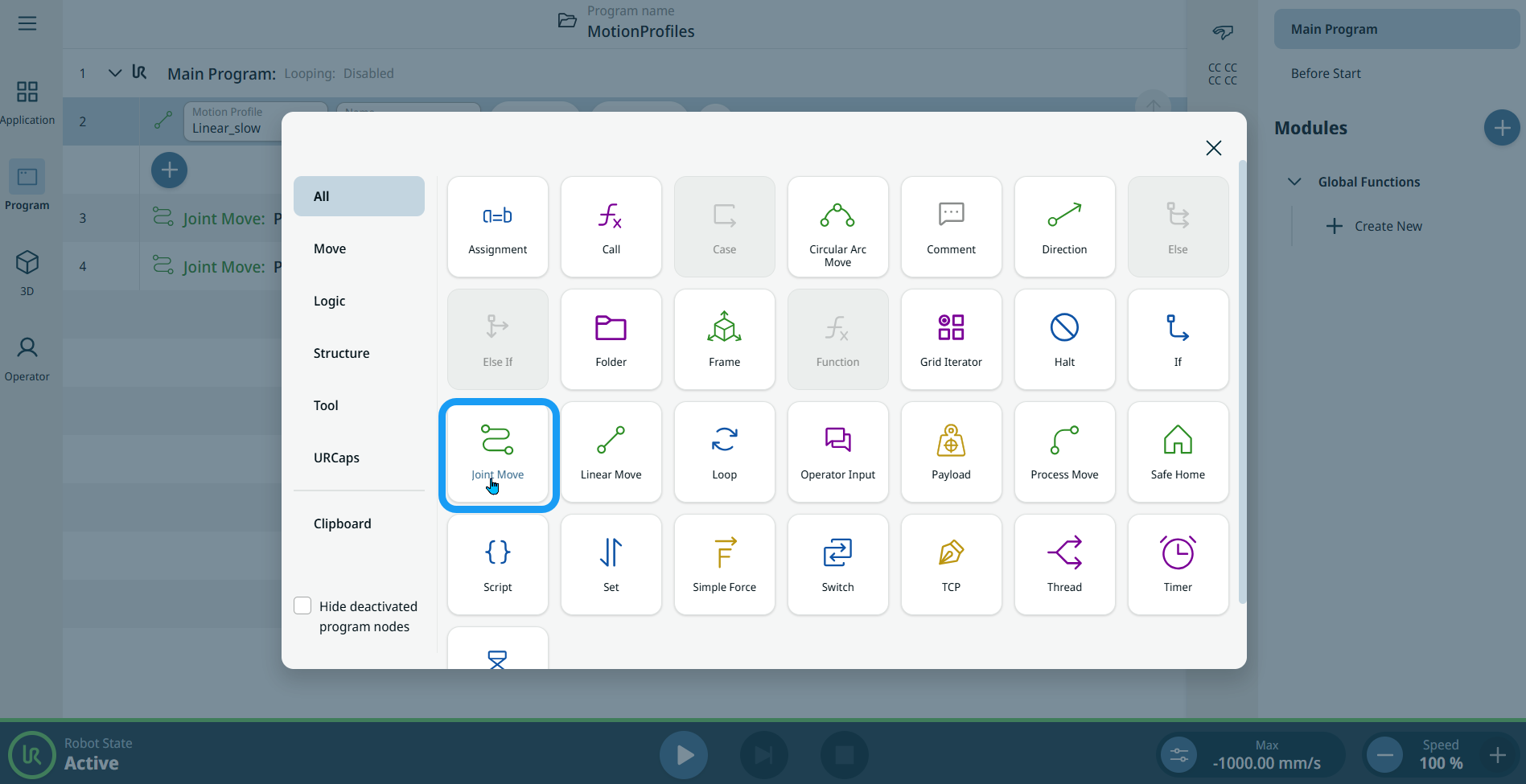
  2. Tap the Joint Move icon in the Commands toolbox.


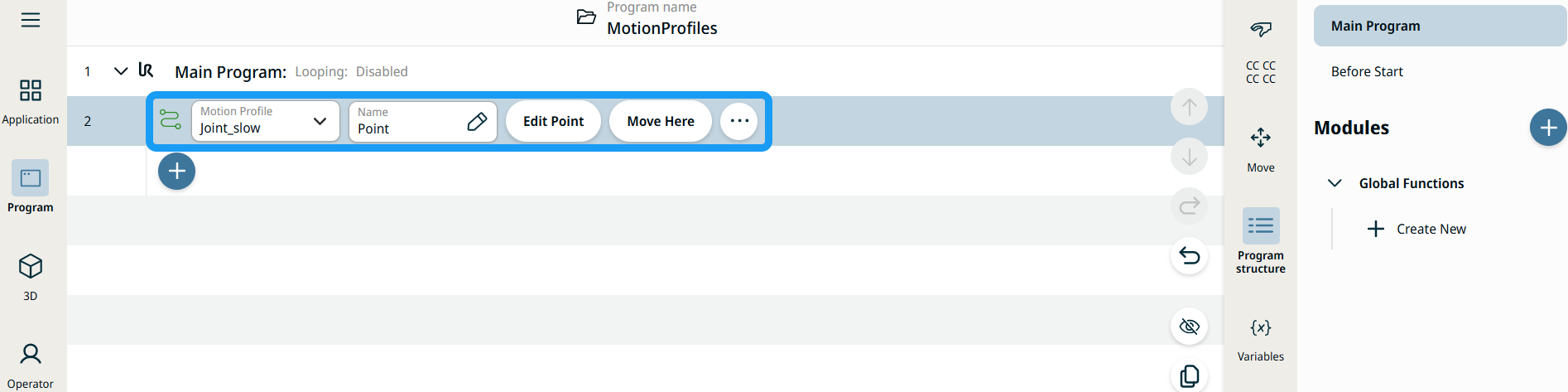
    A node with two editable fields, two buttons, and ellipsis icon is inserted into the program tree. These are two editable fields:

    • Perfil de movimento

    • Nome

    These are the two buttons:

    • Editar ponto

    • Mover para aqui


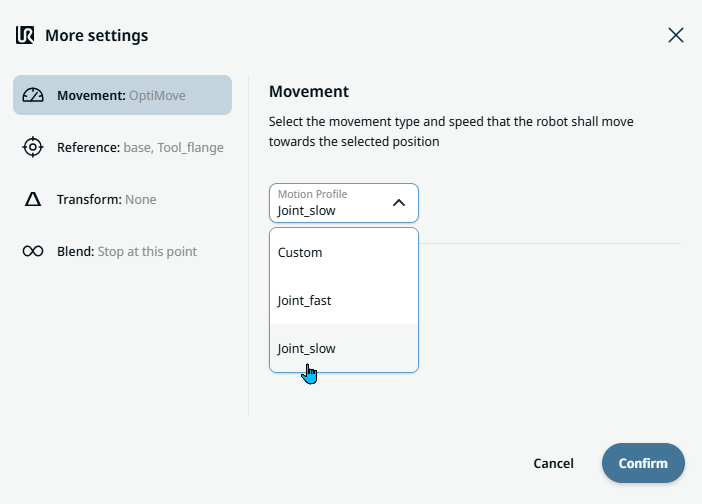
  1. Tap the Motion Profile field and select the pertinent from the three choices are available:

    • Personalizar

    • Joint_fast

    • Joint_slow

  2. Tap the Name field, and three tabs appear:

    • Valor

    • Variável

    • Expressão

  3. Enter the data in the Value, Variable, and Expression tabs, and tap Confirm. See Value-Variable-Expression Tabs.

  4. Tap Edit Point. A new screen appears with the robot arm interface where you can jog the robot to the desired position.

  5. Tap More button.

    More settings screen appears with four settings:

    • Movimento

    • Referência

    • Transformar

    • Misturar


Etiquetas de perfil de movimento nos nós de movimento

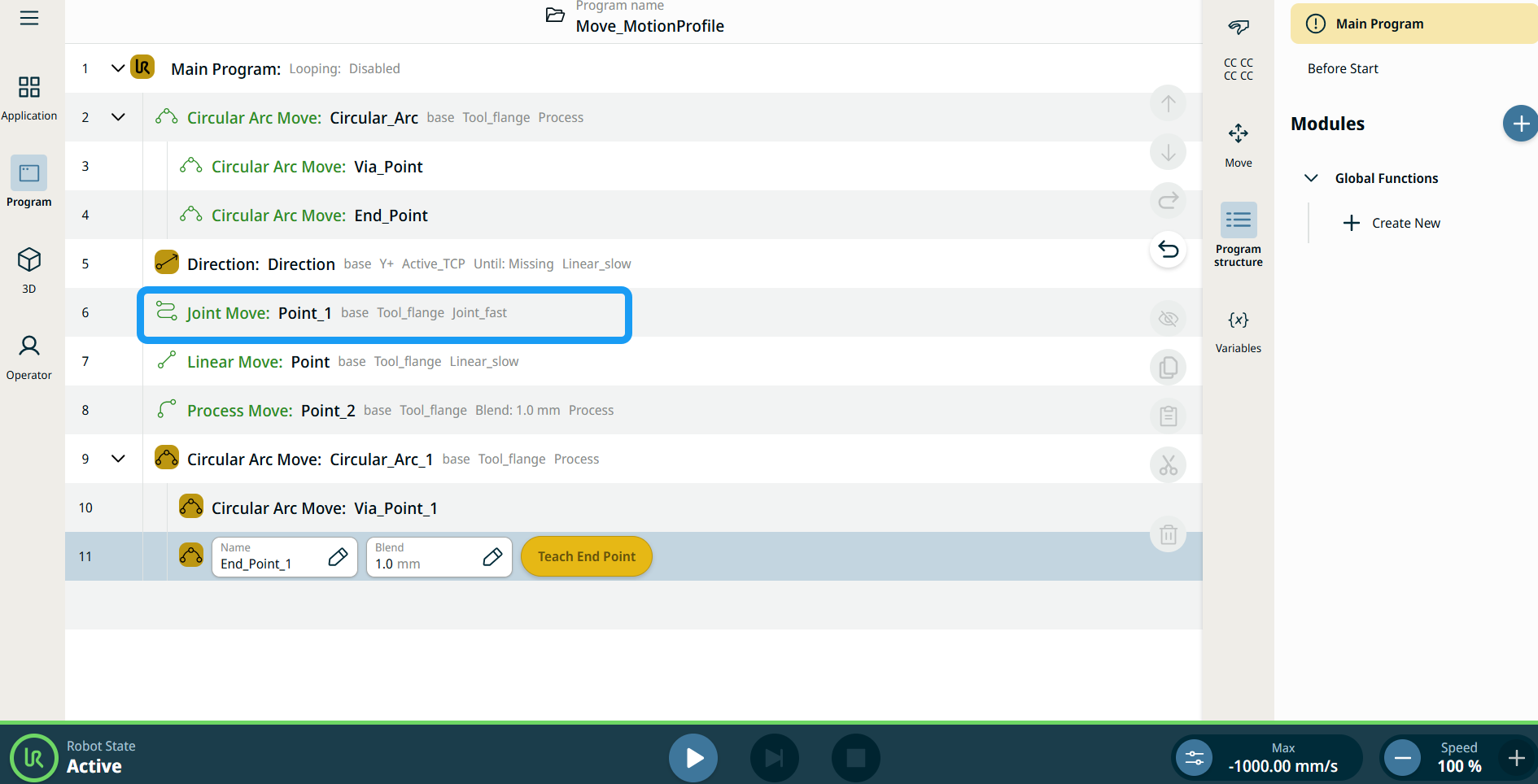
Todos os comandos de Mover relacionados a nós na árvore do programa apresentam o perfil Movimento associado a cada nó. Esta funcionalidade permite aos utilizadores ver o Perfil de Movimento selecionado num nó Move. Esta funcionalidade está implementada nos seguintes nós de comando:

Os nós com perfil de movimento personalizado apresentarão os valores de velocidade e aceleração em vez do perfil de movimento.


Utilizar o botão Mover para aqui

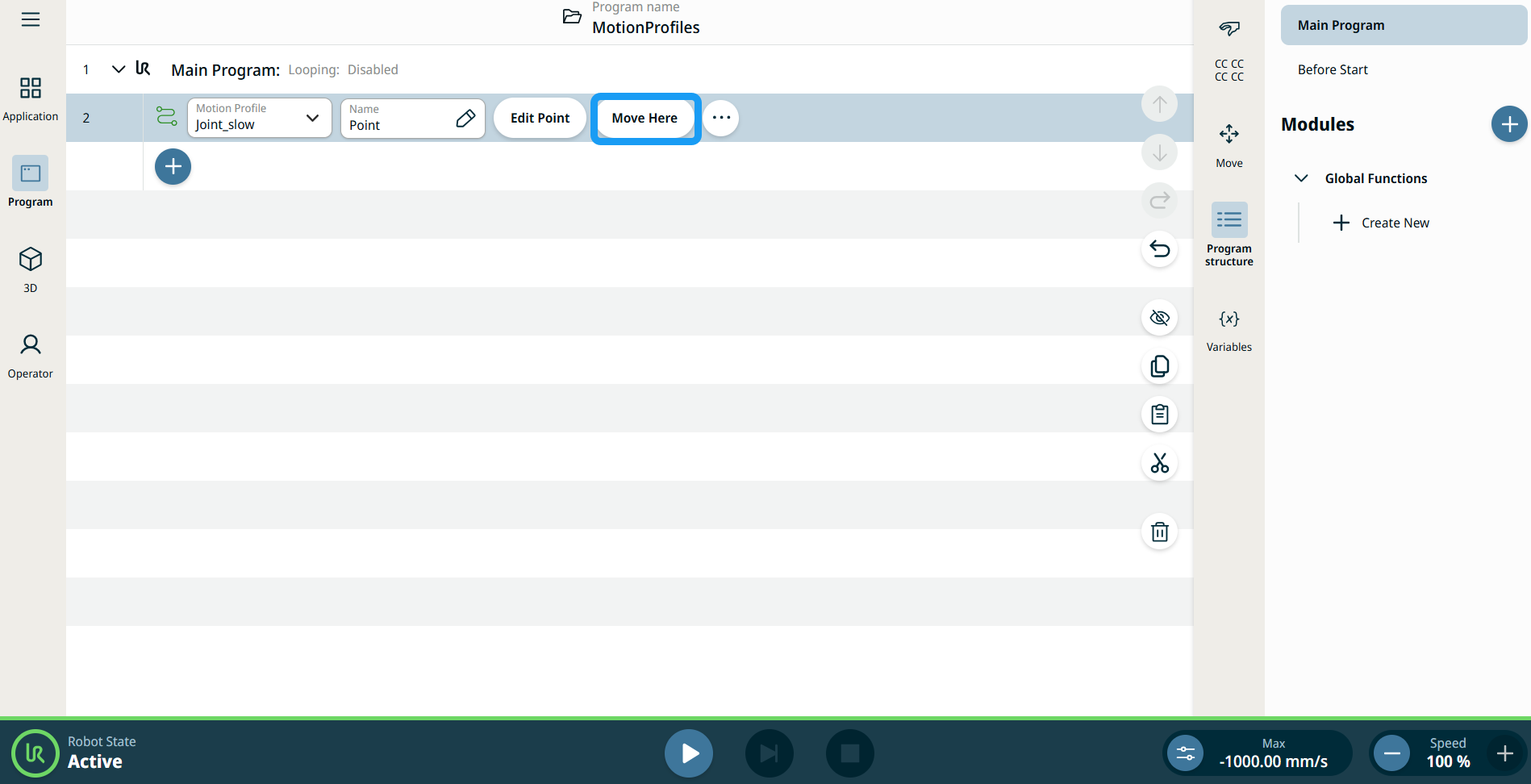
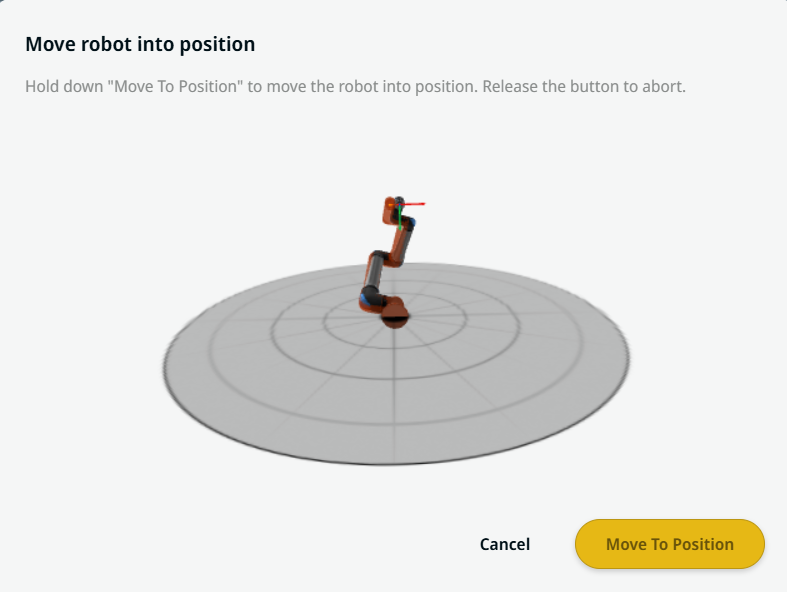
O botão Mover para aqui é visto em comandos Movimento linear e Movimento da articulação. Esta funcionalidade permite mover-se para a posição de um ponto de referência diretamente a partir da árvore do programa. Pressionar o botão Mover Aqui abre o robô Mover na caixa de diálogo da posição. O botão é visível quando o ponto de rota foi ensinado, e só é ativado quando o estado do robô está no modo Normal ou Reduzido.


  1. Toque em adicionar ícone para inserir o Movimento Linear e o Movimento da Articulação na árvore de comandos.

  2. Toque no botão Editar Ponto do primeiro nó de movimento na árvore de comandos, sejam nós de Movimento linear ou Movimento da articulação.

  3. Mova o robô com o botão mais-menos nas coordenadas X, Y, Z. Tap Save.

  4. Na segunda movimentação de nó na árvore de comando, toque em Mover Aqui. Uma janela pop-up aparece para ativar Mover o robô para a posição. Toque longo em Mover para a Posição. Toque em Ok.


Movement setting
  1. Tap the Movement setting on the left side. A Motion Profile field with the following choices appears on the right side. Joint_slow is the default.

    • Personalizar

    • Joint_fast

    • Joint_slow

  2. If Custom is selected, three more fields appear:

    • Tipo de velocidade

    • Velocidade

    • Aceleração

  3. Choose either OptiMove or Classic when you tap Speed Type.

  4. Tap the Speed field, and the Value, Variable, and Expression tabs pop up.

  5. Enter data in each tab, and tap Confirm. See Value-Variable-Expression Tabs.

  6. Tap the Acceleration field, and the Value, Variable, and Expression tabs pop up.

  7. Enter data in each tab, and tap Confirm. See Value-Variable-Expression Tabs.

  8. When Joint_fast and Joint_slow are selected, the OptiMove speed and acceleration are shown.


Reference setting
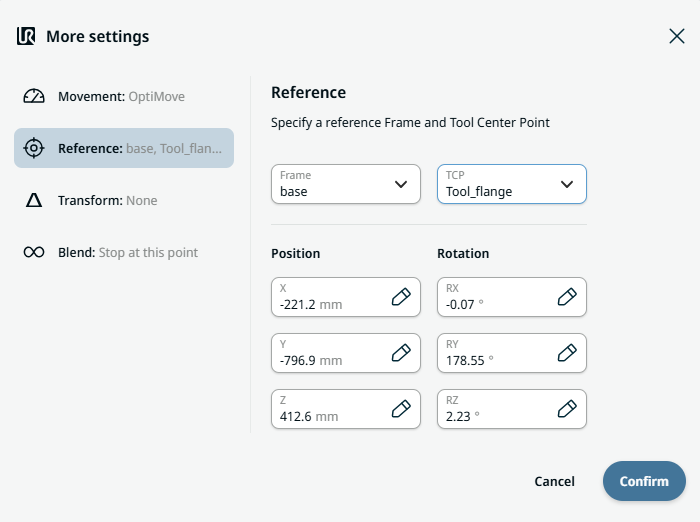
  1. Tap the Reference setting.

  2. Choose either Frame or TCP field.

    In the Frame field, four choices are available:

    • mundo

    • base

    • flange

    • tcp

    In the TCP field, two choices are available:

    • Active_TCP

    • Tool_flange

  3. In the Position column, tap the X, Y, Z tabs and enter your chosen value for the robot, and Confirm.

  4. In the Rotation column, tap the RX, RY, RZ tabs and enter your chosen value for the robot, and Confirm.


Transform setting
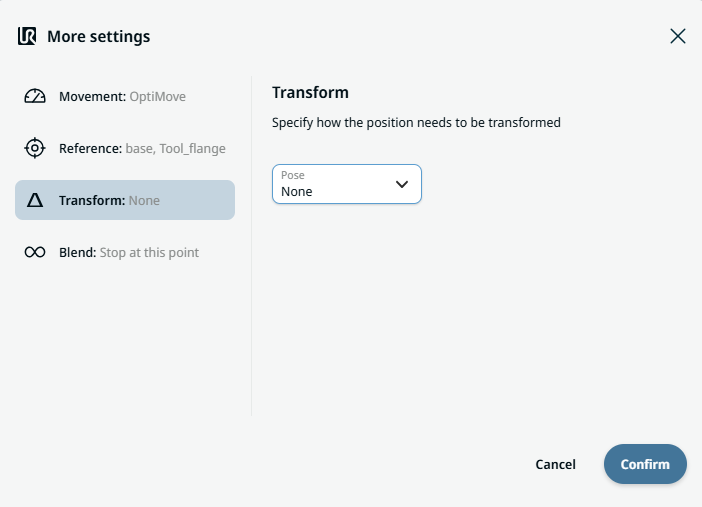
  1. Tap the Transform setting.

  2. Tap the Pose field and Confirm.


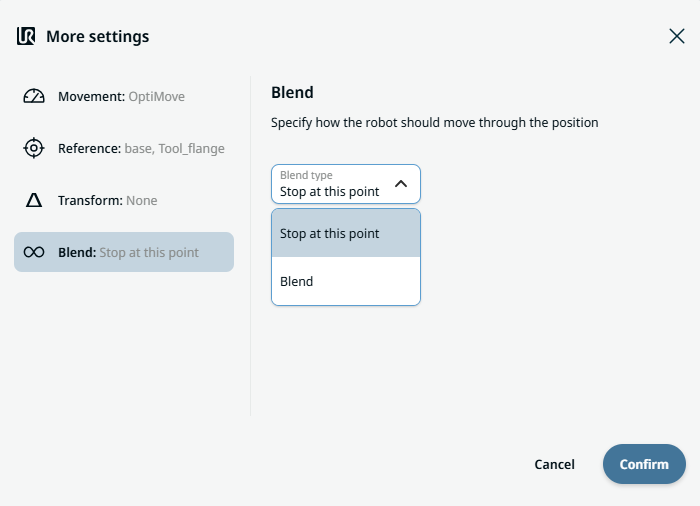
Blend setting

  1. Tap the Blend setting.

    A Blend type field appears with two options:

    • Parar neste ponto

    • Misturar

  2. When you choose Stop at this point, no further action is needed but only Confirm.

  3. Tap Blend, and a Radius field is inserted.

  4. The Value, Variable, and Expression tabs pop up when you tap the Radius field.

  5. Enter data in each tab, and tap Confirm. See Value-Variable-Expression Tabs.

  6. To finish, tap Confirm in the More settings screen.