Lineær bevegelse

Beskrivelse

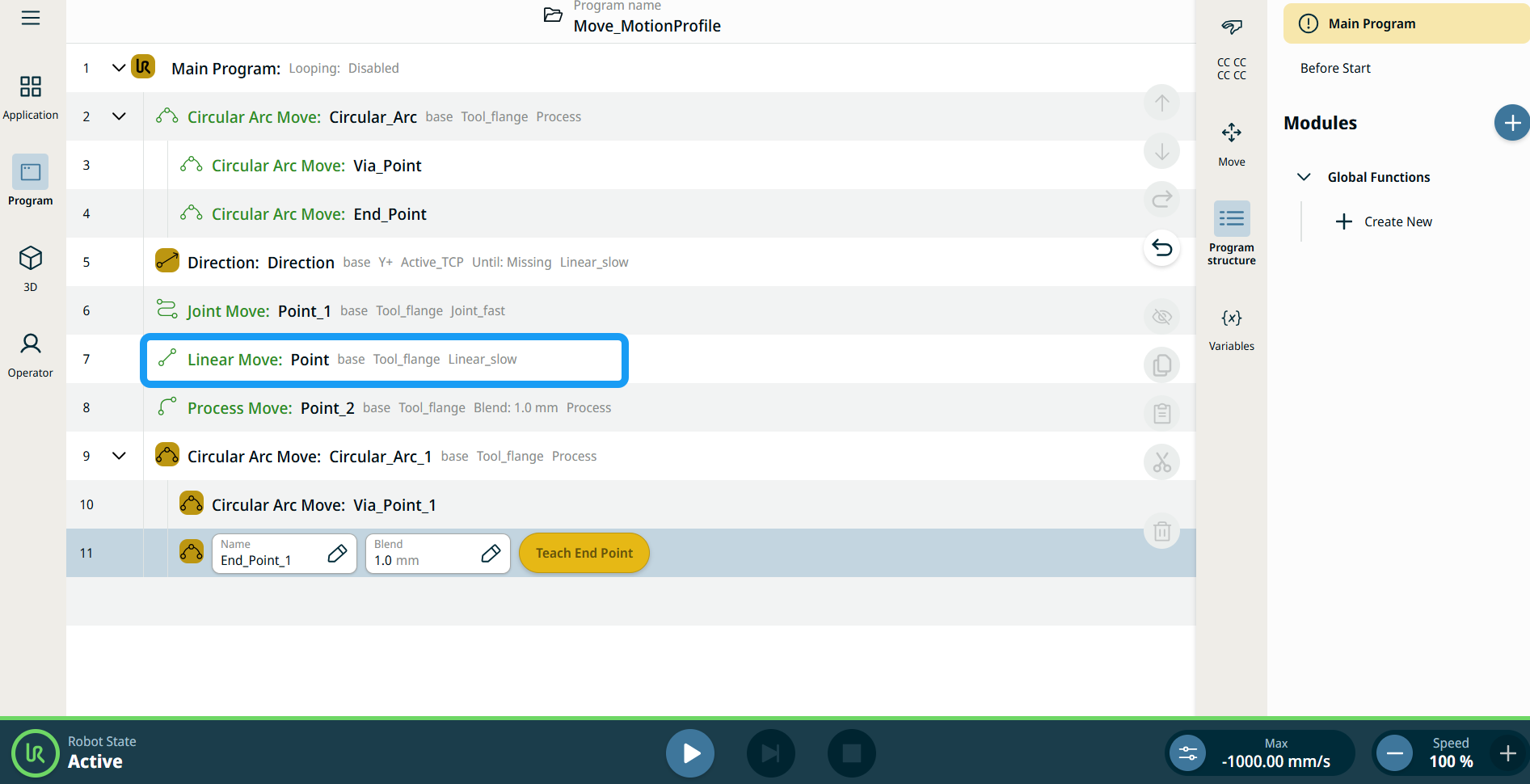
The Linear Move command node supports Motions Profiles as Joint Move, but it creates a movement that is a direct line from point A and point B. It moves the Tool Center Point (TCP) linearly between waypoints. Dette betyr at hvert ledd utfører en mer komplisert bevegelse for å holde verktøyet i en rett bane.


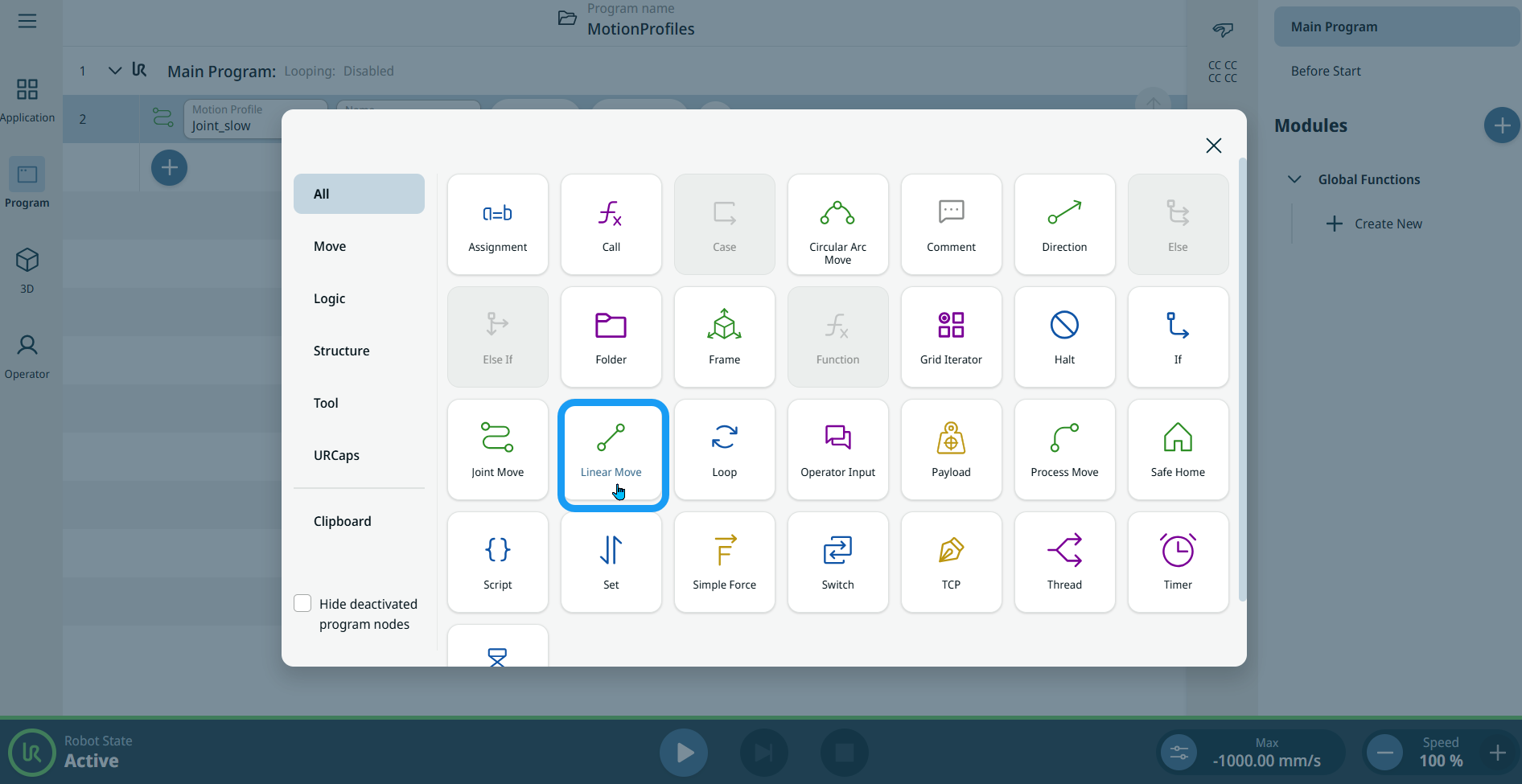
To access Linear Move command

  1. Go to the main program screen. Se Command Nodes.

  2. Tap the Linear Move icon in the Commands toolbox.

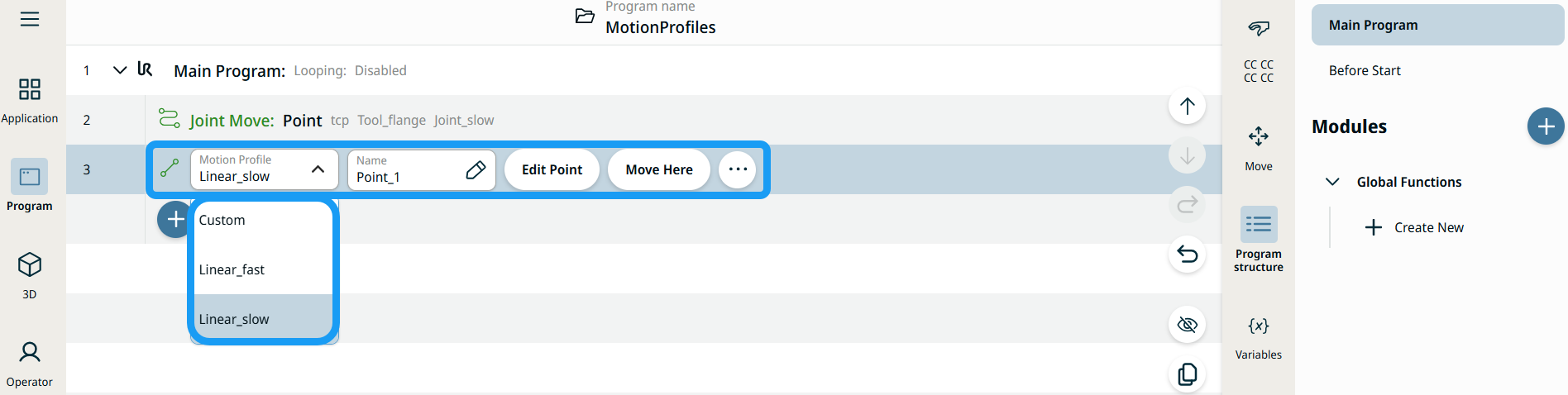
    A node with two editable fields, two buttons, and ellipsis icon is inserted into the program tree. These are two editable fields:

    • Bevegelsesprofil

    • Navn

    These are the three buttons:

    • Rediger punkt

    • Flytt hit

  3. Tap the Motion Profile field and select the pertinent from the three choices are available:

    • Tilpass

    • Linear_fast

    • Linear_slow


  1. Tap the Name field, and three tabs appear:

    • Verdi

    • Variabel

    • Uttrykk

  2. Enter the data in the Value, Variable, and Expression tabs, and tap Confirm. See Value-Variable-Expression Tabs.

  3. Tap Edit Point. A new screen appears with the robot arm interface.

  4. Tap More button. The More settings screen appears with four settings:

    • Bevegelse

    • Referanse

    • Transformere

    • Blanding


Bruke Flytt hit-knappen

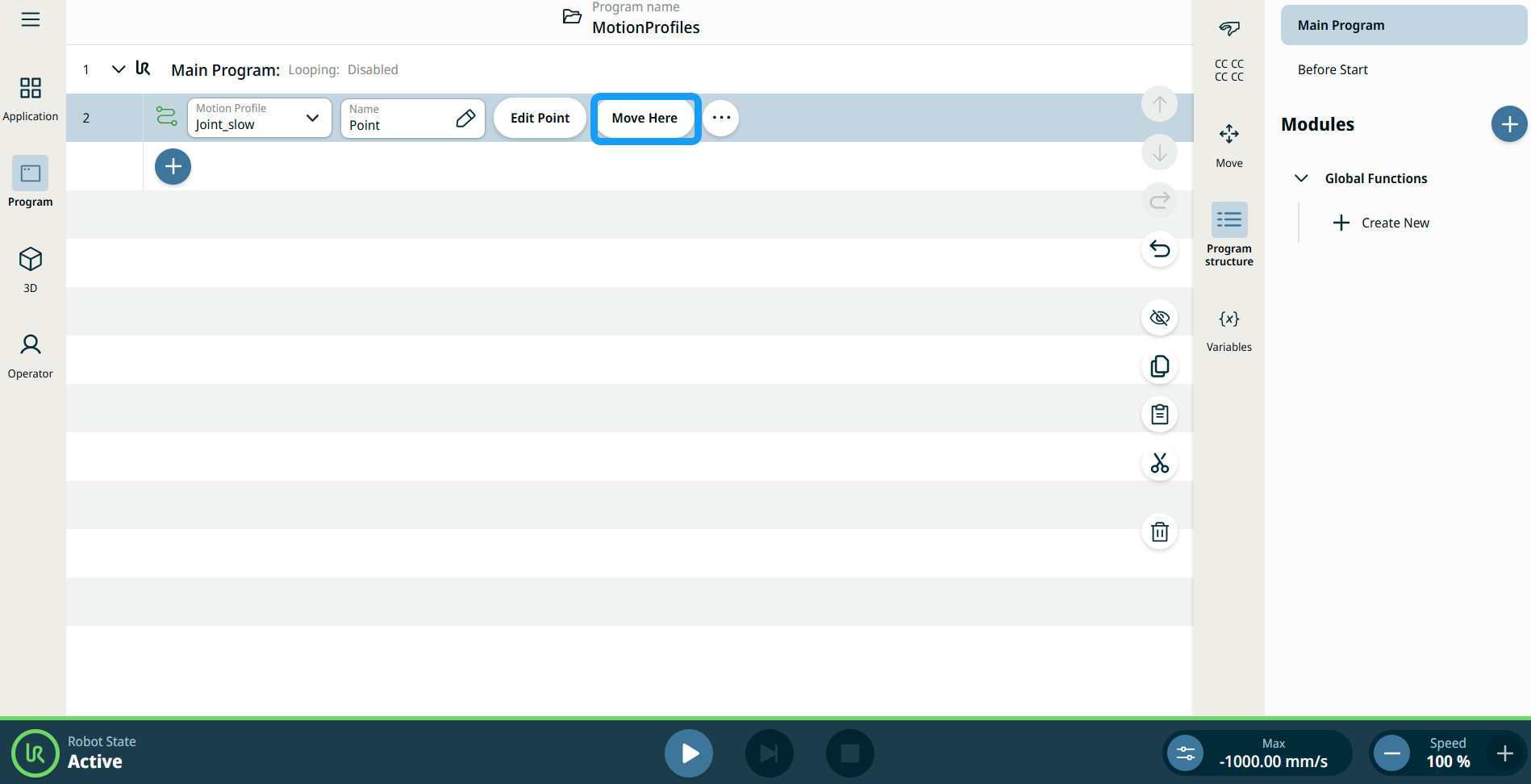
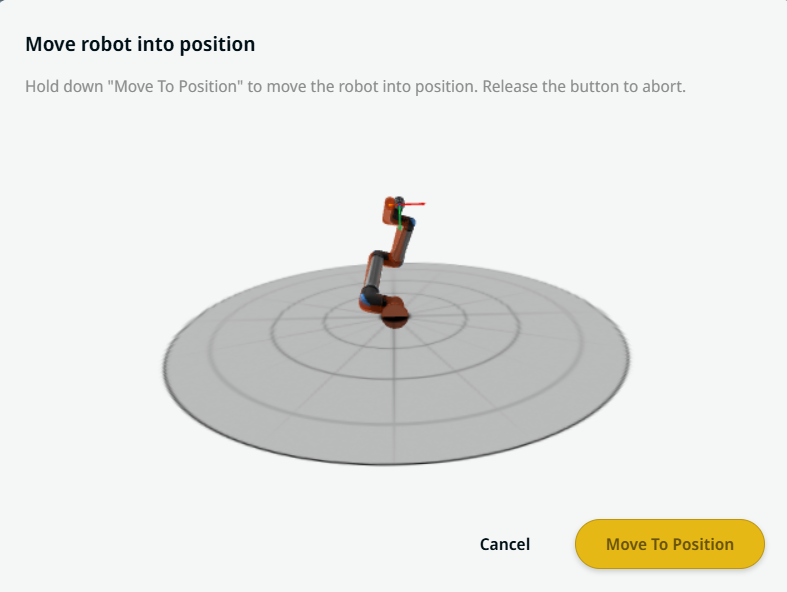
Flytt hit-knappen er tilgjengelig i kommandoene Lineær bevegelse og Leddbevegelse. Denne funksjonen gjør det mulig å gå direkte til posisjonen til et vendepunkt fra programtreet. Å trykke på Flytt her-knappen åpner Flytt roboten til posisjon-dialogen. Knappen er synlig når vendepunktet er lært, og er kun aktivert når robotens status er i Normal eller Redusert modus.


  1. Trykk på legg til ikon for å sette inn Lineær bevegelse og Leddbevegelse i kommandotreet.

  2. Trykk på Rediger punkt-knappen for den første flytt-noden i kommandotreet, enten det er Lineær bevegelse- eller Leddbevegelse-noder.

  3. Flytt roboten ved hjelp av pluss-minus-knappen i X-, Y-, Z-koordinatene. Tap Save.

  4. I den andre flytt-noden i kommandotreet, trykk på Flytt hit. Det ser ut til at en popup-skjerm aktiverer Flytt robot i posisjon. Trykk lenge på Flytt til posisjon. Trykk på OK.


Bevegelsesprofiletiketter på Flytt-noder

Alle Flytt-relaterte kommandonoder i programtreet viser Bevegelsesprofilen knyttet til hver node. Denne funksjonen gjør det mulig for brukere å se den valgte Bevegelsesprofilen på en Flytt-node. Denne funksjonen er implementert på følgende kommandonoder:

Flytt-noder med egendefinert bevegelsesprofil vil vise verdiene for hastighet og akselerasjon i stedet for Bevegelsesprofil.


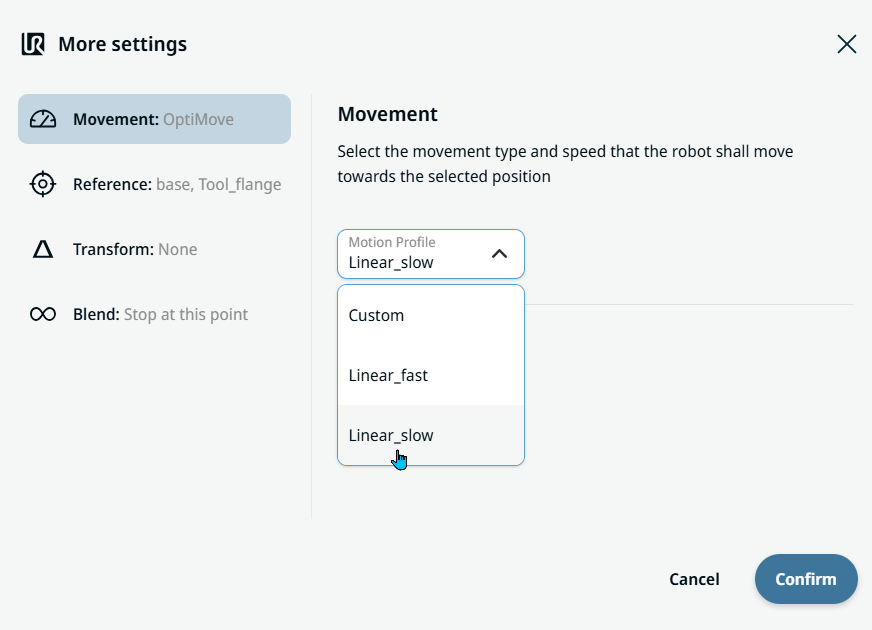
Movement setting
  1. Tap the Movement setting on the left side. A Motion Profile field with the following choices appears on the right side. Linear_slow is the default.

    • Tilpass

    • Linear_fast

    • Linear_slow

  2. If Custom is selected, three more fields appear:

    • Hastighetstype

    • Hastighet

    • Akselerasjon

  3. Choose either OptiMove or Classic when you tap Speed Type.

  4. Tap the Speed field, and the Value, Variable, and Expression tabs pop up.

  5. Enter data in each tab, and tap Confirm. See Value-Variable-Expression Tabs.

  6. Tap the Acceleration field, and the Value, Variable, and Expression tabs pop up.

  7. Enter data in each tab, and tap Confirm. See Value-Variable-Expression Tabs.

  8. When Linear_fast and Linear_slow are selected, the OptiMove speed and acceleration are shown.


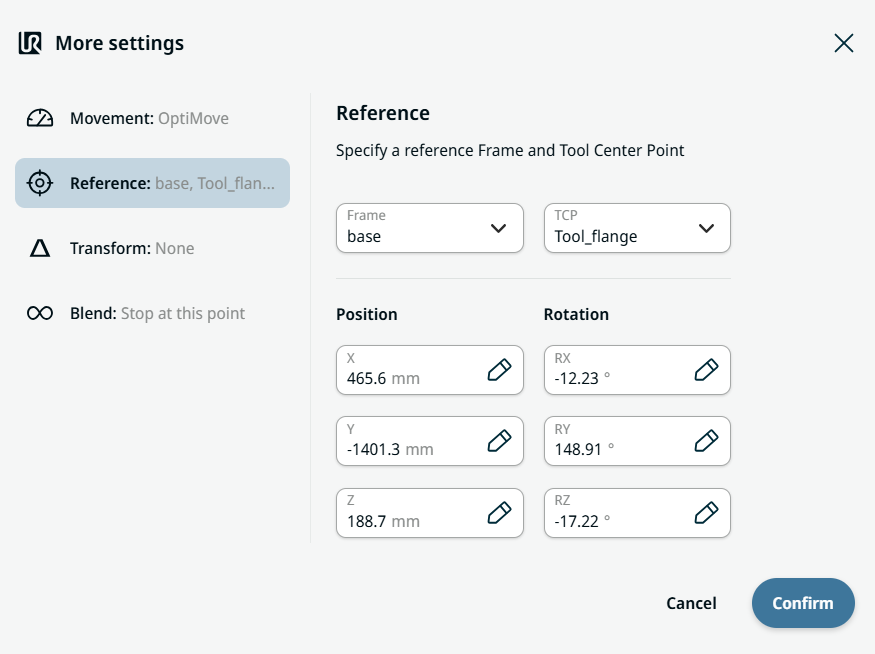
Reference setting
  1. Tap the Reference setting.

  2. Choose either Frame or TCP field.

  3. In the Frame field, four choices are available:

    • verden

    • base

    • flange

    • tcp

  4. In the TCP field, two choices are available:

    • Active_TCP

    • Tool_flange

  5. In the Position column, tap the X, Y, Z tabs and enter your chosen value for the robot, and Confirm.

  6. In the Rotation column, tap the RX, RY, RZ tabs and enter your chosen value for the robot, and Confirm.


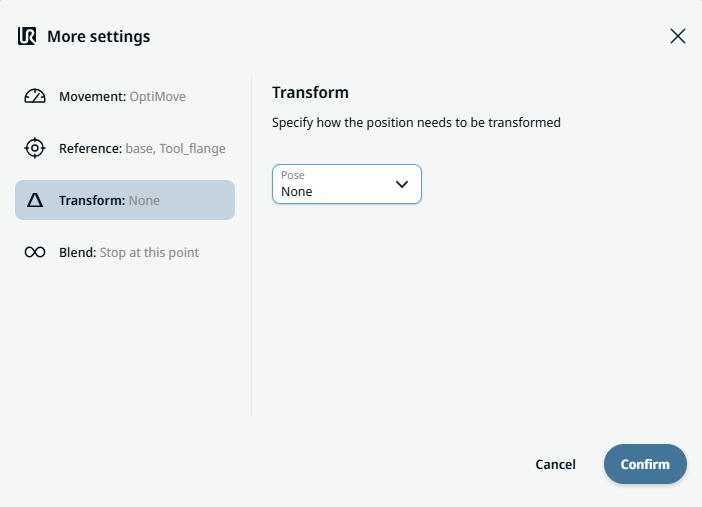
Transform setting
  1. Tap the Transform setting.

  2. Tap the Pose field and Confirm.


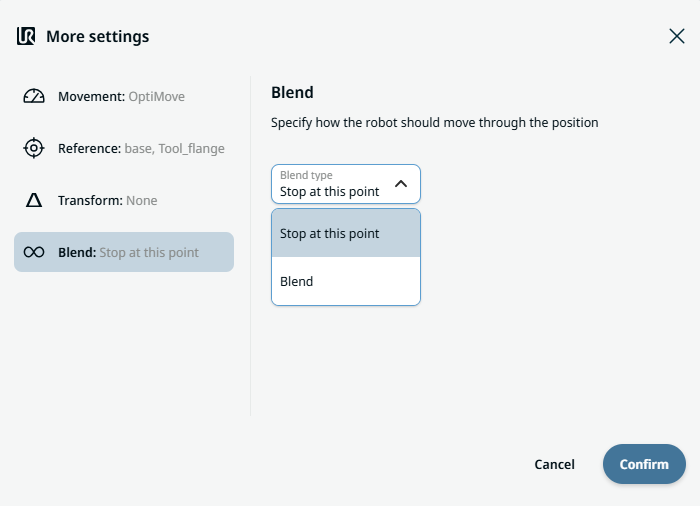
Blend setting

  1. Tap the Blend setting.

    A Blend type field appears with two options:

    • Stopp ved dette punktet

    • Blanding

  2. When you choose Stop at this point, no further action is needed but only Confirm.

  3. Tap Blend, and a Radius field is inserted.

  4. The Value, Variable, and Expression tabs pop up when you tap the Radius field.

  5. Enter data in each tab, and tap Confirm. See Value-Variable-Expression Tabs.

  6. To finish, tap Confirm in the More settings screen.