Joint Move

Beschrijving

The Joint Move is a move command node that supports Motion Profiles. The command creates a movement from point A to point B that is optimal for the robot. De beweging is misschien geen directe lijn tussen A en B, maar optimaal voor de start- en eindpositie van de gewrichten. Joint Move makes movements that are calculated in the robot arm joint space. Gewrichten worden geregeld om hun bewegingen tegelijkertijd te voltooien. Dit type beweging leidt tot een curvetraject voor het gereedschap om te volgen.


To access Joint Move command

  1. Go to the main program screen. See Command Nodes.

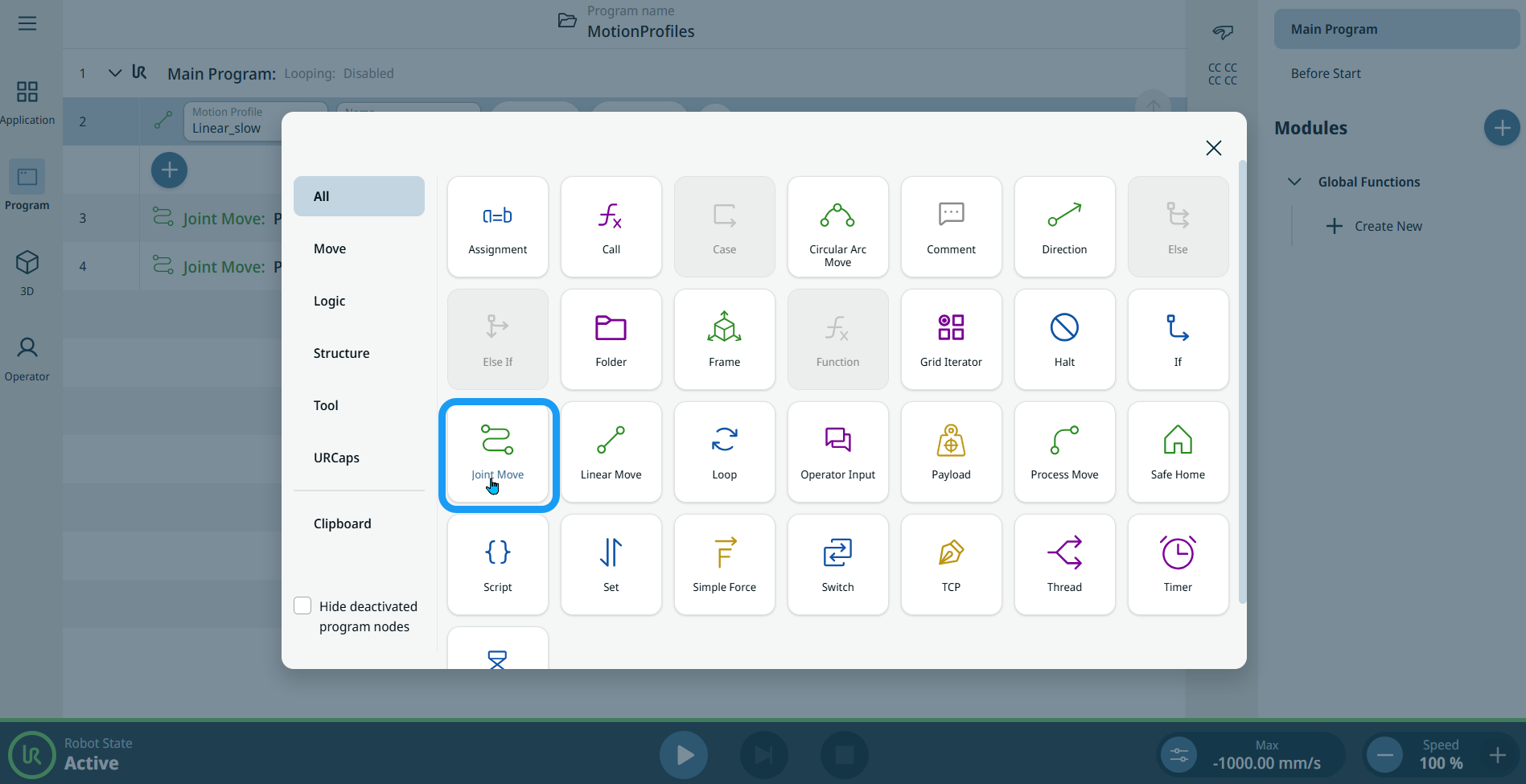
  2. Tap the Joint Move icon in the Commands toolbox.


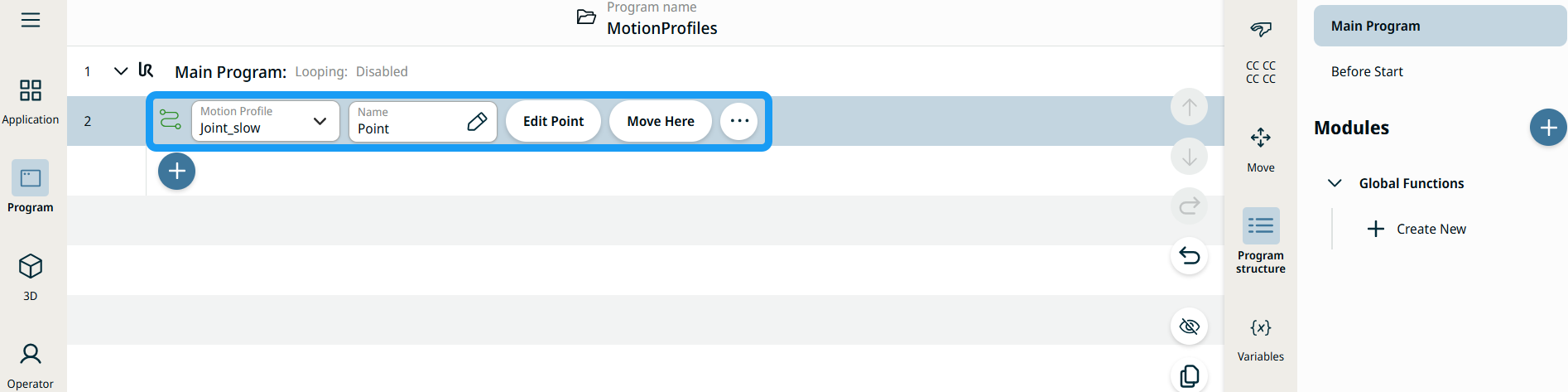
    A node with two editable fields, two buttons, and ellipsis icon is inserted into the program tree. These are two editable fields:

    • Motion Profile

    • Name

    These are the two buttons:

    • Edit Point

    • Move Here


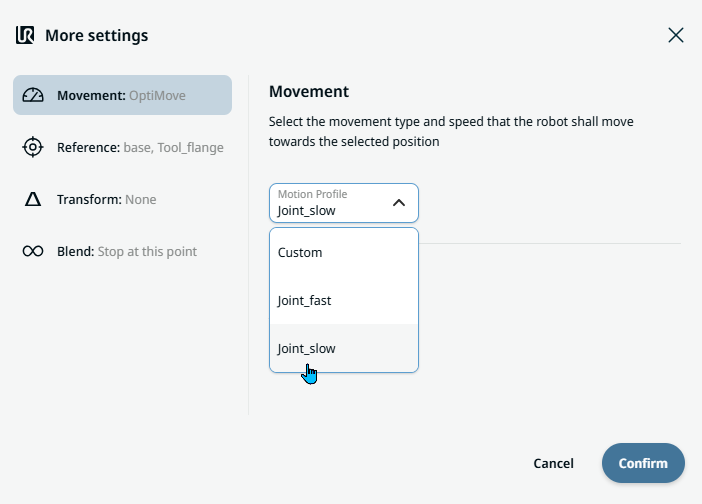
  1. Tap the Motion Profile field and select the pertinent from the three choices are available:

    • Aangepast

    • Joint_fast

    • Joint_slow

  2. Tap the Name field, and three tabs appear:

    • Value

    • Variable

    • Expressie

  3. Enter the data in the Value, Variable, and Expression tabs, and tap Confirm. See Value-Variable-Expression Tabs.

  4. Tap Edit Point. A new screen appears with the robot arm interface where you can jog the robot to the desired position.

  5. Tap More button.

    More settings screen appears with four settings:

    • Movement

    • Reference

    • Transform

    • Blend


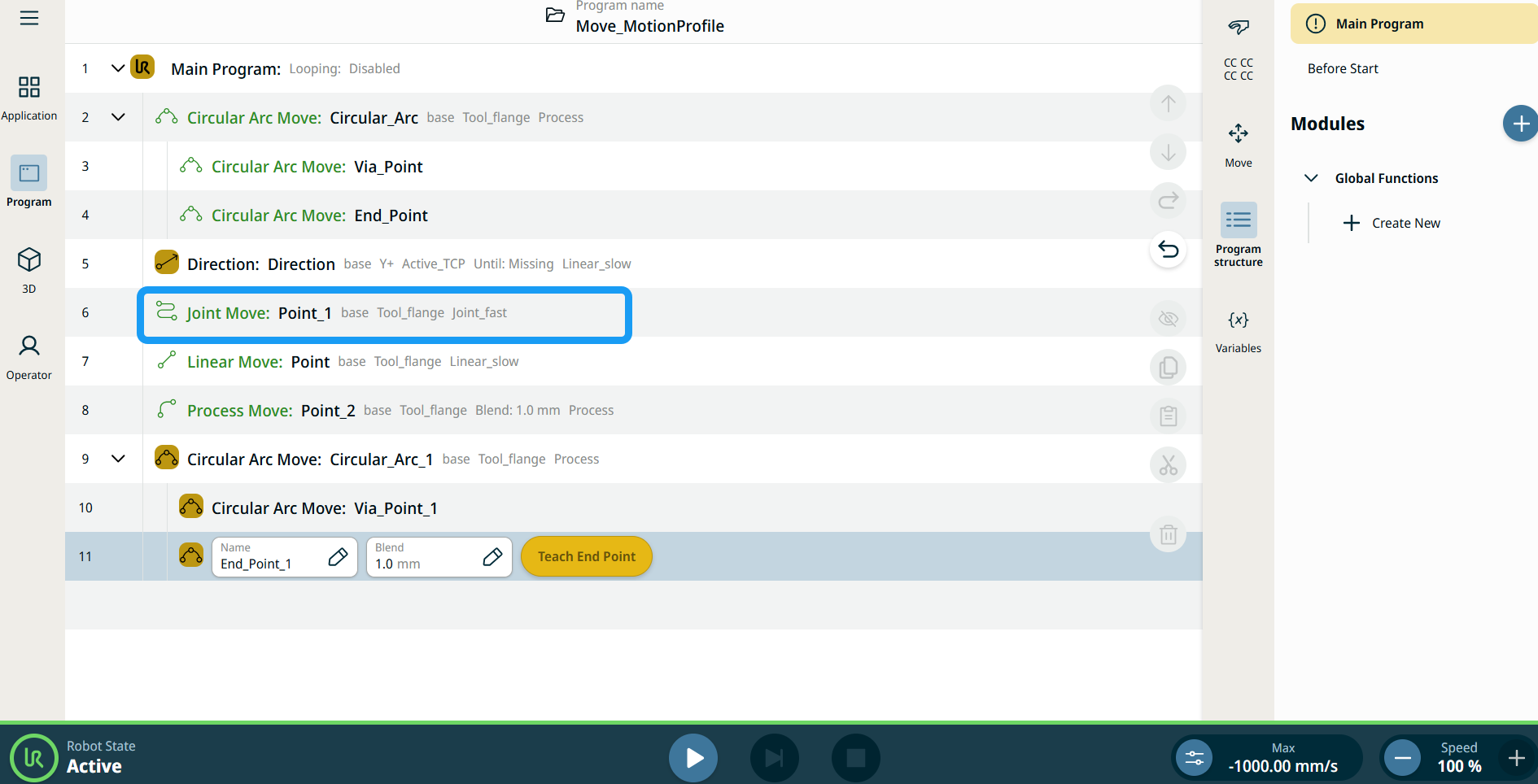
Bewegingsprofiellabels bij bewegingsnodes

Alle bewegingsgerelateerde commandonodes in de programmastructuur geven het Bewegingsprofiel behorende bij elke node weer. Met deze functie kunnen gebruikers het geselecteerde bewegingsprofiel van een bewegingsnode zien. Deze functie is geïmplementeerd voor de volgende commandonodes:

Bewegingsnodes met een aangepast bewegingsprofiel tonen de waarden voor snelheid en acceleratie in plaats van Bewegingsprofiel.


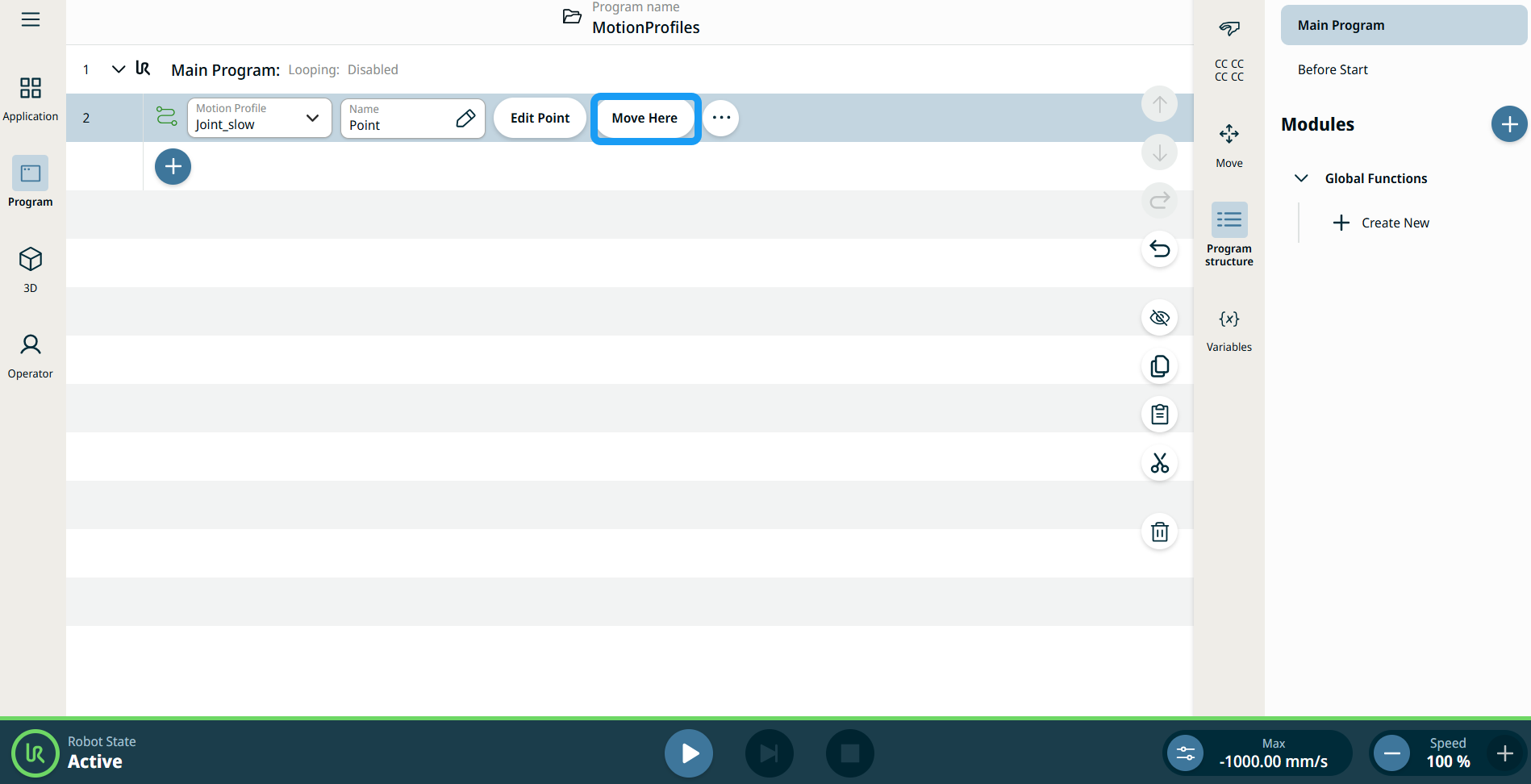
De knop Hierheen bewegen gebruiken

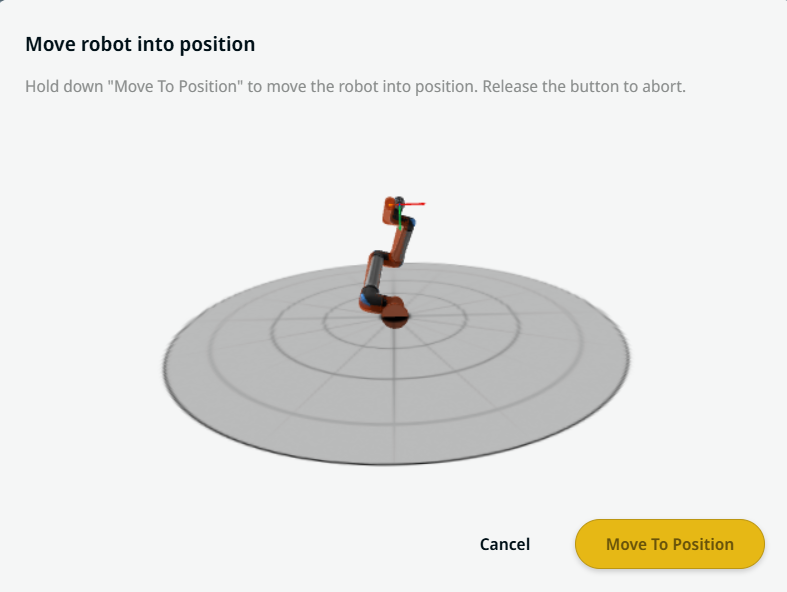
De knop Hierheen bewegen is te zien in Linear Move- en Joint Move-commando's. Met deze functie kunt u rechtstreeks vanuit de programmastructuur naar de positie van een waypoint bewegen. Door op de knop Hierheen bewegen te drukken, wordt het dialoogvenster Breng robot in positie geopend. De knop is zichtbaar als het waypoint is geprogrammeerd en is alleen ingeschakeld als de robotstatus de Normale of Verminderde modus is.


  1. Tik op het pictogram Toevoegen om de Lineaire beweging en Gewrichtsbeweging in te voegen in de commandostructuur.

  2. Tik op de knop Punt bewerken van de eerste bewegingsnode in de commandostructuur, of dat nu nodes van het type Lineaire beweging of van het type Gewrichtsbeweging zijn.

  3. Jog de robot met de plus-minknop in de X-, Y- en Z-coördinaat. Tap Save.

  4. Tik bij de tweede bewegingsnode in de commandostructuur op Hierheen bewegen. Er verschijnt een pop-upscherm om Breng robot in positie in te schakelen. Druk lang op Naar positie bewegen Tik op OK.


Movement setting
  1. Tap the Movement setting on the left side. A Motion Profile field with the following choices appears on the right side. Joint_slow is the default.

    • Aangepast

    • Joint_fast

    • Joint_slow

  2. If Custom is selected, three more fields appear:

    • Speed Type

    • Snelheid

    • Acceleration

  3. Choose either OptiMove or Classic when you tap Speed Type.

  4. Tap the Speed field, and the Value, Variable, and Expression tabs pop up.

  5. Enter data in each tab, and tap Confirm. See Value-Variable-Expression Tabs.

  6. Tap the Acceleration field, and the Value, Variable, and Expression tabs pop up.

  7. Enter data in each tab, and tap Confirm. See Value-Variable-Expression Tabs.

  8. When Joint_fast and Joint_slow are selected, the OptiMove speed and acceleration are shown.


Reference setting
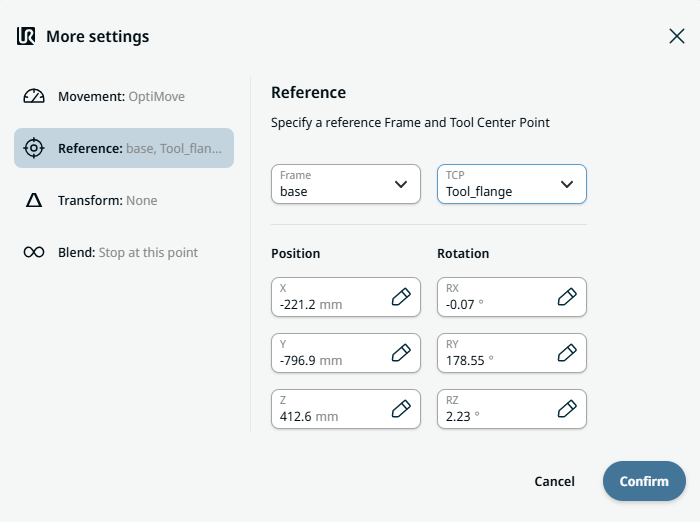
  1. Tap the Reference setting.

  2. Choose either Frame or TCP field.

    In the Frame field, four choices are available:

    • world

    • base

    • flange

    • tcp

    In the TCP field, two choices are available:

    • Active_TCP

    • Tool_flange

  3. In the Position column, tap the X, Y, Z tabs and enter your chosen value for the robot, and Confirm.

  4. In the Rotation column, tap the RX, RY, RZ tabs and enter your chosen value for the robot, and Confirm.


Transform setting
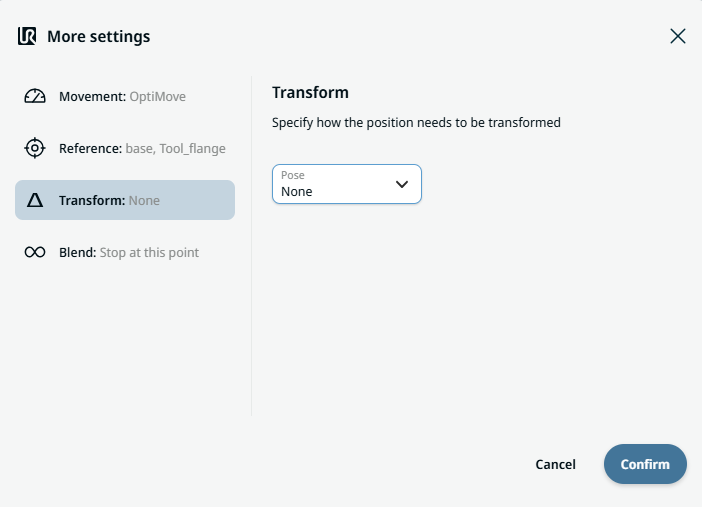
  1. Tap the Transform setting.

  2. Tap the Pose field and Confirm.


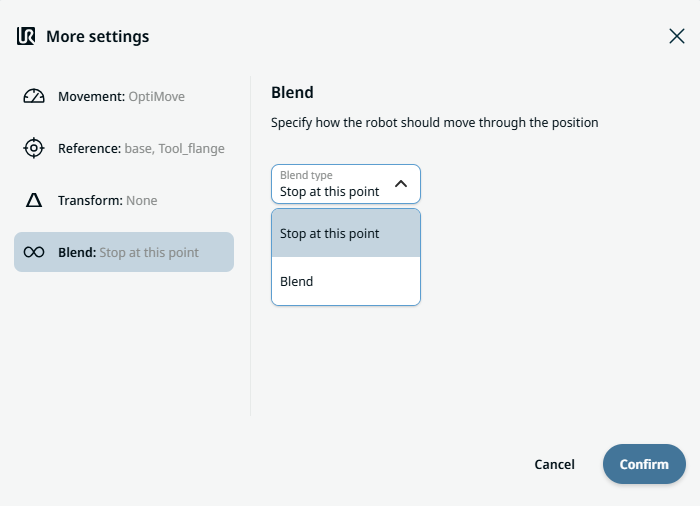
Blend setting

  1. Tap the Blend setting.

    A Blend type field appears with two options:

    • Stoppen bij dit punt

    • Blend

  2. When you choose Stop at this point, no further action is needed but only Confirm.

  3. Tap Blend, and a Radius field is inserted.

  4. The Value, Variable, and Expression tabs pop up when you tap the Radius field.

  5. Enter data in each tab, and tap Confirm. See Value-Variable-Expression Tabs.

  6. To finish, tap Confirm in the More settings screen.