선형 이동

설명

The Linear Move command node supports Motions Profiles as Joint Move, but it creates a movement that is a direct line from point A and point B. It moves the Tool Center Point (TCP) linearly between waypoints. 즉, 각 조인트는 공구를 직선 경로로 유지하기 위해 더 복잡한 동작을 수행합니다.


To access Linear Move command

  1. Go to the main program screen. Command Nodes를 참조하십시오.

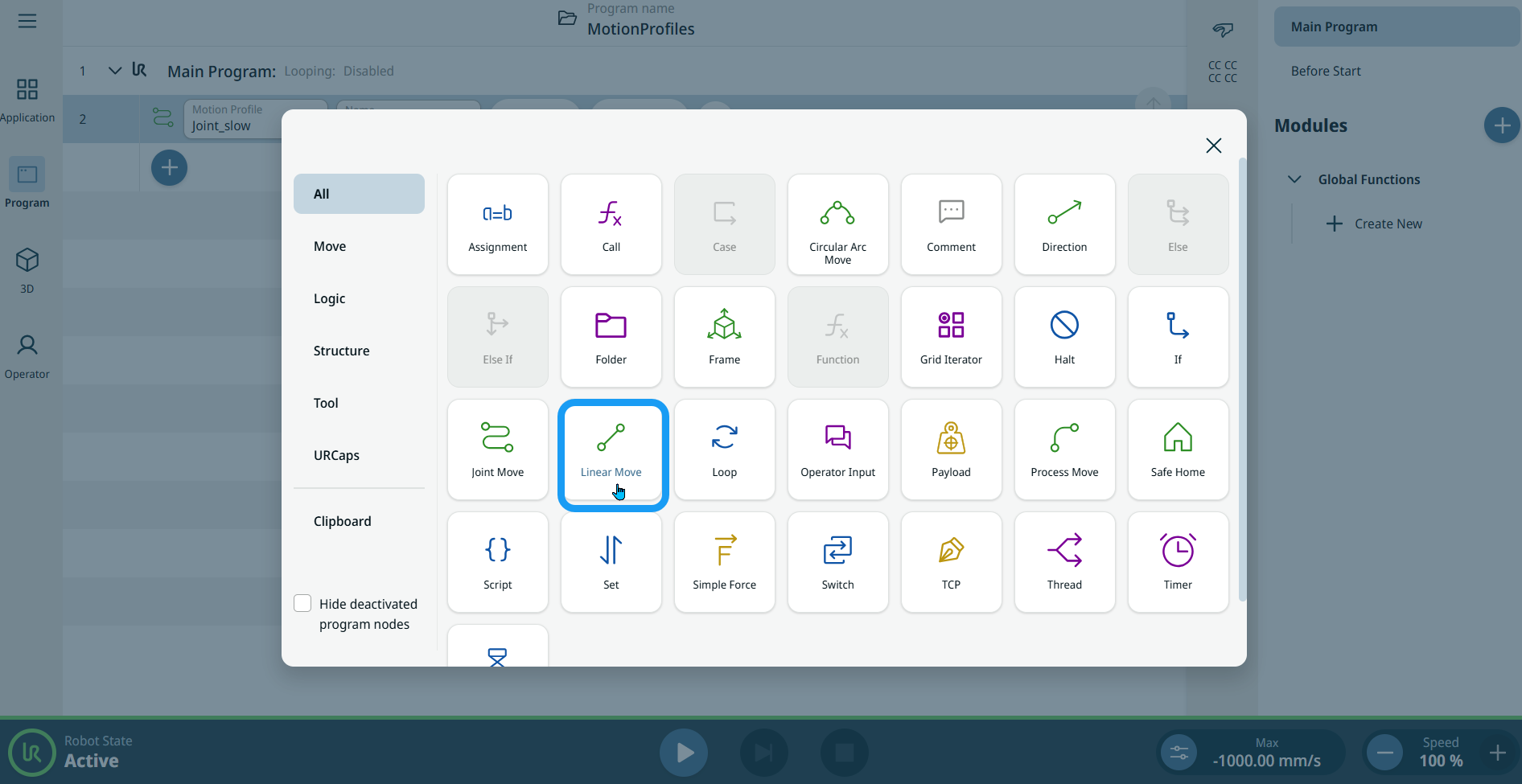
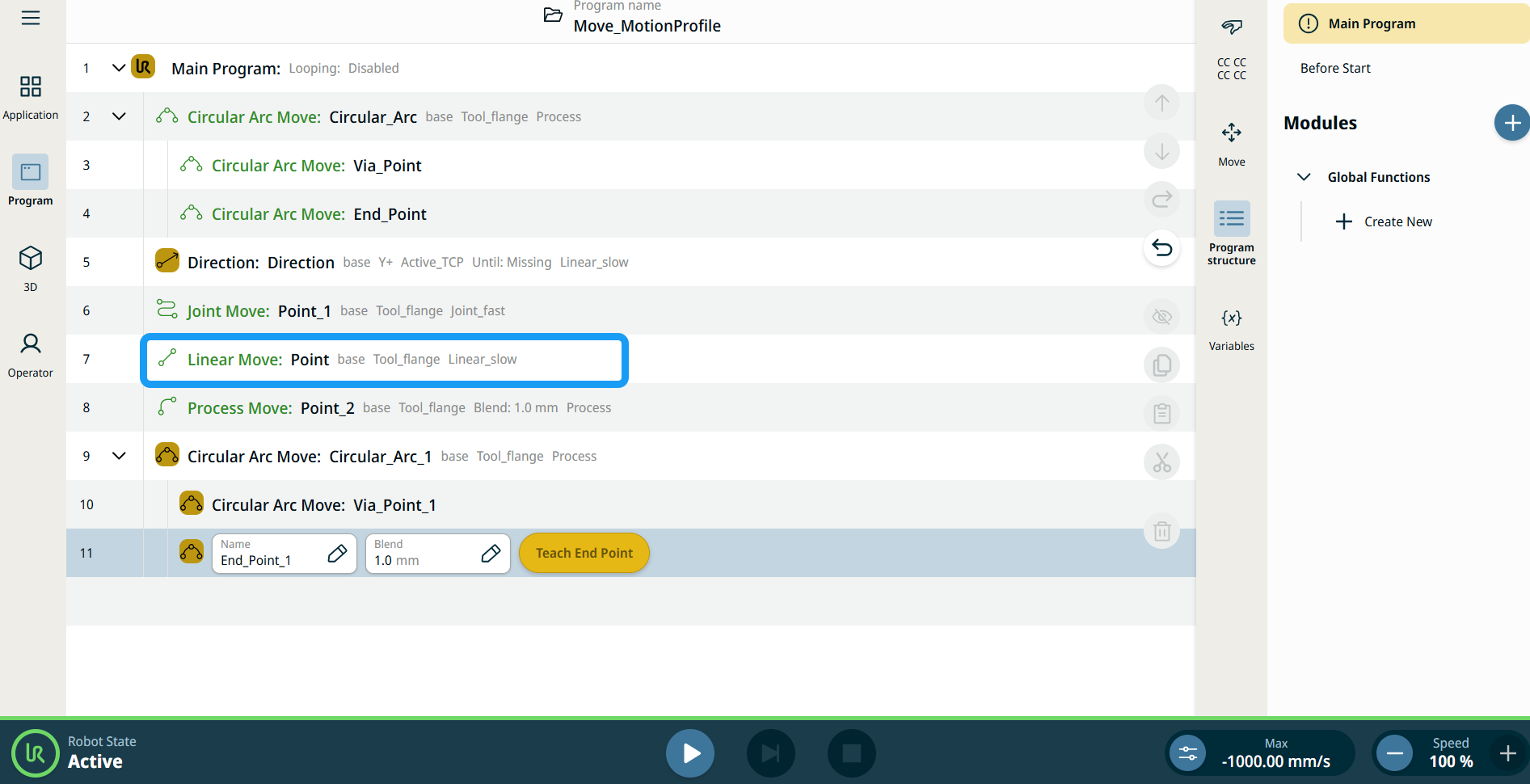
  2. Tap the Linear Move icon in the Commands toolbox.

    A node with two editable fields, two buttons, and ellipsis icon is inserted into the program tree. These are two editable fields:

    • 모션 프로필

    • 이름

    These are the three buttons:

    • 포인트 편집

    • 여기로 이동

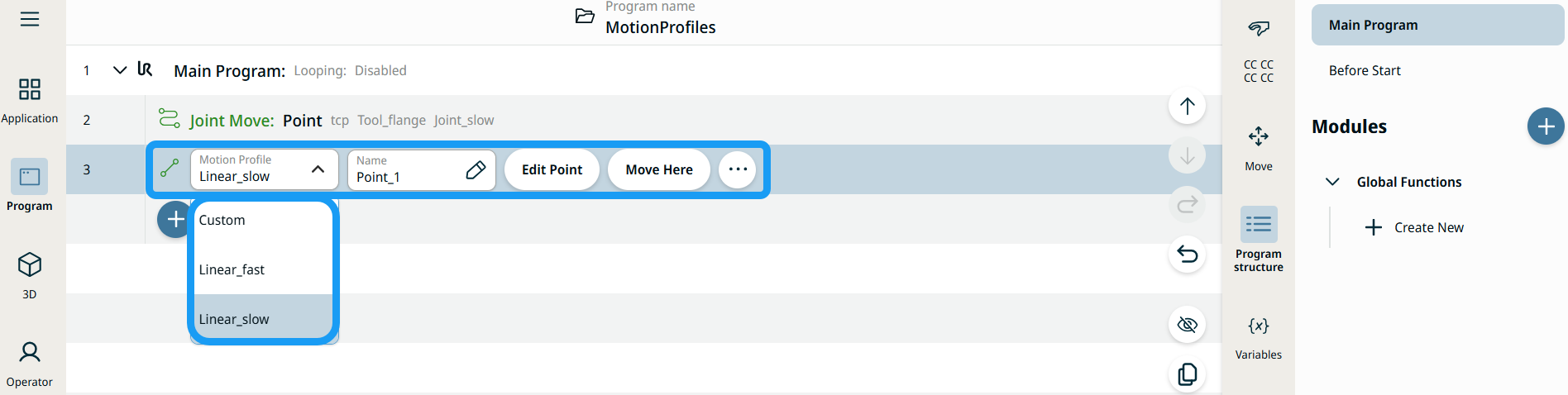
  3. Tap the Motion Profile field and select the pertinent from the three choices are available:

    • 커스텀

    • Linear_fast

    • Linear_slow


  1. Tap the Name field, and three tabs appear:

    • 변수

    • 표현식

  2. Enter the data in the Value, Variable, and Expression tabs, and tap Confirm. See Value-Variable-Expression Tabs.

  3. Tap Edit Point. A new screen appears with the robot arm interface.

  4. Tap More button. The More settings screen appears with four settings:

    • 이동

    • 참조

    • 변환

    • 혼합


여기로 이동 버튼 사용

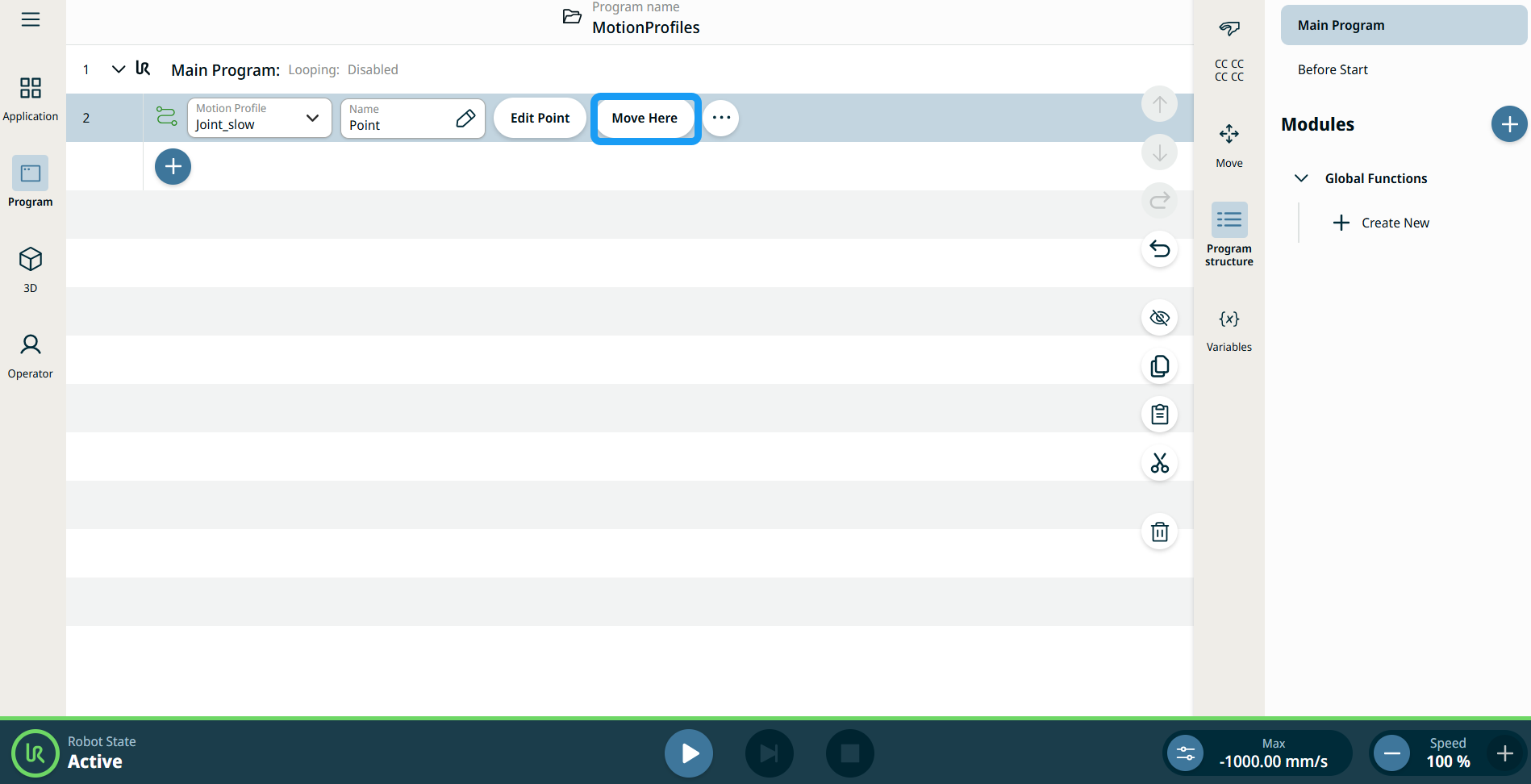
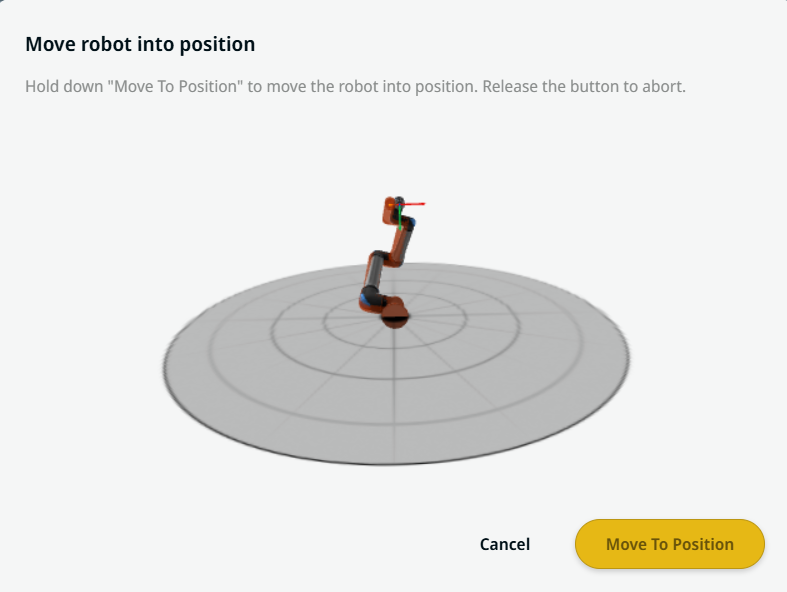
여기로 이동 버튼은 선형 이동조인트 이동 명령에 표시됩니다. 이 기능을 사용하면 프로그램 트리에서 웨이포인트 위치로 바로 이동할 수 있습니다. 여기로 이동 버튼을 누르면 위치로 로봇 이동 대화 상자가 열립니다. 이 버튼은 웨이포인트를 티칭한 경우 표시되며, 로봇 상태가 정상 또는 감소 모드일 때만 활성화됩니다.


  1. 추가 아이콘을 탭하여 명령 트리에서 선형 이동 및 조인트 이동을 삽입합니다.

  2. 명령 트리에서 첫 번째 이동 노드(선형 이동 또는 조인트 이동 노드)의 포인트 편집 버튼을 탭합니다.

  3. X, Y, Z 좌표에서 더하기/빼기 버튼을 사용하여 로봇을 조그합니다. Tap Save.

  4. 명령 트리의 두 번째 이동 노드에서 여기로 이동을 탭합니다. 위치로 로봇 이동을 활성화할 수 있는 팝업 화면이 나타납니다. 위치로 이동을 길게 탭합니다. 확인을 탭합니다.


이동 노드의 모션 프로필 레이블

프로그램 트리의 모든 이동 관련 명령 노드에는 각 노드와 연결된 모션 프로필이 표시됩니다. 이 기능을 통해 사용자는 선택한 모션 프로필을 이동 노드에서 확인할 수 있습니다. 이 기능은 다음과 같은 명령 노드에서 구현됩니다.

커스텀 모션 프로필이 있는 이동 노드에는 모션 프로필 대신 속도 및 가속도 값이 표시됩니다.


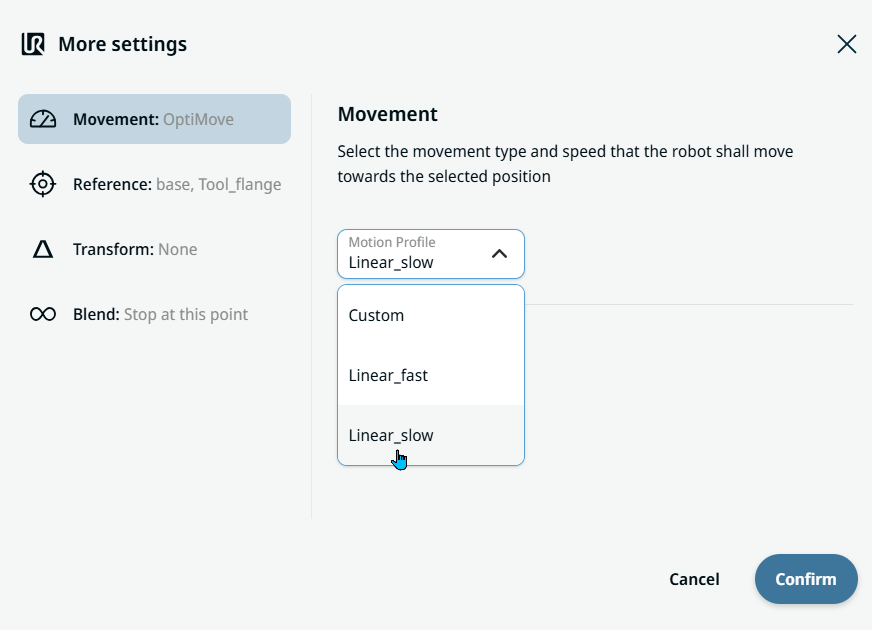
Movement setting
  1. Tap the Movement setting on the left side. A Motion Profile field with the following choices appears on the right side. Linear_slow is the default.

    • 커스텀

    • Linear_fast

    • Linear_slow

  2. If Custom is selected, three more fields appear:

    • 속도 유형

    • 속도

    • 가속도

  3. Choose either OptiMove or Classic when you tap Speed Type.

  4. Tap the Speed field, and the Value, Variable, and Expression tabs pop up.

  5. Enter data in each tab, and tap Confirm. See Value-Variable-Expression Tabs.

  6. Tap the Acceleration field, and the Value, Variable, and Expression tabs pop up.

  7. Enter data in each tab, and tap Confirm. See Value-Variable-Expression Tabs.

  8. When Linear_fast and Linear_slow are selected, the OptiMove speed and acceleration are shown.


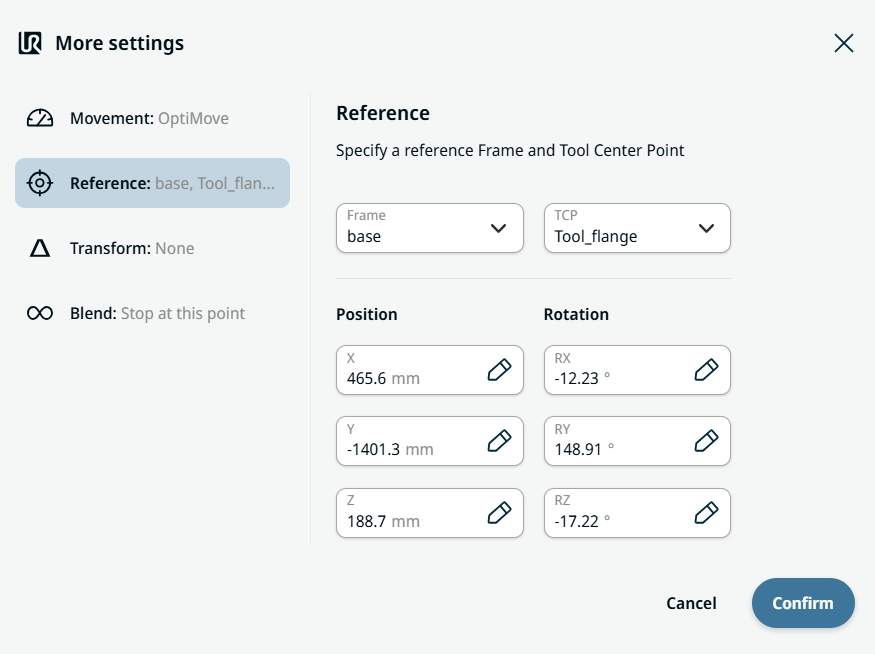
Reference setting
  1. Tap the Reference setting.

  2. Choose either Frame or TCP field.

  3. In the Frame field, four choices are available:

    • 월드

    • 베이스

    • flange

    • tcp

  4. In the TCP field, two choices are available:

    • Active_TCP

    • Tool_flange

  5. In the Position column, tap the X, Y, Z tabs and enter your chosen value for the robot, and Confirm.

  6. In the Rotation column, tap the RX, RY, RZ tabs and enter your chosen value for the robot, and Confirm.


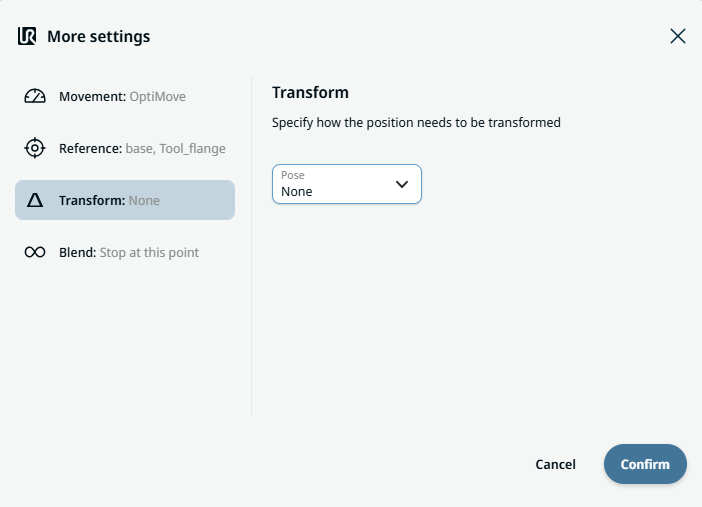
Transform setting
  1. Tap the Transform setting.

  2. Tap the Pose field and Confirm.


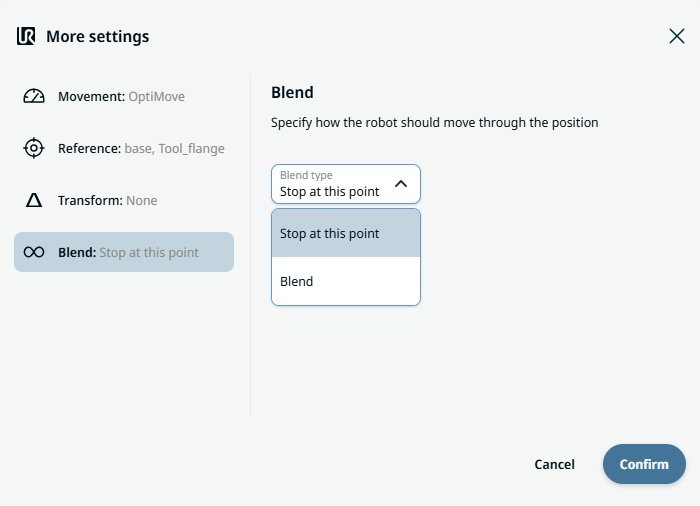
Blend setting

  1. Tap the Blend setting.

    A Blend type field appears with two options:

    • 이 포인트에서 정지

    • 혼합

  2. When you choose Stop at this point, no further action is needed but only Confirm.

  3. Tap Blend, and a Radius field is inserted.

  4. The Value, Variable, and Expression tabs pop up when you tap the Radius field.

  5. Enter data in each tab, and tap Confirm. See Value-Variable-Expression Tabs.

  6. To finish, tap Confirm in the More settings screen.