Joint Move

Popis

The Joint Move is a move command node that supports Motion Profiles. The command creates a movement from point A to point B that is optimal for the robot. Pohyb nemusí být přímka mezi body A a B, ale je optimální s ohledem na počáteční polohu kloubů a koncovou polohu kloubů. Joint Move makes movements that are calculated in the robot arm joint space. Klouby jsou ovládány tak, aby dokončily svůj pohyb ve stejnou dobu. Výsledkem tohoto typu pohybu je zakřivená dráha, po které se nástroj pohybuje.


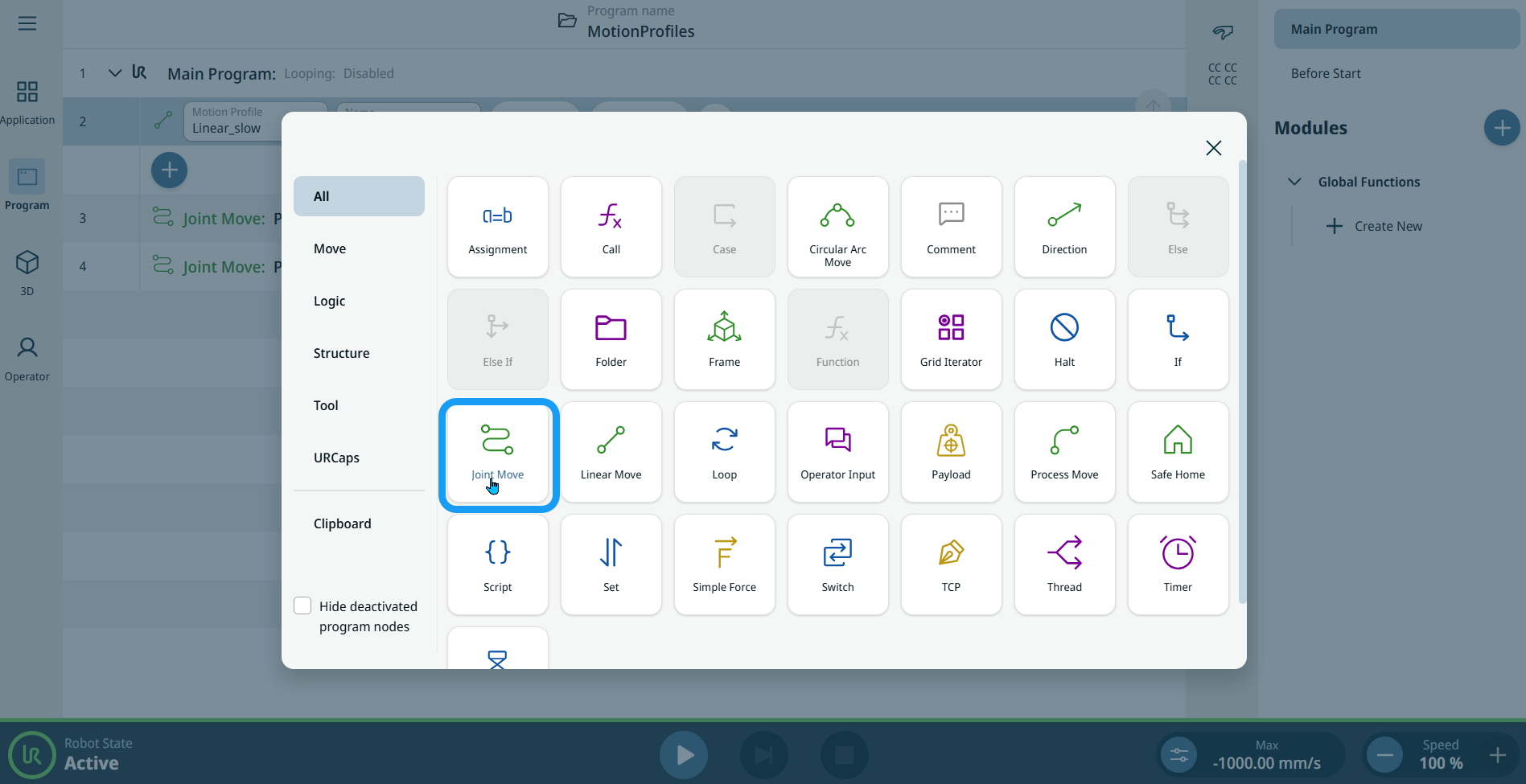
To access Joint Move command

  1. Go to the main program screen. See Command Nodes.

  2. Tap the Joint Move icon in the Commands toolbox.


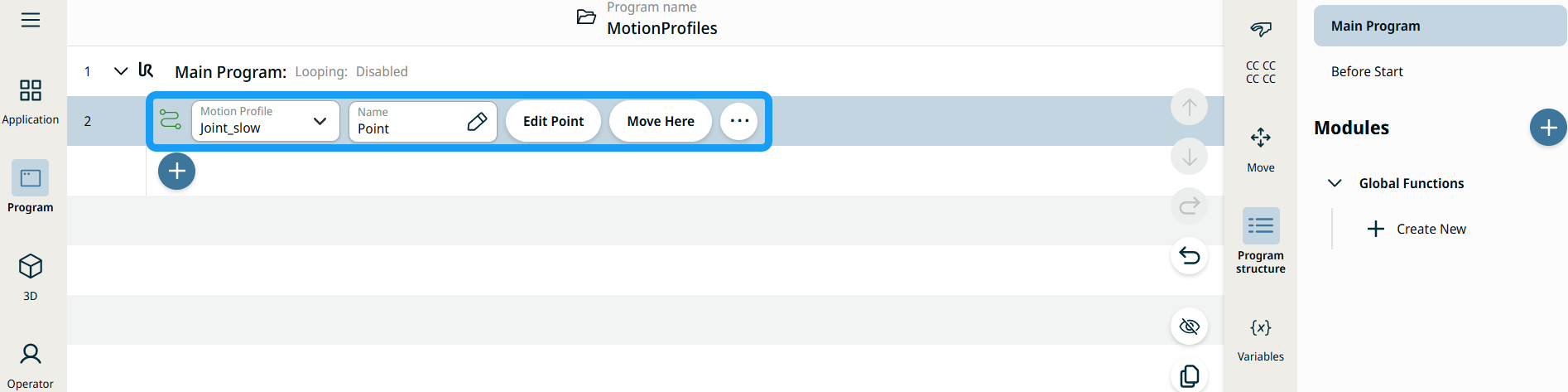
    A node with two editable fields, two buttons, and ellipsis icon is inserted into the program tree. These are two editable fields:

    • Motion Profile

    • Name

    These are the two buttons:

    • Edit Point

    • Move Here


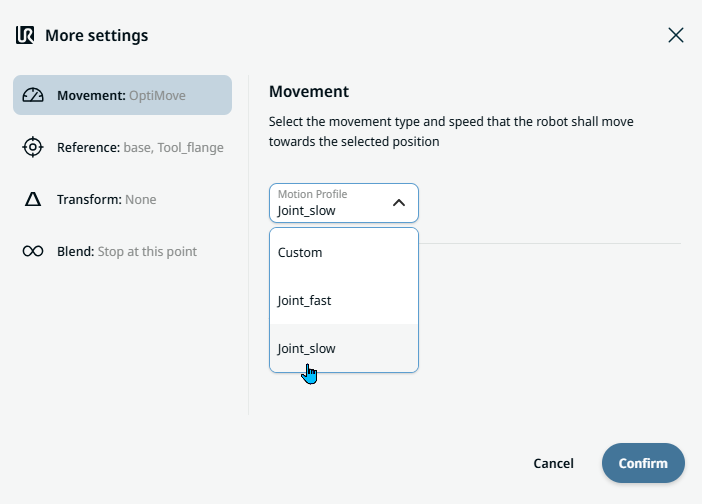
  1. Tap the Motion Profile field and select the pertinent from the three choices are available:

    • Vlastní

    • Joint_fast

    • Joint_slow

  2. Tap the Name field, and three tabs appear:

    • Value

    • Variable

    • Výraz

  3. Enter the data in the Value, Variable, and Expression tabs, and tap Confirm. See Value-Variable-Expression Tabs.

  4. Tap Edit Point. A new screen appears with the robot arm interface where you can jog the robot to the desired position.

  5. Tap More button.

    More settings screen appears with four settings:

    • Movement

    • Reference

    • Transform

    • Blend


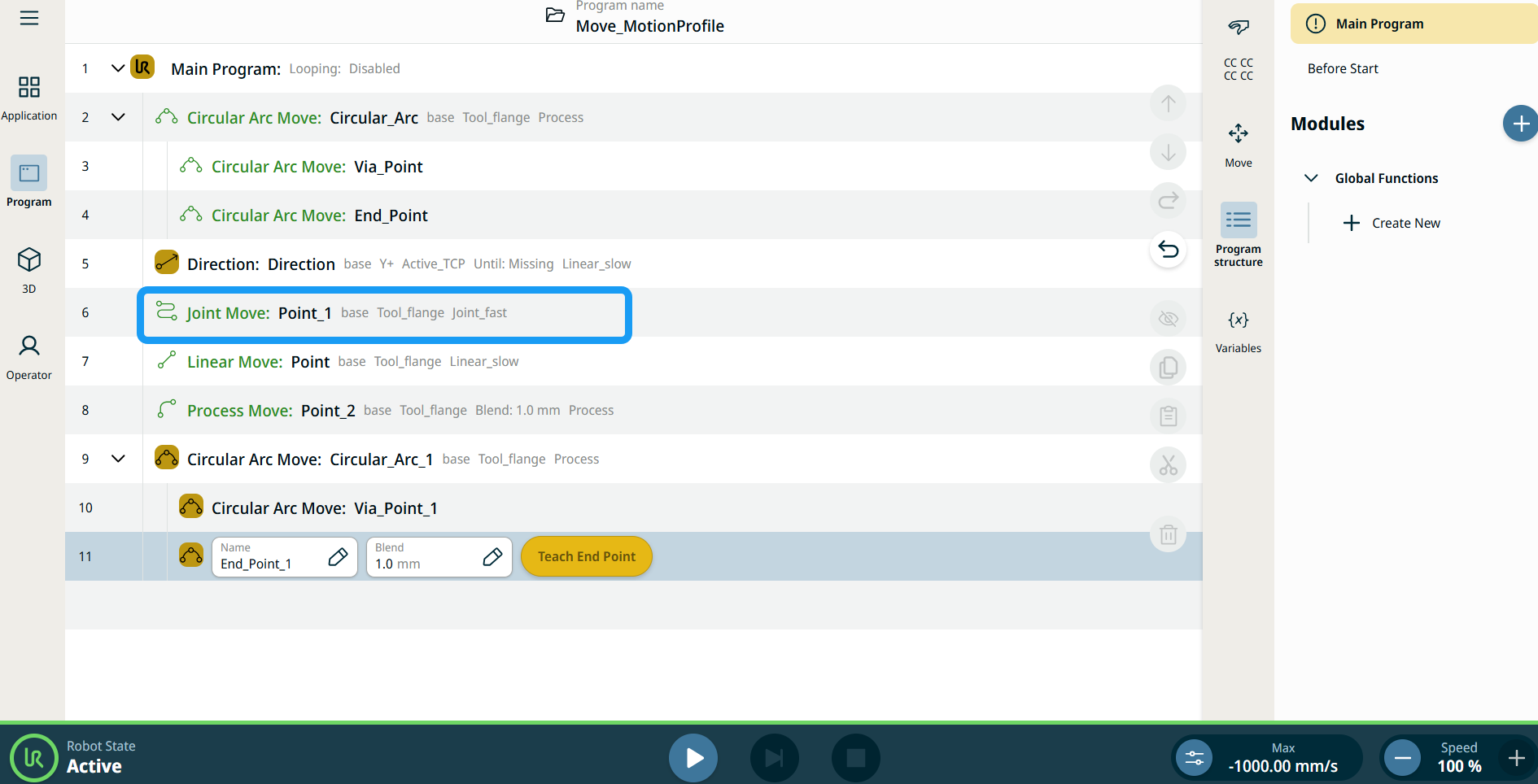
Štítky profilu pohybu na uzlech pohybu

Všechny příkazové uzly související s pohybem ve stromu programu zobrazují profil pohybu přidružený ke každému uzlu. Tato funkce uživatelům umožňuje zobrazit vybraný profil pohybu na uzlu pohybu. Tato funkce je implementována na následujících uzlech příkazů:

Uzly pohybu s vlastním profilem pohybu budou místo profilu pohybu zobrazovat hodnoty rychlosti a zrychlení.


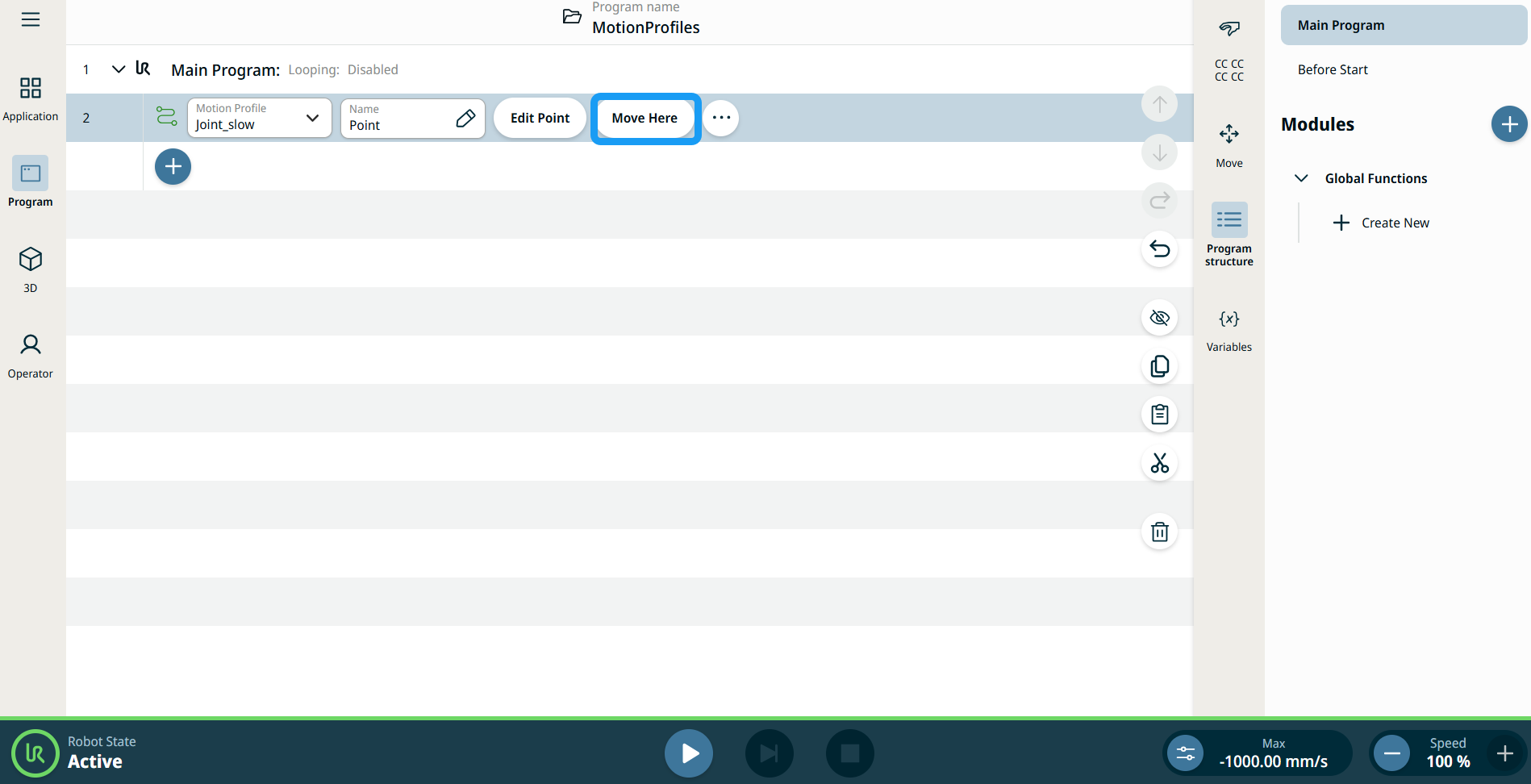
Jak používat tlačítko Přesunout sem

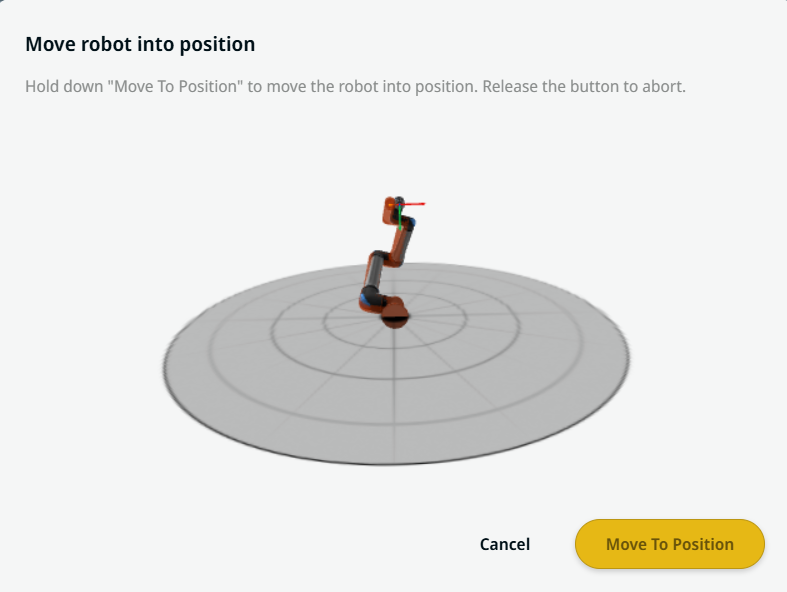
Tlačítko Přesunout sem je k dispozici v příkazech Linear MoveJoint Move. Tato funkce umožňuje přesunout se na pozici trasového bodu přímo ze stromové struktury programu. Stisknutím tlačítka Přesunout sem se otevře dialogové okno Přesunout robota do polohy. Tlačítko je viditelné, když byl nastaven bod trasy, a je aktivní pouze v případě, že je robot v režimu Normální nebo Omezený.


  1. Pro vložení příkazu „Lineární pohyb“ a „Pohyb kloubu“ do stromu příkazů klepněte na ikonu přidat.

  2. Klepněte na tlačítko Upravit bod u prvního uzlu pohybu ve stromu příkazů, ať už se jedná o uzel lineárního pohybu nebo pohybu kloubu.

  3. Pohybujte robotem pomocí tlačítek plus-mínus na souřadnicích X, Y, Z. Tap Save.

  4. Ve druhém uzlu pohybu ve stromu příkazů klepněte na Přesunout sem. Zobrazí se vyskakovací okno, které umožňuje aktivovat Přesun robota do polohy. Dlouze klepněte na Přesunout do polohy. Klepněte na OK.


Movement setting
  1. Tap the Movement setting on the left side. A Motion Profile field with the following choices appears on the right side. Joint_slow is the default.

    • Vlastní

    • Joint_fast

    • Joint_slow

  2. If Custom is selected, three more fields appear:

    • Speed Type

    • Rychlost

    • Acceleration

  3. Choose either OptiMove or Classic when you tap Speed Type.

  4. Tap the Speed field, and the Value, Variable, and Expression tabs pop up.

  5. Enter data in each tab, and tap Confirm. See Value-Variable-Expression Tabs.

  6. Tap the Acceleration field, and the Value, Variable, and Expression tabs pop up.

  7. Enter data in each tab, and tap Confirm. See Value-Variable-Expression Tabs.

  8. When Joint_fast and Joint_slow are selected, the OptiMove speed and acceleration are shown.


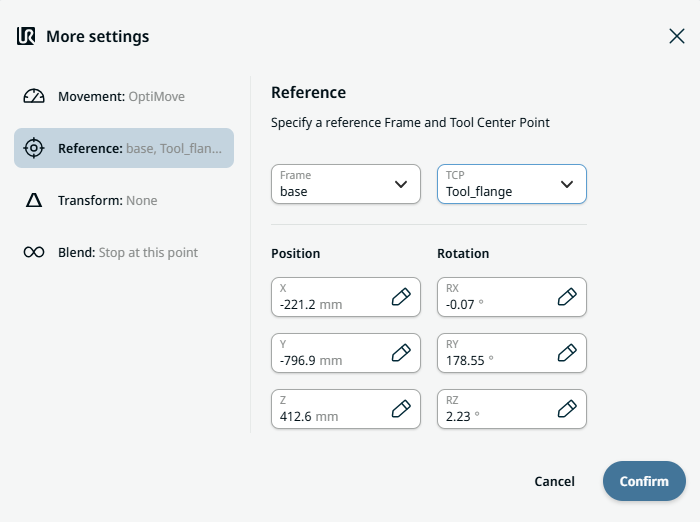
Reference setting
  1. Tap the Reference setting.

  2. Choose either Frame or TCP field.

    In the Frame field, four choices are available:

    • world

    • base

    • flange

    • tcp

    In the TCP field, two choices are available:

    • Active_TCP

    • Tool_flange

  3. In the Position column, tap the X, Y, Z tabs and enter your chosen value for the robot, and Confirm.

  4. In the Rotation column, tap the RX, RY, RZ tabs and enter your chosen value for the robot, and Confirm.


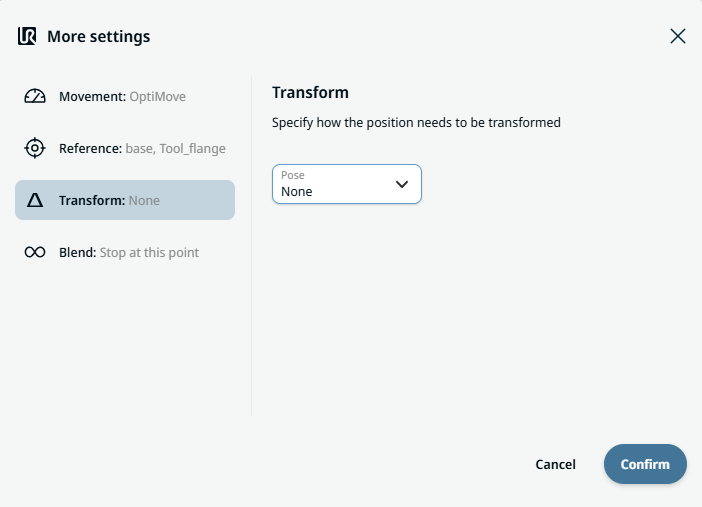
Transform setting
  1. Tap the Transform setting.

  2. Tap the Pose field and Confirm.


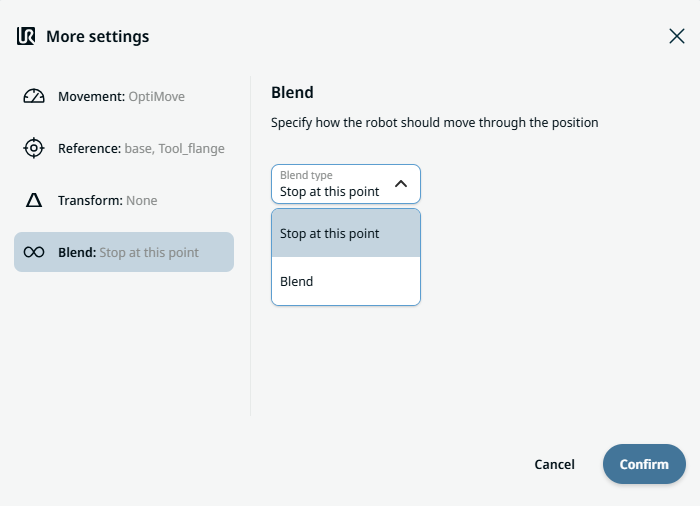
Blend setting

  1. Tap the Blend setting.

    A Blend type field appears with two options:

    • Zastavit v tomto bodě

    • Blend

  2. When you choose Stop at this point, no further action is needed but only Confirm.

  3. Tap Blend, and a Radius field is inserted.

  4. The Value, Variable, and Expression tabs pop up when you tap the Radius field.

  5. Enter data in each tab, and tap Confirm. See Value-Variable-Expression Tabs.

  6. To finish, tap Confirm in the More settings screen.