Payload Range

Description

Payload Range lets you define the allowed payload and center of gravity in the safety configuration. This keeps the robot operating safely by restricting which payloads are available for a given application. The default payload range exceeds the robot model's rated capacity, so normal operation does not trigger a safety violation.


To configure Payload Range

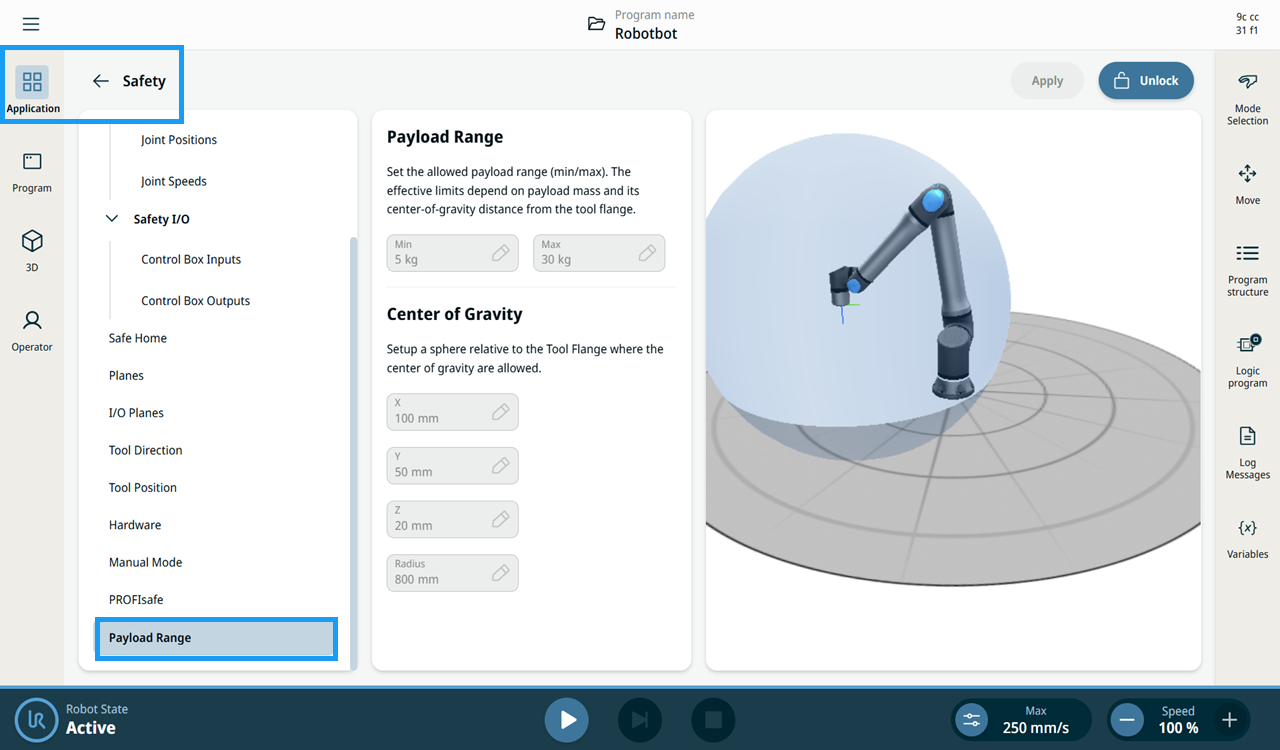
  1. In the Application tab, tap Safety.

  2. Scroll down the Safety panel menu and select Payload Range.


    Payload Range limit settings page in the Safety Configuration
  3. Tap Unlock, and then enter the safety password.

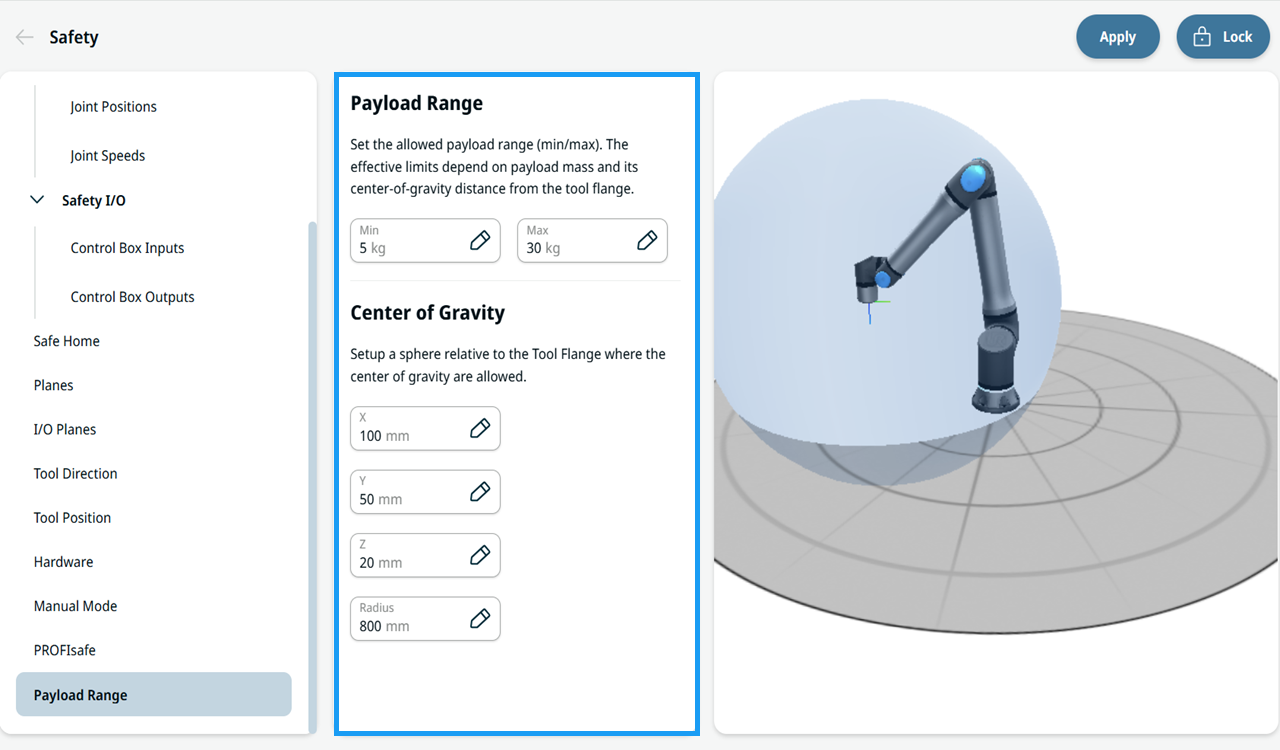
  4. The fields for Payload Range and Center of Gravity become active. Enter a value in each field based on your application specifications.

     
    Payload Range and Center of Gravity fields


  1. Tap Apply, and then tap Apply and restart.

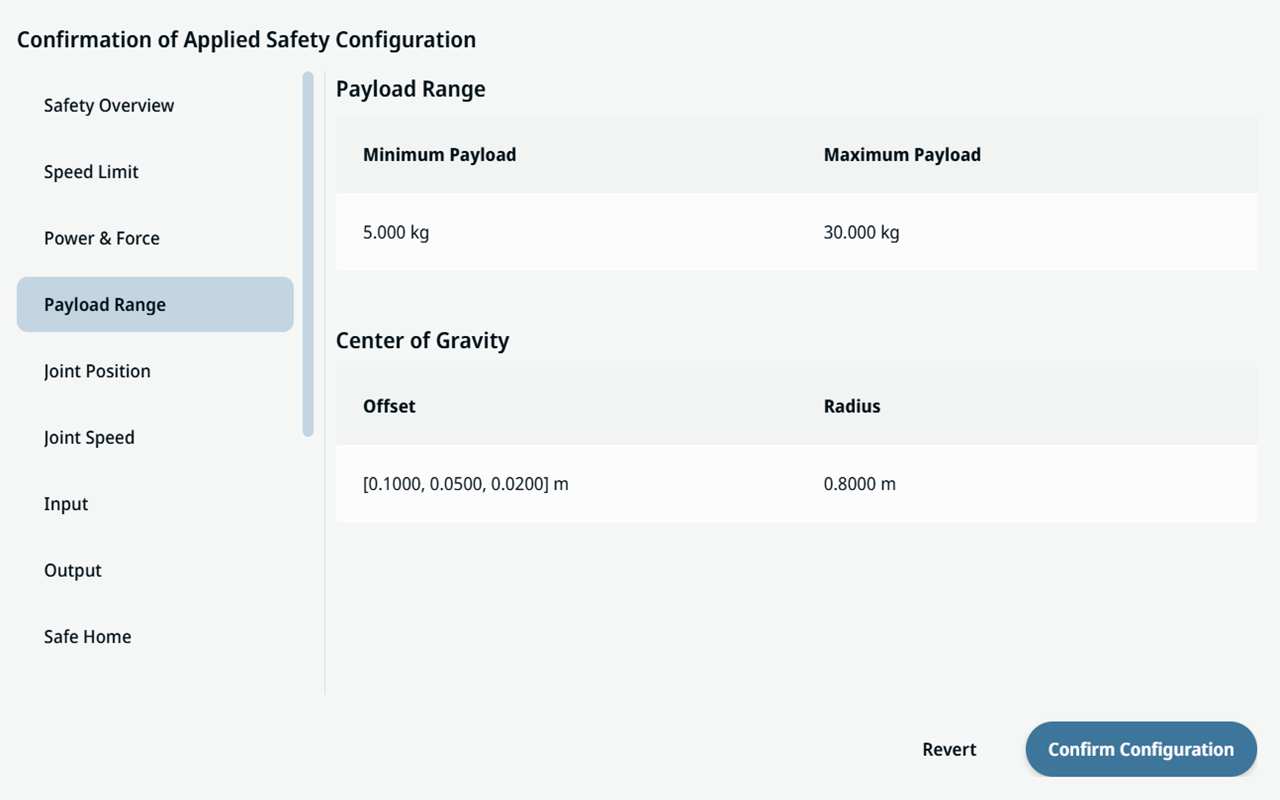
  2. The Confirmation of Applied Safety Configuration screen appears, listing your applied settings by category. Review the values, then tap Confirm Configuration.

    Confirmation of Payload Range Safety Configuration


Field functions

Payload Range

Field Unit Function
Min kg Sets the lower bound of the allowed payload mass. Payloads below this weight fall outside the configured range.
Max kg Sets the upper bound of the allowed payload mass. The effective limit depends on both the mass and its center-of-gravity distance from the tool flange.


Center of Gravity (CoG)

Field Unit Function
X mm Positions the center of the allowed CoG sphere along the X axis, measured from the tool flange.
Y mm Positions the center of the allowed CoG sphere along the Y axis, measured from the tool flange.
Z mm Positions the center of the allowed CoG sphere along the Z axis, measured from the tool flange. Long Z offsets (payload below the flange) are tolerated better than horizontal offsets.
Radius mm Sets the radius of the sphere around the X, Y, Z point. Any payload CoG inside this sphere is permitted.