| Import Application settings
|
-
In the System Manager, tap the three-vertical-dots (kebab icon) of the program that will receive the application settings.
-
Tap Import Application Settings.
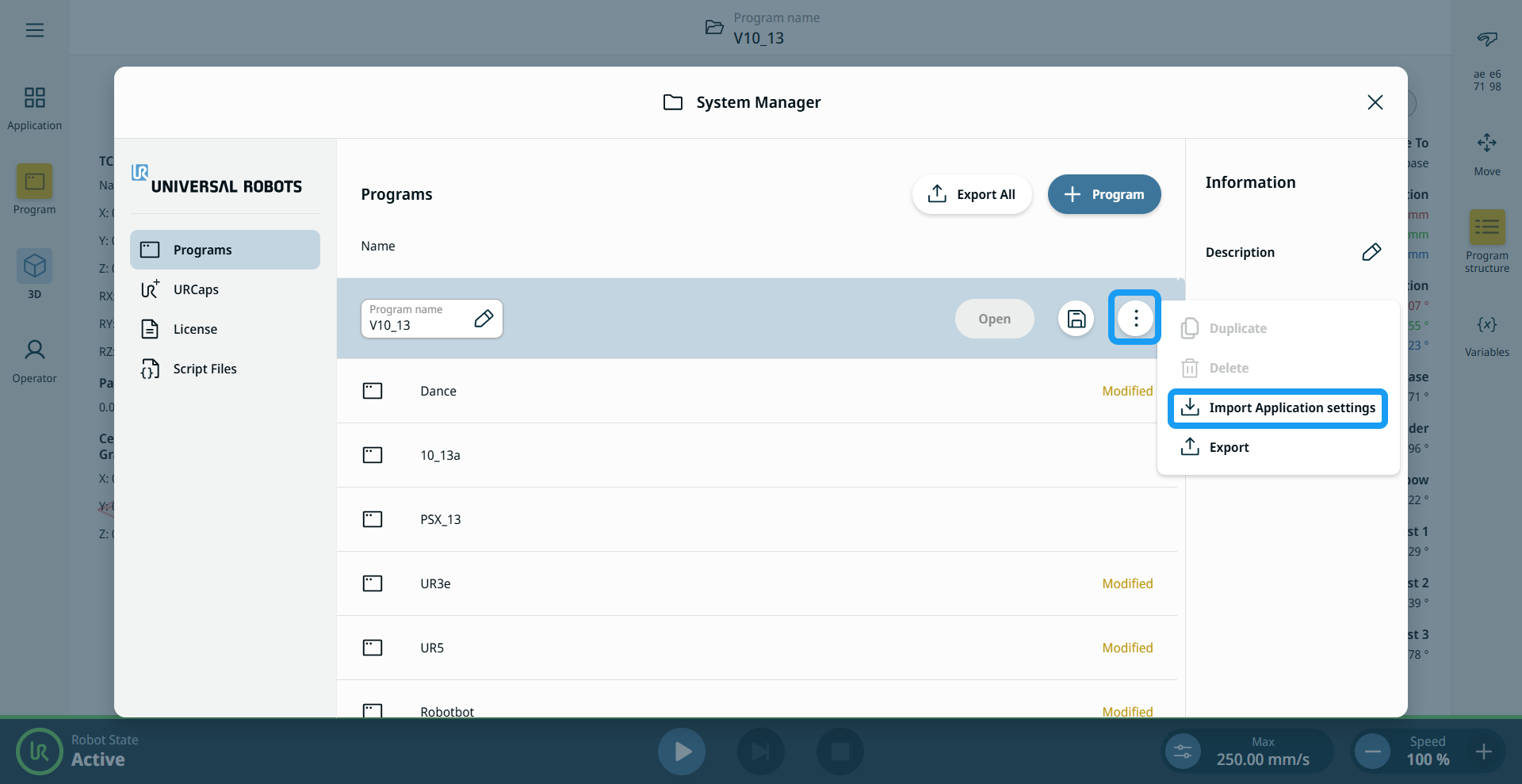
You can import application settings into active and inactive programs.
-
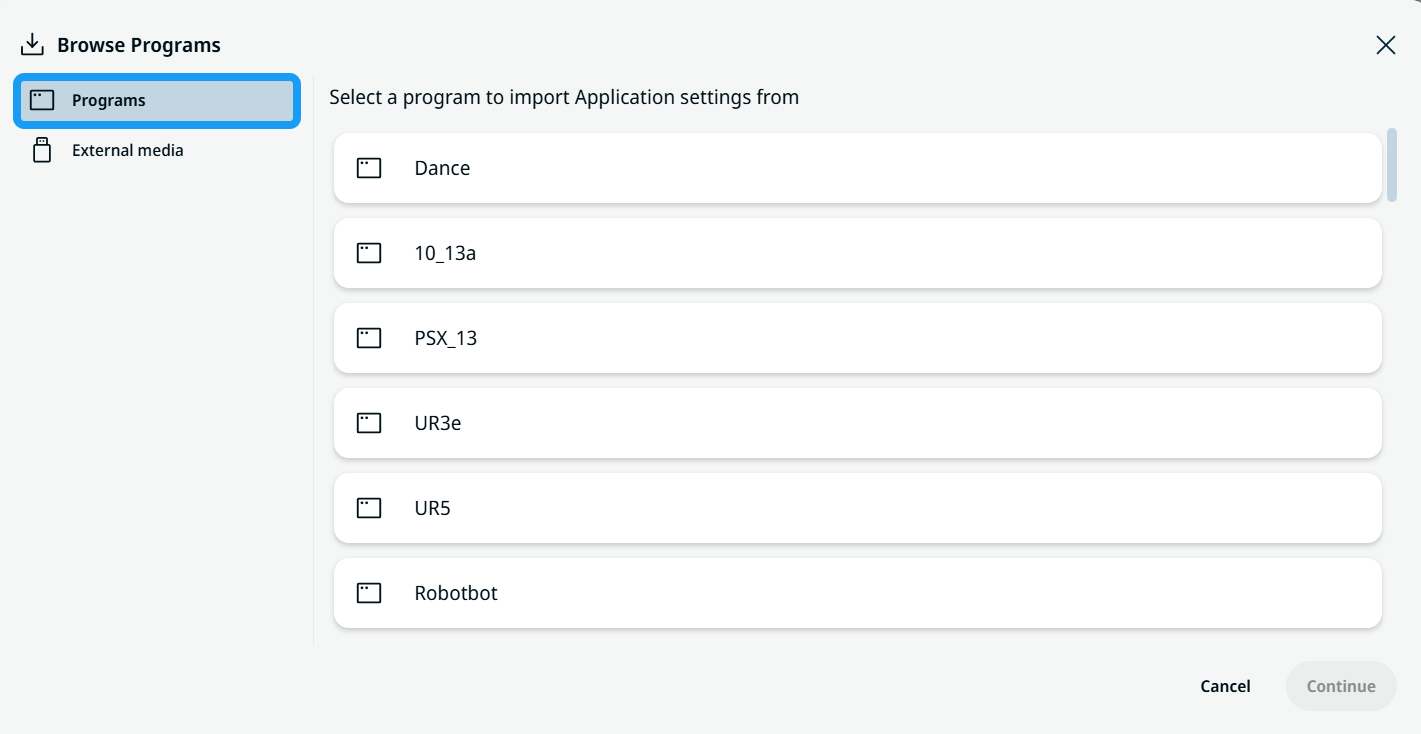
The Browse Programs screen appears. Select the Programs tab to import application settings from local programs.
|
|
|
-
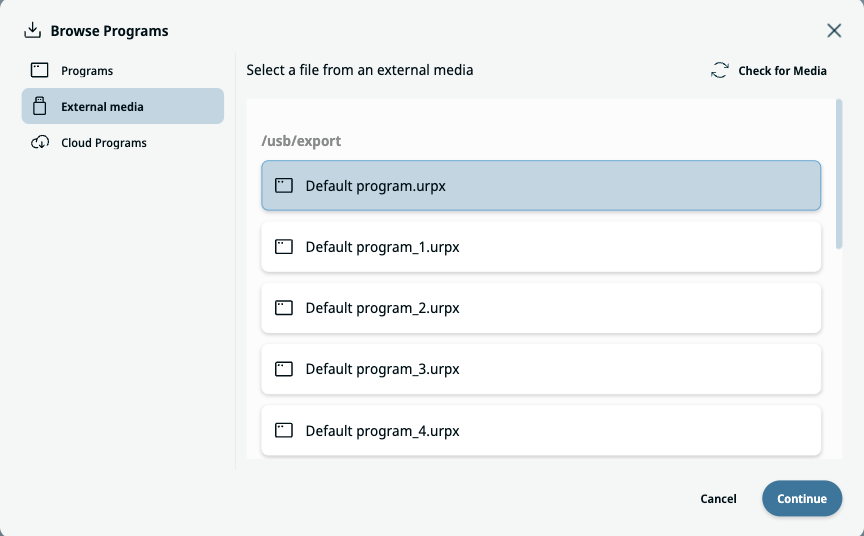
Select the External Media tab to import application settings from external media.
-
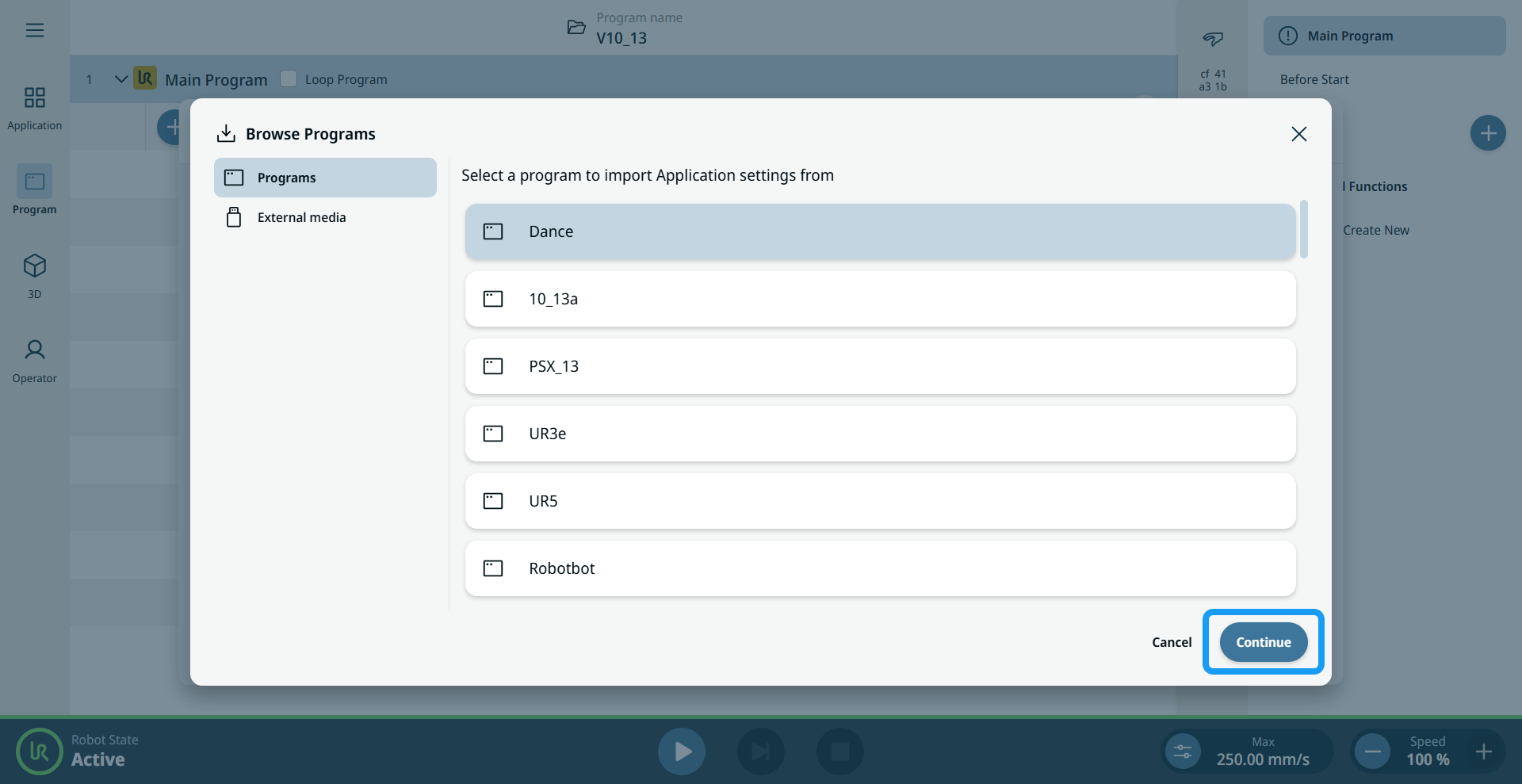
Tap the program to import application settings, then tap Continue.
-
You can select either Safety Settings or Application Nodes or both.
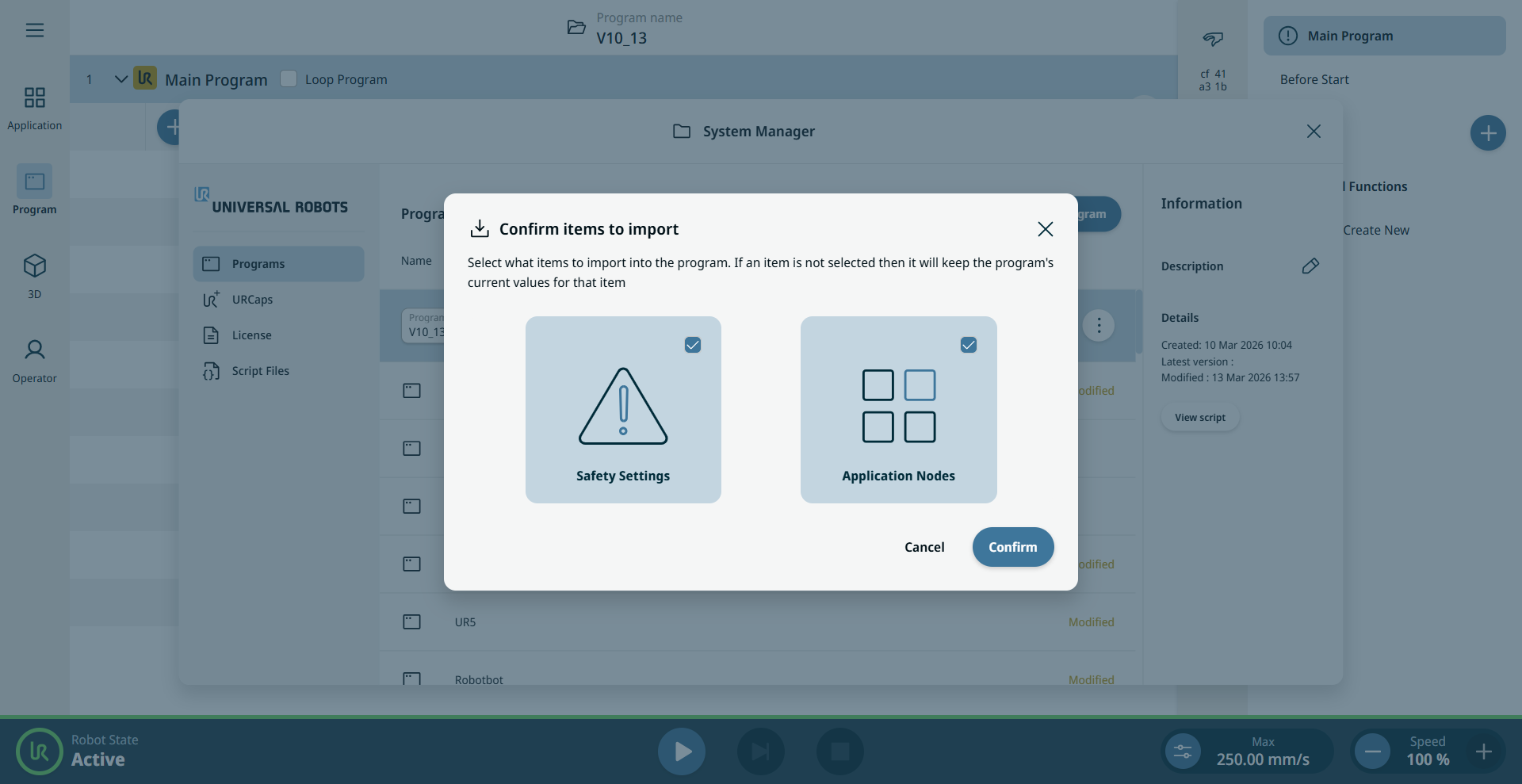
Safety Settings contains the data under Safety on the Application tab. Application Nodes contains all application content on the Application tab.
|
|
|
-
If you select Safety Settings, you are prompted for the safety password.
-
Tap Revert to cancel the entire import process.
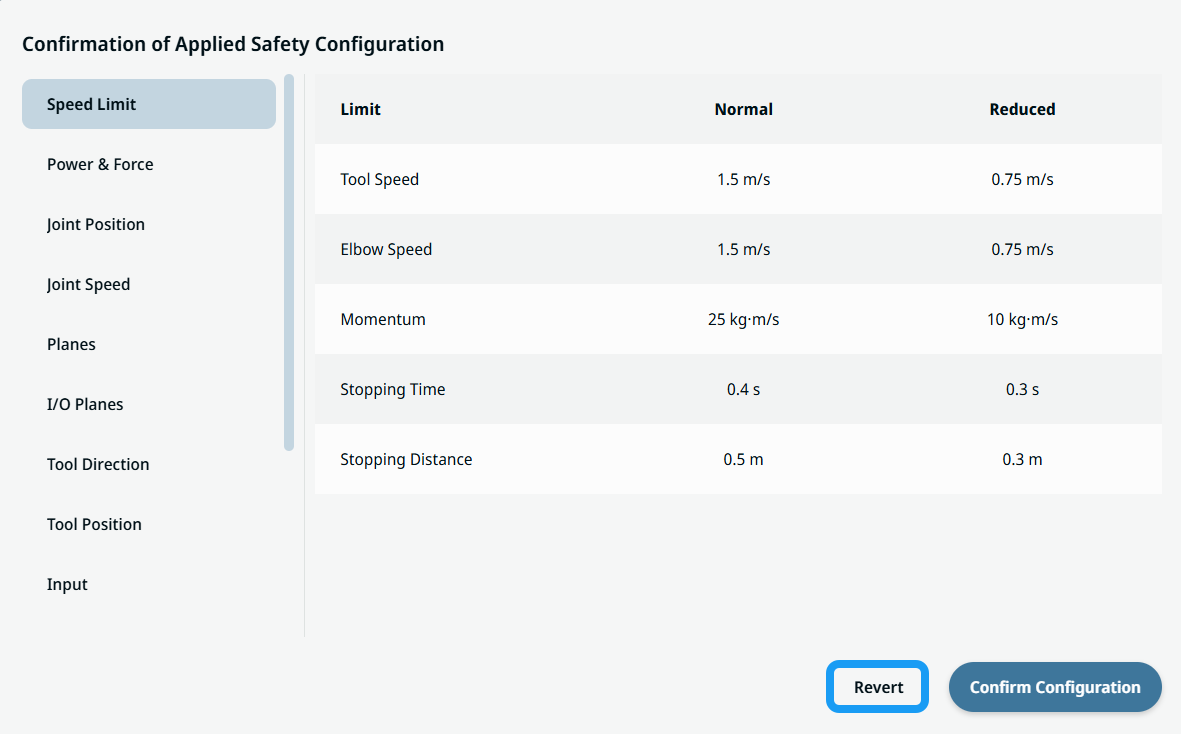
-
When you confirm the import, a pop-up in the footer confirms it.
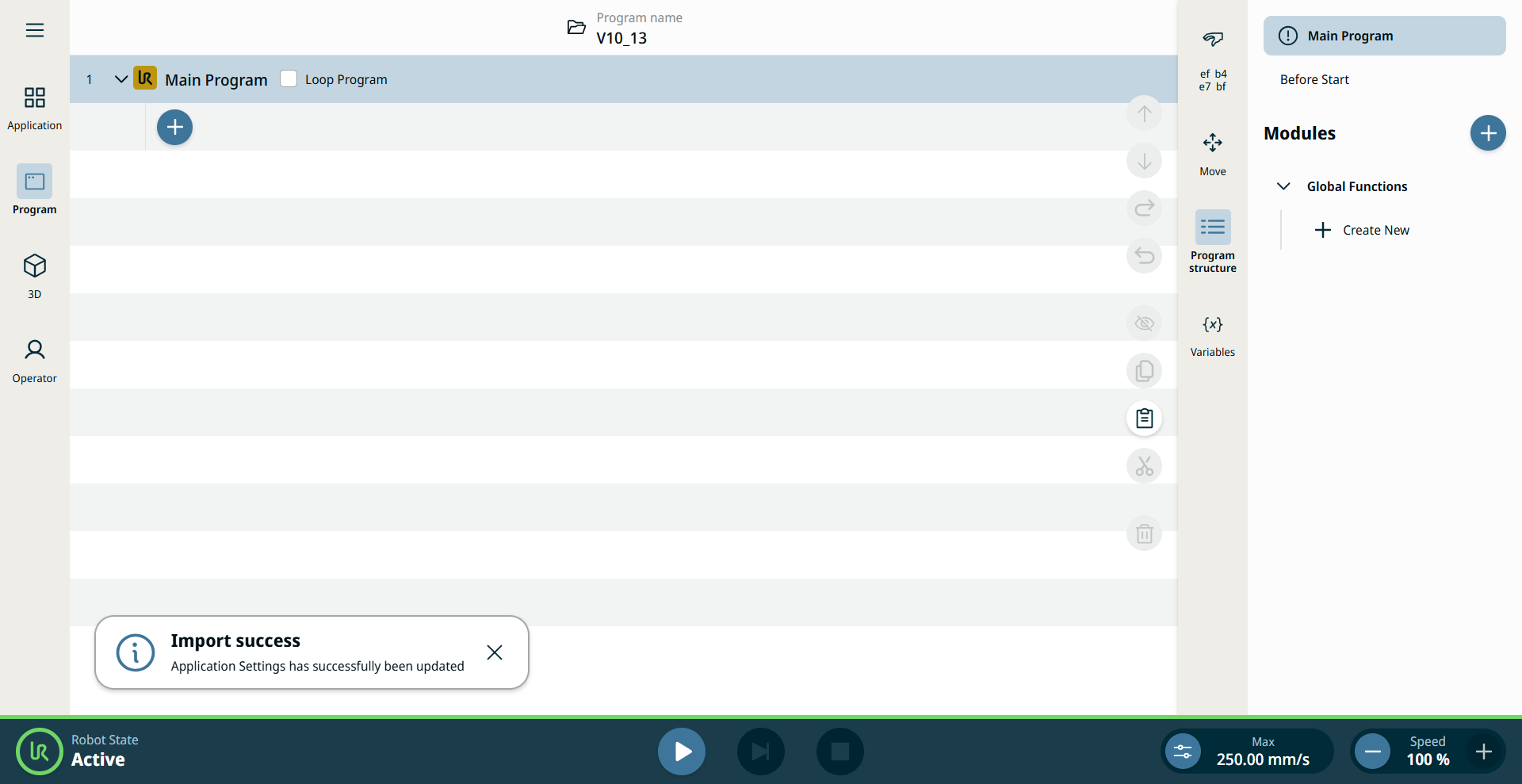
|