Install Image and Re-image into USB

Description

A bootable USB enables users to boot a control box with a new robot image in either Polyscope 5 or Polyscope X software version, in case of emergency situation when a robot's internal storage gets damaged.


Installing image using balenaEtcher
If your USB flash drive was previously formatted as Windows partition, it will be fully erased, and partition type is changed to ext3 and ext4 making it unreadable for Windows. If Linux file system support is not installed, you have no way to access the USB flash drive.
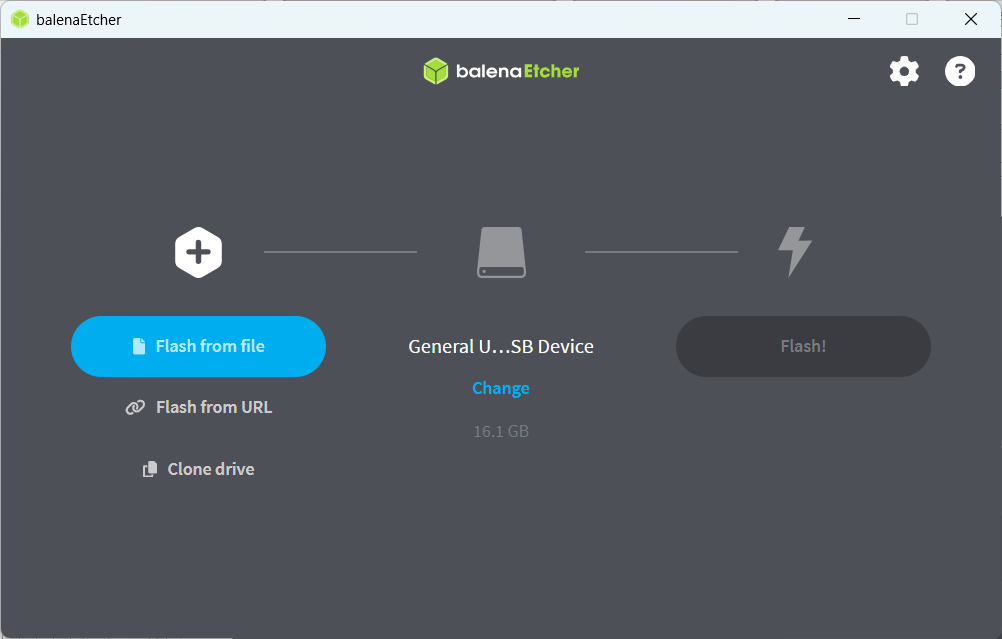
  1. In your desktop, double click to open balenaEtcher in your computer.

  2. Insert a USB flash drive in your computer if it is not yet inserted.

Robot Image into USB
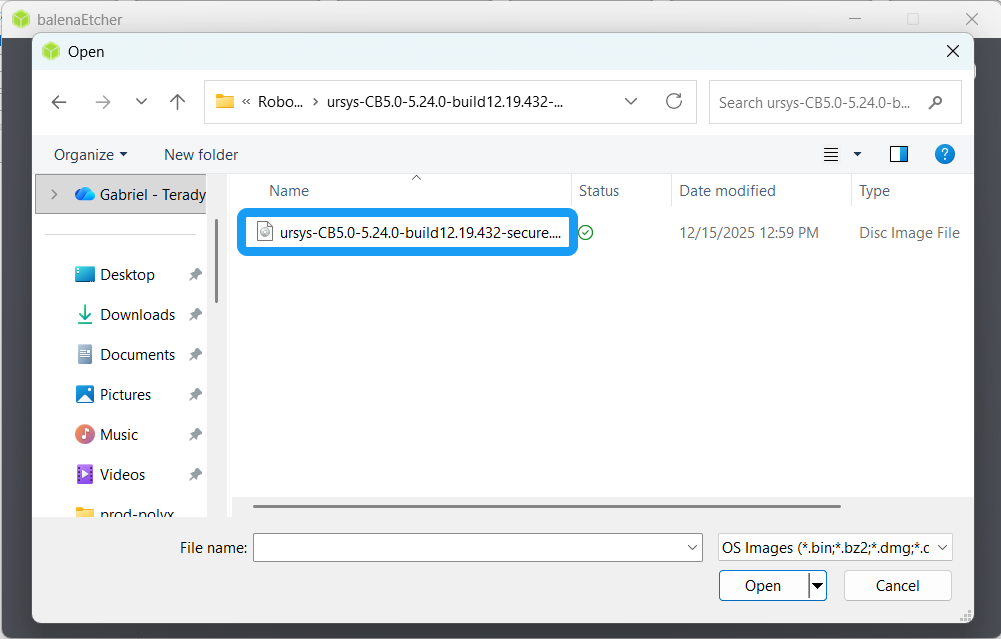
  1. Click the blue Flash from file button. A pop-up dialogue box appears where you can locate the folder that contains the downloaded robot image file.

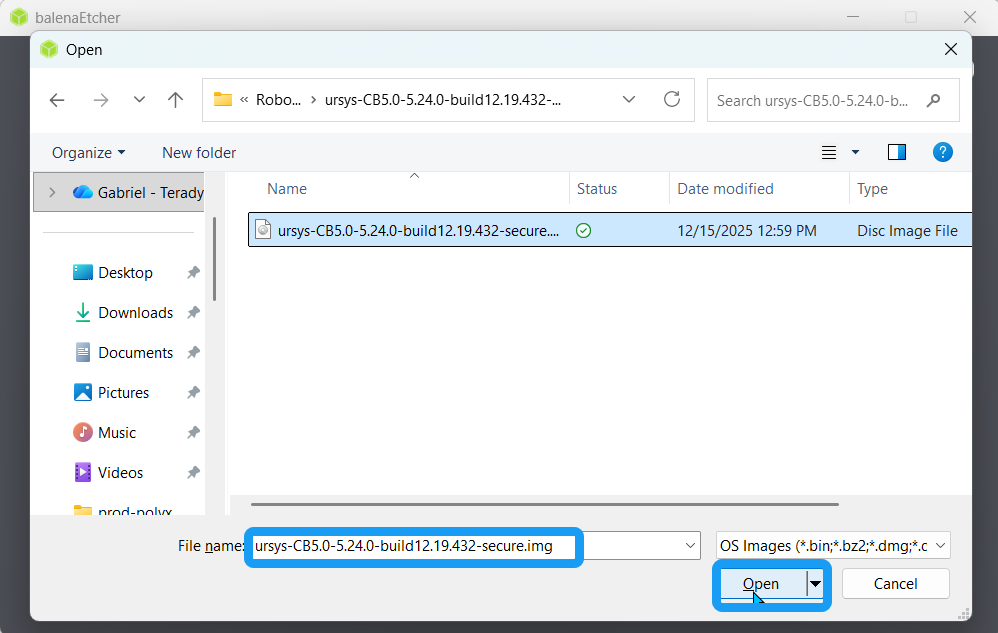
  2. Choose the pertinent robot image (.dmg) file. Click Open.


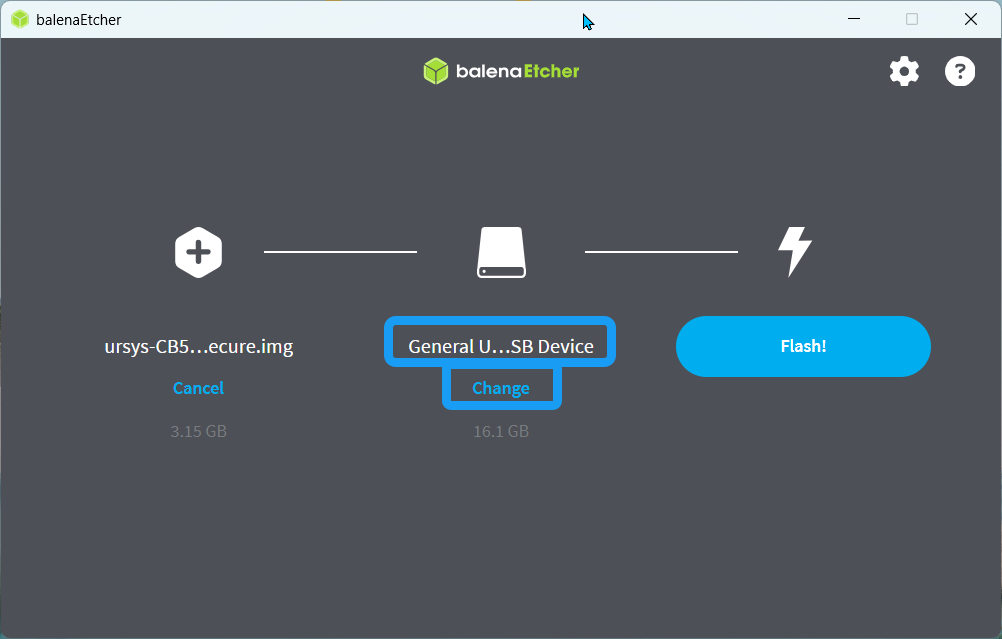
  1. The partitioned USB flash drive is automatically selected as target.

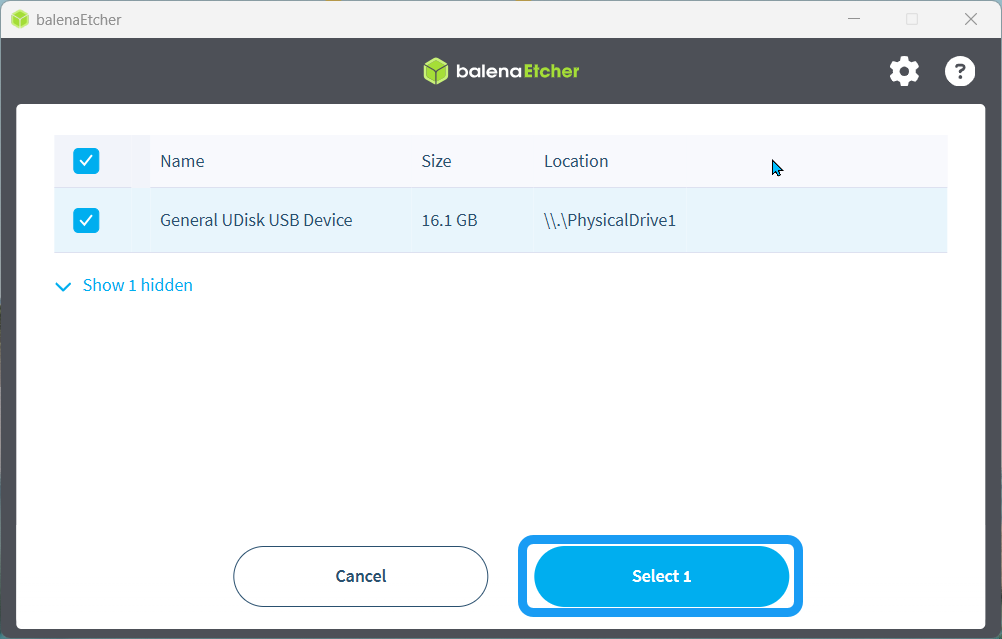
  2. To confirm that the partitioned USB flash drive is selected, click Change under it. A pop-up dialogue box appears that shows your inserted USB flash drive checked and selected. Click the Select button.


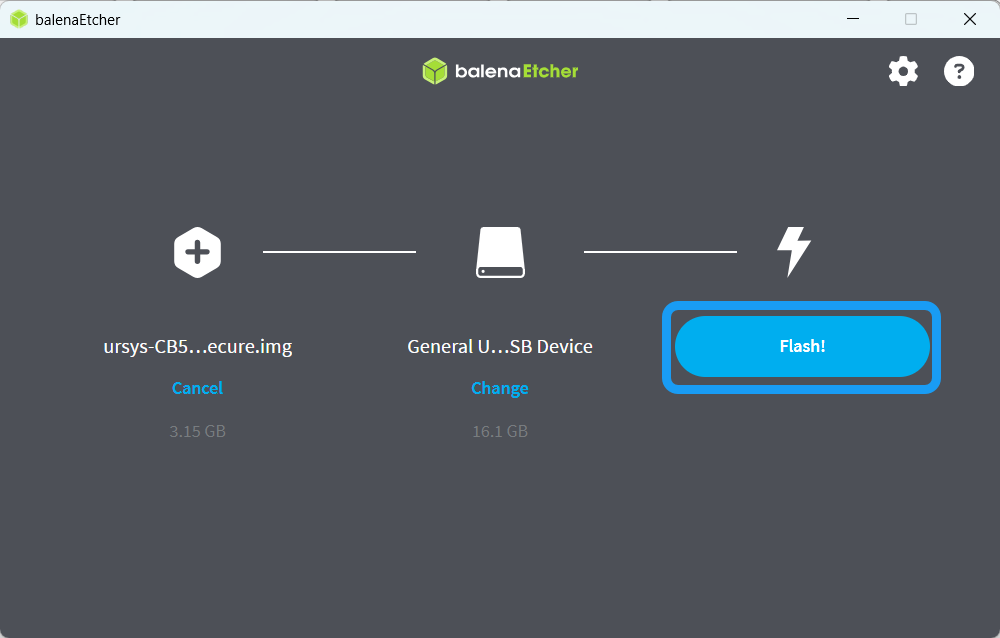
  1. Click the activated blue Flash! button.

    Do not remove the USB while flashing and avoid unnecessary movements in your computer to stabilize the USB in its port.
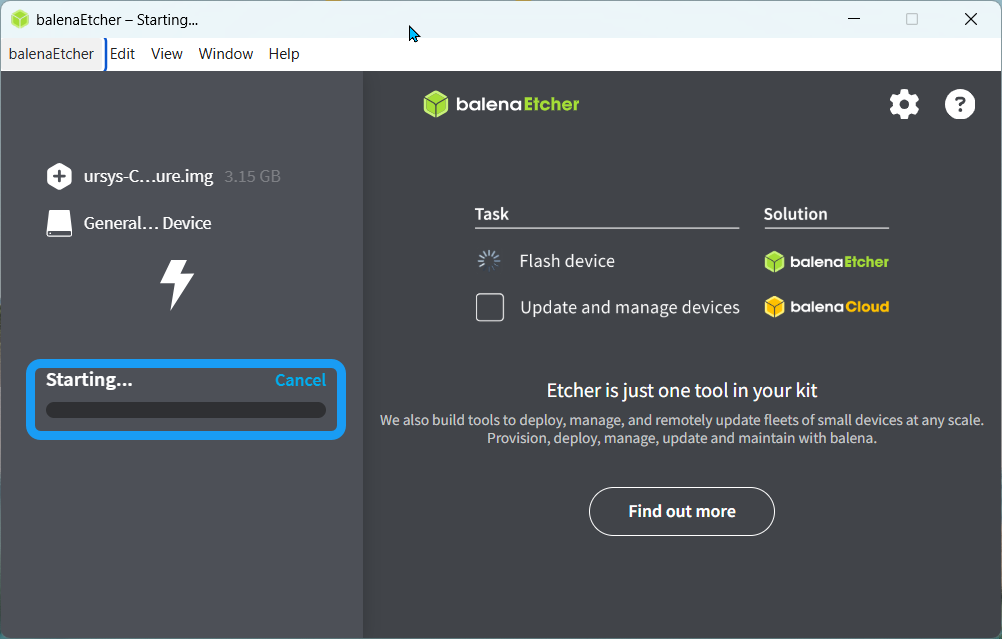
  2. A pop-up screen shows Flashing process is starting.


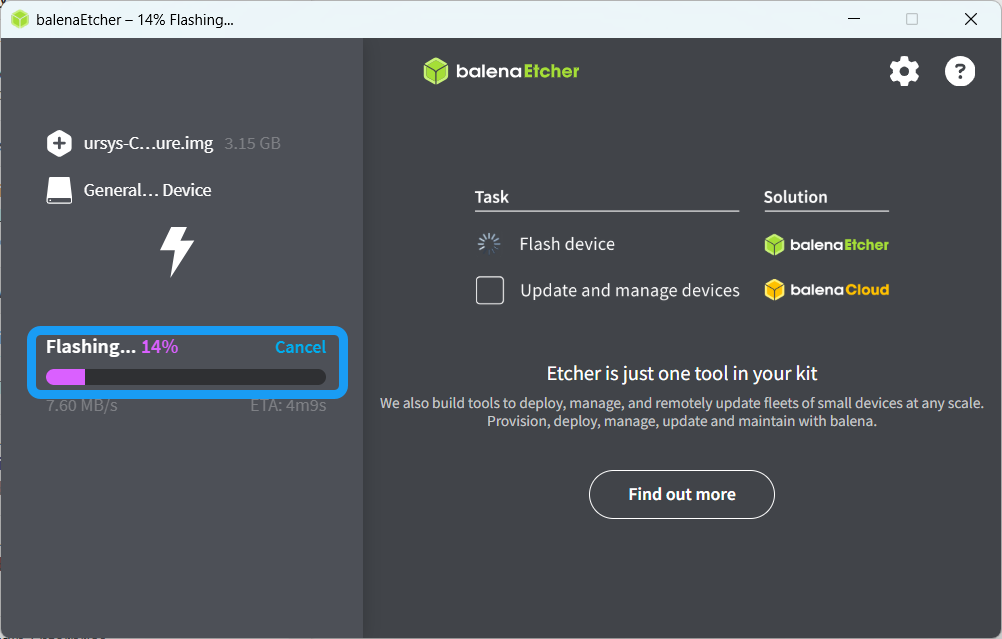
  1. After, the Flashing process screen appears. Wait until flashing is at 100 percent.

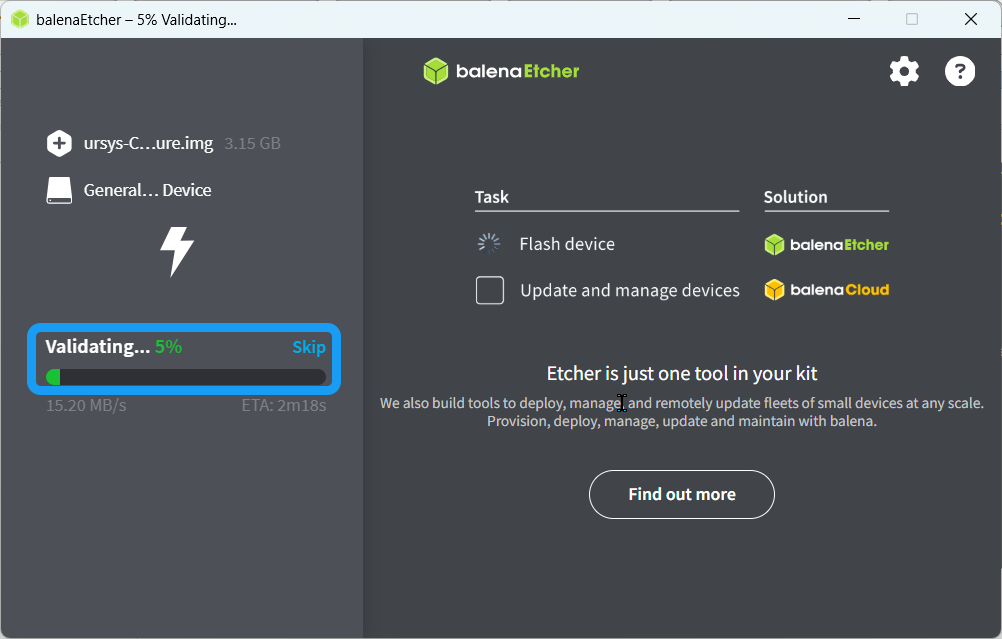
  2. When flashing is done, a screen appears that shows the percentage of the validation process. Wait until completed.

 
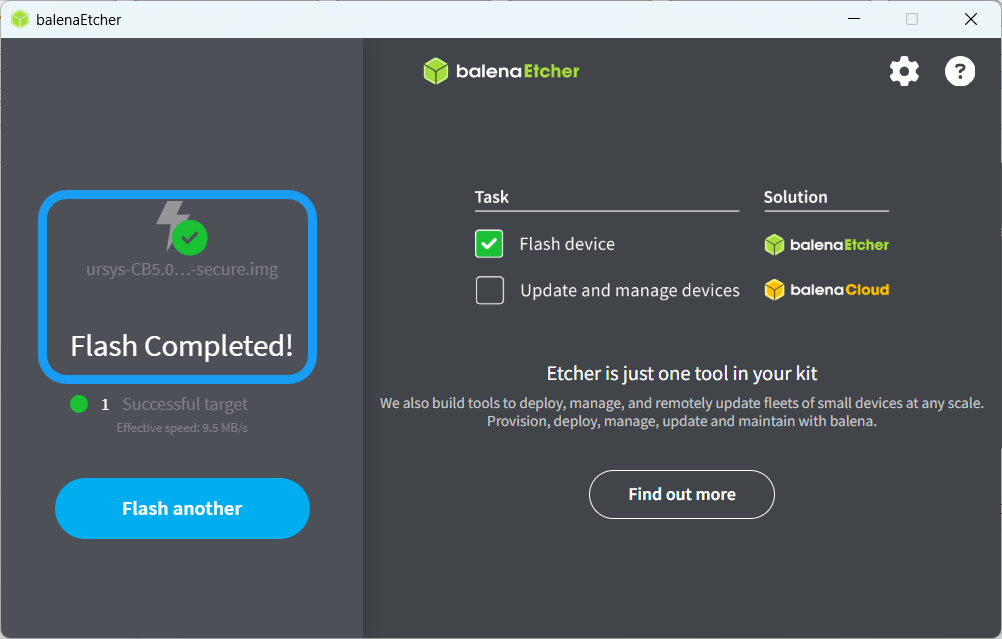
  1. When validation is completed, a screen appears confirming that USB flash is completed. A Windows Explorer notification pops up with the information that balenaEtcher has successfully flashed a file into the USB.

  2. You can close the program and remove the USB flash drive.