Premik člena

Opis

The Joint Move is a move command node that supports Motion Profiles. The command creates a movement from point A to point B that is optimal for the robot. Premik robota morda ne bo v ravni črti med točkama A in B, ampak optimalno glede na začetni položaj členov in končni položaj členov. Premik členov izvede premike, ki se izračunajo v prostoru členov robotove roke. Členi so nadzorovani, da zaključijo svoje premike ob istem času. Ta vrsta premikov ustvarja ukrivljeno pot za orodje.


To access Joint Move command

  1. Go to the main program screen. Glejte Command Nodes.

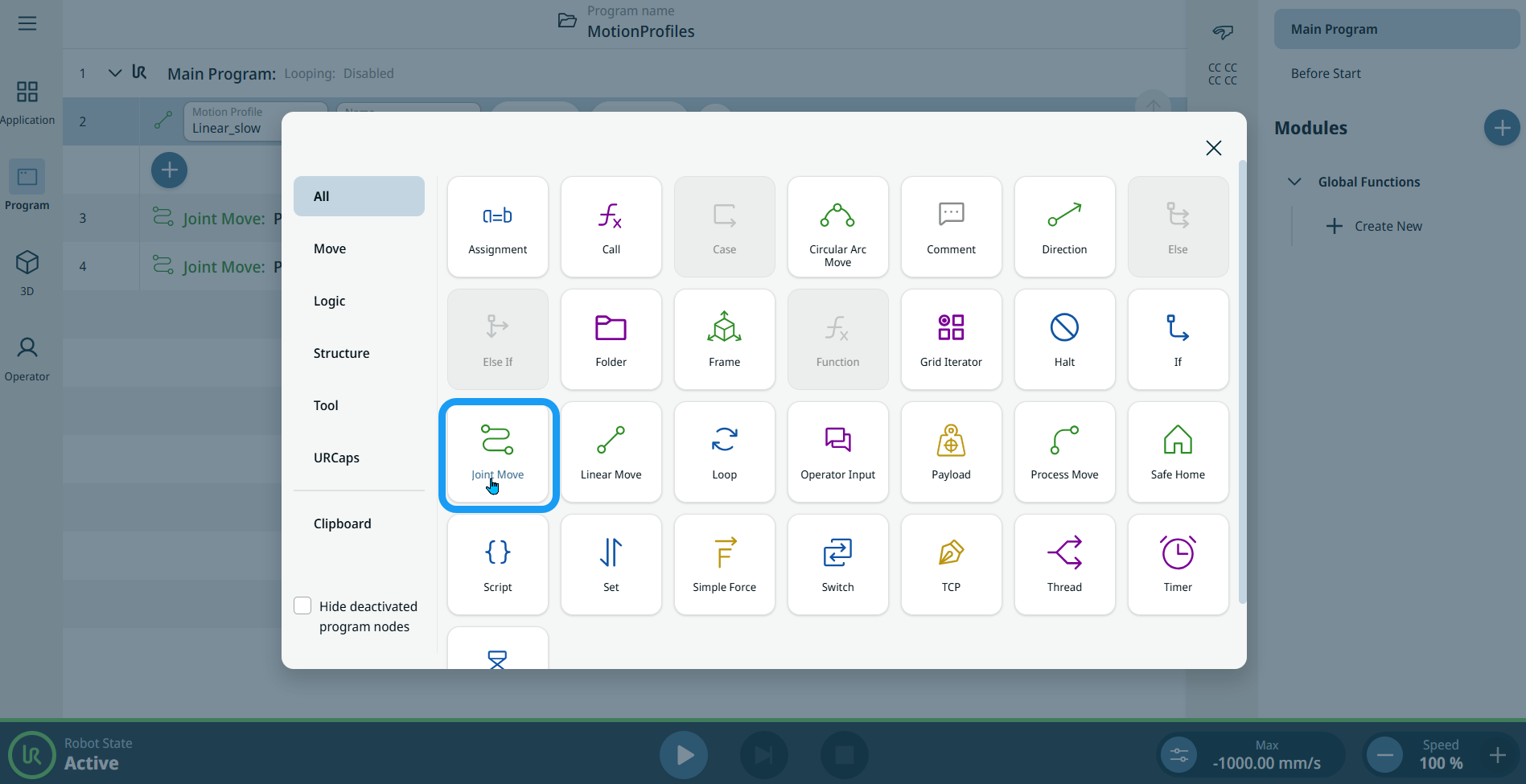
  2. Tap the Joint Move icon in the Commands toolbox.


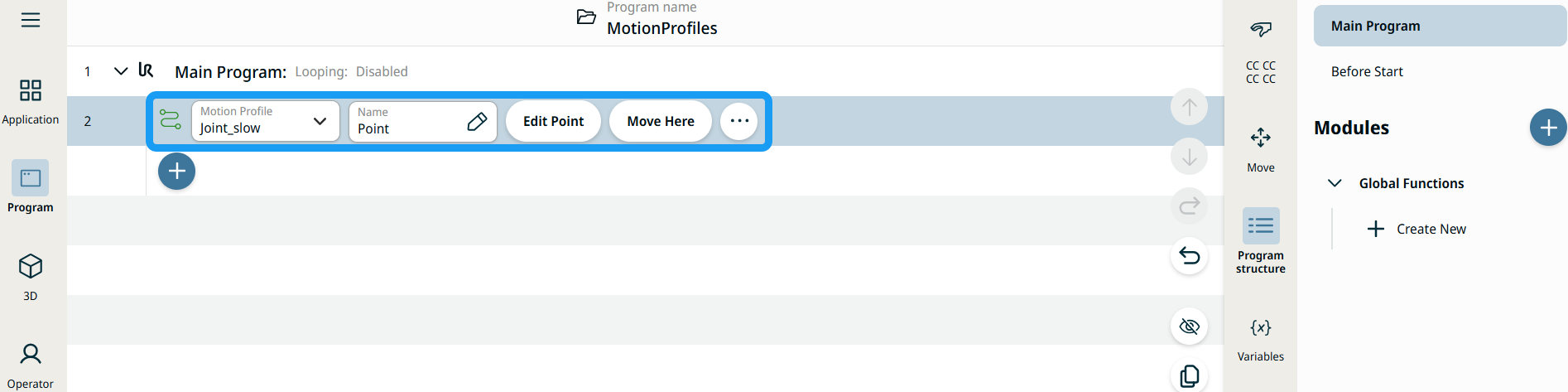
    A node with two editable fields, two buttons, and ellipsis icon is inserted into the program tree. These are two editable fields:

    • Profil premika

    • Ime

    These are the two buttons:

    • Uredi točko

    • Premik sem


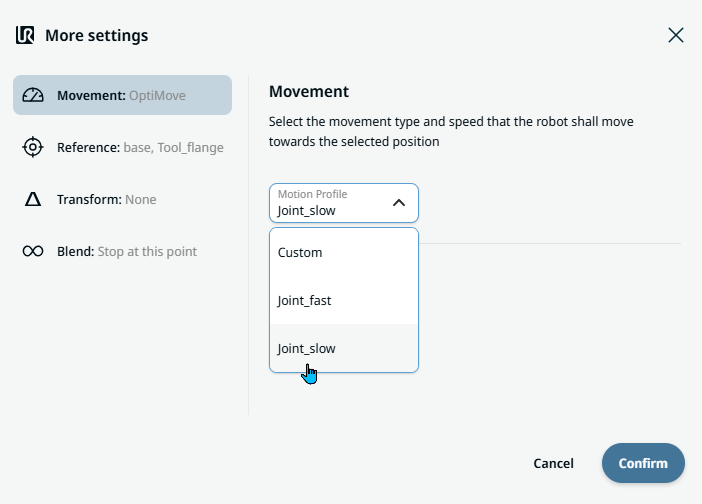
  1. Tap the Motion Profile field and select the pertinent from the three choices are available:

    • Po meri

    • Joint_fast

    • Joint_slow

  2. Tap the Name field, and three tabs appear:

    • Vrednost

    • Spremenljivka

    • Izraz

  3. Enter the data in the Value, Variable, and Expression tabs, and tap Confirm. See Value-Variable-Expression Tabs.

  4. Tap Edit Point. A new screen appears with the robot arm interface where you can jog the robot to the desired position.

  5. Tap More button.

    More settings screen appears with four settings:

    • Premikanje

    • Referenca

    • Preoblikovanje

    • Spajanje


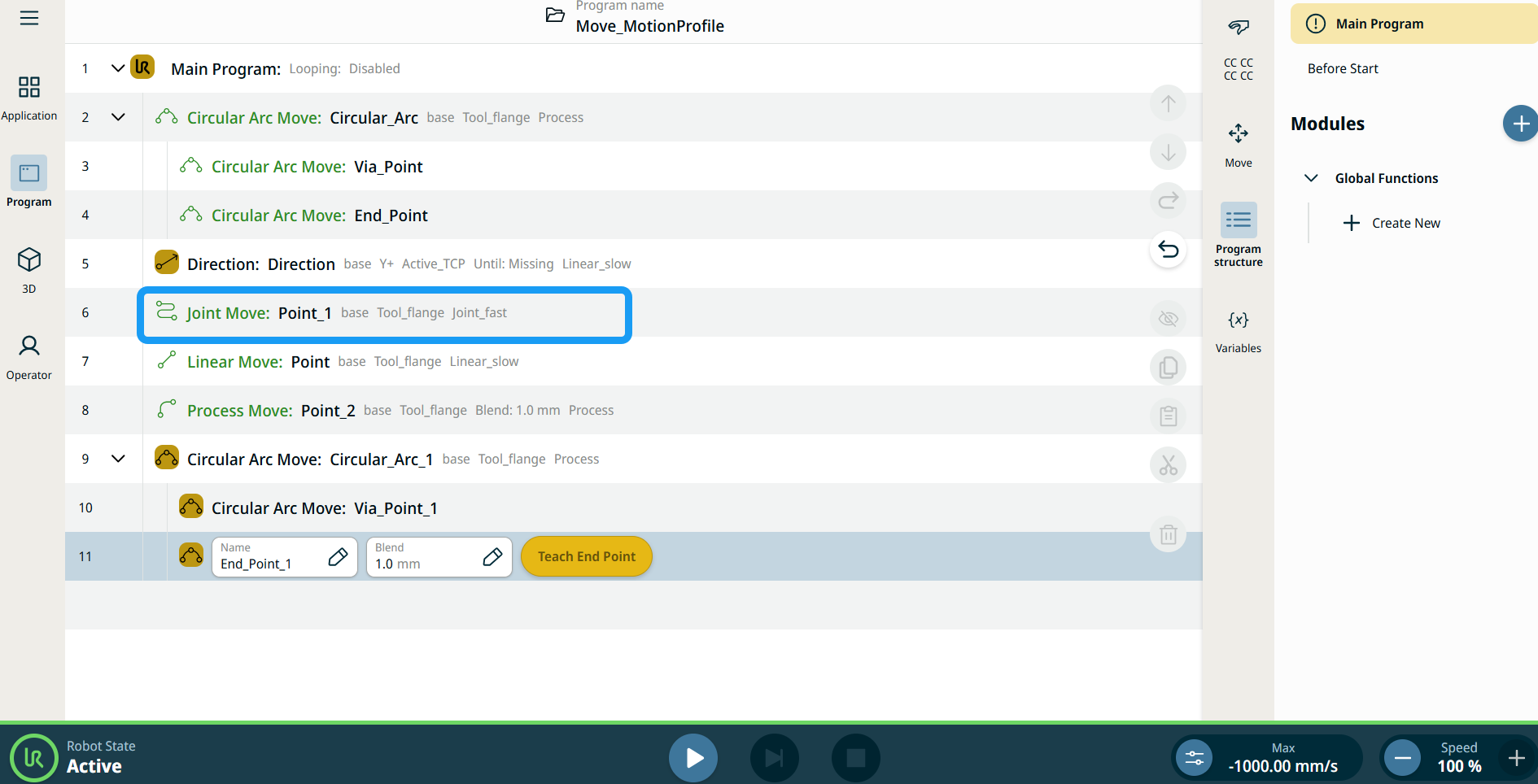
Oznake profila premikanja na vozliščih premika

Vsi ukazi, povezani s premikanjem v drevesu programa prikazujejo profil premika, povezan z vsakim vozliščem. Ta funkcija omogoča uporabnikom, da vidijo izbrani profil premikanja na vozlišču premika. Ta funkcija je implementirana na naslednjih ukaznih vozliščih:

Vozlišča premika s profilom premikanja po meri bodo prikazala vrednosti za hitrost in pospešek namesto profila premikanja.


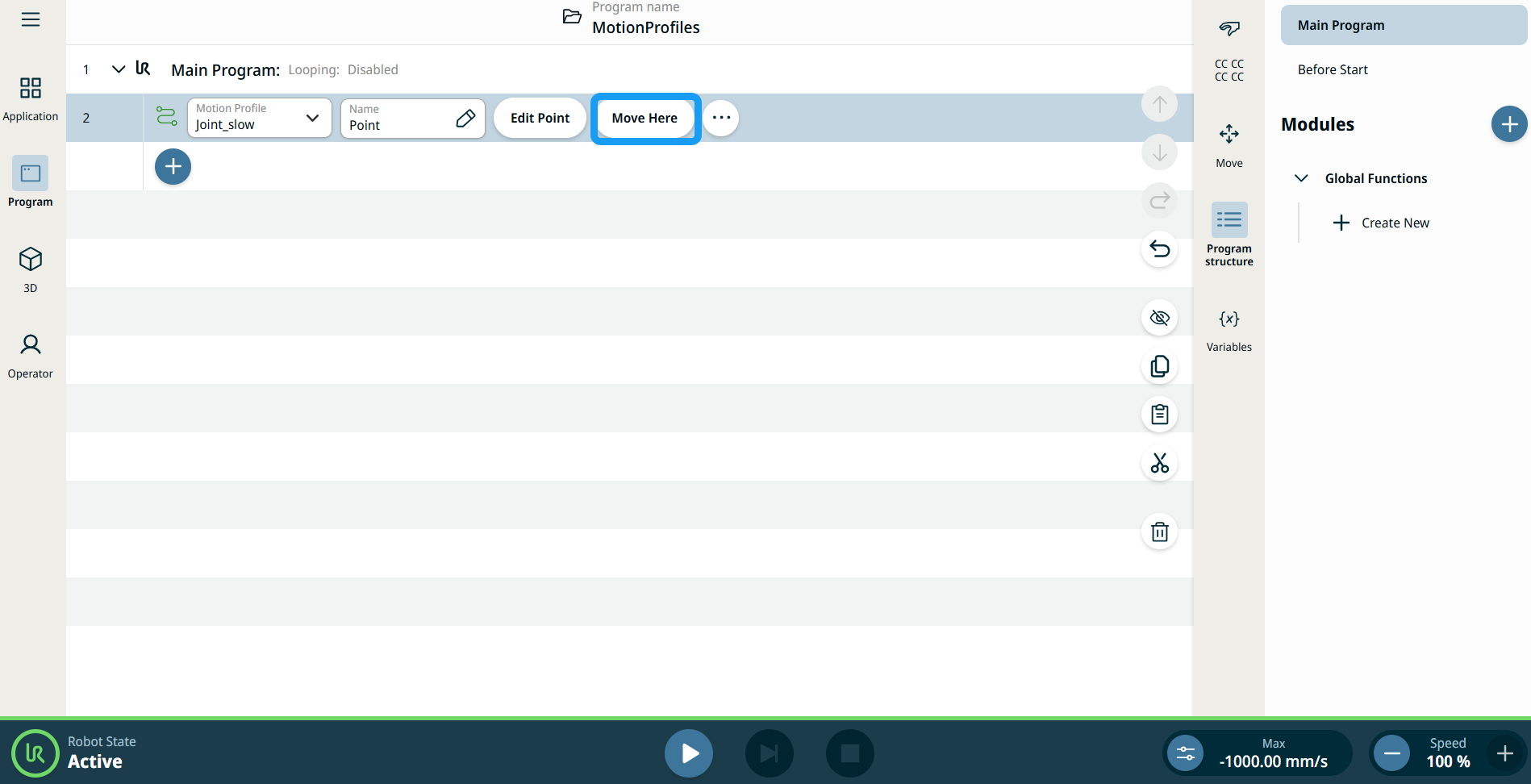
Uporaba gumba Premik sem

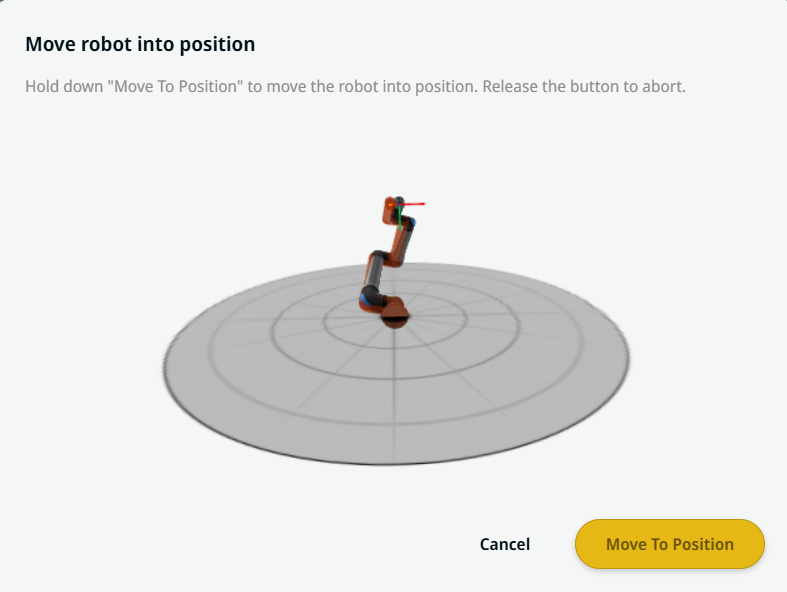
Gumb Premik sem je viden v ukazih Linearni premik in Premik člena. Ta funkcija vam omogoča, da se premaknete na smerno točko neposredno iz drevesa programa. S pritiskom gumba Premik sem se odpre pogovorno okno Premik robota v položaj. Gumb je viden, ko je bila naučena smerna točka, in je omogočen le, če je stanje robota v načinu Normalno ali Reducirano.


  1. Dotaknite se možnosti dodaj ikono, da v drevo ukazov vstavite Linearni premik in Premik člena.

  2. V drevesu ukazov se dotaknite gumba Uredi točko prvega vozlišča giba, naj bo to vozlišče za Linearni premik ali Premik člena.

  3. Premikajte robota s pomočjo gumbov plus-minus v koordinatah X, Y, Z. Tap Save.

  4. V drugem vozlišču premika v drevesu ukazov se dotaknite možnosti Premik sem. Prikaže se pojavno okno, ki omogoča Premik robota v položaj. Dotaknite se in pridržite možnost Premik v položaj. Dotaknite se gumba V redu.


Movement setting
  1. Tap the Movement setting on the left side. A Motion Profile field with the following choices appears on the right side. Joint_slow is the default.

    • Po meri

    • Joint_fast

    • Joint_slow

  2. If Custom is selected, three more fields appear:

    • Vrsta hitrosti

    • Hitrost

    • Pospešek

  3. Choose either OptiMove or Classic when you tap Speed Type.

  4. Tap the Speed field, and the Value, Variable, and Expression tabs pop up.

  5. Enter data in each tab, and tap Confirm. See Value-Variable-Expression Tabs.

  6. Tap the Acceleration field, and the Value, Variable, and Expression tabs pop up.

  7. Enter data in each tab, and tap Confirm. See Value-Variable-Expression Tabs.

  8. When Joint_fast and Joint_slow are selected, the OptiMove speed and acceleration are shown.


Reference setting
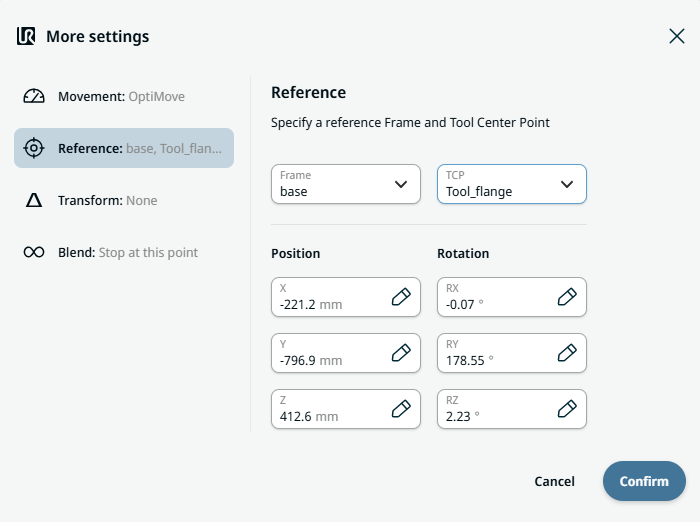
  1. Tap the Reference setting.

  2. Choose either Frame or TCP field.

    In the Frame field, four choices are available:

    • svet

    • osnova

    • flange

    • tcp

    In the TCP field, two choices are available:

    • Active_TCP

    • Tool_flange

  3. In the Position column, tap the X, Y, Z tabs and enter your chosen value for the robot, and Confirm.

  4. In the Rotation column, tap the RX, RY, RZ tabs and enter your chosen value for the robot, and Confirm.


Transform setting
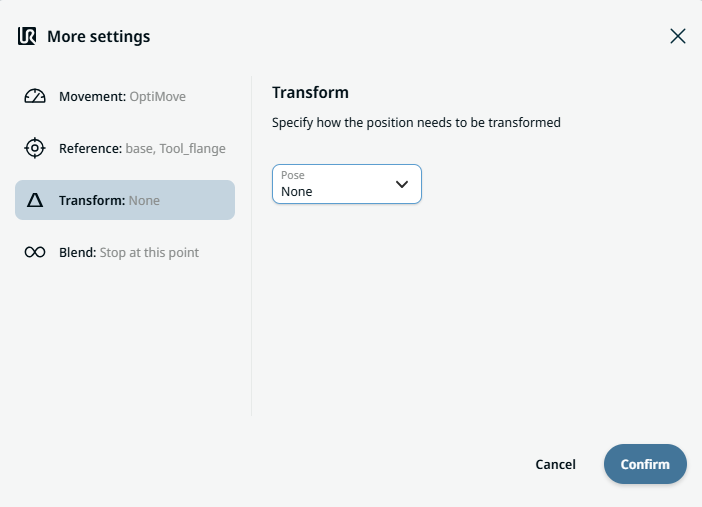
  1. Tap the Transform setting.

  2. Tap the Pose field and Confirm.


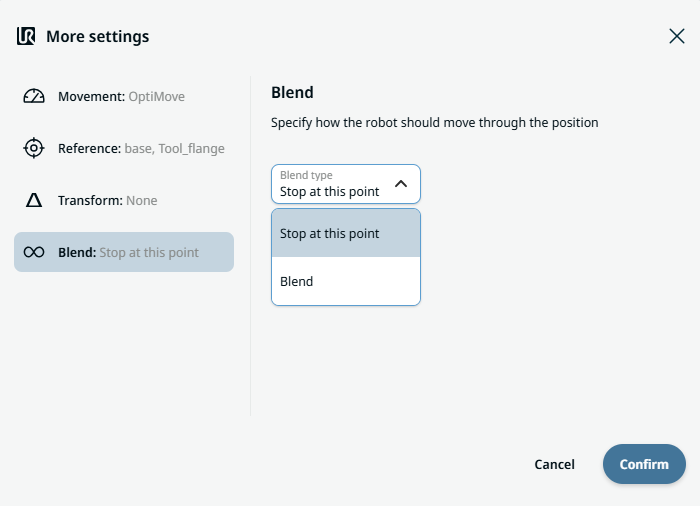
Blend setting

  1. Tap the Blend setting.

    A Blend type field appears with two options:

    • Zaustavitev na tej točki

    • Spajanje

  2. When you choose Stop at this point, no further action is needed but only Confirm.

  3. Tap Blend, and a Radius field is inserted.

  4. The Value, Variable, and Expression tabs pop up when you tap the Radius field.

  5. Enter data in each tab, and tap Confirm. See Value-Variable-Expression Tabs.

  6. To finish, tap Confirm in the More settings screen.