Ruch przegubu

Opis

The Joint Move is a move command node that supports Motion Profiles. The command creates a movement from point A to point B that is optimal for the robot. Ruch może nie być linią prostą między punktami A i B, tylko krzywą optymalną dla początkowej i końcowej pozycji przegubów. Polecenie Porusz przegub powoduje wykonywanie ruchów obliczanych w przestrzeni przegubów ramienia robota. Przeguby są sterowane w taki sposób, aby kończyły ruch w tym samym momencie. Ten typ ruchu skutkuje zakrzywionym torem narzędzia.


To access Joint Move command

  1. Go to the main program screen. Patrz: Command Nodes.

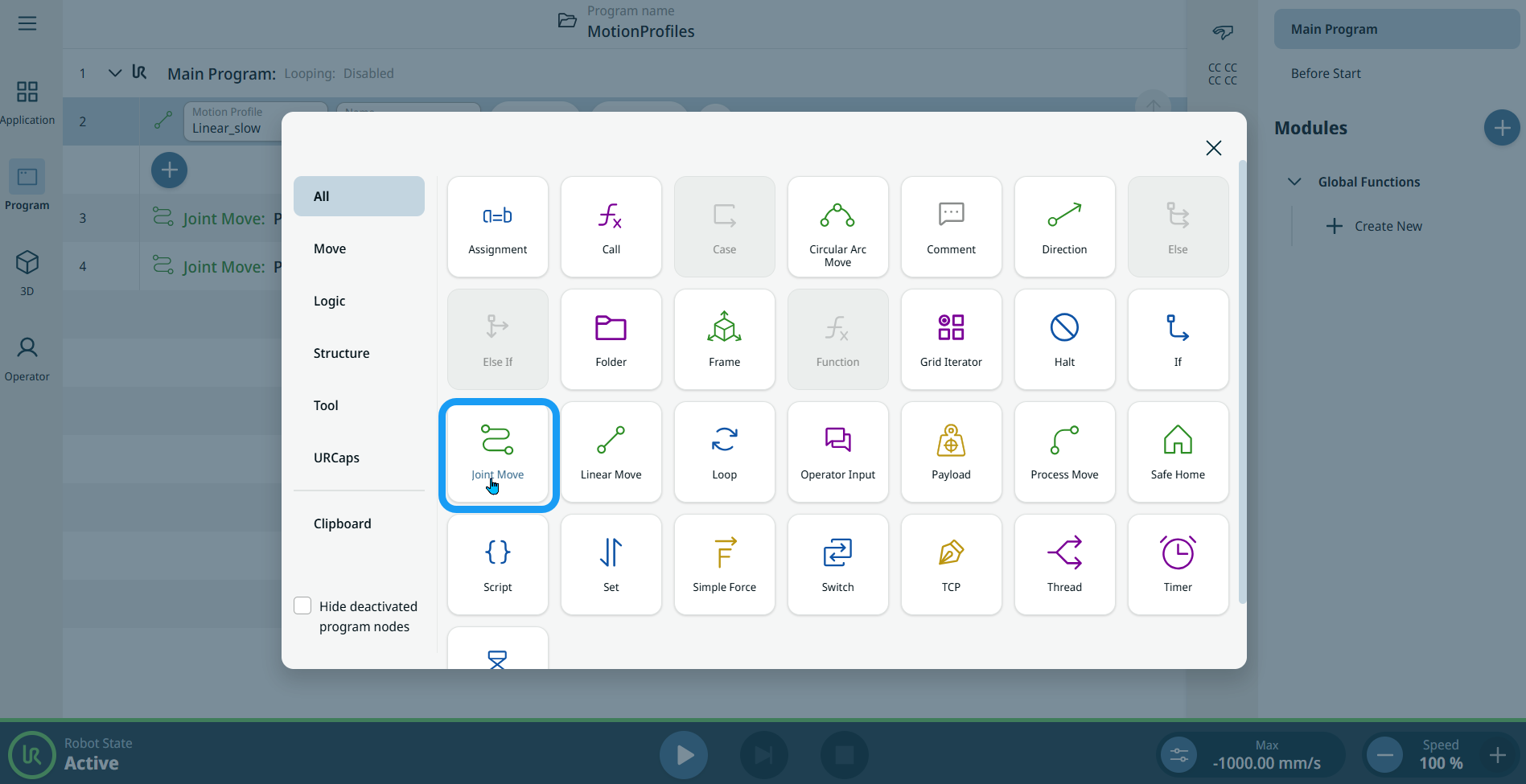
  2. Tap the Joint Move icon in the Commands toolbox.


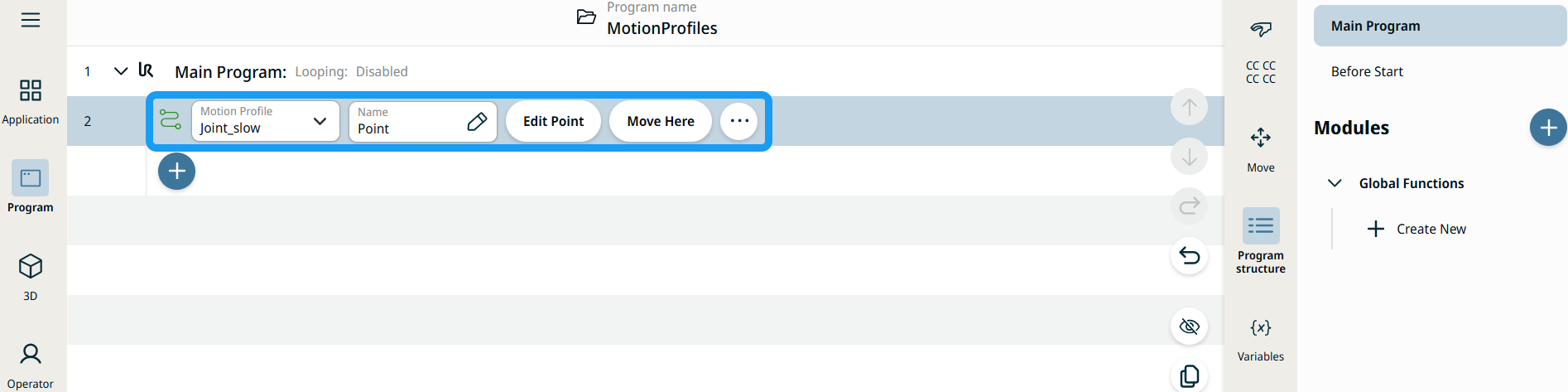
    A node with two editable fields, two buttons, and ellipsis icon is inserted into the program tree. These are two editable fields:

    • Profil ruchu

    • Nazwa

    These are the two buttons:

    • Edytuj punkt

    • Przesuń tutaj


  1. Tap the Motion Profile field and select the pertinent from the three choices are available:

    • Niestandardowy

    • Joint_fast

    • Joint_slow

  2. Tap the Name field, and three tabs appear:

    • Wartość

    • Zmienna

    • Wyrażenie

  3. Enter the data in the Value, Variable, and Expression tabs, and tap Confirm. See Value-Variable-Expression Tabs.

  4. Tap Edit Point. A new screen appears with the robot arm interface where you can jog the robot to the desired position.

  5. Tap More button.

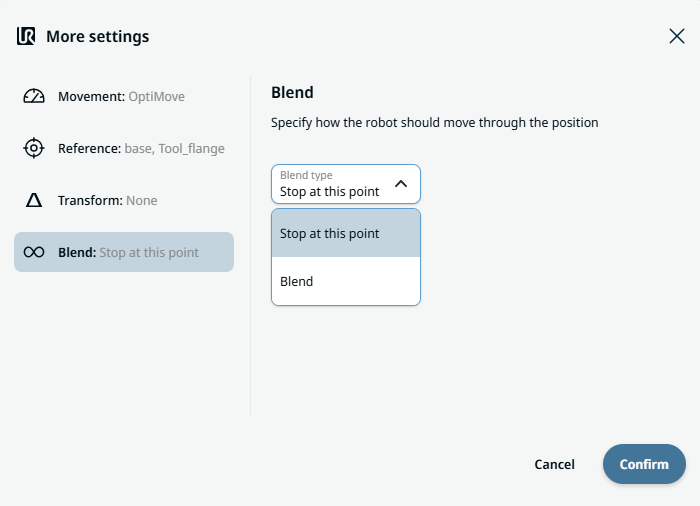
    More settings screen appears with four settings:

    • Przemieszczenie

    • Odniesienie

    • Przekształć

    • Zaokrąglenie


Etykiety profilu ruchu w węzłach ruchu

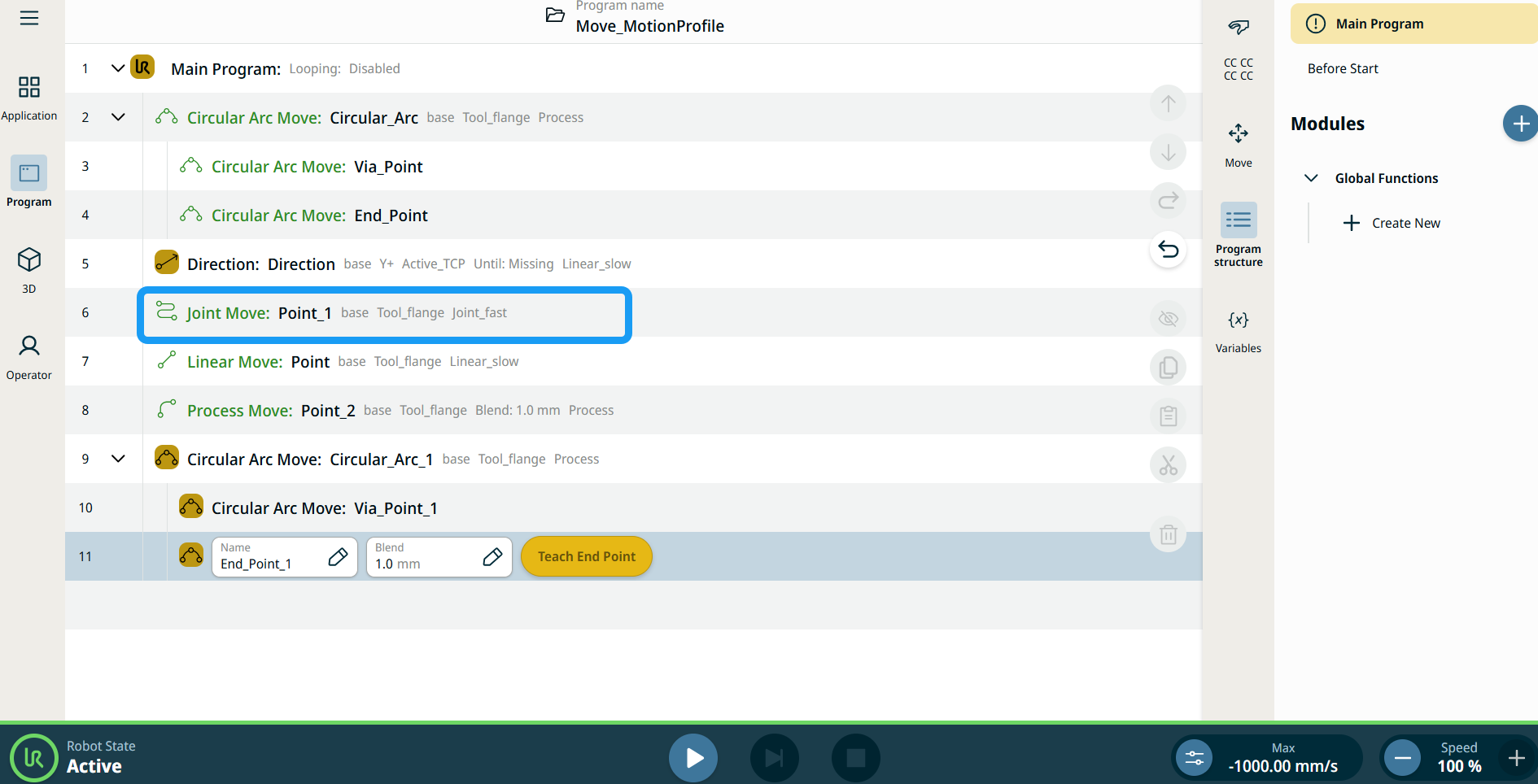
Wszystkie węzły poleceń związane z ruchem w drzewie programu wyświetlają profil ruchu powiązany z danym węzłem. Ta funkcja umożliwia użytkownikom wyświetlenie wybranego profilu ruchu w węźle ruchu. Funkcja ta jest zaimplementowana w następujących węzłach poleceń:

Węzły ruchu z niestandardowym profilem ruchu będą wyświetlać wartości prędkości i przyspieszenia zamiast profilu ruchu.


Używanie przycisku Przenieś tutaj

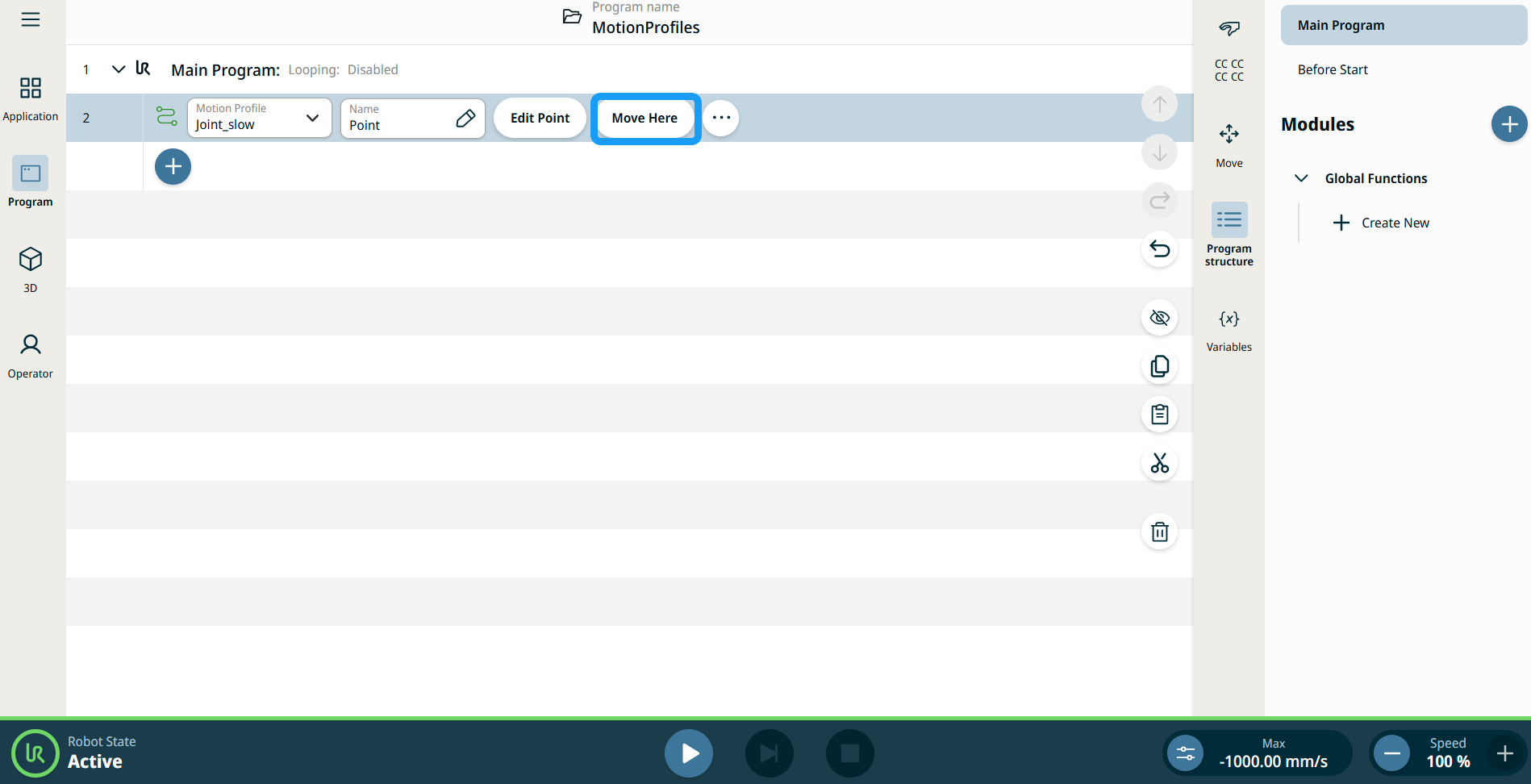
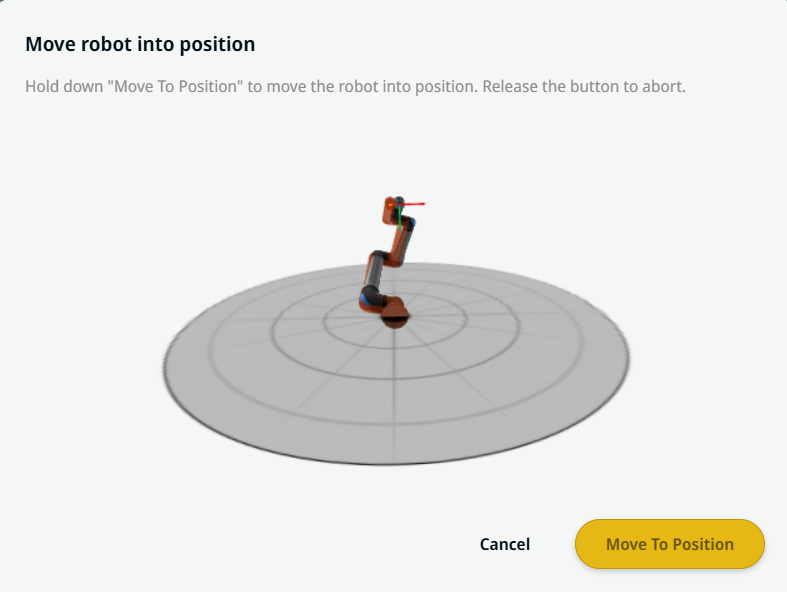
Przycisk Przenieś tutaj jest widoczny w poleceniach Ruch liniowy i Ruch przegubu. Funkcja ta umożliwia przejście do pozycji punktu orientacyjnego bezpośrednio z drzewa programu. Naciśnięcie przycisku Przenieś tutaj powoduje otwarcie okna dialogowego Przesuń robota do pozycji. Przycisk jest widoczny, gdy punkt orientacyjny został nauczony i jest włączony tylko wtedy, gdy robot ma status Normalny lub Ograniczony.


  1. Dotknij opcji dodania ikony, aby wstawić ruch liniowy i ruch przegubu do drzewa poleceń.

  2. Dotknij przycisku Edytuj punkt pierwszego węzła ruchu w drzewie poleceń, niezależnie od tego, czy są to węzły Ruch liniowy, czy Ruch przegubu.

  3. Poruszaj robotem za pomocą przycisku plus-minus we współrzędnych X, Y, Z. Tap Save.

  4. W drugim węźle ruchu w drzewie poleceń dotknij opcji Przesuń tutaj. Zostanie wyświetlony ekran wyskakujący umożliwiający włączenie opcji Przesuń robota do pozycji. Dotknij i przytrzymaj opcję Przesuń do pozycji. Dotknij przycisku OK.


Movement setting
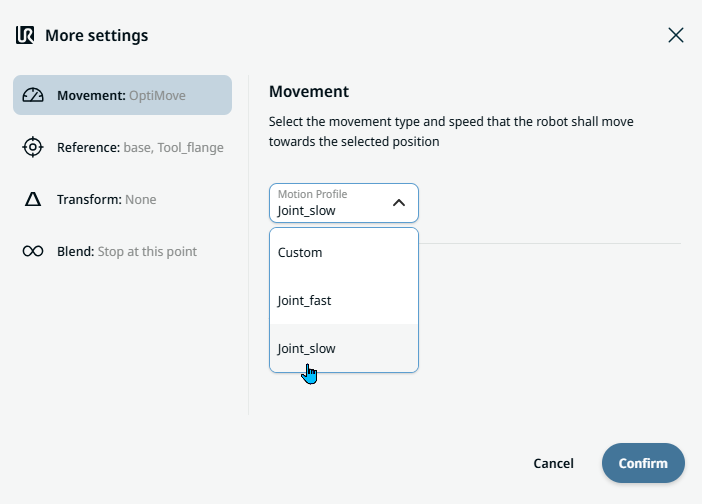
  1. Tap the Movement setting on the left side. A Motion Profile field with the following choices appears on the right side. Joint_slow is the default.

    • Niestandardowy

    • Joint_fast

    • Joint_slow

  2. If Custom is selected, three more fields appear:

    • Typ prędkości

    • Prędkość

    • Przyspieszenie

  3. Choose either OptiMove or Classic when you tap Speed Type.

  4. Tap the Speed field, and the Value, Variable, and Expression tabs pop up.

  5. Enter data in each tab, and tap Confirm. See Value-Variable-Expression Tabs.

  6. Tap the Acceleration field, and the Value, Variable, and Expression tabs pop up.

  7. Enter data in each tab, and tap Confirm. See Value-Variable-Expression Tabs.

  8. When Joint_fast and Joint_slow are selected, the OptiMove speed and acceleration are shown.


Reference setting
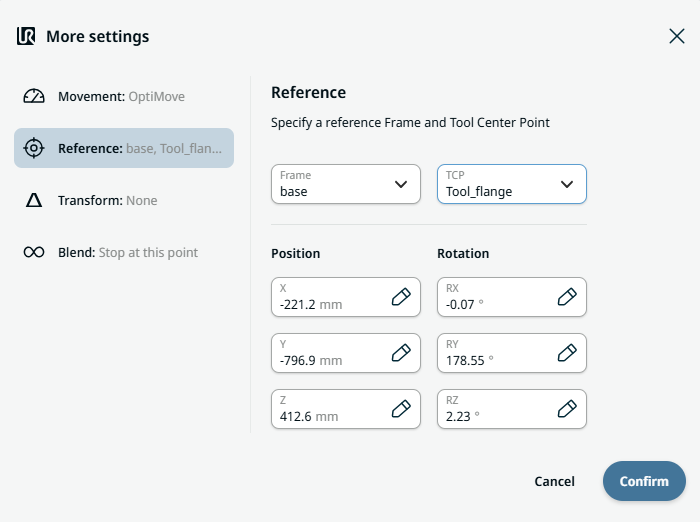
  1. Tap the Reference setting.

  2. Choose either Frame or TCP field.

    In the Frame field, four choices are available:

    • świat

    • podstawa

    • flange

    • tcp

    In the TCP field, two choices are available:

    • Active_TCP

    • Tool_flange

  3. In the Position column, tap the X, Y, Z tabs and enter your chosen value for the robot, and Confirm.

  4. In the Rotation column, tap the RX, RY, RZ tabs and enter your chosen value for the robot, and Confirm.


Transform setting
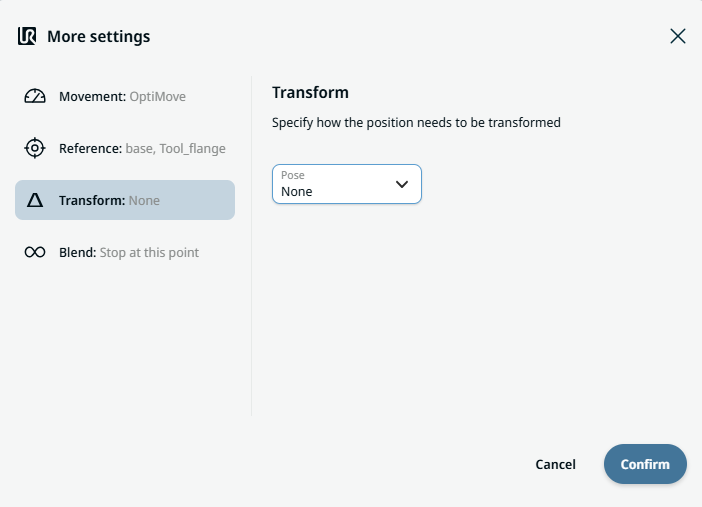
  1. Tap the Transform setting.

  2. Tap the Pose field and Confirm.


Blend setting

  1. Tap the Blend setting.

    A Blend type field appears with two options:

    • Zatrzymaj w tym punkcie

    • Zaokrąglenie

  2. When you choose Stop at this point, no further action is needed but only Confirm.

  3. Tap Blend, and a Radius field is inserted.

  4. The Value, Variable, and Expression tabs pop up when you tap the Radius field.

  5. Enter data in each tab, and tap Confirm. See Value-Variable-Expression Tabs.

  6. To finish, tap Confirm in the More settings screen.