Lineáris mozgás

Leírás

The Linear Move command node supports Motions Profiles as Joint Move, but it creates a movement that is a direct line from point A and point B. It moves the Tool Center Point (TCP) linearly between waypoints. Ez azt jelenti, hogy minden ízület bonyolultabb mozgást végez, hogy a szerszám egyenes vonalban maradjon.


To access Linear Move command

  1. Go to the main program screen. Lásd Command Nodes.

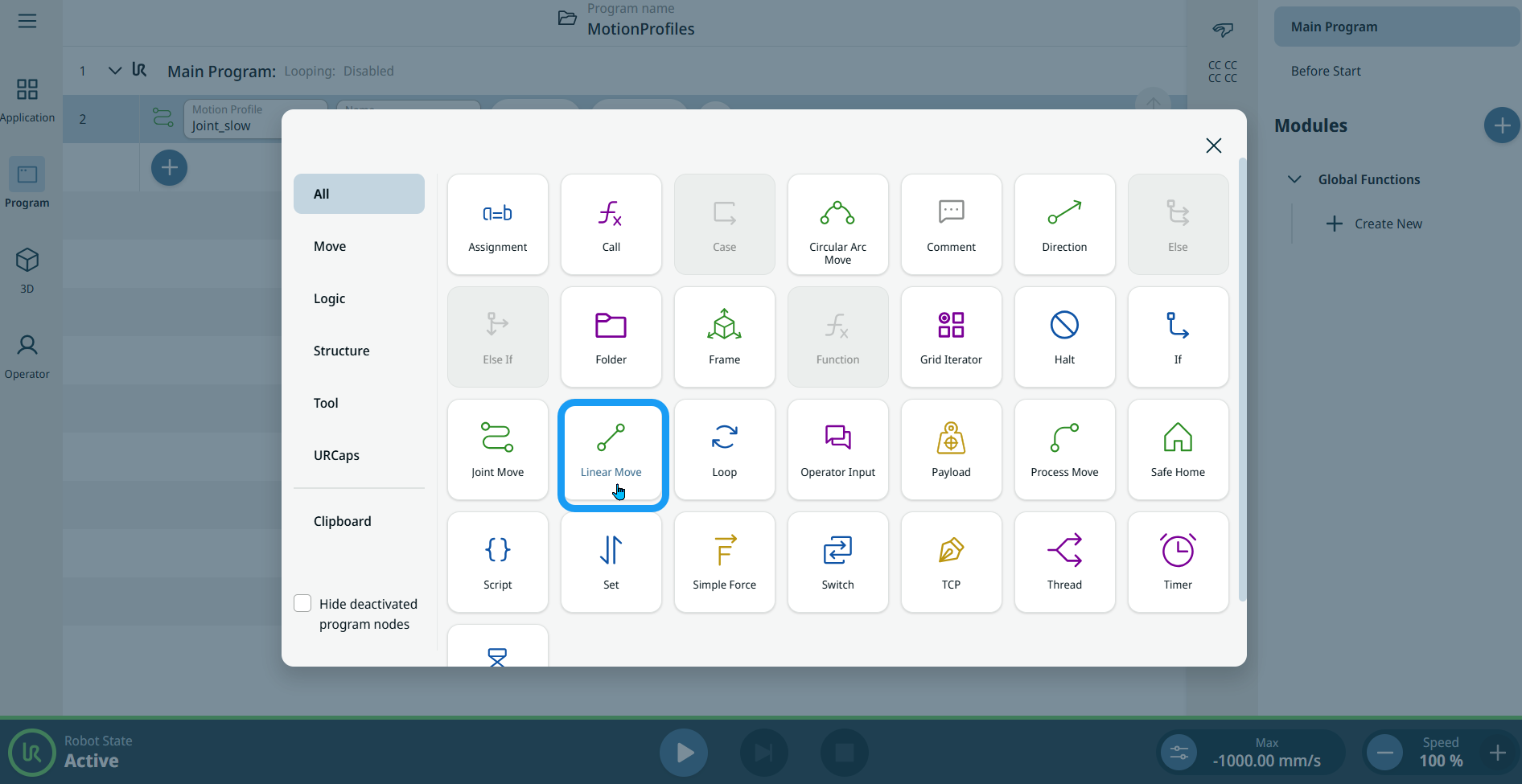
  2. Tap the Linear Move icon in the Commands toolbox.

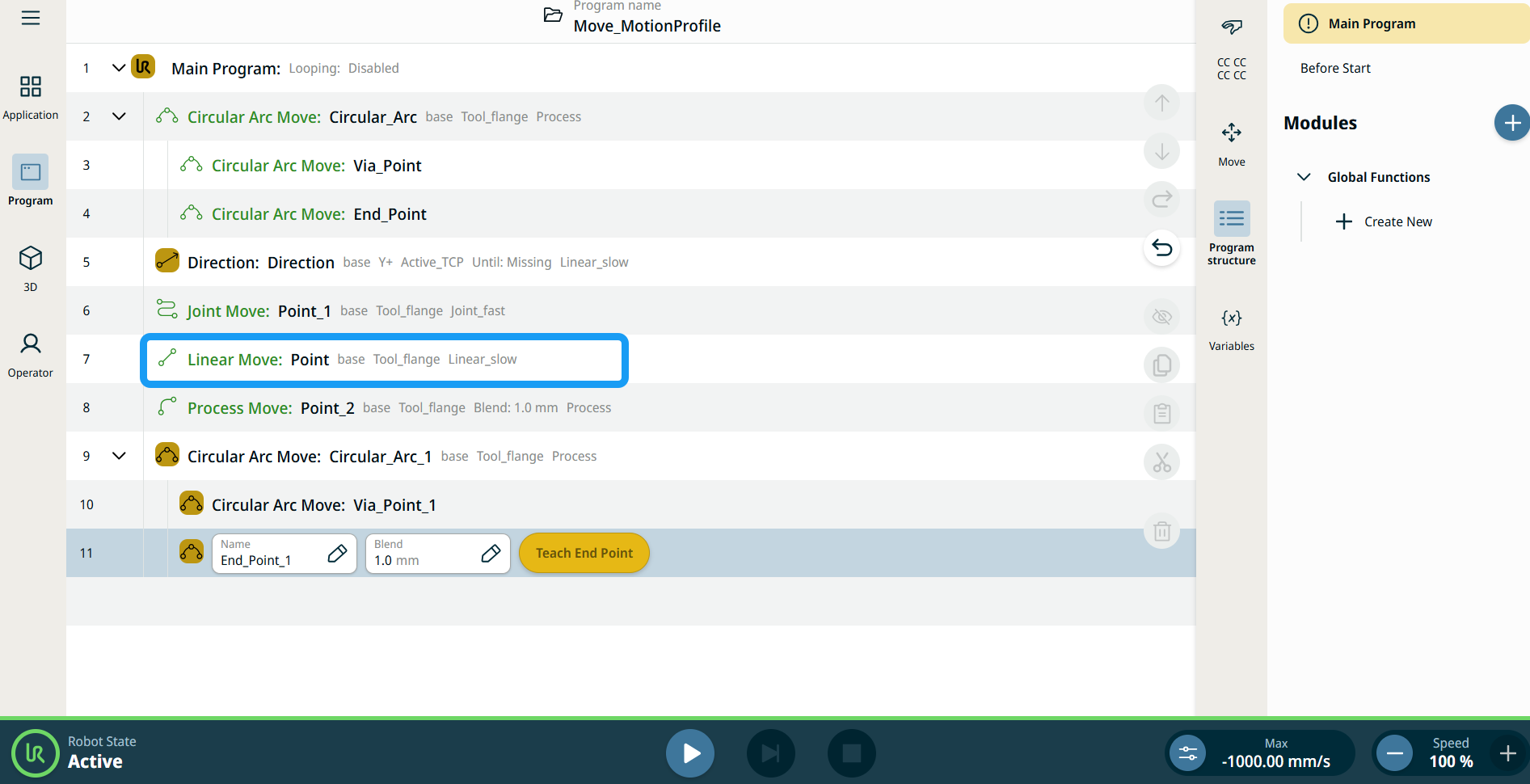
    A node with two editable fields, two buttons, and ellipsis icon is inserted into the program tree. These are two editable fields:

    • Mozgási profil

    • Név

    These are the three buttons:

    • Pont szerkesztése

    • Mozgatás ide

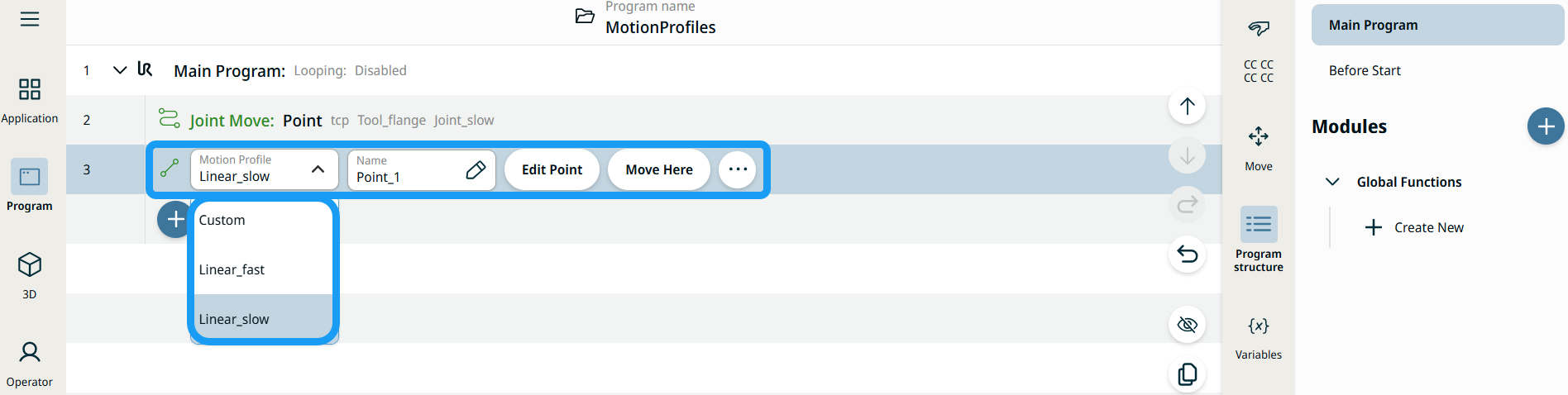
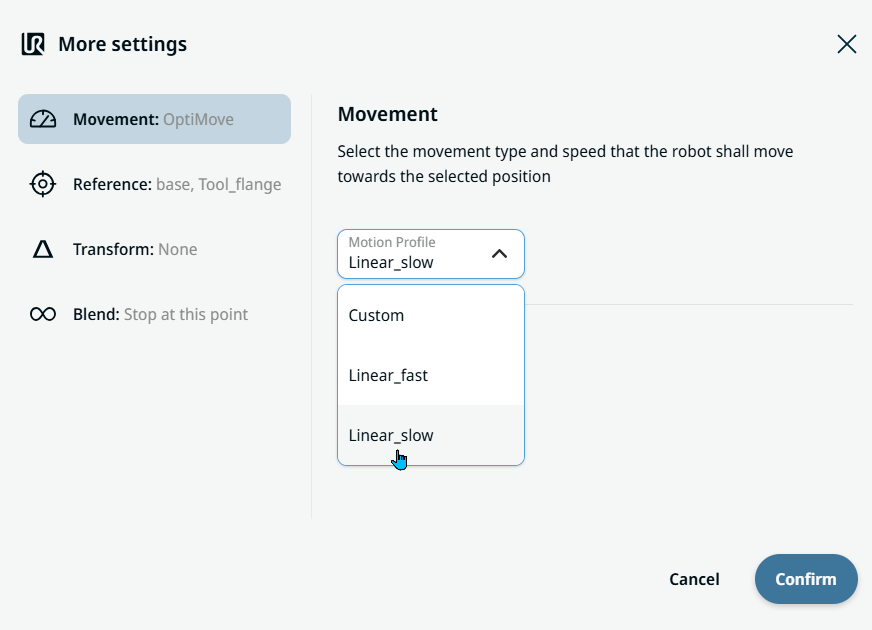
  3. Tap the Motion Profile field and select the pertinent from the three choices are available:

    • Egyéni

    • Linear_fast

    • Linear_slow


  1. Tap the Name field, and three tabs appear:

    • Érték

    • Változó

    • Kifejezés

  2. Enter the data in the Value, Variable, and Expression tabs, and tap Confirm. See Value-Variable-Expression Tabs.

  3. Tap Edit Point. A new screen appears with the robot arm interface.

  4. Tap More button. The More settings screen appears with four settings:

    • Mozgás

    • Referencia

    • Átalakítás

    • Keverés


A Mozgatás ide gomb használata

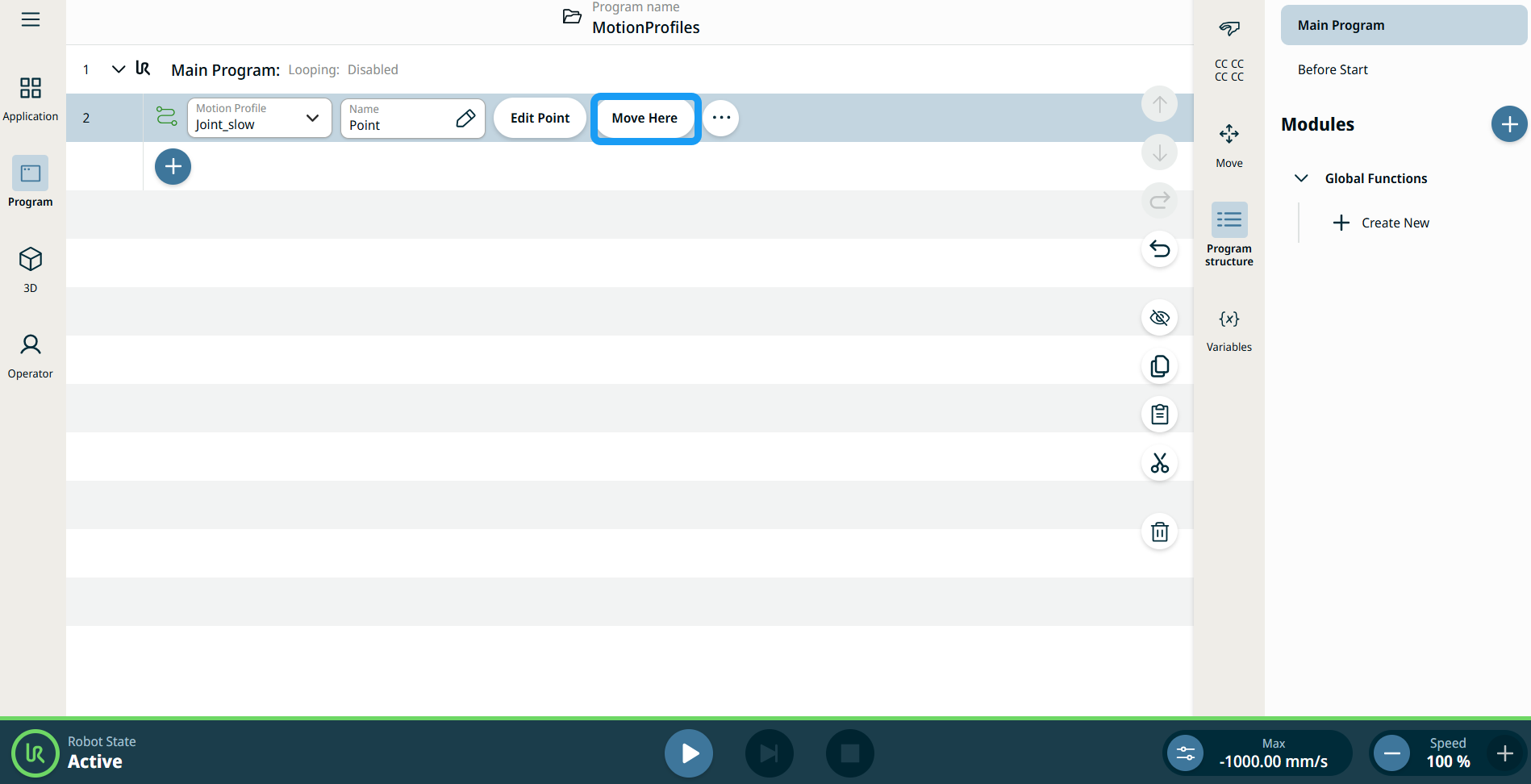
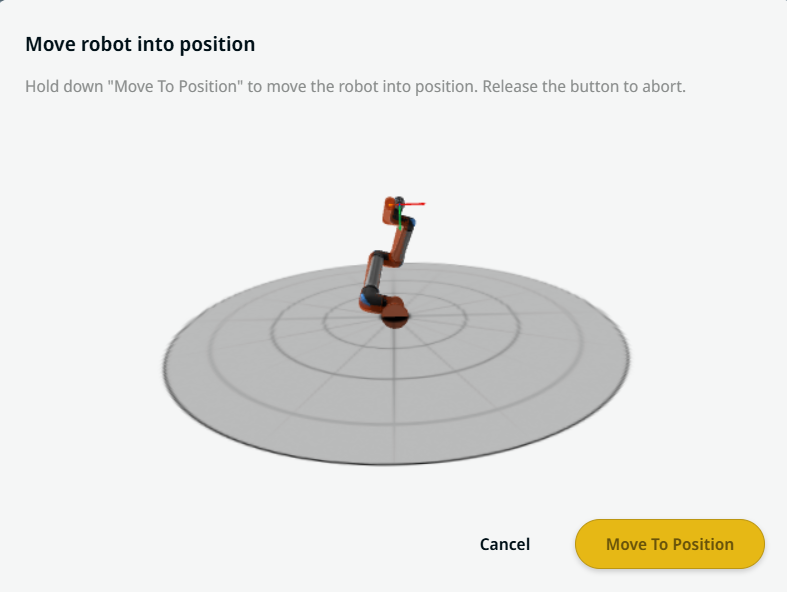
A Mozgatás ide gomb a Lineáris mozgás és az Ízület mozgatása parancsokban látható. A funkció lehetővé teszi, hogy a programfából közvetlenül egy útpont pozíciójába lépjen át. A Mozgatás ide gomb megnyomásával megnyílik a Robot mozgatása pozícióba párbeszédpanel. A gomb akkor látható, ha az útpont be lett tanítva, és csak akkor engedélyezett, ha a robot állapota Normál vagy Csökkentett módban van.


  1. Koppintson a Hozzáadás ikonra, és illessze be a Lineáris mozgás és az Ízület mozgatása parancsokat a parancsfába.

  2. Koppintson a parancsfában az első mozgási csomópont Pont szerkesztése gombjára, akár Lineáris mozgás, akár Ízület mozgatása csomópontról van szó.

  3. Mozgassa a robotot az X, Y, Z koordináták plusz-mínusz gombjával. Tap Save.

  4. A parancsfa második mozgási csomópontjában koppintson a Mozgatás ide elemre. Megjelenik egy felugró ablak, amely lehetővé teszi a Robot mozgatása pozícióba parancs végrehajtását. Hosszan koppintson a Mozgatás pozícióba gombra. Koppintson az Ok gombra.


Mozgásprofil címkék a mozgatási csomópontokon

A programfa mozgással kapcsolatos parancs csomópontjai megjelenítik az egyes csomópontokhoz tartozó mozgásprofilt. A funkció lehetővé teszi, hogy a felhasználók megtekinthessék a kiválasztott mozgásprofilt egy Mozgatás csomóponton. A funkció a következő parancscsomópontokon működik:

Az egyéni mozgásprofilú mozgáscsomópontok a Mozgásprofil helyett a sebesség és a gyorsulás értékeit jelenítik meg.


Movement setting
  1. Tap the Movement setting on the left side. A Motion Profile field with the following choices appears on the right side. Linear_slow is the default.

    • Egyéni

    • Linear_fast

    • Linear_slow

  2. If Custom is selected, three more fields appear:

    • Sebesség típusa

    • Sebesség

    • Gyorsulás

  3. Choose either OptiMove or Classic when you tap Speed Type.

  4. Tap the Speed field, and the Value, Variable, and Expression tabs pop up.

  5. Enter data in each tab, and tap Confirm. See Value-Variable-Expression Tabs.

  6. Tap the Acceleration field, and the Value, Variable, and Expression tabs pop up.

  7. Enter data in each tab, and tap Confirm. See Value-Variable-Expression Tabs.

  8. When Linear_fast and Linear_slow are selected, the OptiMove speed and acceleration are shown.


Reference setting
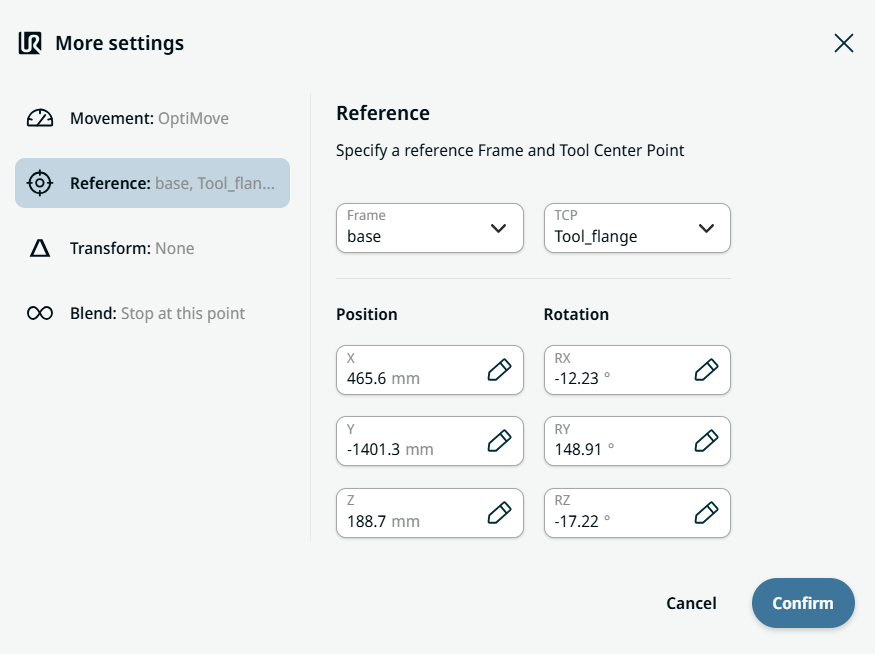
  1. Tap the Reference setting.

  2. Choose either Frame or TCP field.

  3. In the Frame field, four choices are available:

    • világ

    • alap

    • flange

    • tcp

  4. In the TCP field, two choices are available:

    • Active_TCP

    • Tool_flange

  5. In the Position column, tap the X, Y, Z tabs and enter your chosen value for the robot, and Confirm.

  6. In the Rotation column, tap the RX, RY, RZ tabs and enter your chosen value for the robot, and Confirm.


Transform setting
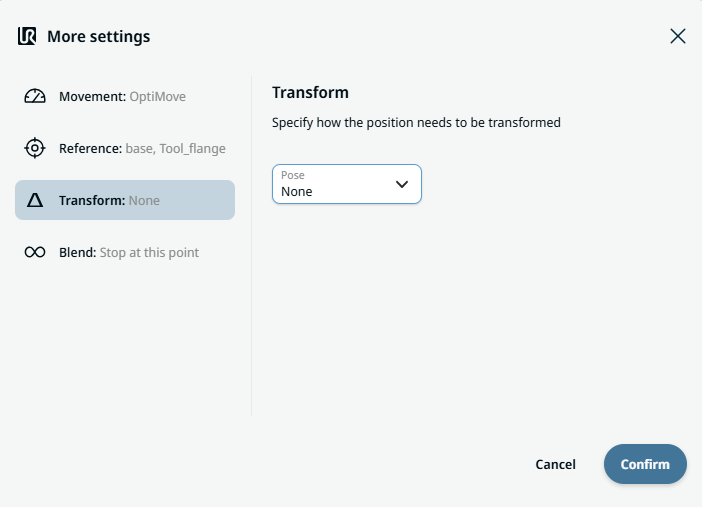
  1. Tap the Transform setting.

  2. Tap the Pose field and Confirm.


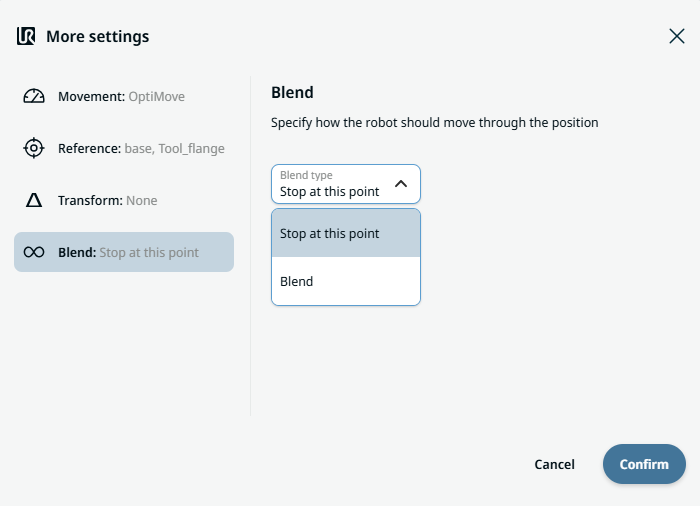
Blend setting

  1. Tap the Blend setting.

    A Blend type field appears with two options:

    • Leállítás ennél a pontnál

    • Keverés

  2. When you choose Stop at this point, no further action is needed but only Confirm.

  3. Tap Blend, and a Radius field is inserted.

  4. The Value, Variable, and Expression tabs pop up when you tap the Radius field.

  5. Enter data in each tab, and tap Confirm. See Value-Variable-Expression Tabs.

  6. To finish, tap Confirm in the More settings screen.