Linear Move

Descripción

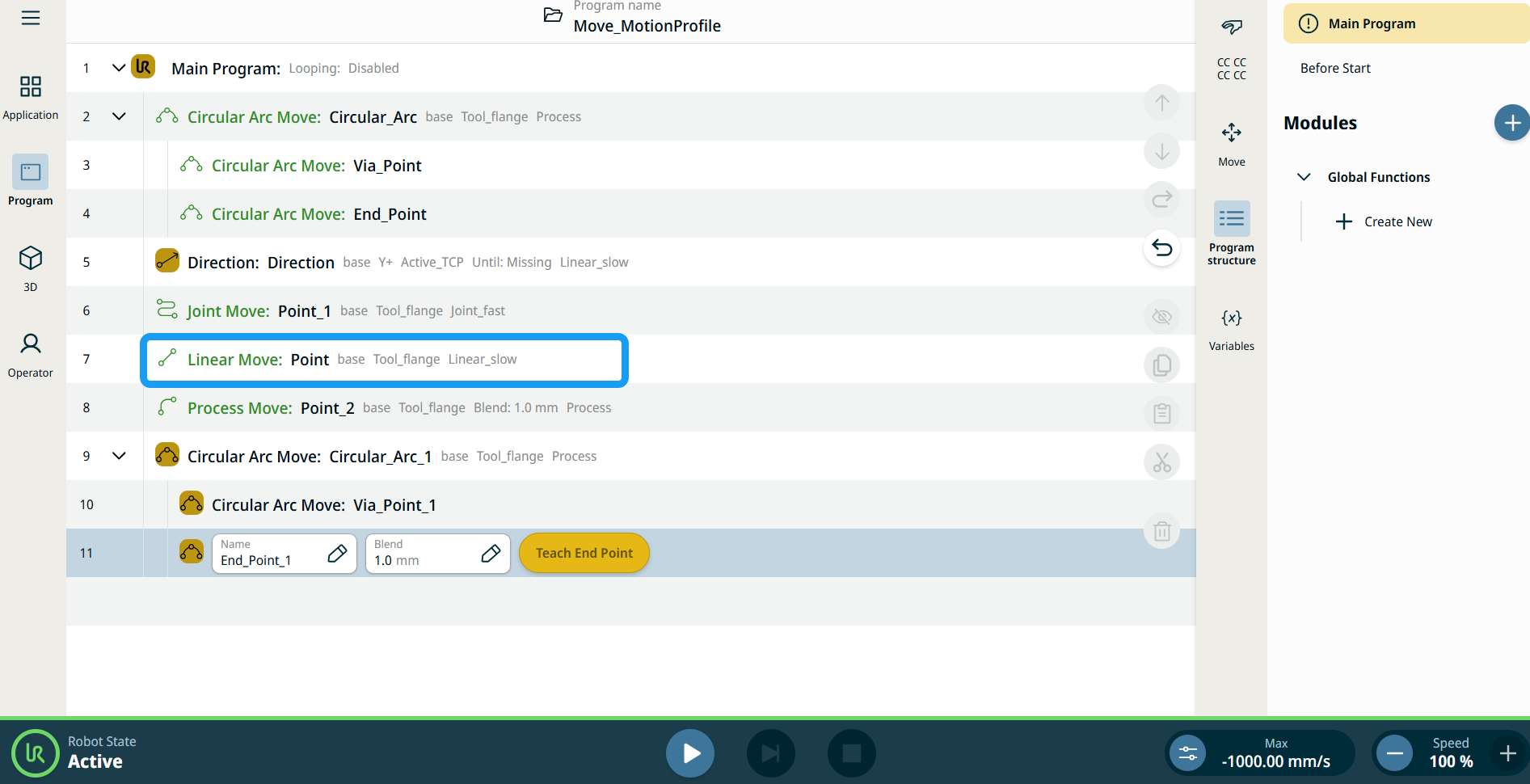
The Linear Move command node supports Motions Profiles as Joint Move, but it creates a movement that is a direct line from point A and point B. It moves the Tool Center Point (TCP) linearly between waypoints. Esto significa que cada articulación realiza un movimiento más complicado para mantener la herramienta en una trayectoria en línea recta.


To access Linear Move command

  1. Go to the main program screen. See Command Nodes.

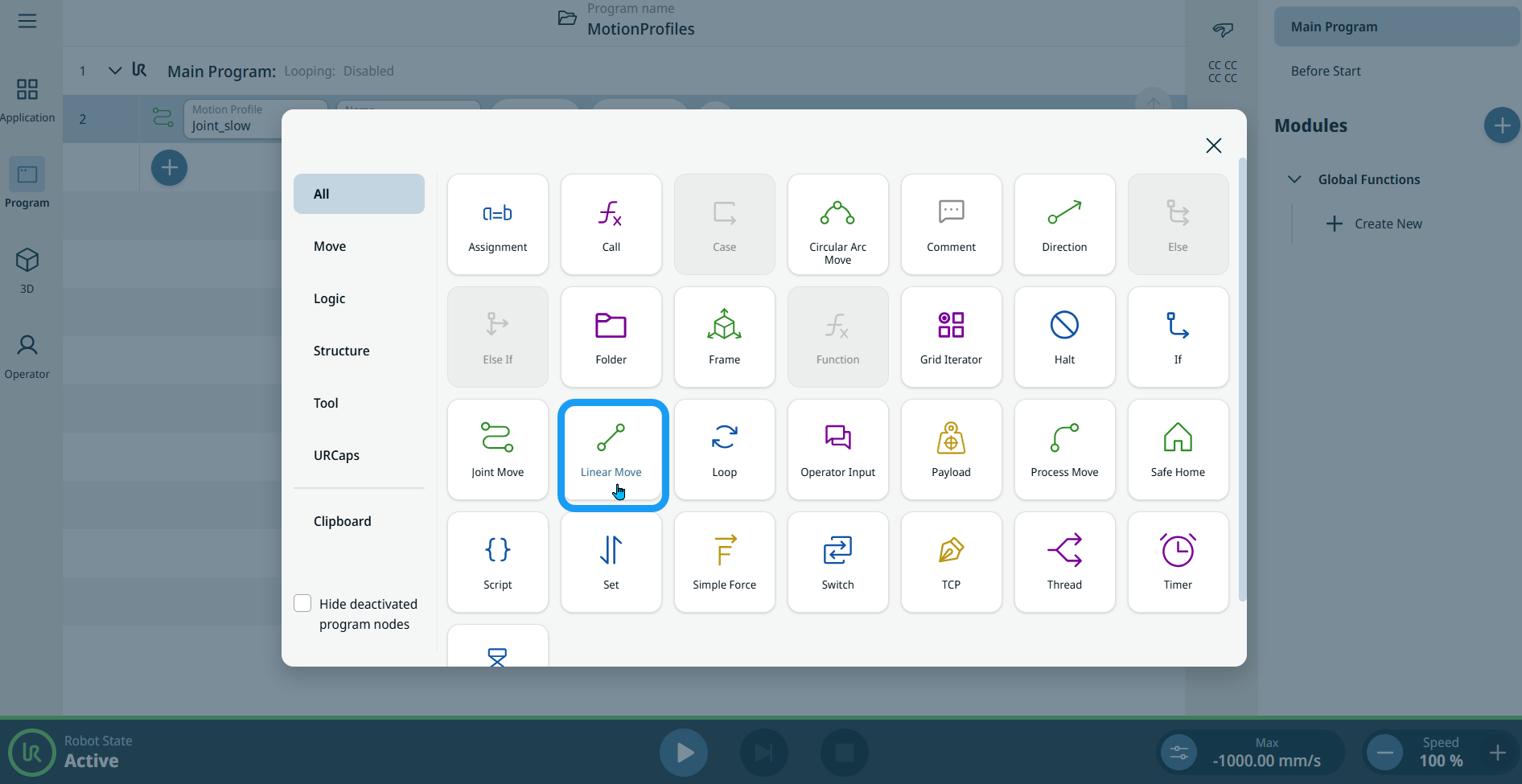
  2. Tap the Linear Move icon in the Commands toolbox.

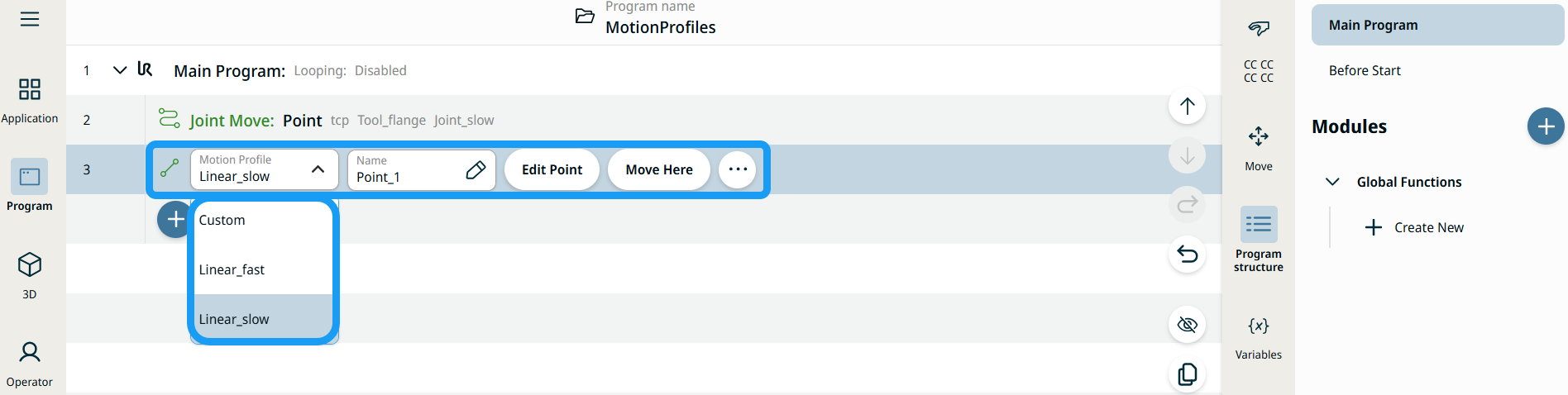
    A node with two editable fields, two buttons, and ellipsis icon is inserted into the program tree. These are two editable fields:

    • Motion Profile

    • Name

    These are the three buttons:

    • Edit Point

    • Move Here

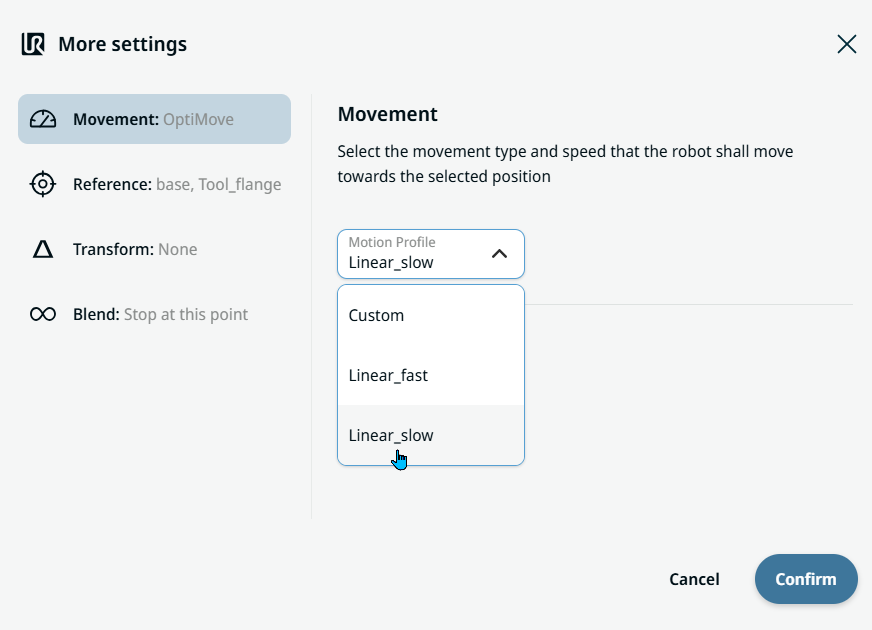
  3. Tap the Motion Profile field and select the pertinent from the three choices are available:

    • Personalizado

    • Linear_fast

    • Linear_slow


  1. Tap the Name field, and three tabs appear:

    • Value

    • Variable

    • Expresión

  2. Enter the data in the Value, Variable, and Expression tabs, and tap Confirm. See Value-Variable-Expression Tabs.

  3. Tap Edit Point. A new screen appears with the robot arm interface.

  4. Tap More button. The More settings screen appears with four settings:

    • Movement

    • Reference

    • Transform

    • Blend


Uso del botón Mover aquí

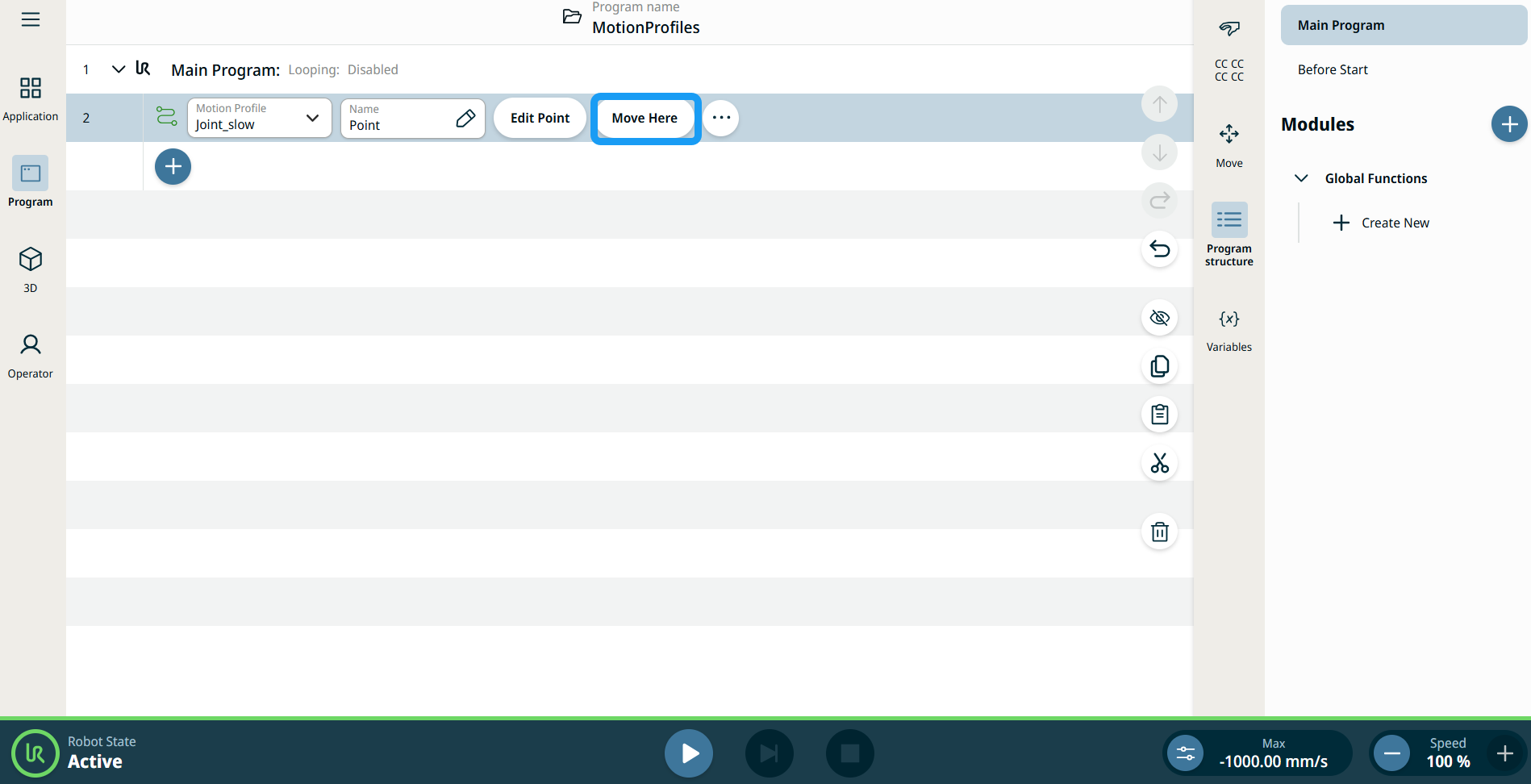
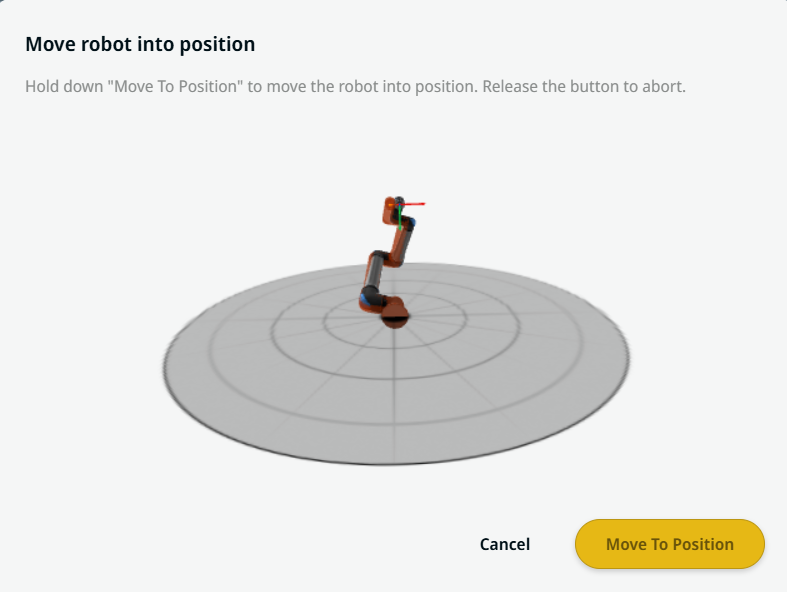
El botón Mover aquí se puede ver en los comandos Linear Move y Joint Move. Esta función le permite desplazarse a la posición de un punto de paso directamente desde el árbol de programa. Al pulsar el botón Mover aquí se abre el diálogo Poner robot en posición. El botón se puede ver cuando se ha enseñado el punto de paso y solo se habilita cuando el estado del robot está en modo Normal o Reducido.


  1. Pulse el icono Añadir para insertar el movimiento lineal y el movimiento de las articulaciones en el árbol de comandos.

  2. Pulse el botón Editar punto del primer nodo de movimiento en el árbol de comandos, ya sea un nodo de Movimiento Lineal o de Movimiento de articulaciones.

  3. Mueva el robot usando el botón más-menos en las coordenadas X, Y, Z. Tap Save.

  4. En el segundo nodo de movimiento en el árbol de comandos, pulse Mover aquí. Aparece una pantalla emergente para habilitar Poner robot en posición. Mantenga pulsado Mover a la posición. Pulse Aceptar.


Etiquetas de perfil de movimiento en nodos de movimiento

Todos los nodos de comando relacionados con movimiento en el árbol de programa muestran el Perfil de movimiento asociado a cada nodo. Esta función permite a los usuarios ver el perfil de movimiento seleccionado en un nodo Mover. Esta función se implementa en los siguientes nodos de comando:

Los nodos de movimiento con perfil de movimiento personalizado mostrarán los valores de velocidad y aceleración en lugar del perfil de movimiento.


Movement setting
  1. Tap the Movement setting on the left side. A Motion Profile field with the following choices appears on the right side. Linear_slow is the default.

    • Personalizado

    • Linear_fast

    • Linear_slow

  2. If Custom is selected, three more fields appear:

    • Speed Type

    • Rapidez

    • Acceleration

  3. Choose either OptiMove or Classic when you tap Speed Type.

  4. Tap the Speed field, and the Value, Variable, and Expression tabs pop up.

  5. Enter data in each tab, and tap Confirm. See Value-Variable-Expression Tabs.

  6. Tap the Acceleration field, and the Value, Variable, and Expression tabs pop up.

  7. Enter data in each tab, and tap Confirm. See Value-Variable-Expression Tabs.

  8. When Linear_fast and Linear_slow are selected, the OptiMove speed and acceleration are shown.


Reference setting
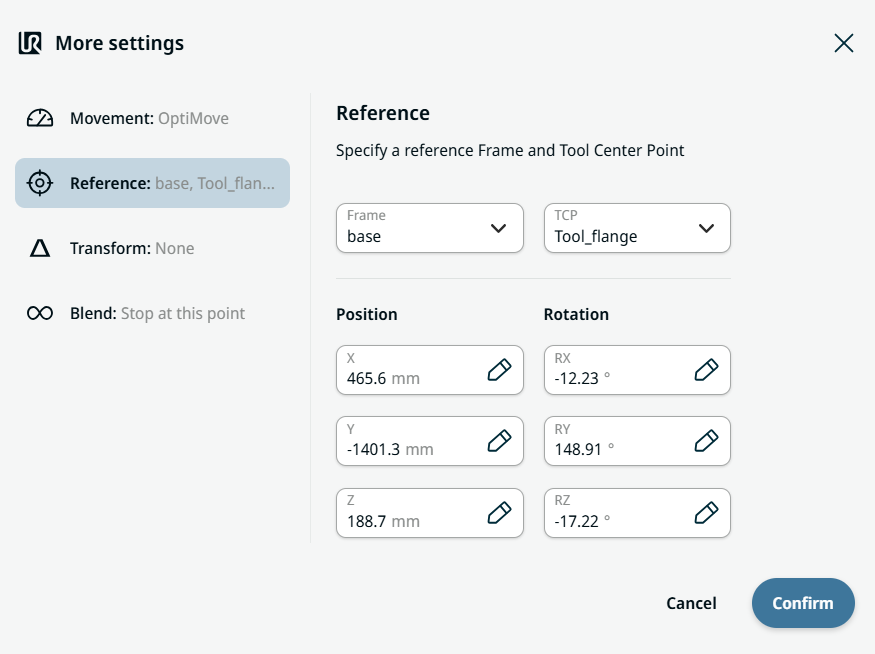
  1. Tap the Reference setting.

  2. Choose either Frame or TCP field.

  3. In the Frame field, four choices are available:

    • world

    • base

    • flange

    • tcp

  4. In the TCP field, two choices are available:

    • Active_TCP

    • Tool_flange

  5. In the Position column, tap the X, Y, Z tabs and enter your chosen value for the robot, and Confirm.

  6. In the Rotation column, tap the RX, RY, RZ tabs and enter your chosen value for the robot, and Confirm.


Transform setting
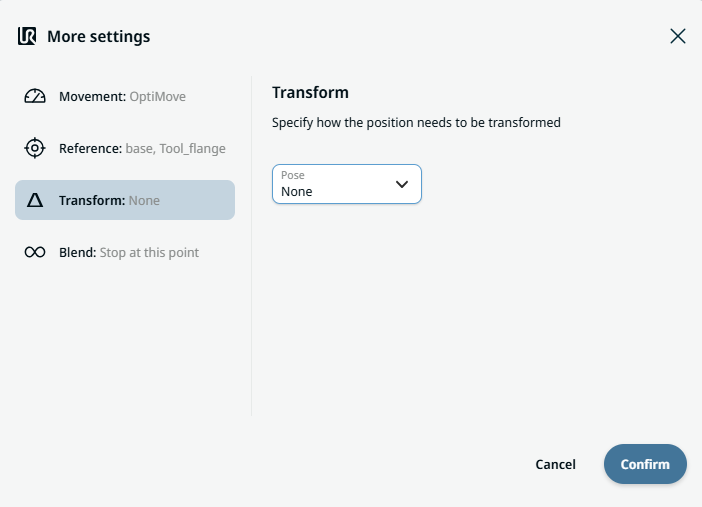
  1. Tap the Transform setting.

  2. Tap the Pose field and Confirm.


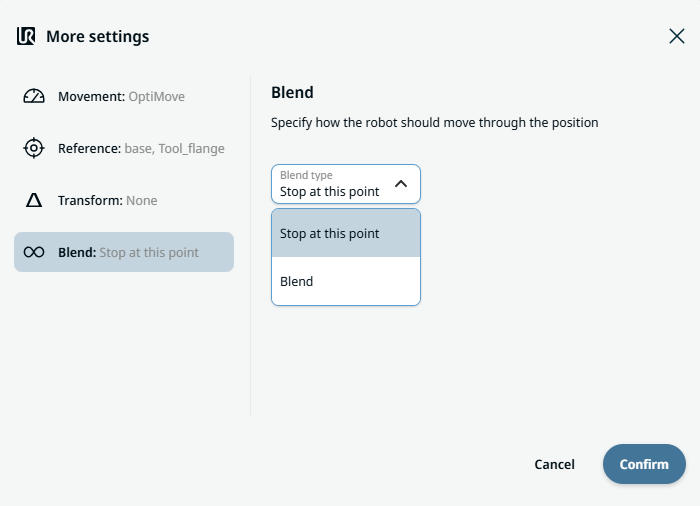
Blend setting

  1. Tap the Blend setting.

    A Blend type field appears with two options:

    • Parar en este punto

    • Blend

  2. When you choose Stop at this point, no further action is needed but only Confirm.

  3. Tap Blend, and a Radius field is inserted.

  4. The Value, Variable, and Expression tabs pop up when you tap the Radius field.

  5. Enter data in each tab, and tap Confirm. See Value-Variable-Expression Tabs.

  6. To finish, tap Confirm in the More settings screen.