Linear Move

Beschreibung

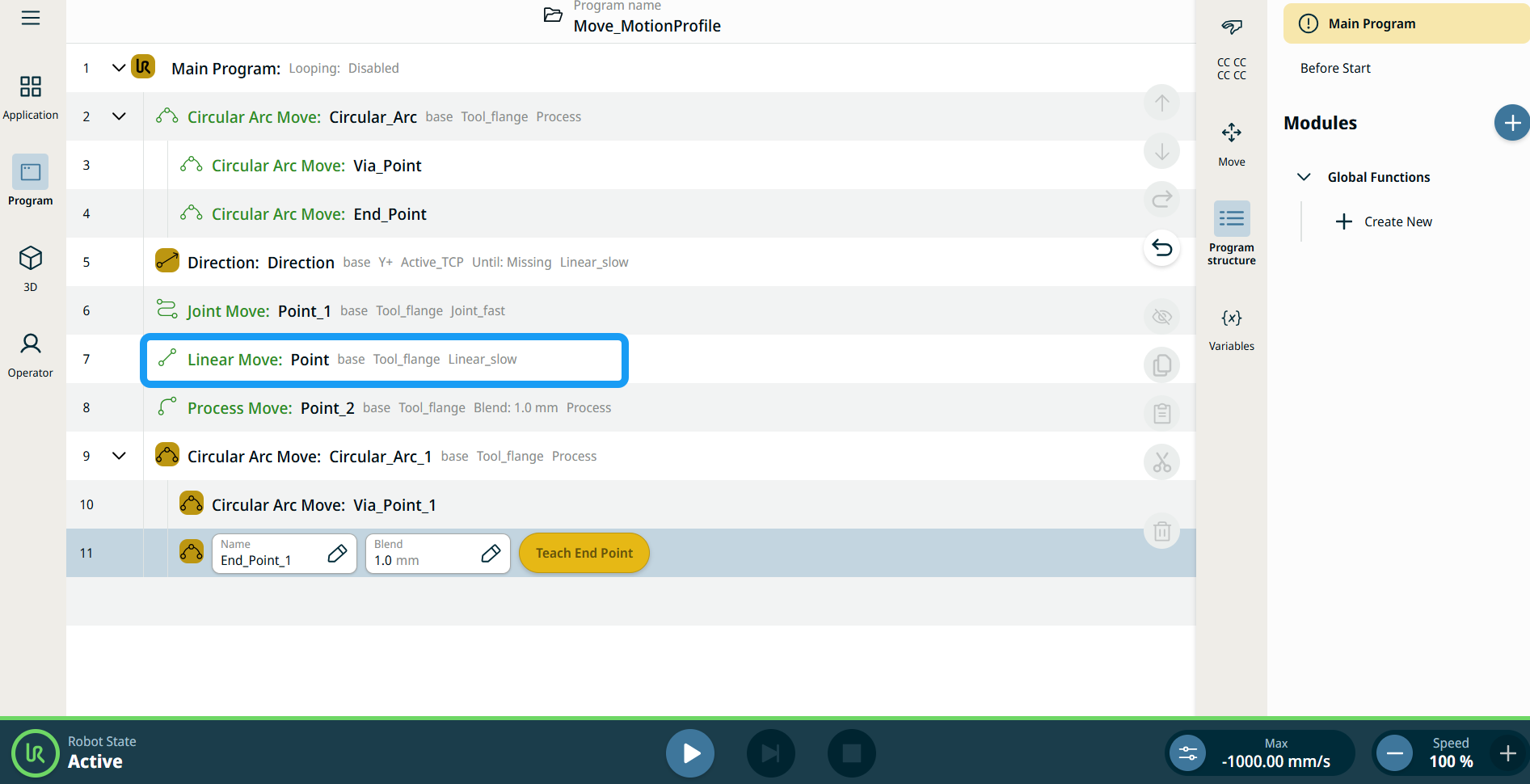
The Linear Move command node supports Motions Profiles as Joint Move, but it creates a movement that is a direct line from point A and point B. It moves the Tool Center Point (TCP) linearly between waypoints. Dies bedeutet, dass jedes Gelenk eine kompliziertere Bewegung ausführt, um das Werkzeug auf einer geraden Bahn zu halten.


To access Linear Move command

  1. Go to the main program screen. See Command Nodes.

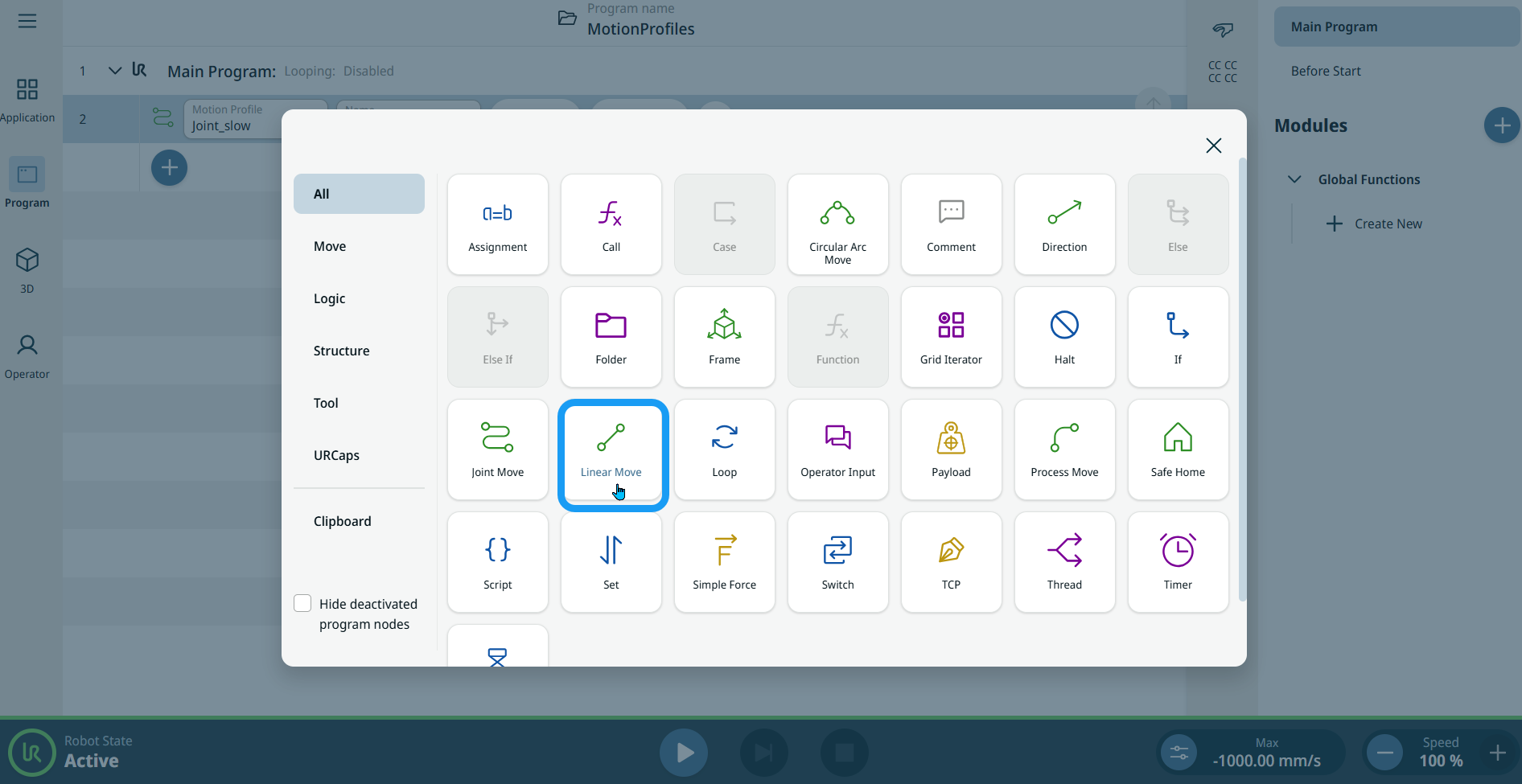
  2. Tap the Linear Move icon in the Commands toolbox.

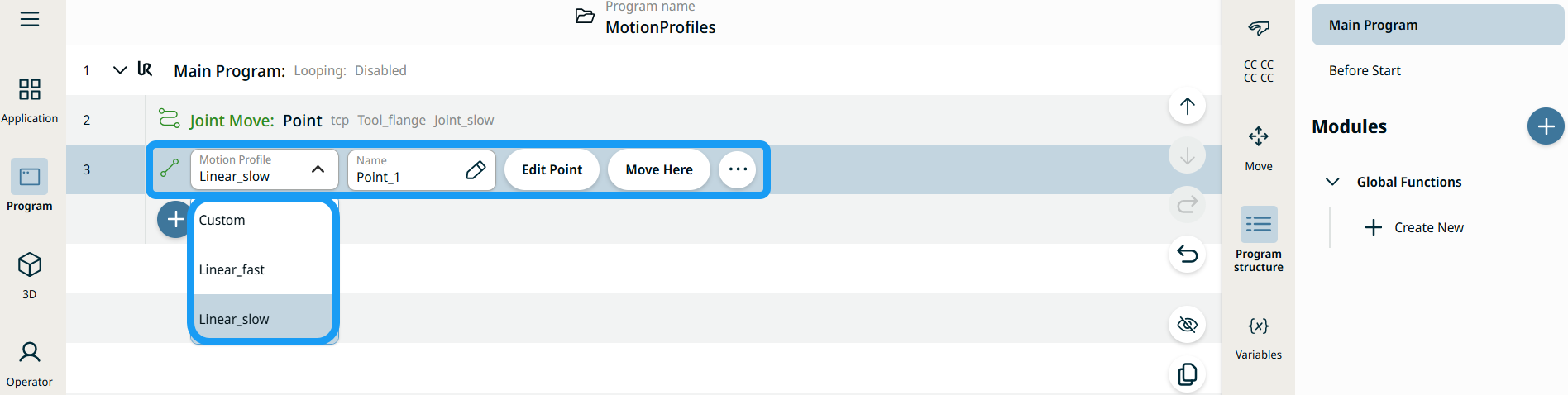
    A node with two editable fields, two buttons, and ellipsis icon is inserted into the program tree. These are two editable fields:

    • Motion Profile

    • Name

    These are the three buttons:

    • Edit Point

    • Move Here

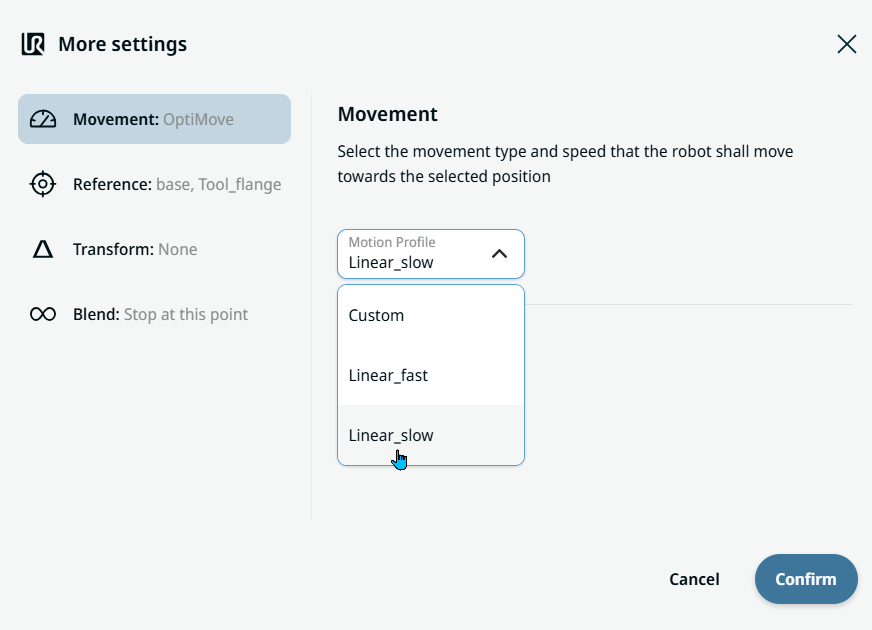
  3. Tap the Motion Profile field and select the pertinent from the three choices are available:

    • Benutzerdefiniert

    • Linear_fast

    • Linear_slow


  1. Tap the Name field, and three tabs appear:

    • Value

    • Variable

    • Ausdruck

  2. Enter the data in the Value, Variable, and Expression tabs, and tap Confirm. See Value-Variable-Expression Tabs.

  3. Tap Edit Point. A new screen appears with the robot arm interface.

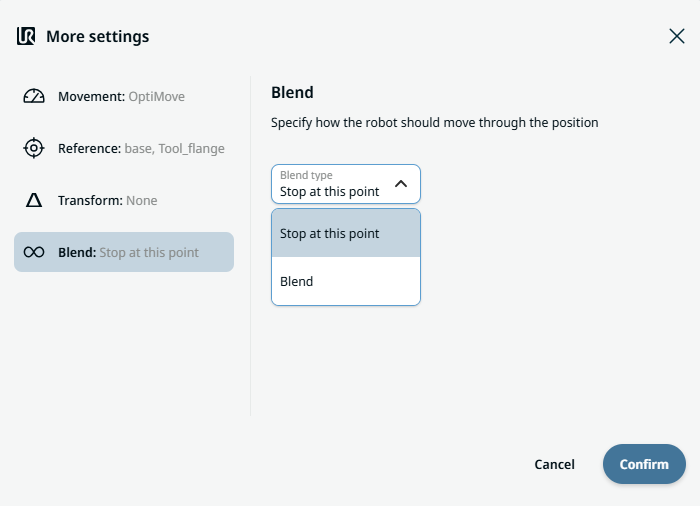
  4. Tap More button. The More settings screen appears with four settings:

    • Movement

    • Reference

    • Transform

    • Blend


Die Schaltfläche Hierher Bewegen verwenden

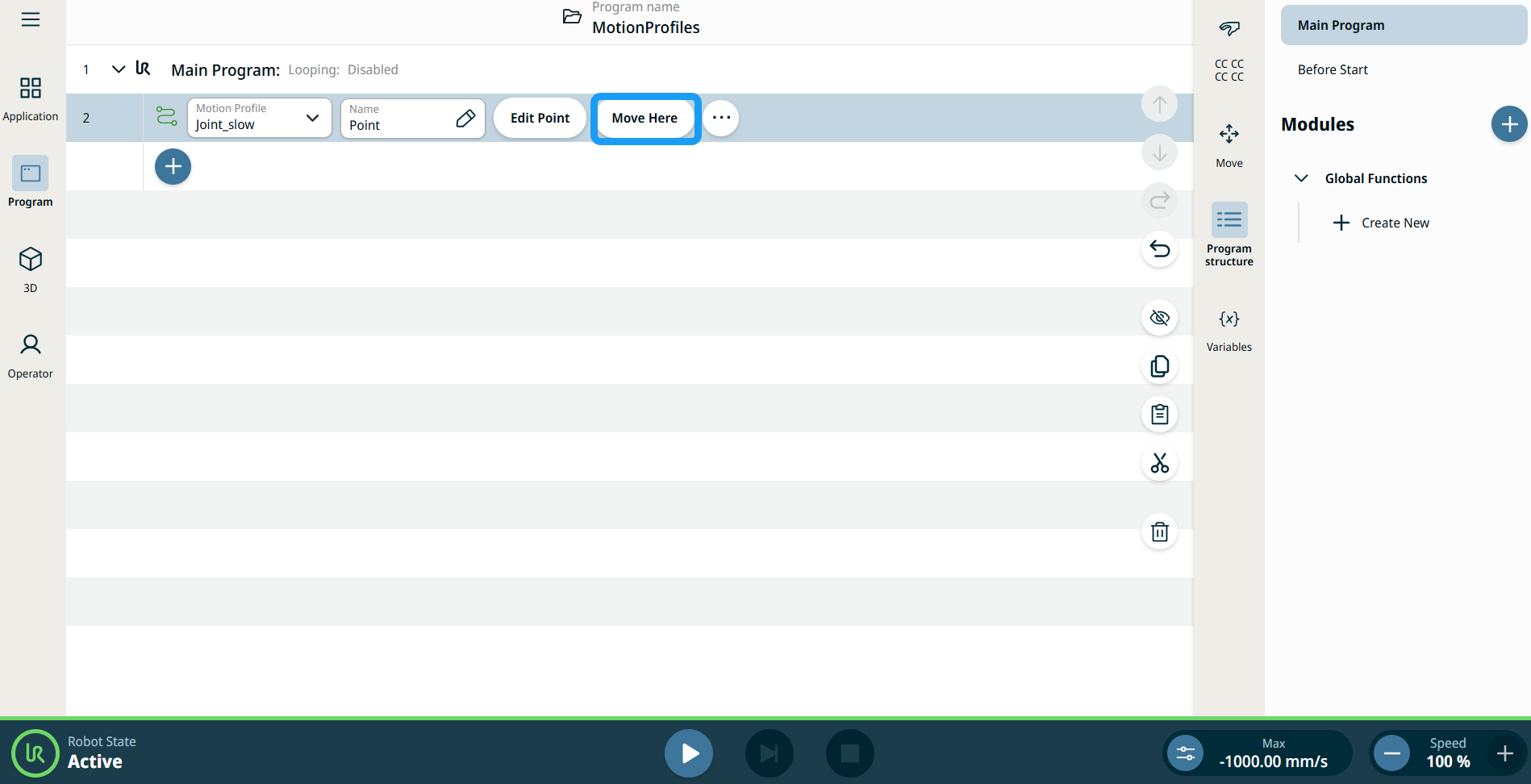
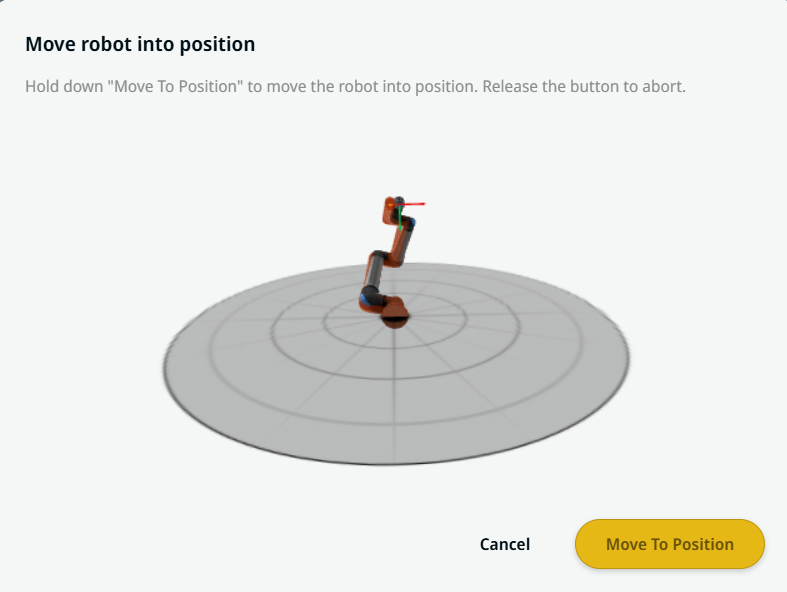
Die Schaltfläche Hierher Bewegen ist bei den Befehlen Linear Move und Joint Move zu sehen. Mit dieser Funktion können Sie direkt aus der Programmstruktur zur Position eines Wegpunktes bewegen. Durch das Drücken auf die Schaltfläche Hierher Bewegen wird der Dialog Roboter in Position bewegen geöffnet. Die Schaltfläche ist sichtbar, wenn der Wegpunkt geteacht wurde und ist nur aktiv, wenn der Roboter sich im Normalen oder im Reduzierten Modus befindet.


  1. Tippen Sie auf das Hinzufügen-Symbol, um die lineare Bewegung oder Gelenkbewegung zur Befehlsstruktur hinzuzufügen.

  2. Tippen Sie im ersten Bewegungsknoten in der Befehlsstruktur auf die Schaltfläche Punkt bearbeiten, ungeachtet davon, ob es ein Knoten für eine lineare Bewegung oder für eine Gelenkbewegung ist.

  3. Schubsen Sie den Roboter mit der Plus-Minus-Schaltfläche in die X-, Y- und Z-Koordinaten. Tap Save.

  4. Tippen Sie im zweiten Bewegungsknoten der Befehlsstruktur auf Hierher Bewegen. Ein Pop-up-Bildschirm erscheint, um Roboter in Position bewegen zu aktivieren. Tippen Sie lange auf In Position bewegen. Tippen Sie auf OK.


Bewegungsprofil-Kennzeichnungen bei Bewegungsknoten

Alle Bewegungsbezogenen Befehlsknoten in der Programmstruktur zeigen das Bewegungsprofil an, welches mit jedem Knoten verknüpft ist. Diese Funktion ermöglicht es Benutzern, das ausgewählte Bewegungsprofil bei einem Bewegen-Knoten zu sehen. Diese Funktion ist bei den folgenden Befehlsknoten implementiert:

Bewegungsknoten mit benutzerdefiniertem Bewegungsprofil zeigen die Werte für die Geschwindigkeit und Beschleunigung an.


Movement setting
  1. Tap the Movement setting on the left side. A Motion Profile field with the following choices appears on the right side. Linear_slow is the default.

    • Benutzerdefiniert

    • Linear_fast

    • Linear_slow

  2. If Custom is selected, three more fields appear:

    • Speed Type

    • Geschwindigkeit

    • Acceleration

  3. Choose either OptiMove or Classic when you tap Speed Type.

  4. Tap the Speed field, and the Value, Variable, and Expression tabs pop up.

  5. Enter data in each tab, and tap Confirm. See Value-Variable-Expression Tabs.

  6. Tap the Acceleration field, and the Value, Variable, and Expression tabs pop up.

  7. Enter data in each tab, and tap Confirm. See Value-Variable-Expression Tabs.

  8. When Linear_fast and Linear_slow are selected, the OptiMove speed and acceleration are shown.


Reference setting
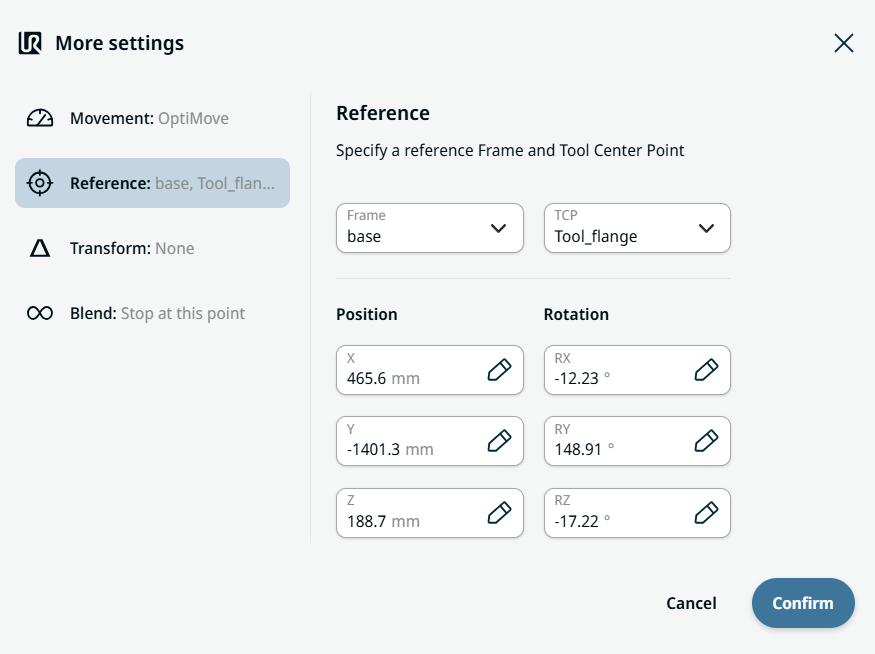
  1. Tap the Reference setting.

  2. Choose either Frame or TCP field.

  3. In the Frame field, four choices are available:

    • world

    • base

    • flange

    • tcp

  4. In the TCP field, two choices are available:

    • Active_TCP

    • Tool_flange

  5. In the Position column, tap the X, Y, Z tabs and enter your chosen value for the robot, and Confirm.

  6. In the Rotation column, tap the RX, RY, RZ tabs and enter your chosen value for the robot, and Confirm.


Transform setting
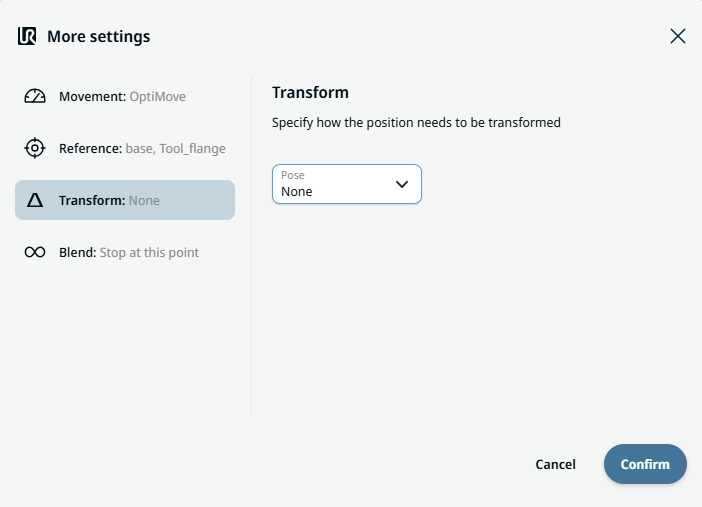
  1. Tap the Transform setting.

  2. Tap the Pose field and Confirm.


Blend setting

  1. Tap the Blend setting.

    A Blend type field appears with two options:

    • Stopp an dieser Stelle

    • Blend

  2. When you choose Stop at this point, no further action is needed but only Confirm.

  3. Tap Blend, and a Radius field is inserted.

  4. The Value, Variable, and Expression tabs pop up when you tap the Radius field.

  5. Enter data in each tab, and tap Confirm. See Value-Variable-Expression Tabs.

  6. To finish, tap Confirm in the More settings screen.