PolyScope X: Using I/O for Mode Selection
| Description |
The robot can be configured to switch between operational modes without using the Teach Pendant. This means that using the Teach Pendant is prohibited when switching from Automatic mode to Manual mode and vice versa.
Switching modes without using the Teach Pendant requires safety I/O configuration and a secondary device as a mode selector.
|
| Mode selector |
The mode selector can be a key switch with a redundant electrical layout or with signals from a dedicated safety PLC.
|
| To use the mode selector |
Using the mode selector, such as a key switch, prevents the Teach Pendant from being used to switch between modes.
|
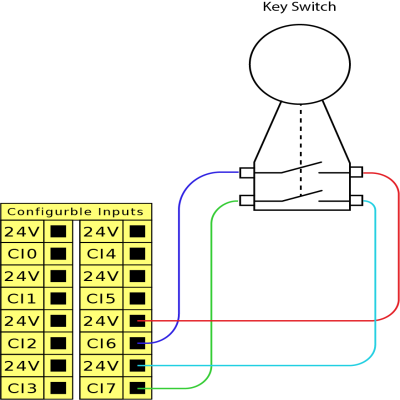
| Configure the connected safety inputs |
Unlock the safety I/O screen to configure the safety inputs for the secondary device.
Once the input is assigned to the secondary device, switching modes via the Teach Pendant is disabled. If you attempt to switch modes with the Teach Pendant, a message appears confirming that the Teach Pendant cannot change the operational mode.
|