Safe Home
| Description |
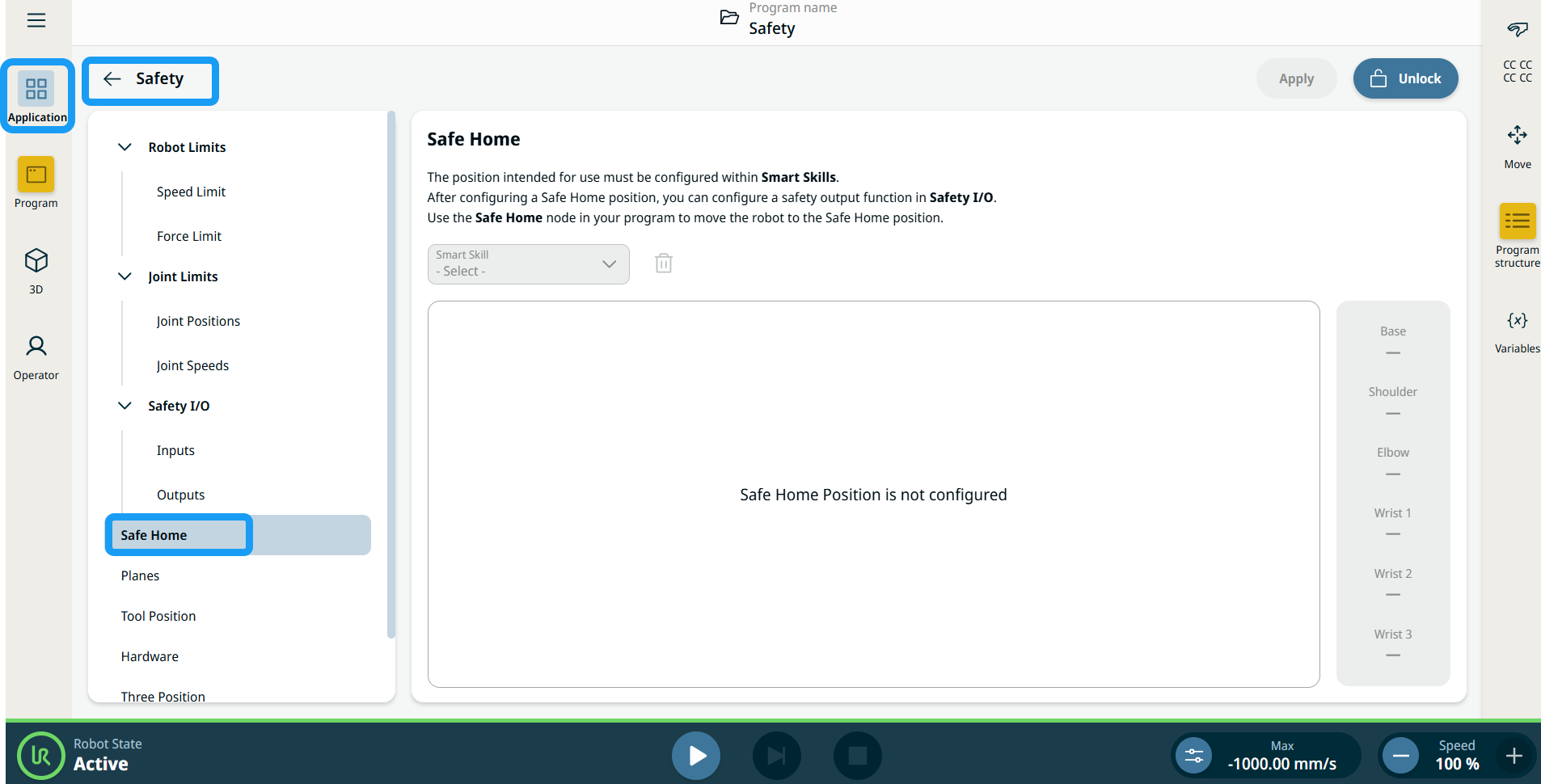
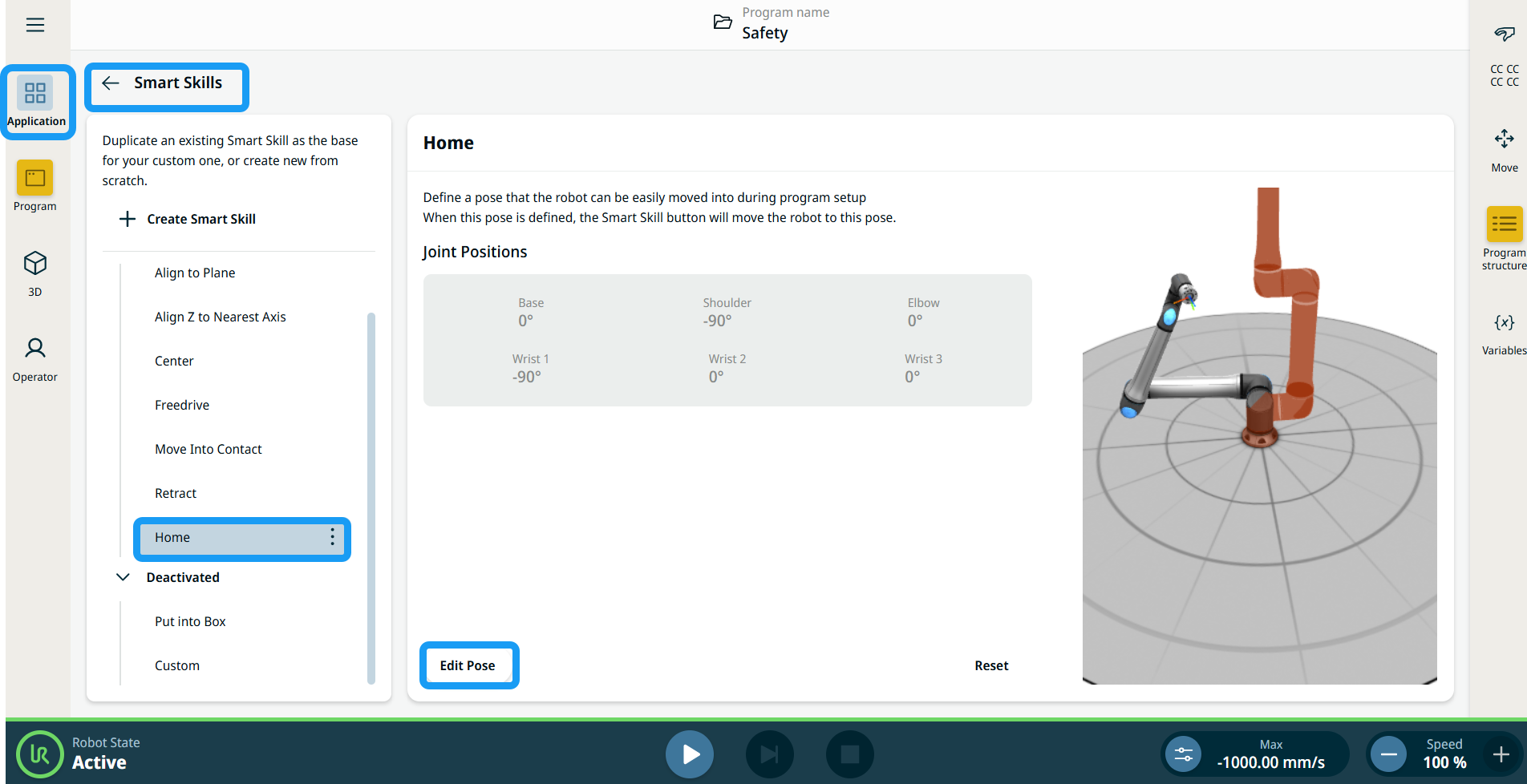
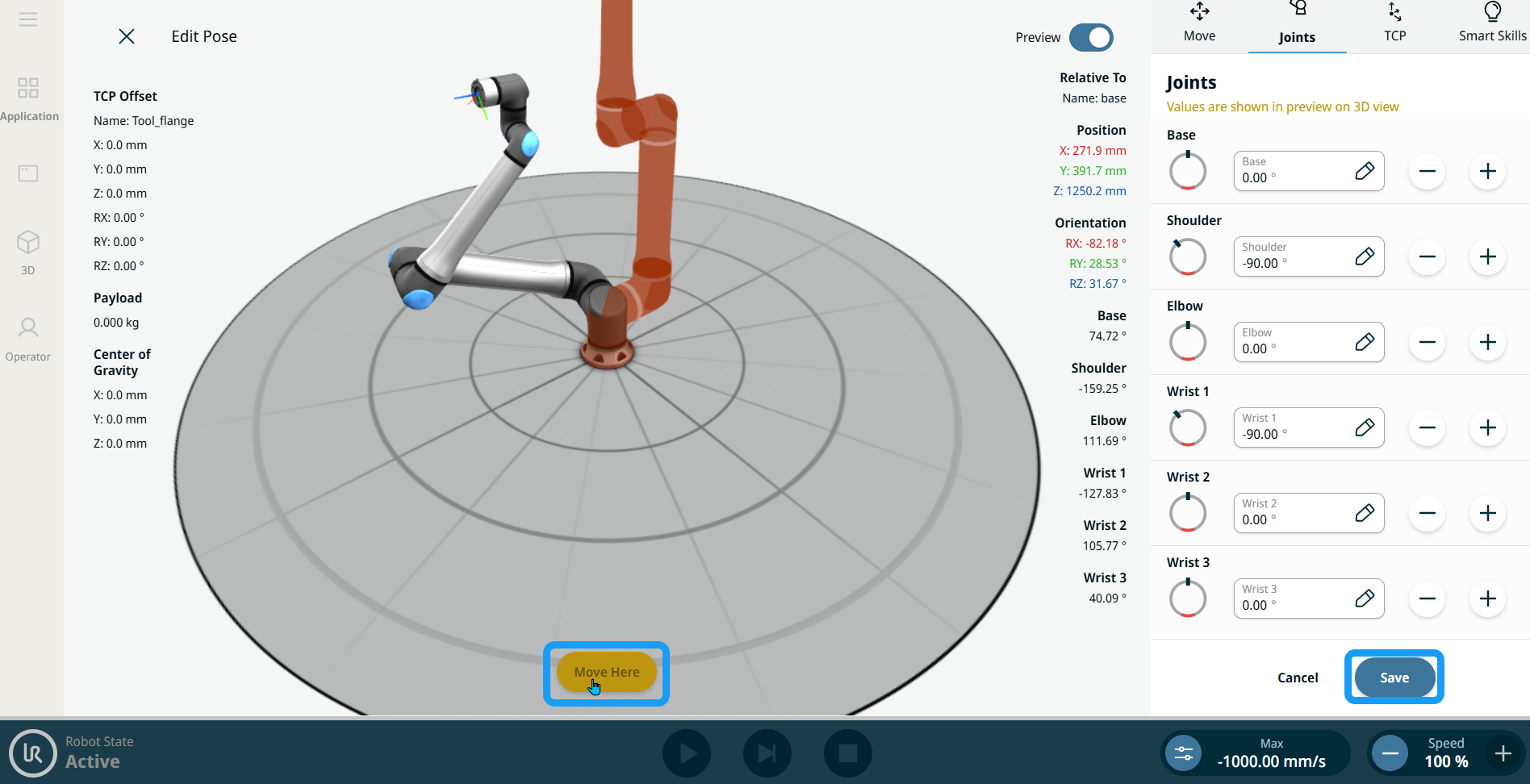
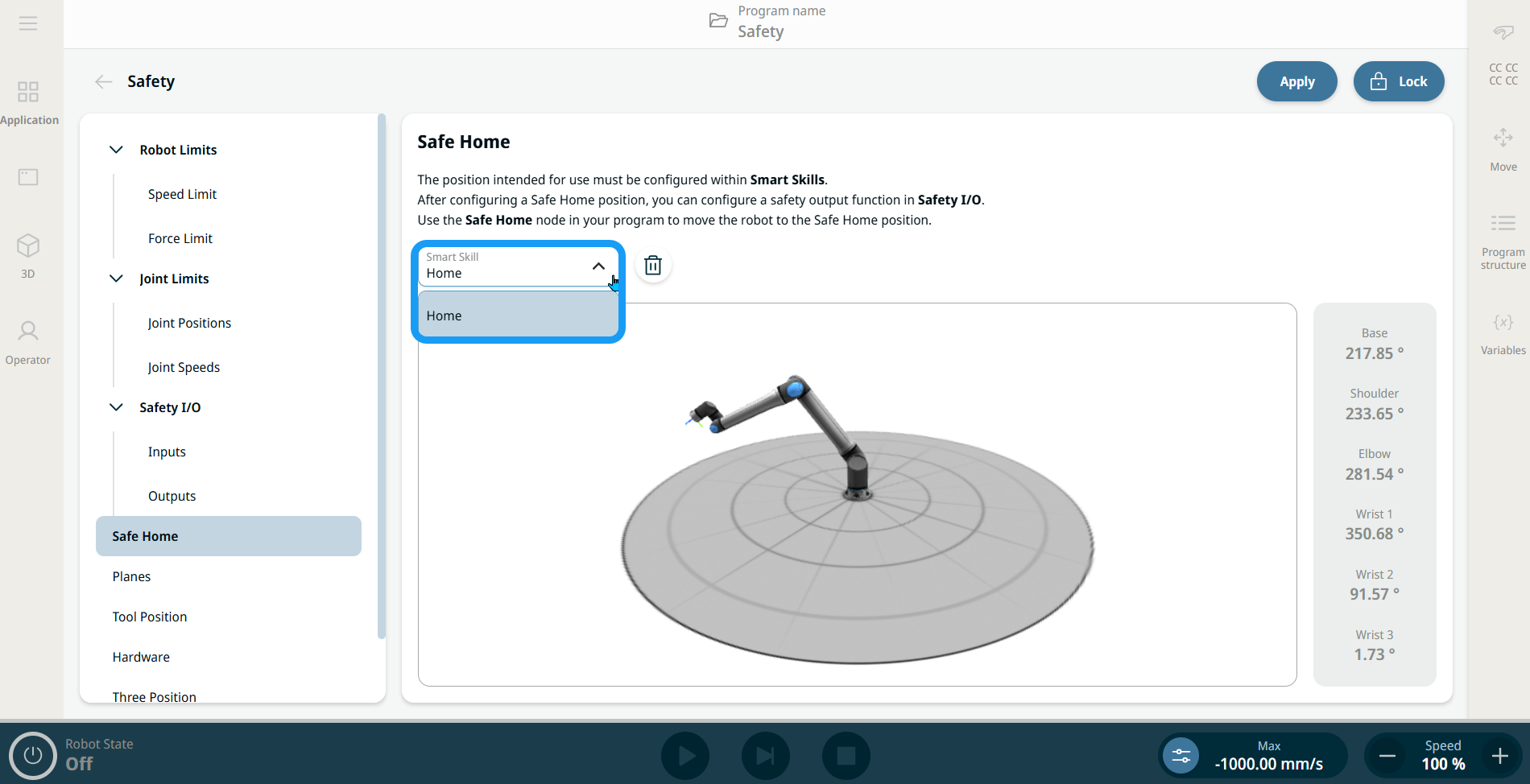
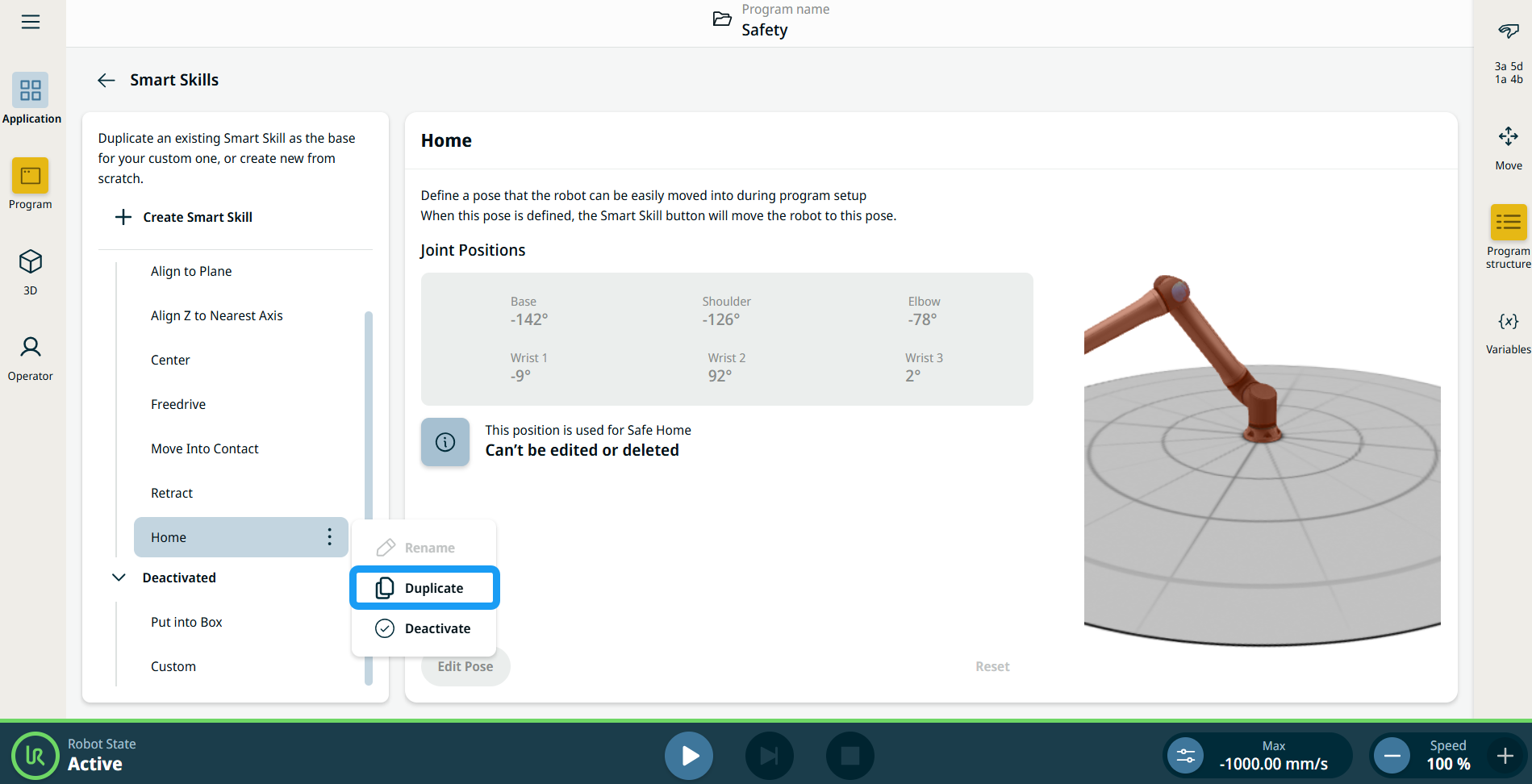
Safe Home is a PolyScope X feature that enables users to define a safety-related output that activates when the robot reaches the configured safe home position. The user chooses Home in the dropdown of available smart skill positions, which can be assigned as the reference for the Safe Home position.
|
|
Access Safe Home |
|
|
|
|
|
|
If the position smart skill is selected as the position reference for Safe Home:
|
|
Safe Home function in outputs |
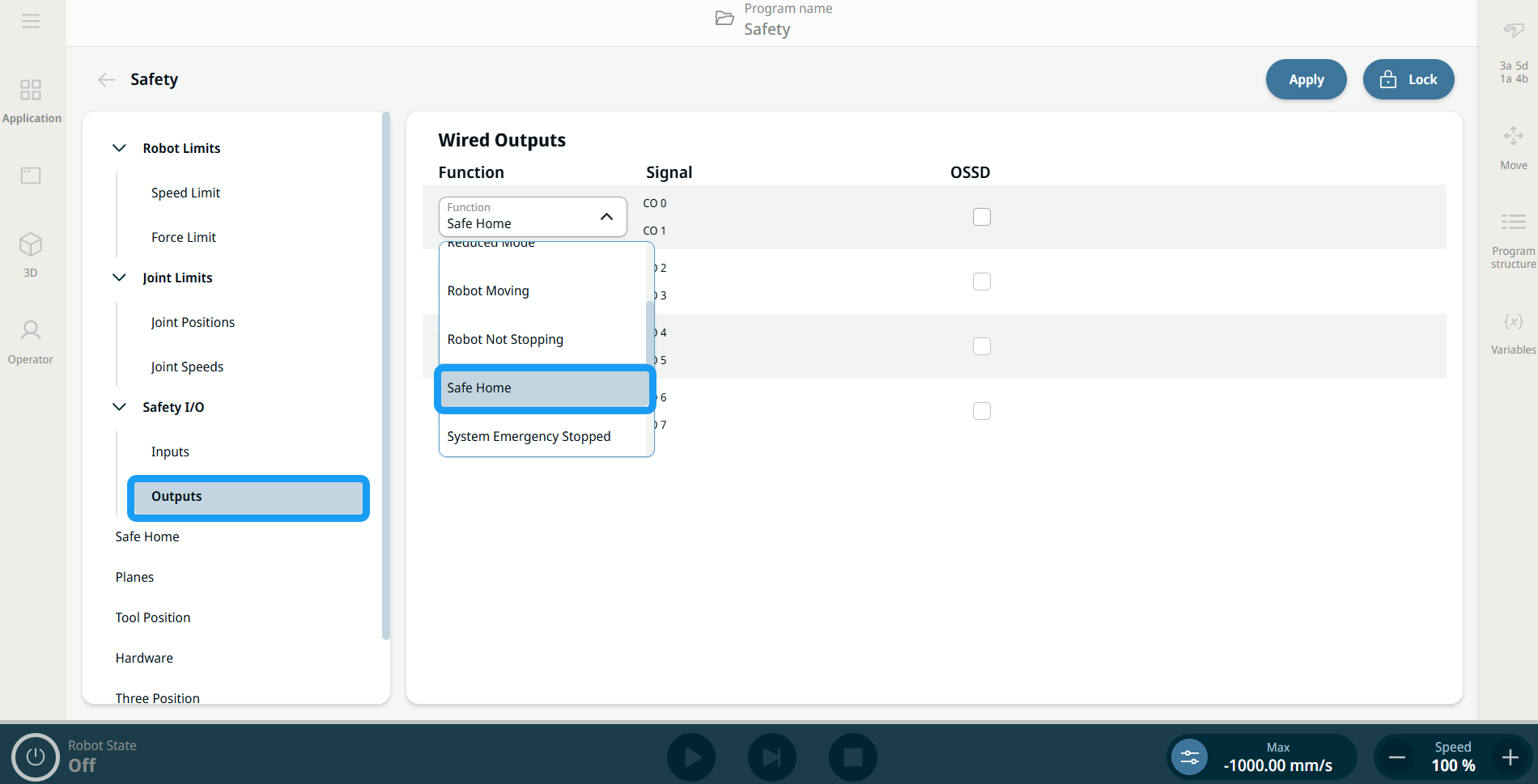
If the Home position is assigned to a position smart skill in Safety, the safety output function dropdown contains Safe Home as a new function assignment. Choose Safe Home in the Function fields in Outputs of Safety I/O.
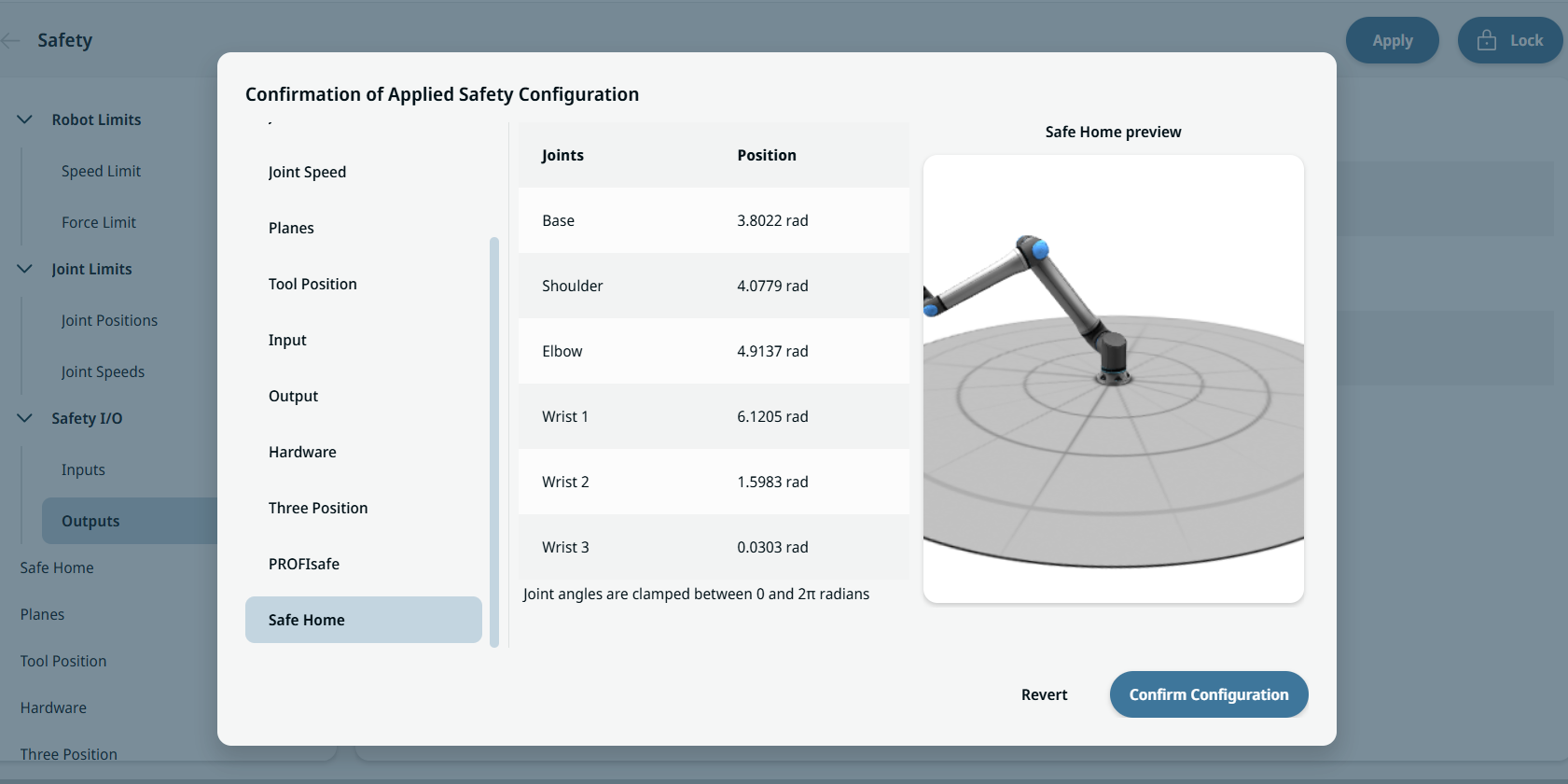
Safe Home can be seen in the table of function assignment on the Confirmation of Applied Safety Configuration overview dialog.
|
|
Safe Home as a program node |
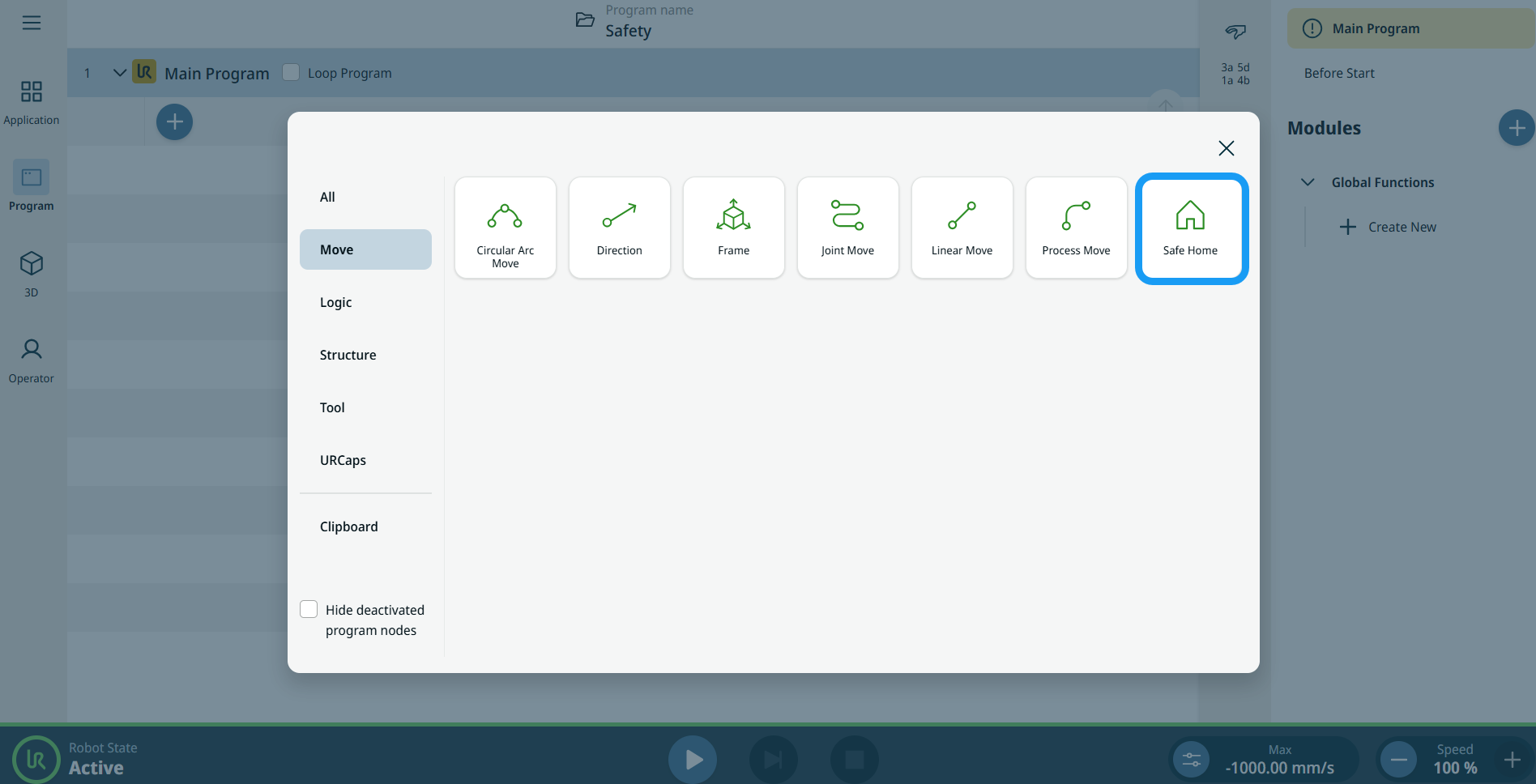
The Safe Home program node is located under the Move nodes category within the Command Nodes. This node is used to command the robot to move to its predefined safe home position, as configured in the safety application settings for safe home.
Adding the node without a safe home position configured in safety will mark the node as yellow.

The Safe Home command node has motion profiles options and other advanced settings when the ellipsis icon
|
 is tapped.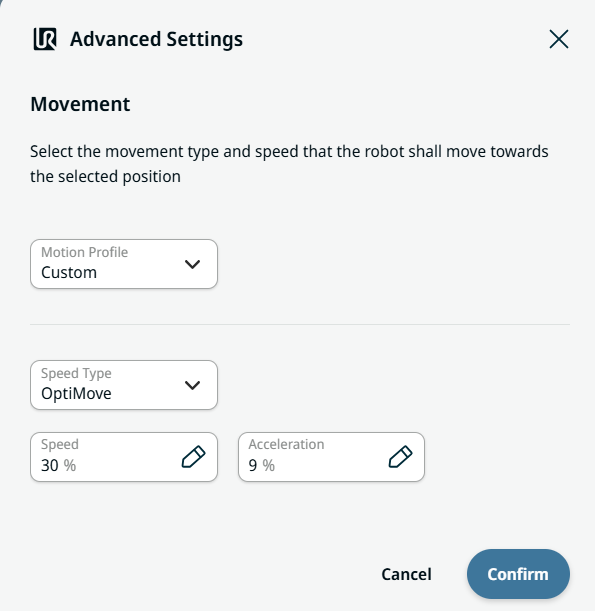
| Advanced Settings |
Users can create movement profiles in the Advanced Settings using the two tabs and two fields:
Motion Profile is a feature enabling users to set predefined motion profiles in move nodes: Joint Move, Linear Move, Circular Arc Move, Process Move, and Direction. Custom Motion Profile enables users to define movement data in move node. In the Speed Type field, OptiMove is the default option. Choose Classic movement if you want to input speed and acceleration in degrees per second or mm per second. OptiMove settings are specified in percent to simplify the usage and setup. Users can configure the percentage of preferred speed in the Speed tab, which sets the target travel speed as a percentage of the robot's maximum speed capability. Users can configure the percentage of preferred acceleration in the Acceleration tab, which sets the target torque limits during acceleration and deceleration as a percentage of the robot's maximum power.
|