Joint Move

說明

The Joint Move works in a similar way to Move to command, but it supports Motion Profiles. The command creates a movement from point A to point B that is optimal for the robot. 該移動路徑可能不是 A 和 B 之間的直線,但是對關節的開始位置和關節的結束位置而言是最佳的。 Joint Move makes movements that are calculated in the robot arm joint space. 控制關節同時完成其移動。 此移動類型將為工具沿著一個曲線路徑前進。


To access Joint Move command

  1. Go to the main program screen. See Command Nodes.

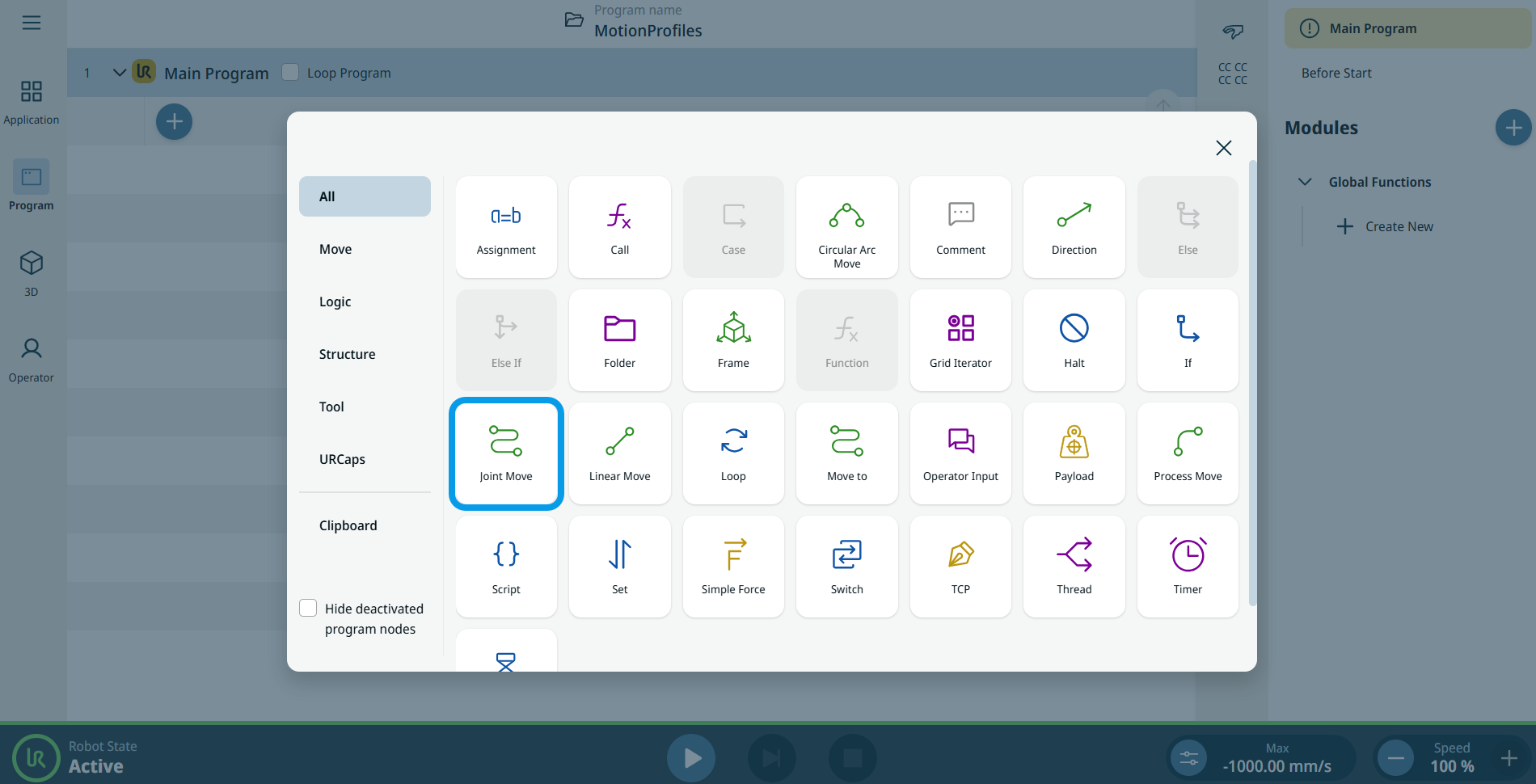
  2. Tap the Joint Move icon in the Commands toolbox.


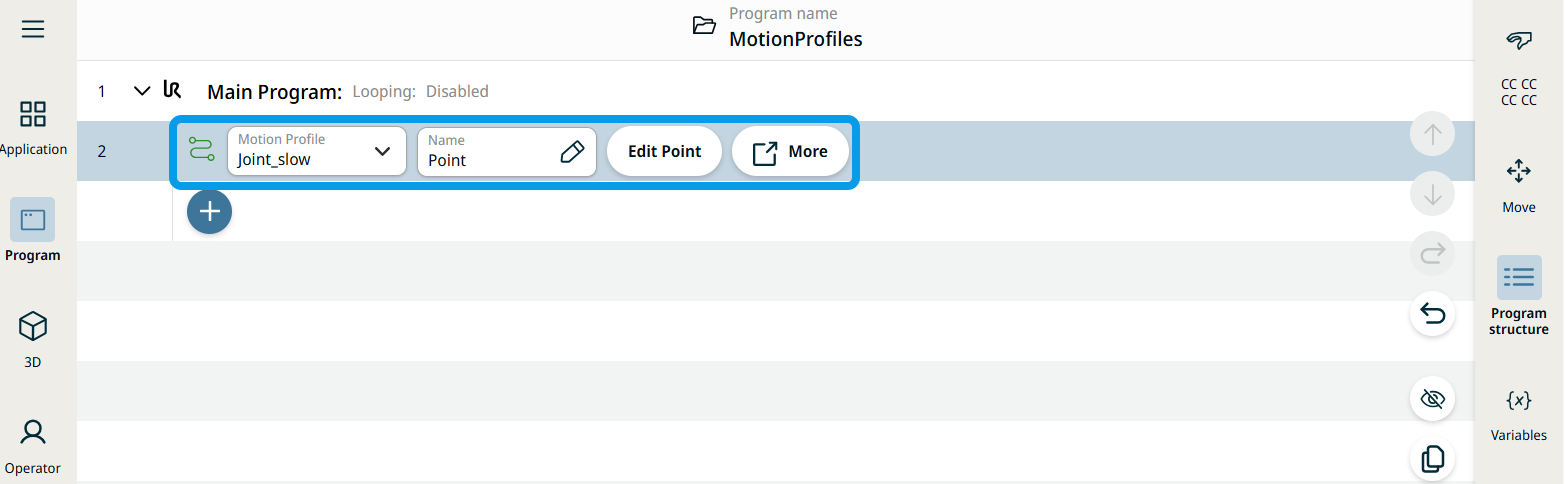
    A node is inserted into the program tree. The node has three editable fields and a More button for advanced options. These are the three fields:

    • Motion Profile

    • Name

    • Edit Point


  1. Tap the Motion Profile field and select the pertinent from the three choices are available:

    • 自定義

    • Joint_fast

    • Joint_slow

  2. Tap the Name field, and three tabs appear:

    • Value

    • Variable

    • 表達式

  3. Enter the data in the Value, Variable, and Expression tabs, and tap Confirm. See Value-Variable-Expression Tabs.

  4. Tap Edit Point. A new screen appears with the robot arm interface.

  5. Follow the steps in the section “To use Edit Point field” in the Move to command. See Move To command.

  6. Tap More button.

    More settings screen appears with four settings:

    • Movement

    • Reference

    • Transform

    • Blend


Movement setting
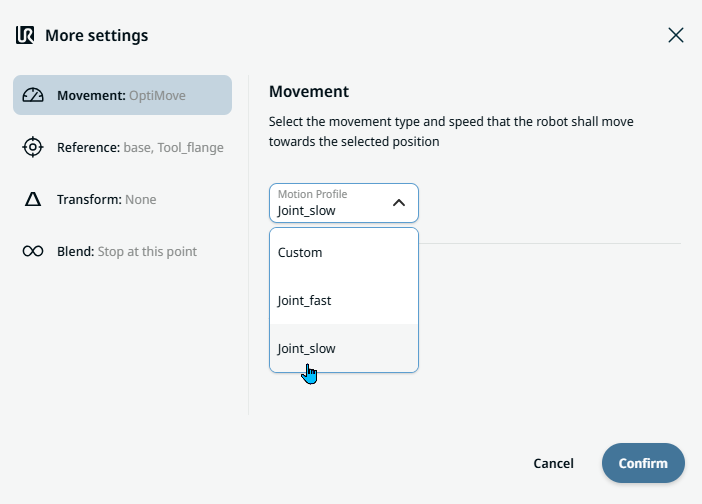
  1. Tap the Movement setting on the left side. A Motion Profile field with the following choices appears on the right side. Joint_slow is the default.

    • 自定義

    • Joint_fast

    • Joint_slow

  2. If Custom is selected, three more fields appear:

    • Speed Type

    • 速度

    • Acceleration

  3. Choose either OptiMove or Classic when you tap Speed Type.

  4. Tap the Speed field, and the Value, Variable, and Expression tabs pop up.

  5. Enter data in each tab, and tap Confirm. See Value-Variable-Expression Tabs.

  6. Tap the Acceleration field, and the Value, Variable, and Expression tabs pop up.

  7. Enter data in each tab, and tap Confirm. See Value-Variable-Expression Tabs.

  8. When Joint_fast and Joint_slow are selected, the OptiMove speed and acceleration are shown.


Reference setting
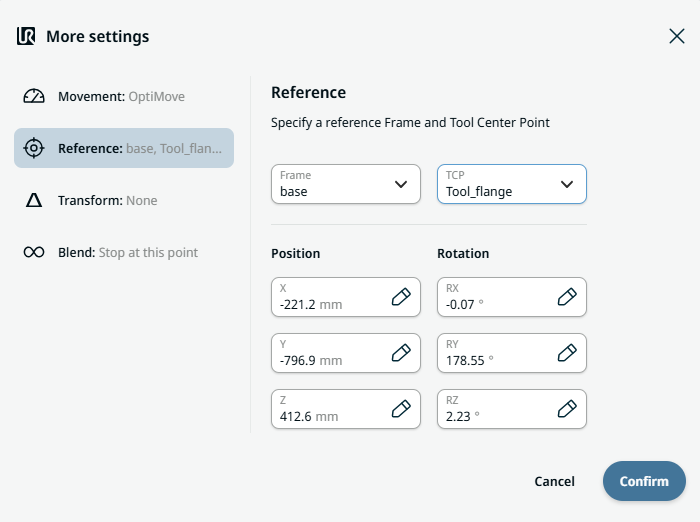
  1. Tap the Reference setting.

  2. Choose either Frame or TCP field.

    In the Frame field, four choices are available:

    • world

    • base

    • flange

    • tcp

    In the TCP field, two choices are available:

    • Active_TCP

    • Tool_flange

  3. In the Position column, tap the X, Y, Z tabs and enter your chosen value for the robot, and Confirm.

  4. In the Rotation column, tap the RX, RY, RZ tabs and enter your chosen value for the robot, and Confirm.


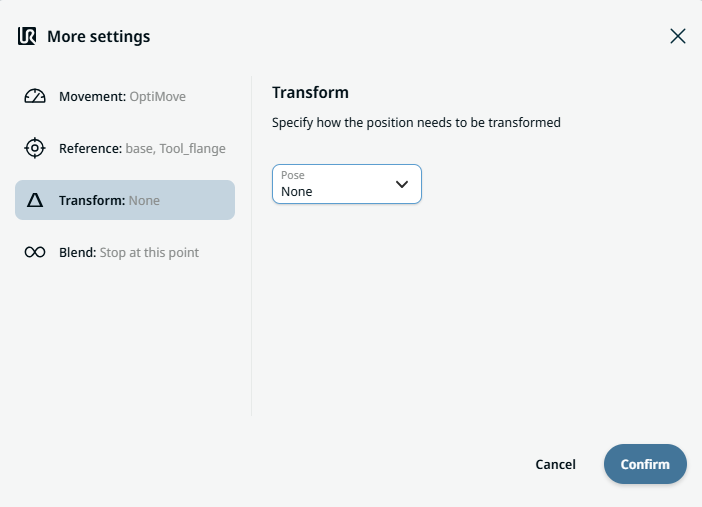
Transform setting
  1. Tap the Transform setting.

  2. Tap the Pose field and Confirm.


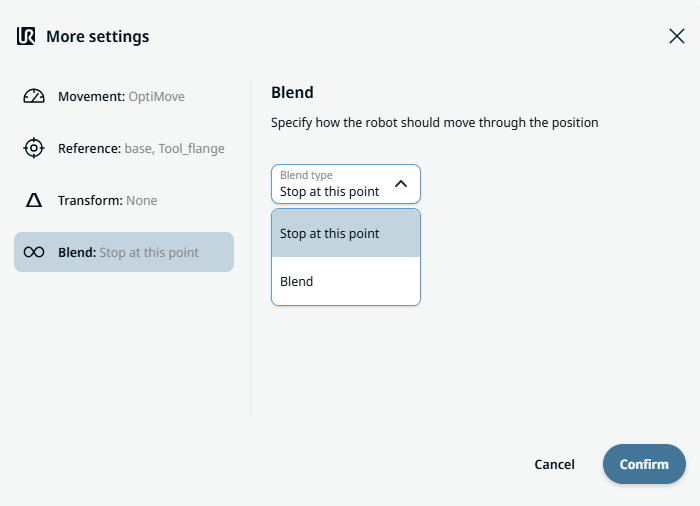
Blend setting

  1. Tap the Blend setting.

    A Blend type field appears with two options:

    • 此時停止

    • Blend

  2. When you choose Stop at this point, no further action is needed but only Confirm.

  3. Tap Blend, and a Radius field is inserted.

  4. The Value, Variable, and Expression tabs pop up when you tap the Radius field.

  5. Enter data in each tab, and tap Confirm. See Value-Variable-Expression Tabs.

  6. To finish, tap Confirm in the More settings screen.