Smart Skills Application

Beskrivelse

All Smart Skills are parametrized, which enables you to configure and set up the Smart Skills in the Application tab. The Smart Skills interface gives you the following benefits:

  • A clear and accessible call-to-action button for creating new Smart Skills.

  • Eliminates the need to duplicate existing skills as a starting point.

  • Simplifies and accelerates the creation process.

  • Improves clarity and usability within the Smart Skills configuration interface.


Using the Smart Skills application functionality

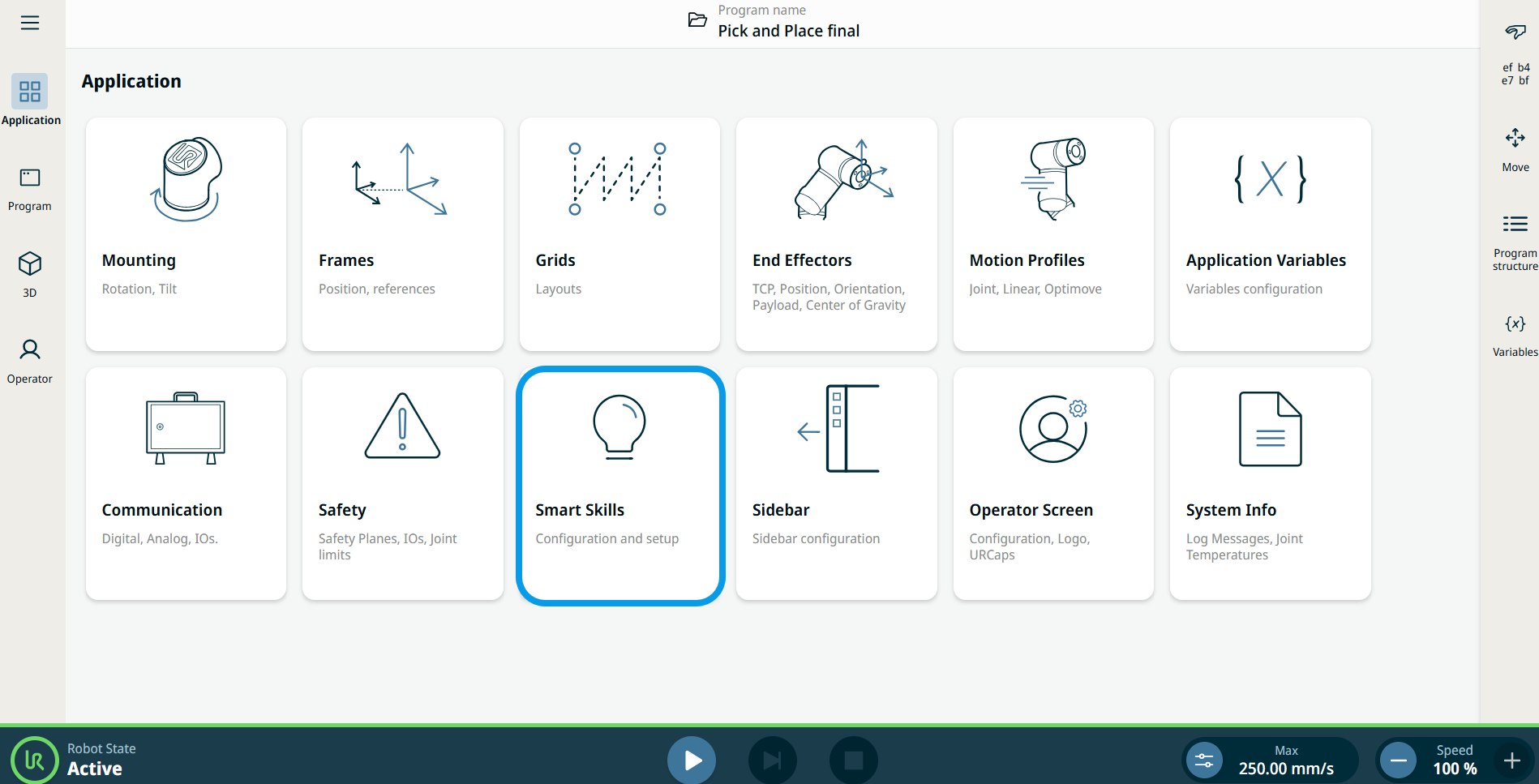
  1. Go to the application nodes screen. See Fanen Applikasjon.

  2. Tap the Smart Skills icon.

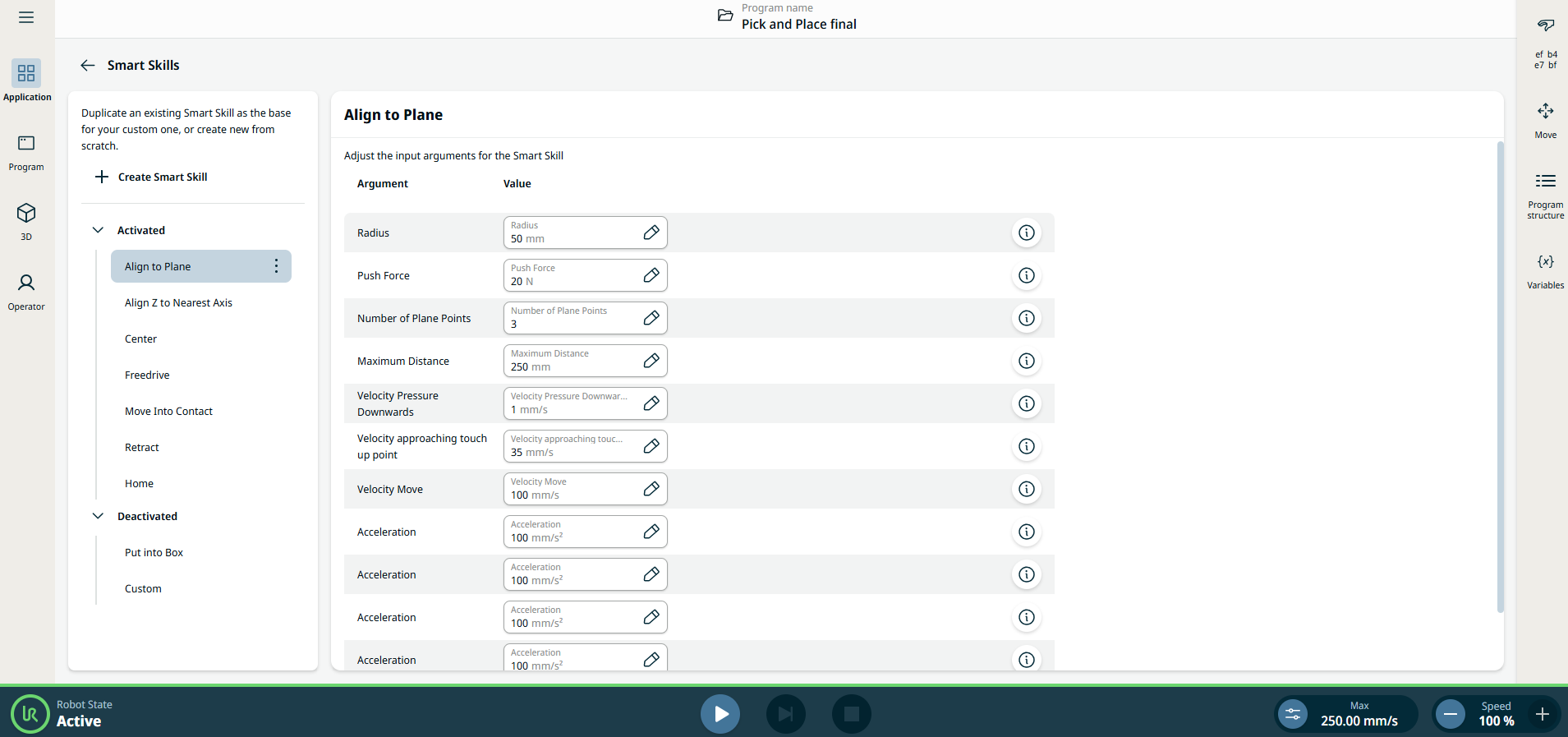
    A screen appears with two panels:

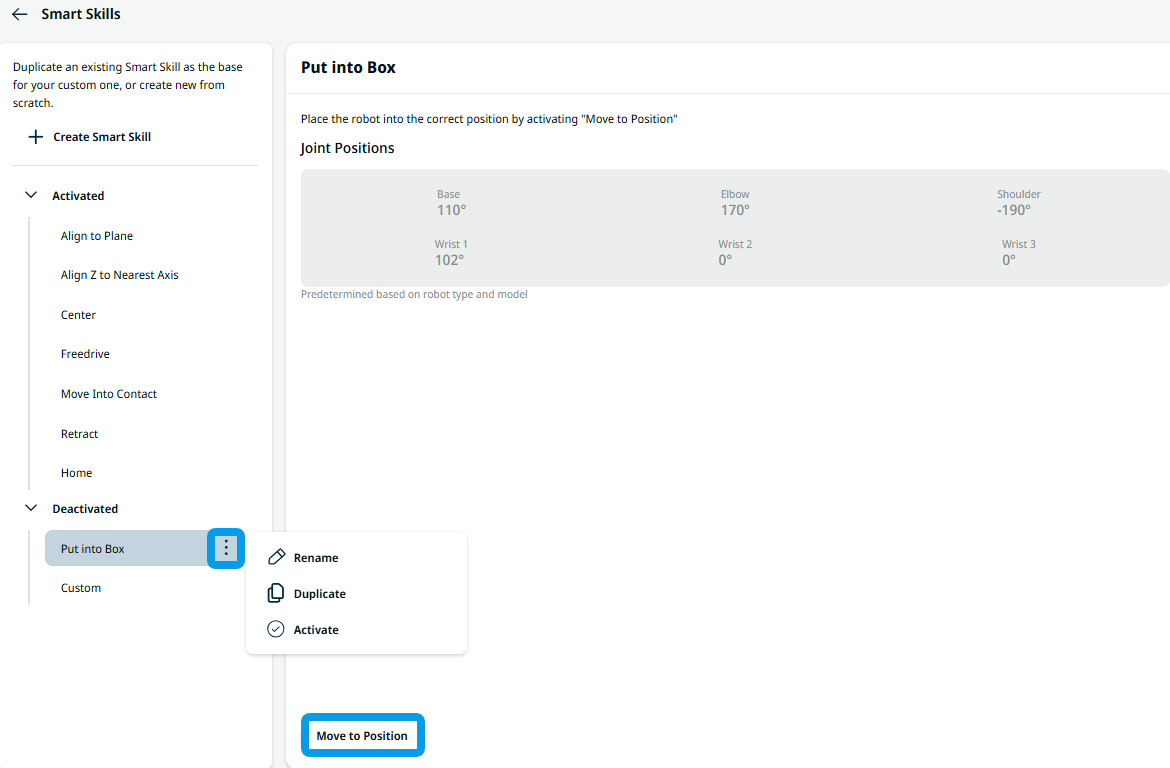
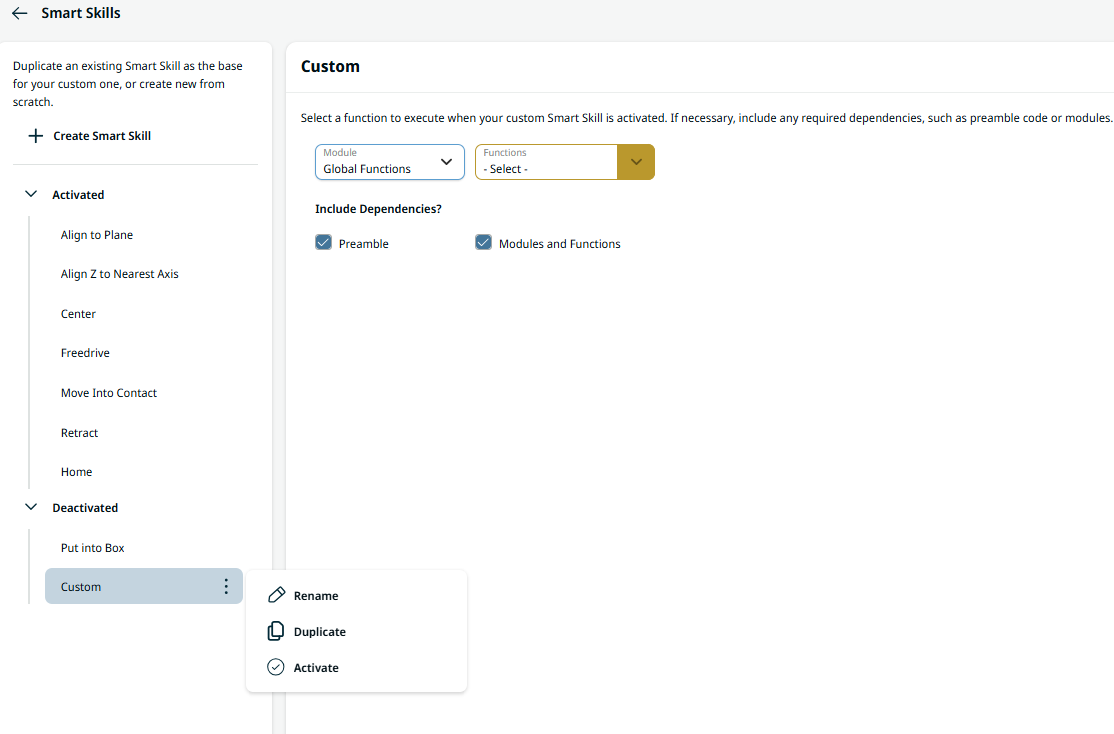
    Left panel contains the list of smart skills. Tap the kebab icon of each smart skill to activate or deactivate it. When activated, that smart skill appears in the Smart Skills drawer in the multitasking screen and disappears when deactivated.

    Right panel contains the editable fields to adjust the input arguments for each smart skill.


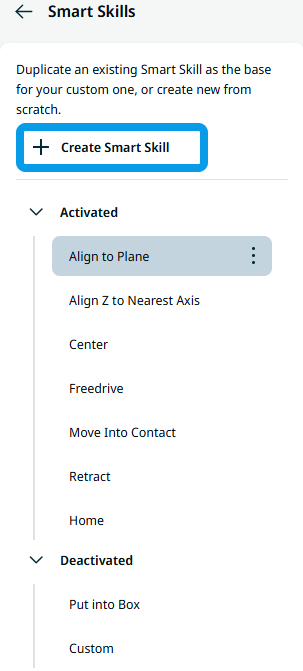
The process of creating custom Smart Skills is streamlined for ease of use. Instead of duplicating existing skills, tap + Create Smart Skill button to start from scratch, found at the left panel before the list of Smart Skills. This makes it easier and more intuitive for users to build tailored Smart Skills, enhancing productivity and reducing setup time.


Smart Skill Input Argument

Each Smart Skill has a couple of parameters it uses when it executes. These can be changed to fit the application that you are running, whether or not it fits the default values.


These are the input arguments of the smart skills where you can change the value:


  • Juster til plan

    • Radius. Radius of the circle within the plane that will be touched up.

    • Push Force. How hard the robot pushes against the plane.

    • Number of Plane Points. Antall punkter roboten bruker til å beregne planet.

    • Maximum Distance. The maximum distance the robot searches.

    • Velocity Pressure Downwards. Hastighet ved nedovertrykk.

    • Velocity Approaching Touch Up Point. Velocity used when approaching the touch-up point.

    • Velocity Move. Hastighet brukt i frirom.

    • Acceleration. Acceleration of the robot.


  • Juster Z til nærmeste akse

    Not configurable


  • Midtpunkt

    • Force. Kraften roboten bruker for å avgjøre om det er oppnådd kontakt.

    • Velocity. Hastighet i frirom.

    • Acceleration. Akselerasjon i frirom.

    • Maximum Radius. The maximum search radius.

    • Number of Fingers. The number of fingers that the gripper has.


  • Freedrive

    Not configurable


  • Flytt til kontakt

    • Force. Kraften roboten bruker for å avgjøre om det er oppnådd kontakt.

    • Velocity. Hastighet i frirom.

    • Acceleration. Akselerasjon i frirom.

    • Maximum Distance. The maximum distance the robot searches.

    • Retract Distance. Tilbaketrekkingsavstand etter at en kontakt er funnet.


  • Trekk tilbake

    • Distance. Retraction distance.

    • Acceleration. Akselerasjon brukt av robot.

    • Velocity. Hastighet brukt av robot.


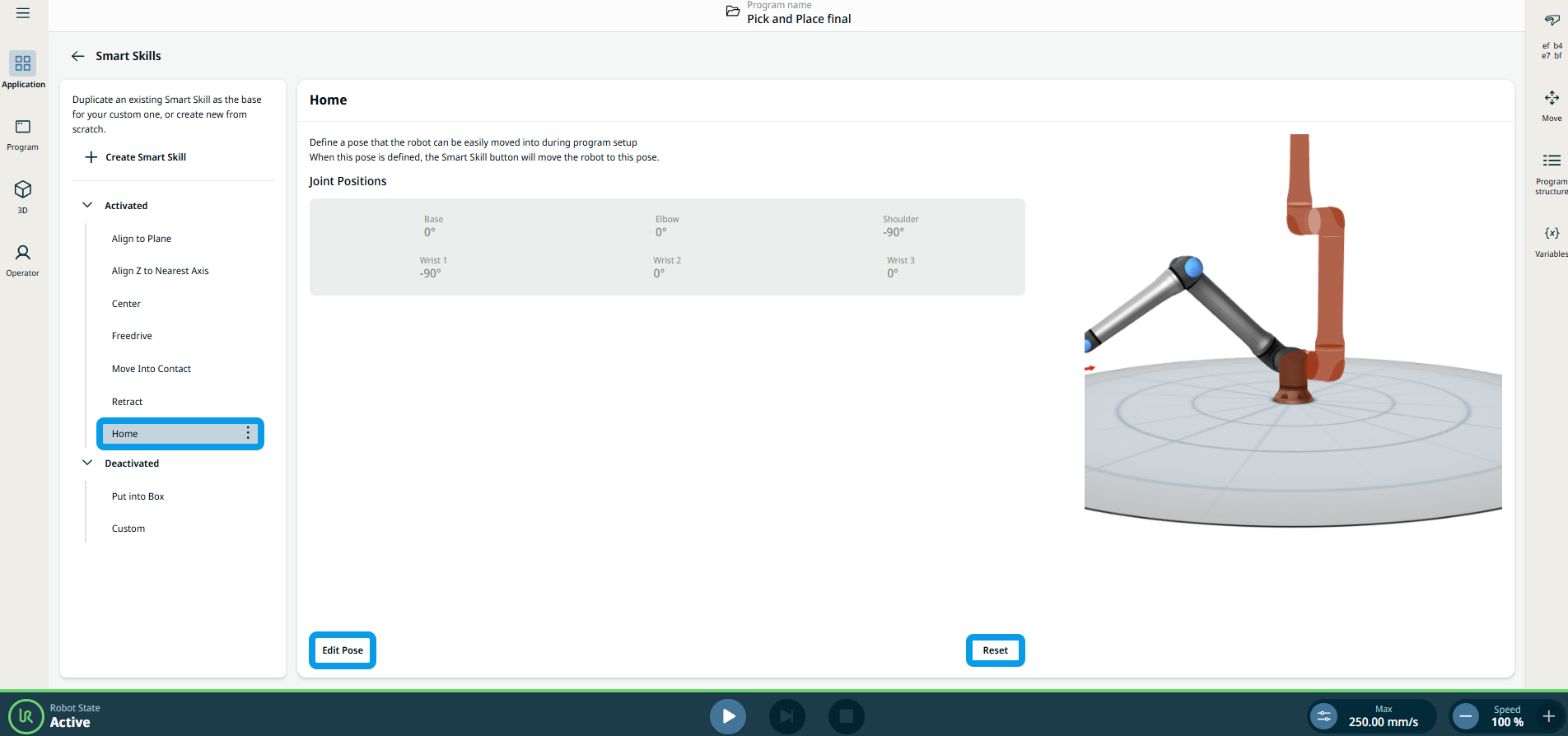
  • Hjem

    This enables you to define a posture to easily move the robot to its predefined home position. Tap Edit Posture, and you will be directed to the 3D viewer main screen. Tap Reset, and a dialogue box appears asking you to confirm or cancel. When the position is reset, the previous values will be deleted.


Deactivated Smart Skills by default
  • Put Into Box

    This smart skill enables you to put the robot in its default transportation position. Tap Move to Position button below to place the robot into the correct position. Its Preset Joint Position is deactivated as it is predetermined by the robot type and model.


  • Tilpass

    You can duplicate and rename this using the kebab icon. Custom is an easy way to execute a function of a module. It is then shown in the Smart Skills icon.