|
To access Assignment command
|
-
Go to the main program screen. Zie Command Nodes.
-
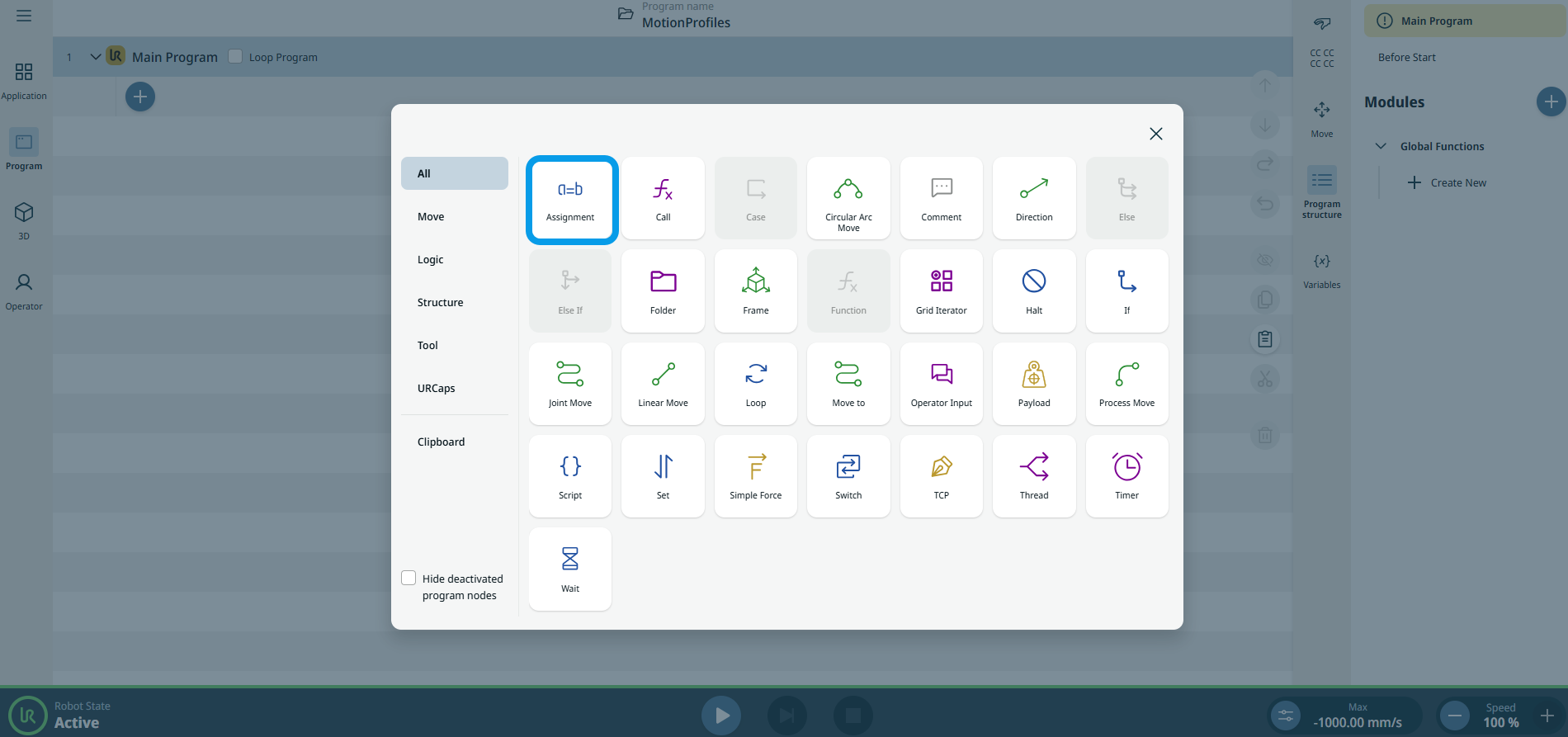
Tap the Assignment icon in the Commands toolbox.
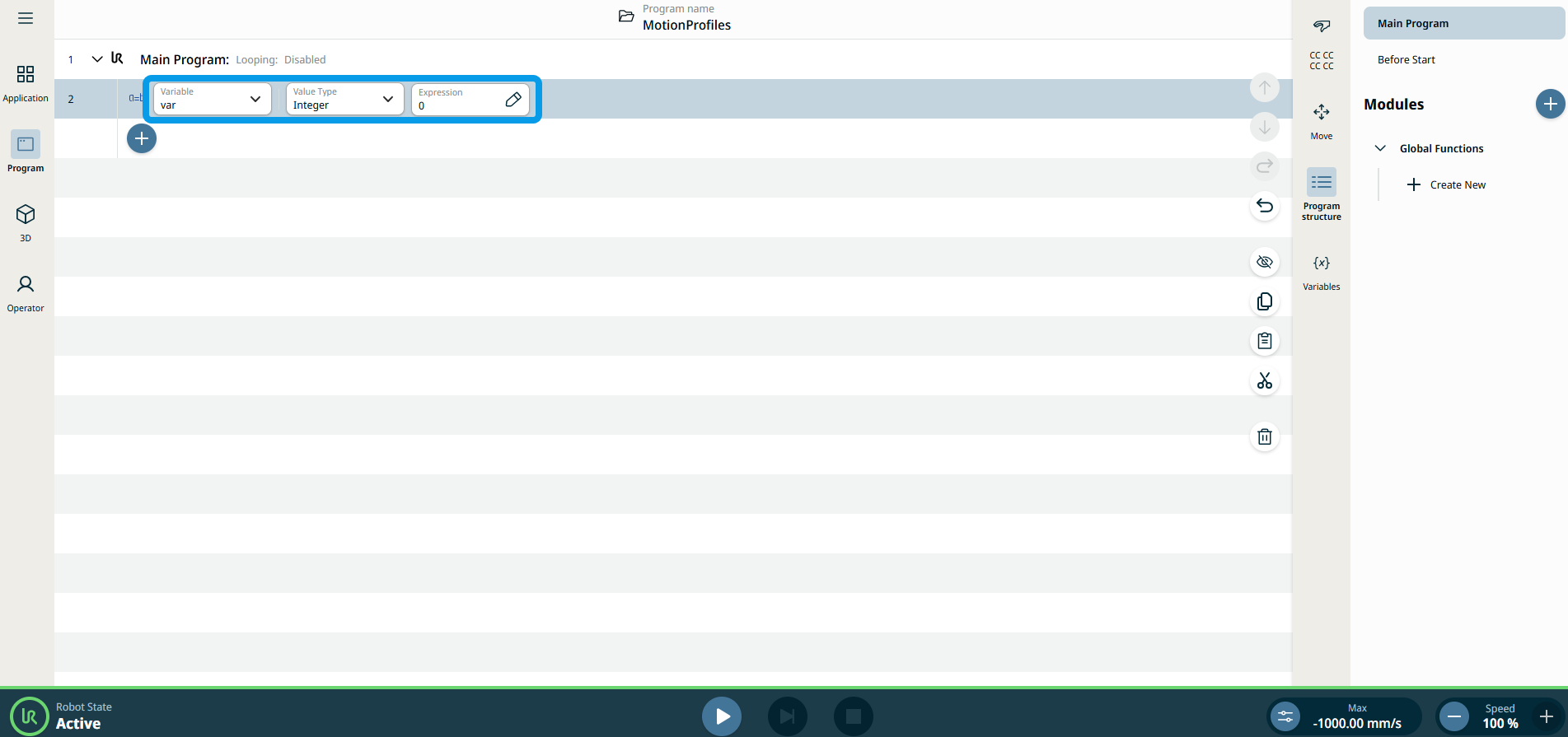
A node with three editable fields is inserted into the program tree:
-
Variabele
-
Waardetype
-
Expressie
-
Tap the Variable field to choose your variable:
The Variable field contains the name of the variable. By default, the variable is called var.
|
| |
-
Tap the Value Type field to and select your choice:
-
Array
-
Boolean
-
Float
-
Raster
-
Integer
-
Matrix
-
Positie
-
String
-
Timer
-
Waypoint
The Value Type contains the type of variable you are creating.
| Type
|
Allowed Values/Examples
|
Examples
|
| Array |
A list of values |
|
| Boolean |
True/False |
Waar |
| Float |
A decimal point value |
1.23 |
| Raster |
A grid defined in the application |
|
| Integer |
Een geheel getal |
5 |
| Matrix |
|
|
| Positie |
A pose for the robot to move |
p[0,0,0,0,0,0,] |
| String |
Tekst |
“Hello World” |
| Waypoint |
A waypoint is defined in the program |
|
|
| |
-
Tap the Expression field, select your variables and expression, and Confirm. The Expression is the value to assign the variable. See Expressie-editor.
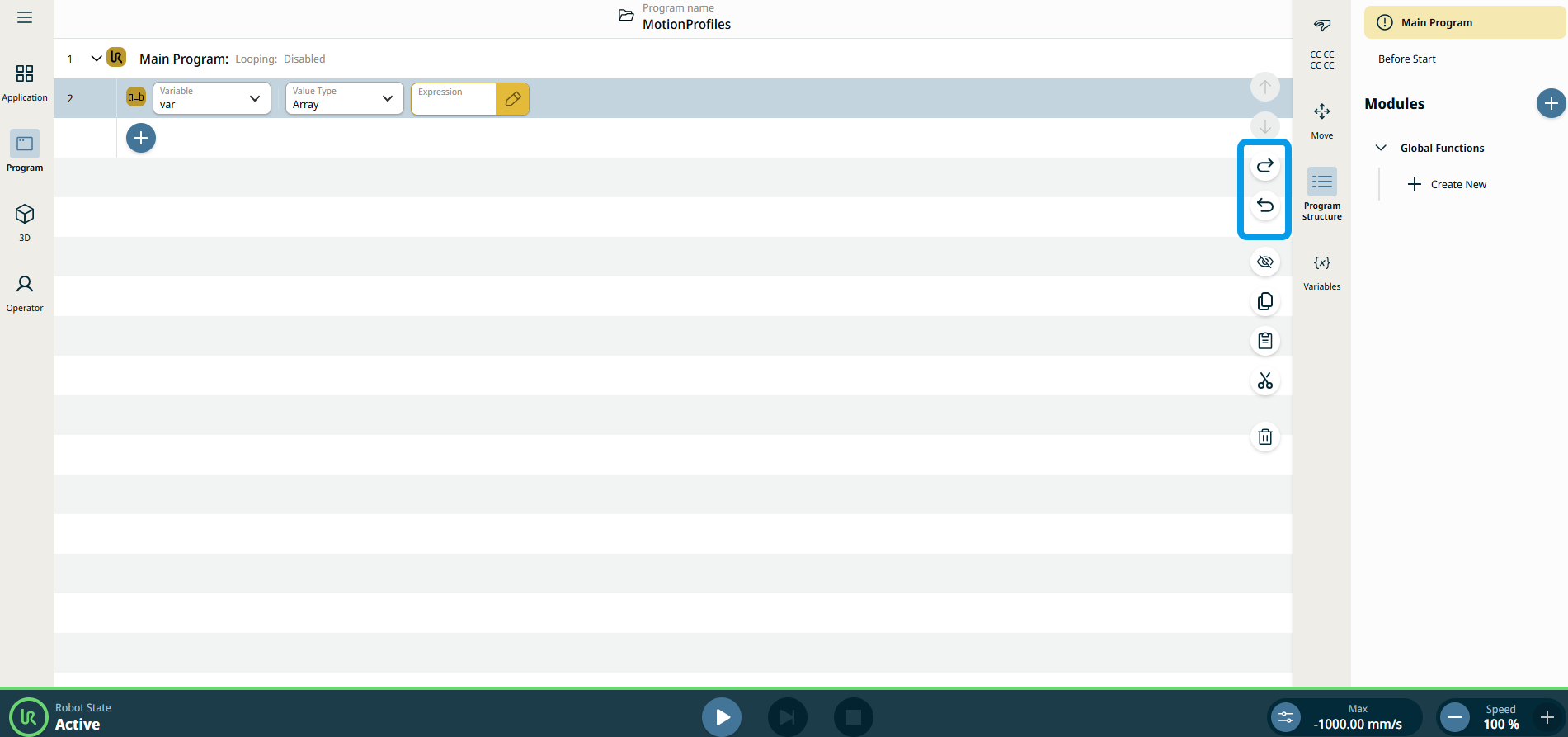
Note: Tap the icon arrow left and arrow right in the right sidebar of the main screen if you want the assignment to be reverted.
|