Joint Move

Descrizione

The Joint Move is a move command node that supports Motion Profiles. The command creates a movement from point A to point B that is optimal for the robot. Il movimento può non essere una linea retta tra A e B, ma deve essere ottimale per la posizione iniziale e finale dei giunti. Joint Move makes movements that are calculated in the robot arm joint space. I giunti sono controllati in modo da terminare i propri movimenti contemporaneamente. Questo tipo di movimento si traduce in un percorso curvo che verrà seguito dall’utensile.


To access Joint Move command

  1. Go to the main program screen. See Command Nodes.

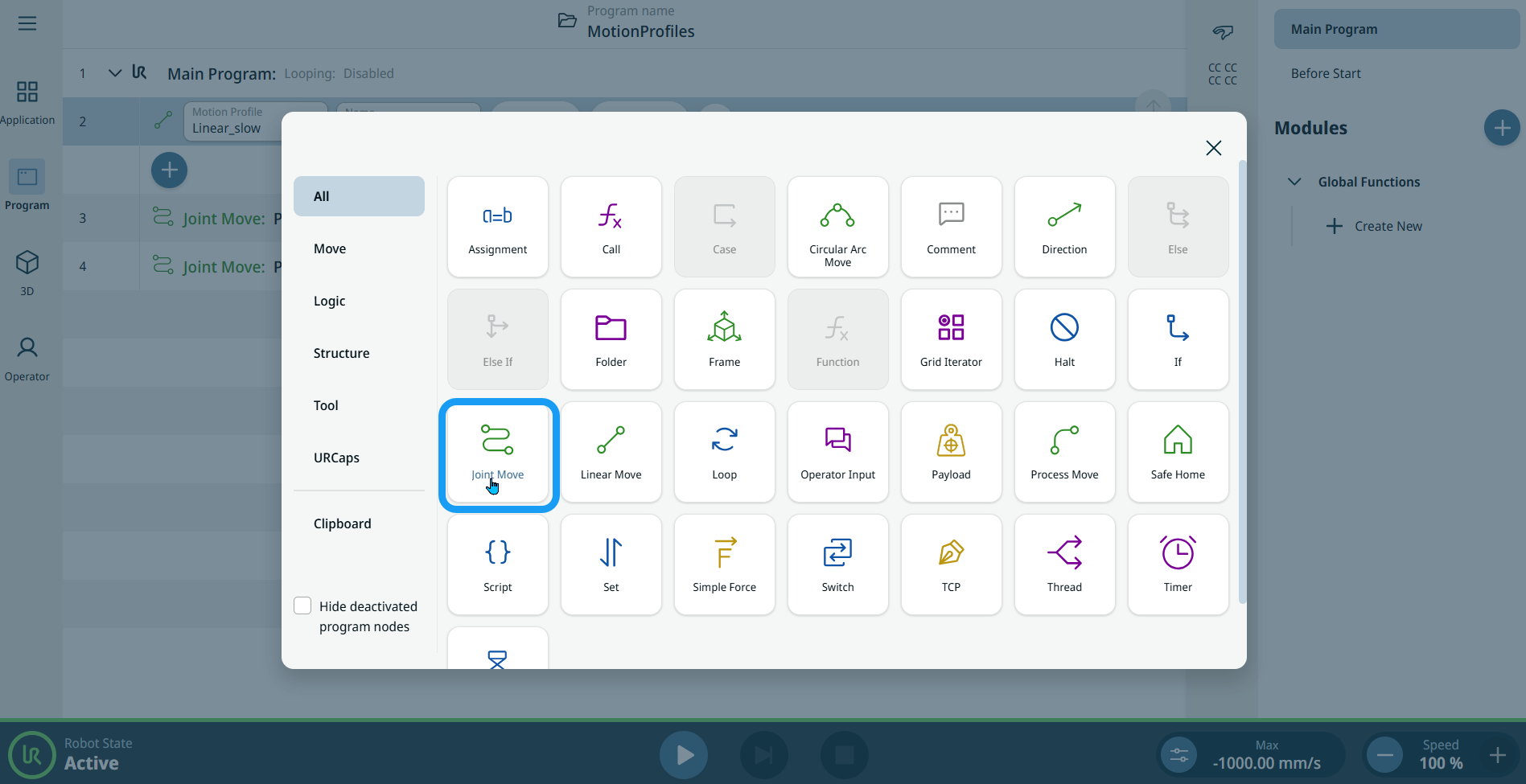
  2. Tap the Joint Move icon in the Commands toolbox.


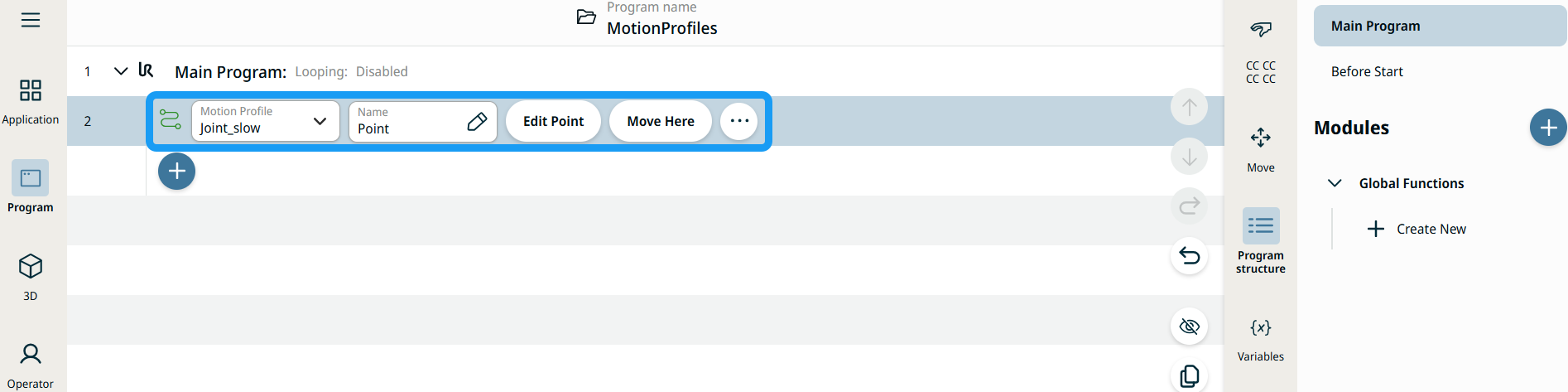
    A node with two editable fields, two buttons, and ellipsis icon is inserted into the program tree. These are two editable fields:

    • Motion Profile

    • Name

    These are the two buttons:

    • Edit Point

    • Move Here


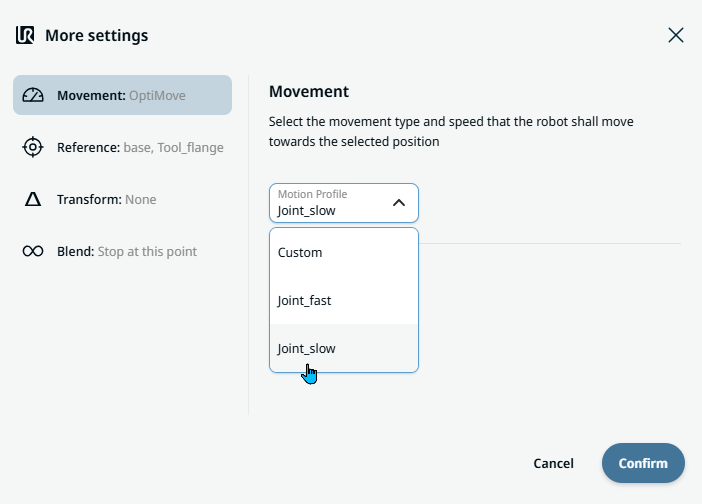
  1. Tap the Motion Profile field and select the pertinent from the three choices are available:

    • Personalizza

    • Joint_fast

    • Joint_slow

  2. Tap the Name field, and three tabs appear:

    • Value

    • Variable

    • Espressione

  3. Enter the data in the Value, Variable, and Expression tabs, and tap Confirm. See Value-Variable-Expression Tabs.

  4. Tap Edit Point. A new screen appears with the robot arm interface where you can jog the robot to the desired position.

  5. Tap More button.

    More settings screen appears with four settings:

    • Movement

    • Reference

    • Transform

    • Blend


Etichette di profilo movimento sui nodi Muovi

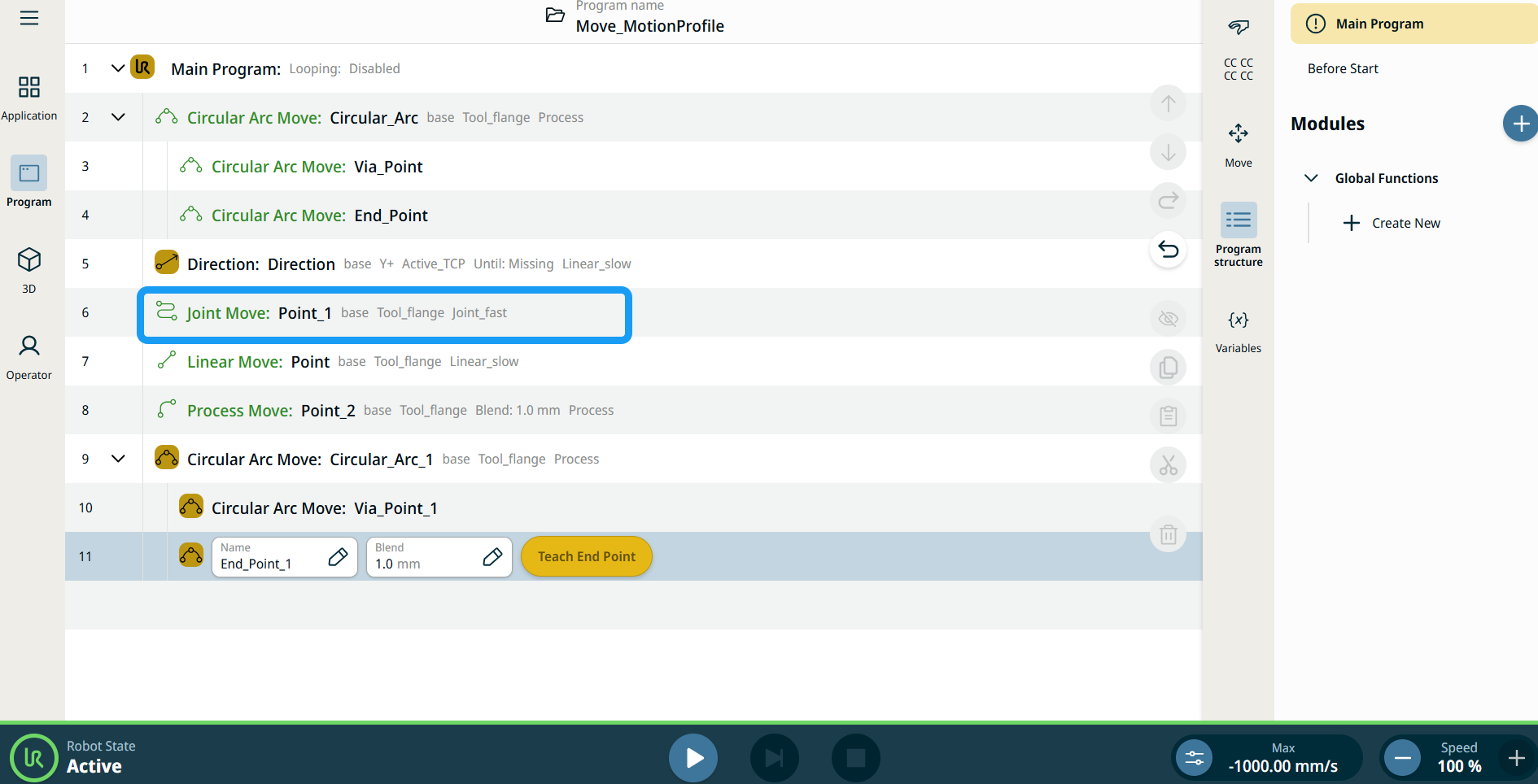
Tutti i nodi di comando relativi al movimento nell'albero del programma visualizzano il profilo di movimento associato a ciascun nodo. Questa funzione consente agli utenti di visualizzare il profilo di movimento selezionato su un nodo Muovi. Questa funzione è implementata nei seguenti nodi di comando:

I nodi Muovi con profilo Movimento personalizzato visualizzeranno i valori relativi alla velocità e all'accelerazione anziché al profilo Movimento.


Utilizzo del pulsante Sposta qui

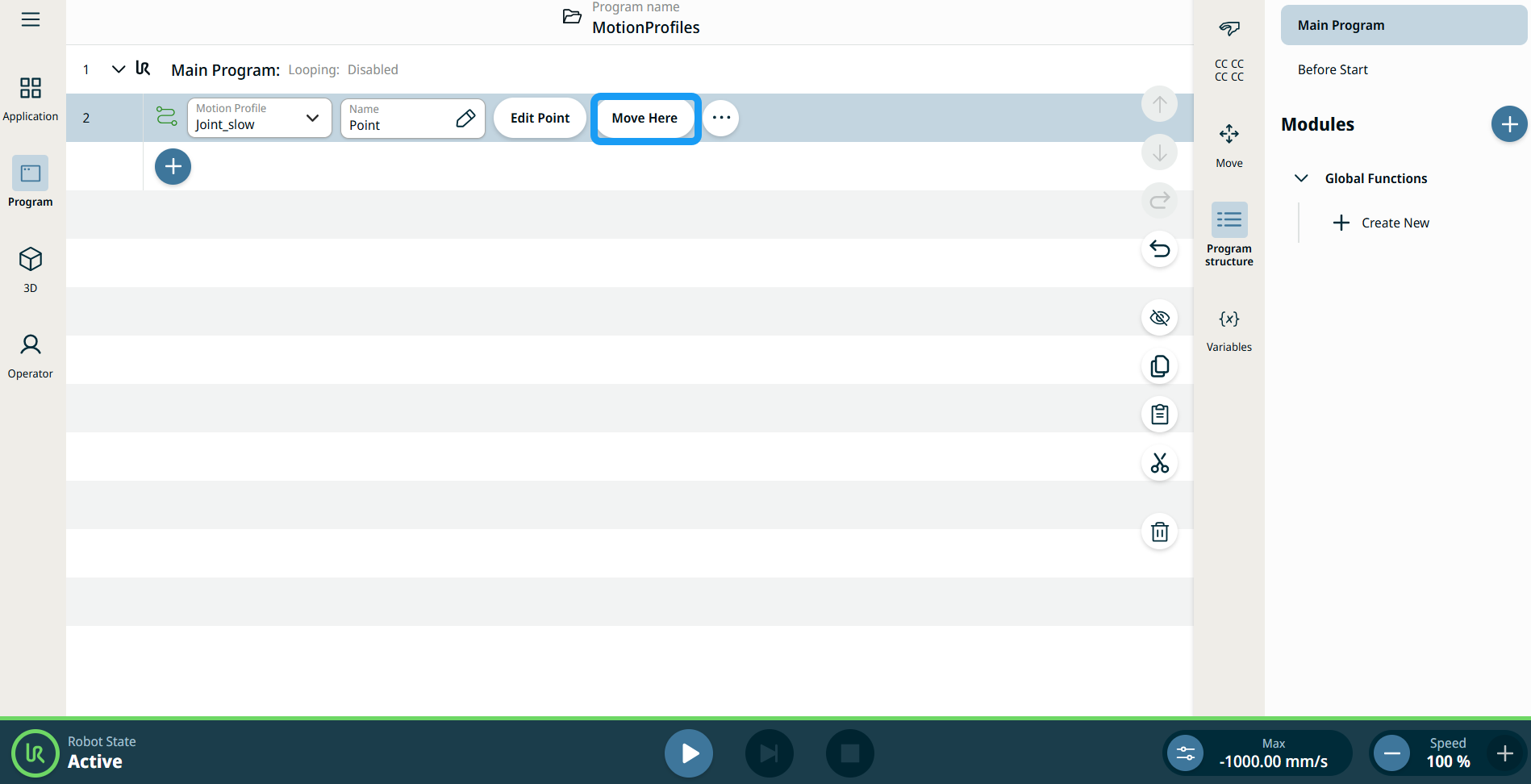
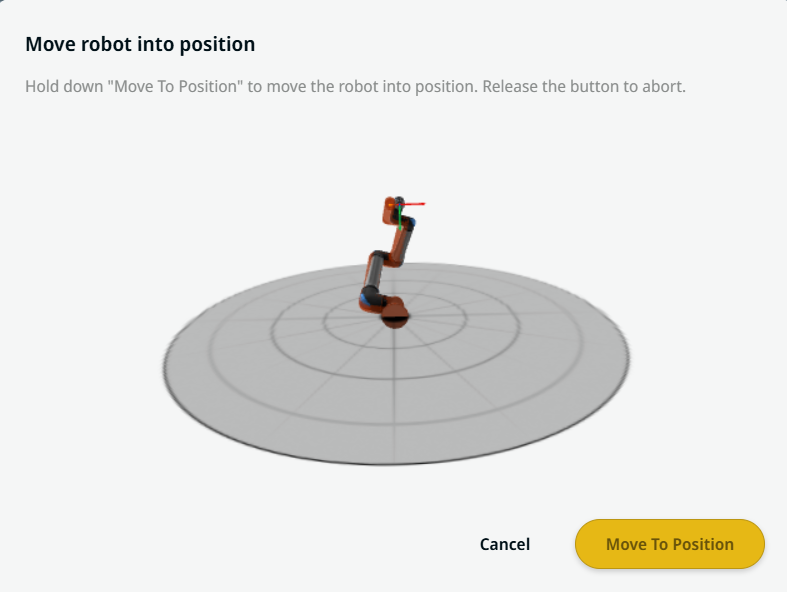
Il pulsante Sposta qui è visibile nei comandi Linear Move e Joint Move. Questa funzione consente di passare alla posizione di un punto percorso direttamente dall'albero del programma. La pressione del pulsante Sposta qui provoca l'apertura della finestra di dialogo Sposta robot in posizione. Il pulsante è visibile quando il punto percorso è stato impostato ed è abilitato solo quando lo stato del robot è in modalità Normale o Ridotta.


  1. Toccare aggiungi icona per inserire Spostamento lineare e Spostamento giunto nell'albero dei comandi.

  2. Toccare il pulsante Modifica punto del primo nodo di spostamento nell'albero dei comandi, a prescindere dal fatto che si tratti di nodi Spostamento lineare o Spostamento giunto.

  3. Spostare il robot utilizzando il pulsante più-meno nelle coordinate X, Y, Z. Tap Save.

  4. Nel secondo nodo di spostamento nell'albero dei comandi, toccare Muovi qui. Viene visualizzata una finestra pop-up per abilitare Sposta il robot in posizione. Tenere premuto per qualche secondo Sposta in posizione. Toccare Ok.


Movement setting
  1. Tap the Movement setting on the left side. A Motion Profile field with the following choices appears on the right side. Joint_slow is the default.

    • Personalizza

    • Joint_fast

    • Joint_slow

  2. If Custom is selected, three more fields appear:

    • Speed Type

    • Velocità

    • Acceleration

  3. Choose either OptiMove or Classic when you tap Speed Type.

  4. Tap the Speed field, and the Value, Variable, and Expression tabs pop up.

  5. Enter data in each tab, and tap Confirm. See Value-Variable-Expression Tabs.

  6. Tap the Acceleration field, and the Value, Variable, and Expression tabs pop up.

  7. Enter data in each tab, and tap Confirm. See Value-Variable-Expression Tabs.

  8. When Joint_fast and Joint_slow are selected, the OptiMove speed and acceleration are shown.


Reference setting
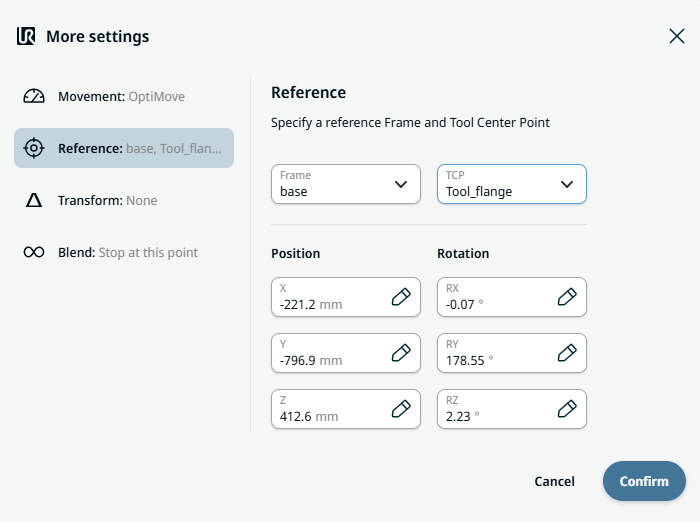
  1. Tap the Reference setting.

  2. Choose either Frame or TCP field.

    In the Frame field, four choices are available:

    • world

    • base

    • flange

    • tcp

    In the TCP field, two choices are available:

    • Active_TCP

    • Tool_flange

  3. In the Position column, tap the X, Y, Z tabs and enter your chosen value for the robot, and Confirm.

  4. In the Rotation column, tap the RX, RY, RZ tabs and enter your chosen value for the robot, and Confirm.


Transform setting
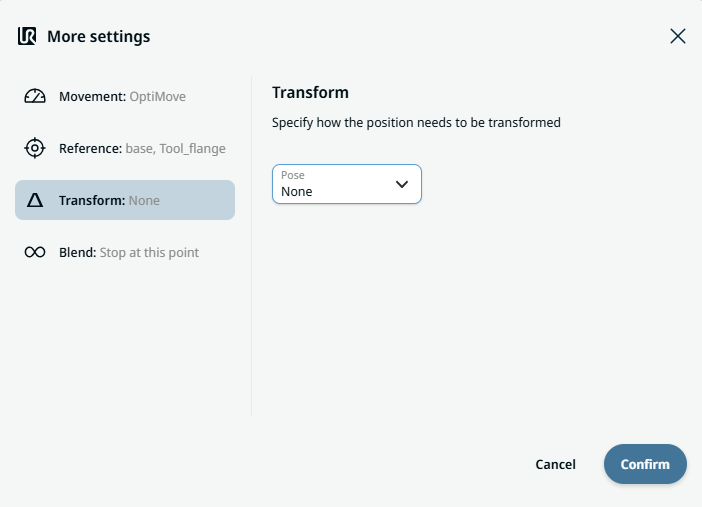
  1. Tap the Transform setting.

  2. Tap the Pose field and Confirm.


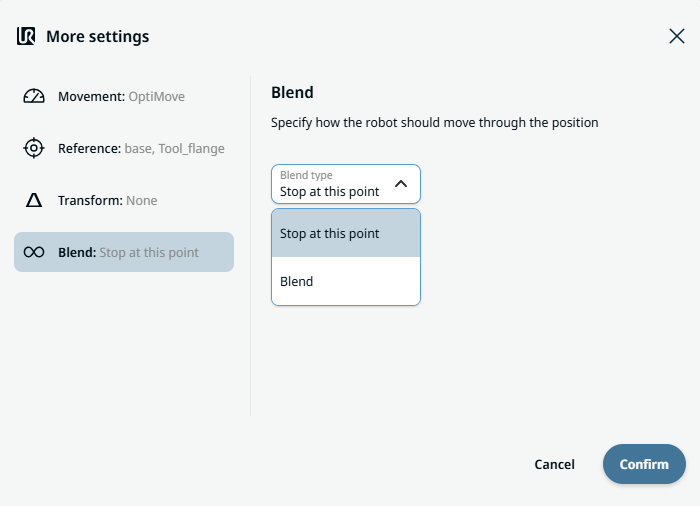
Blend setting

  1. Tap the Blend setting.

    A Blend type field appears with two options:

    • Ferma a questo punto

    • Blend

  2. When you choose Stop at this point, no further action is needed but only Confirm.

  3. Tap Blend, and a Radius field is inserted.

  4. The Value, Variable, and Expression tabs pop up when you tap the Radius field.

  5. Enter data in each tab, and tap Confirm. See Value-Variable-Expression Tabs.

  6. To finish, tap Confirm in the More settings screen.