Sidebar in the Application Tab

Beschreibung

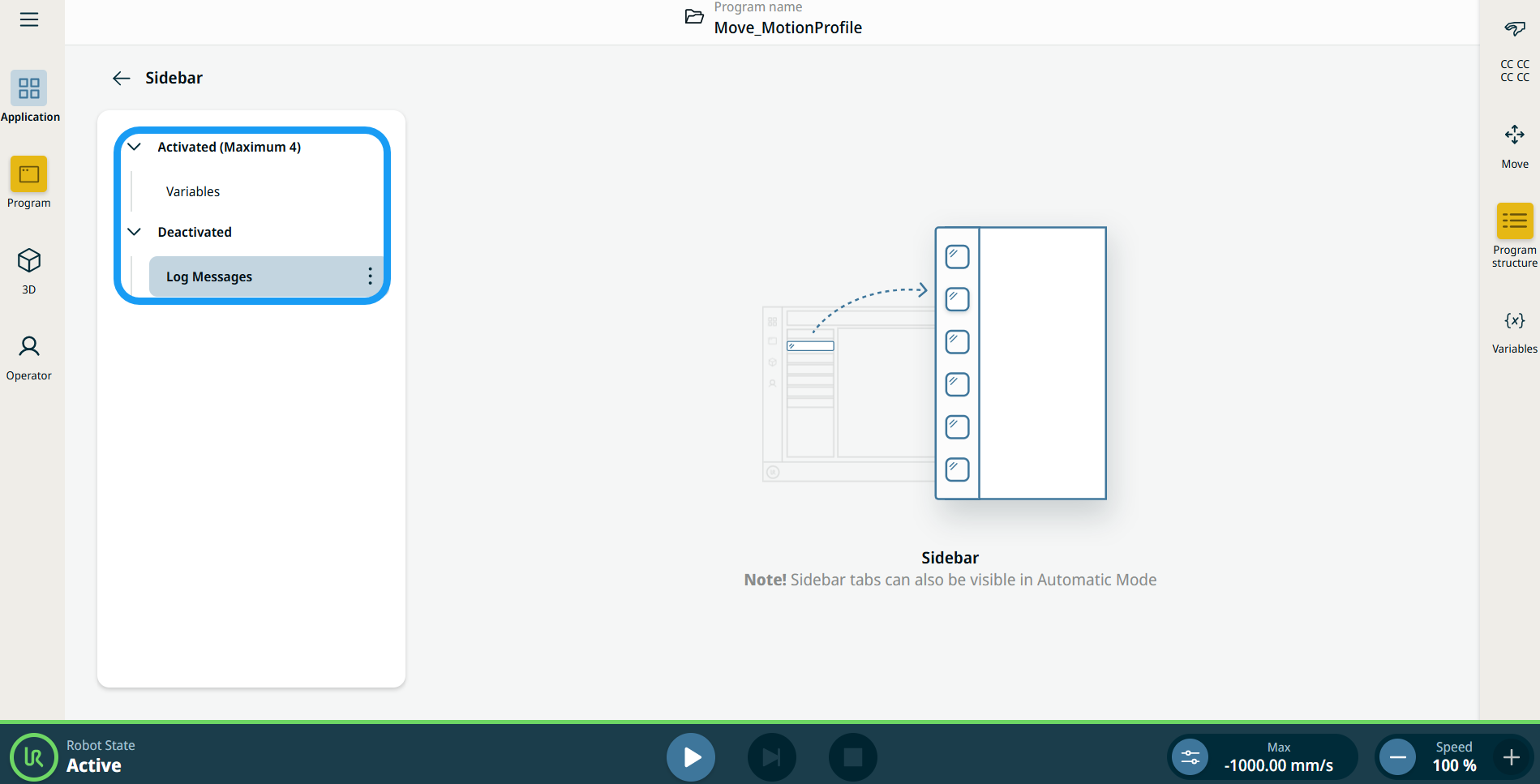
The Sidebar in the Anwendungs-Tab lets you add tabs in addition to the four main menus in the multitask screen.


Using the Sidebar Functionality

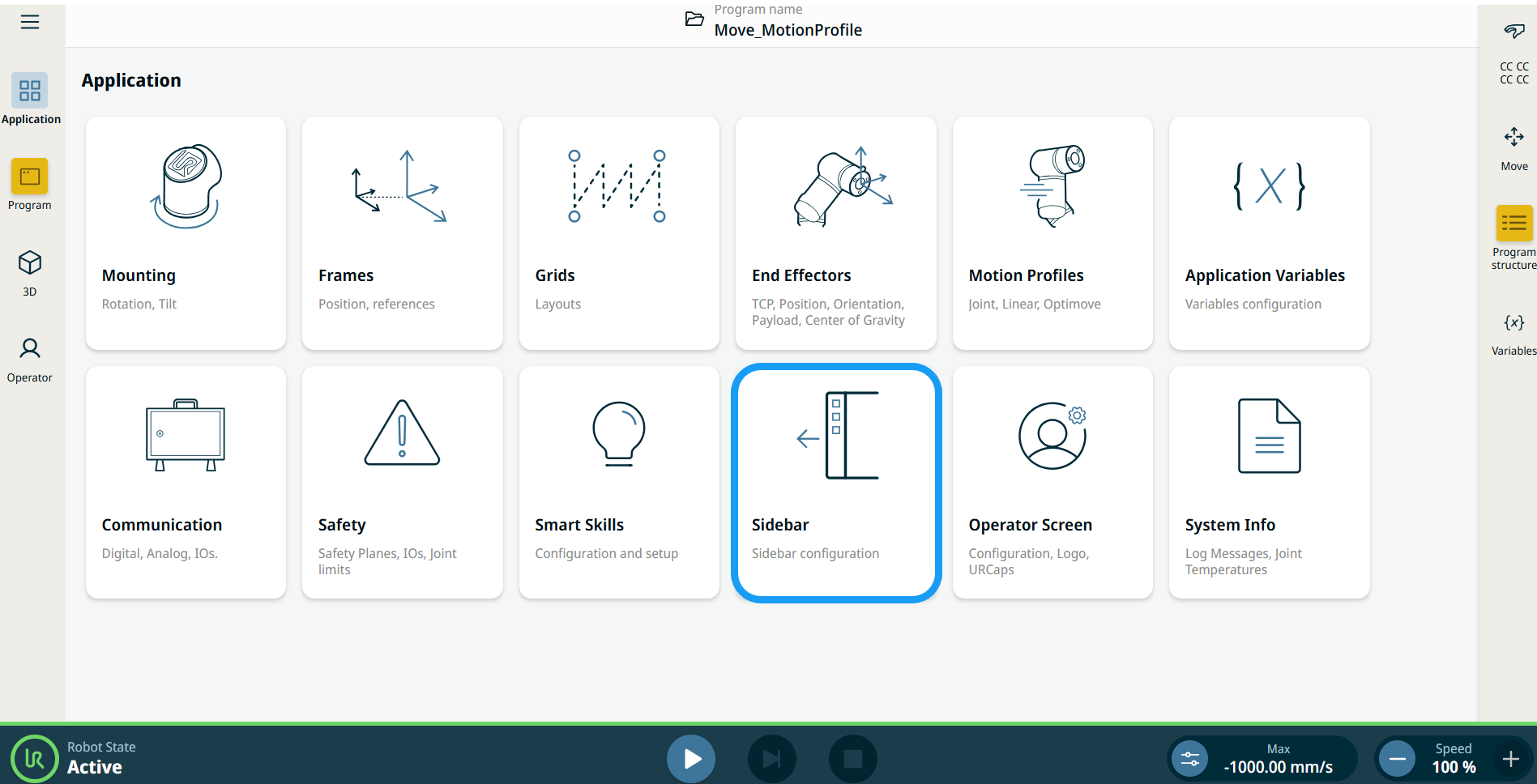
  1. Go to the application nodes screen. See Anwendung Tab.

  2. Tap the Sidebar icon.

    The main screen shows the Activated and Deactivated sidebar trees.

Protokollmeldungen
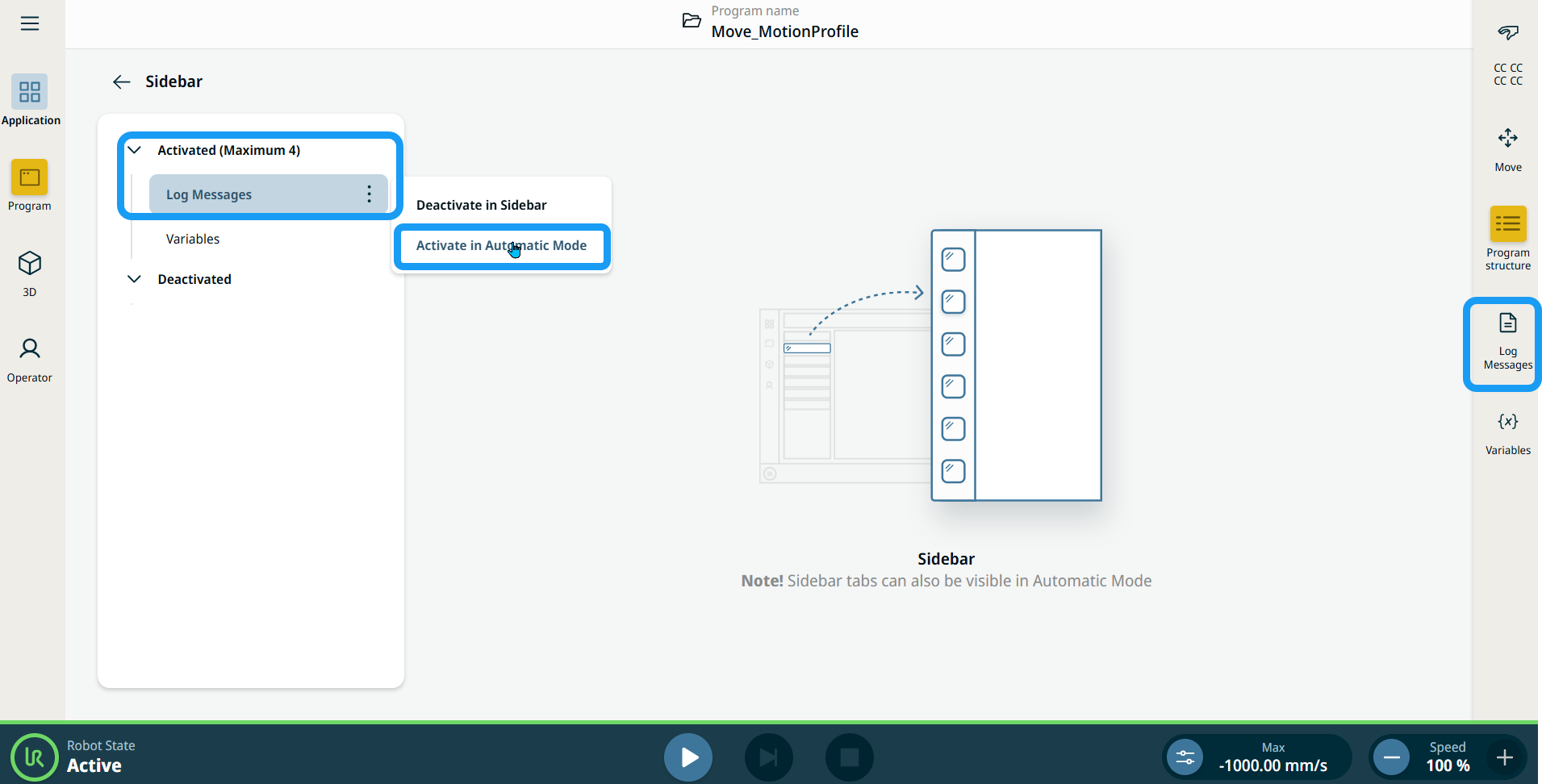
  1. Tap the three vertical dots (kebab icon) for Log Messages, and choose Activate in Sidebar and Activate in Automatic Mode. Log Messages is then moved to the Activated sidebar tree.

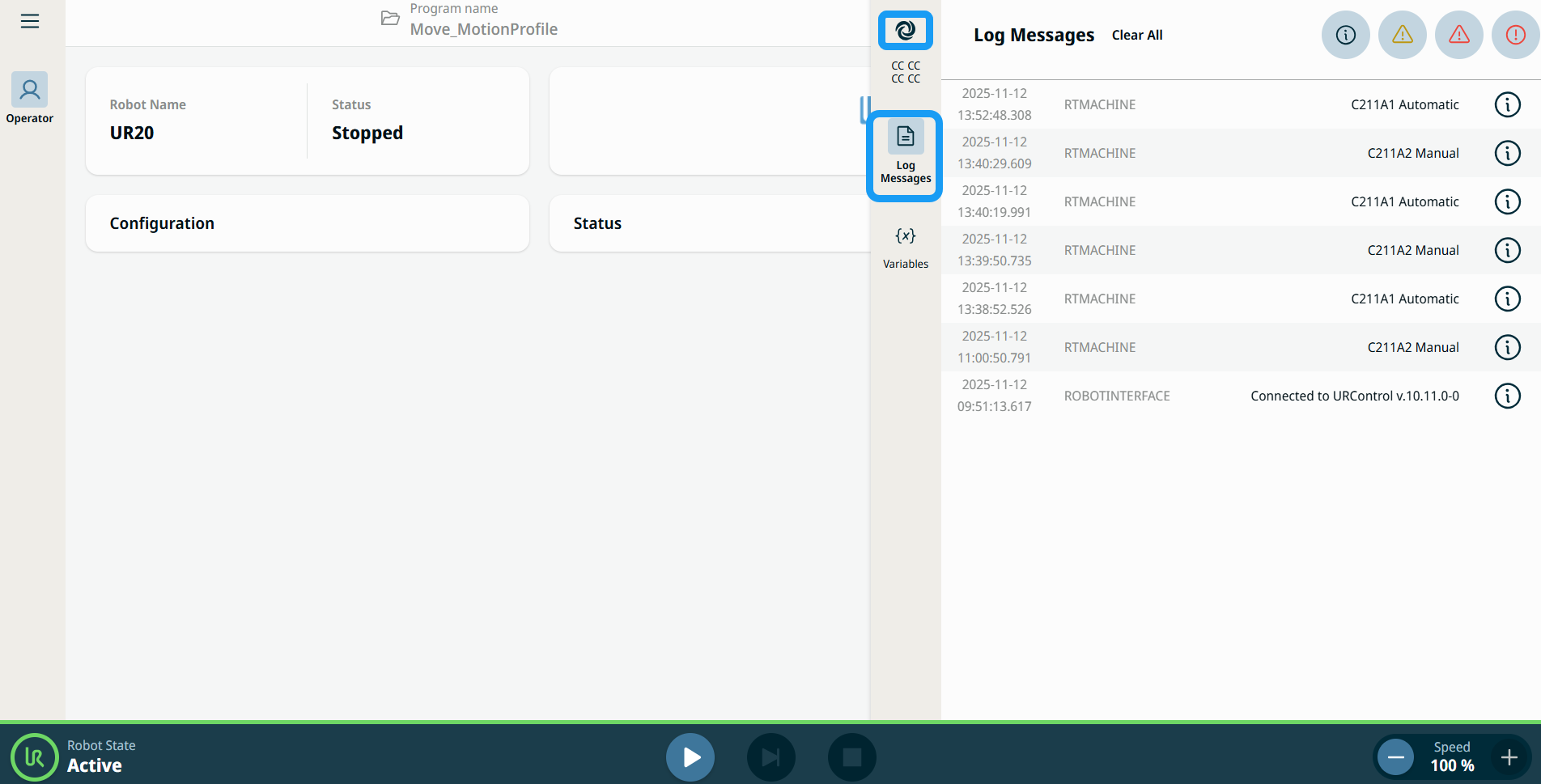
  2. In the sidebar, Log Messages appears.

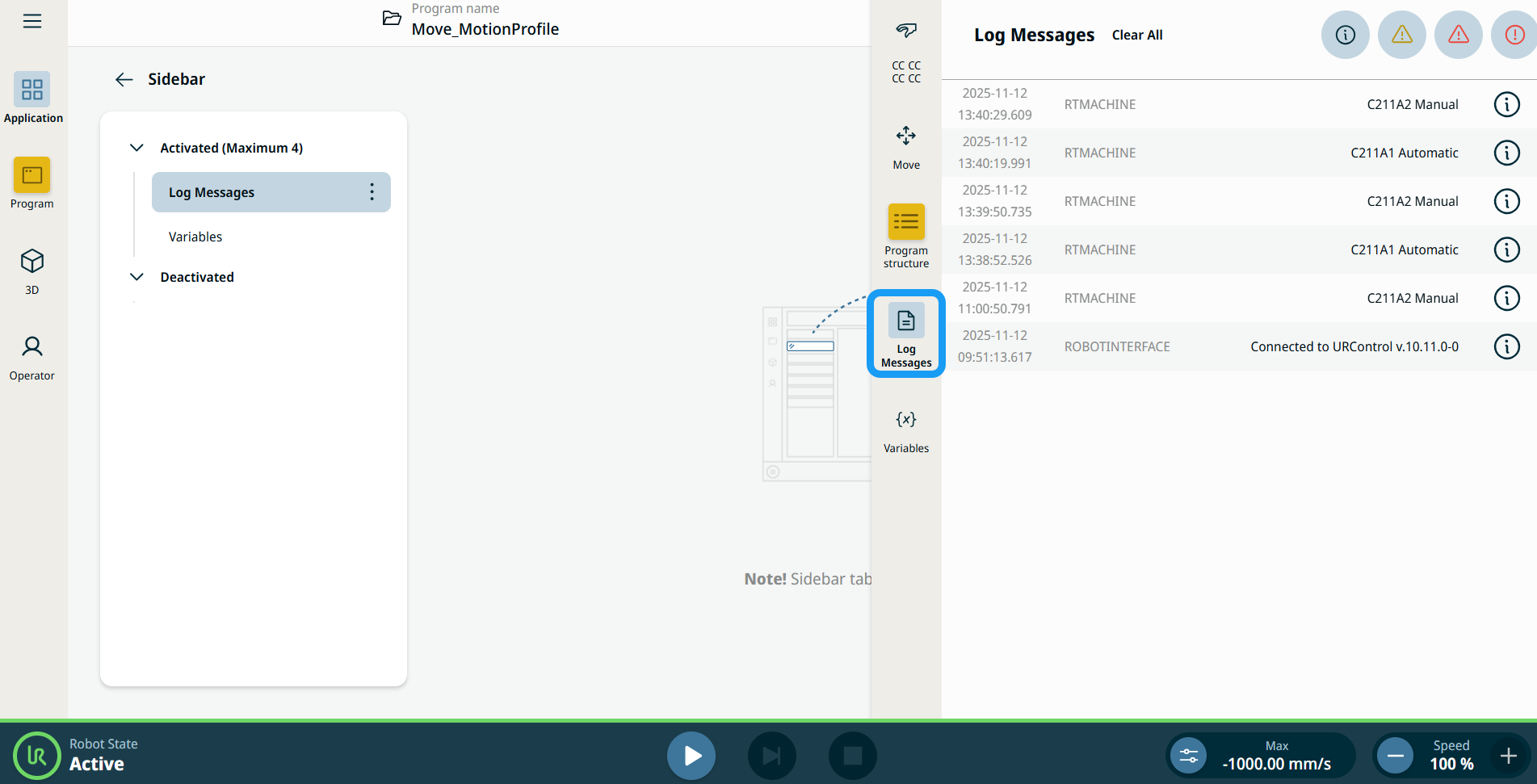
  3. Tap Log Messages in the sidebar. The multitask screen expands to show Log Messages.


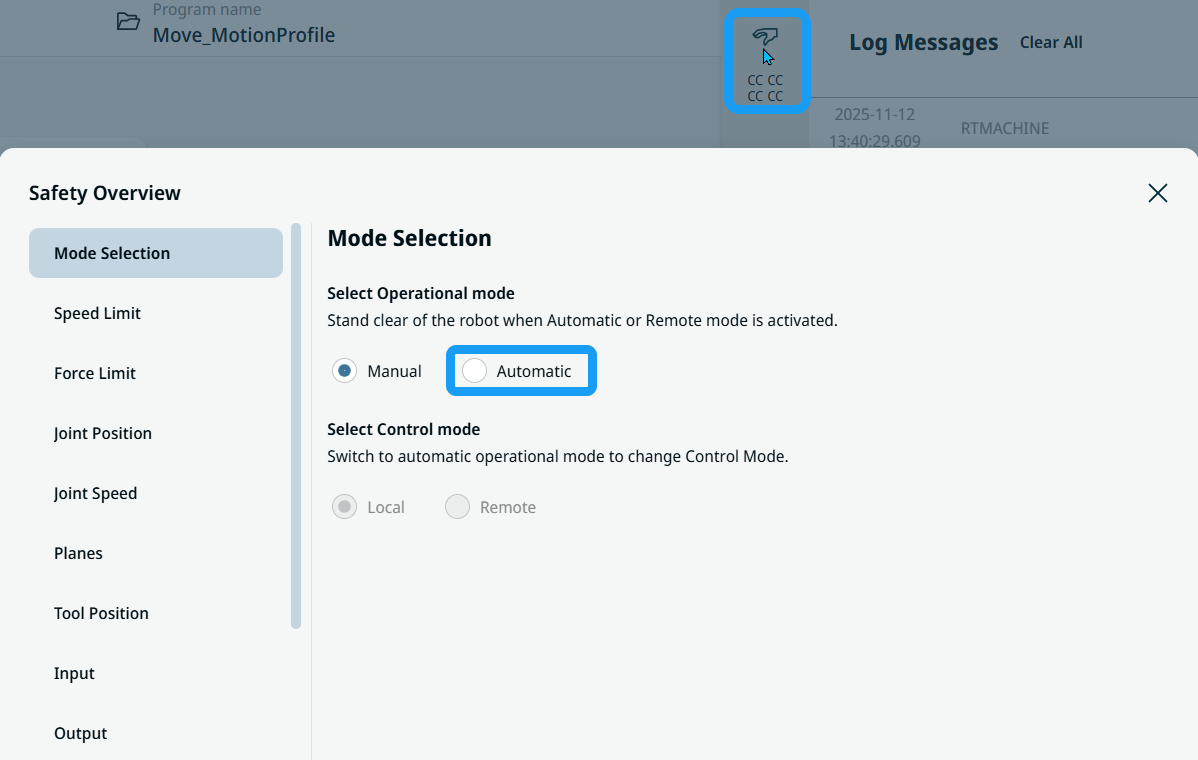
  4. To switch to automatic mode, tap the Safety Checksum icon.


  1. Choose Automatic in the Mode Selection screen. Enter the operational mode password to unlock and confirm.

  2. The automatic-mode interface appears, indicated by the swirling icon in Safety Checksum, and Log Messages remains visible in the sidebar.


Disabling Contribution Function

You can disable a function to control the availability of each contribution at runtime. This function returns a Boolean value that indicates whether the contribution is disabled.


  • When a contribution is disabled, it is hidden from the user interface for a cleaner experience.

  • Even when it is hidden, the function continues running in the background, so it can maintain state or perform background tasks.

  • You can change the disabled state dynamically, which gives you flexible control over feature availability without stopping the underlying processes.