|
Using the Frames Application
|
-
Go to the Application tab screen. See Anwendung Tab.
-
Tap the Frames icon.
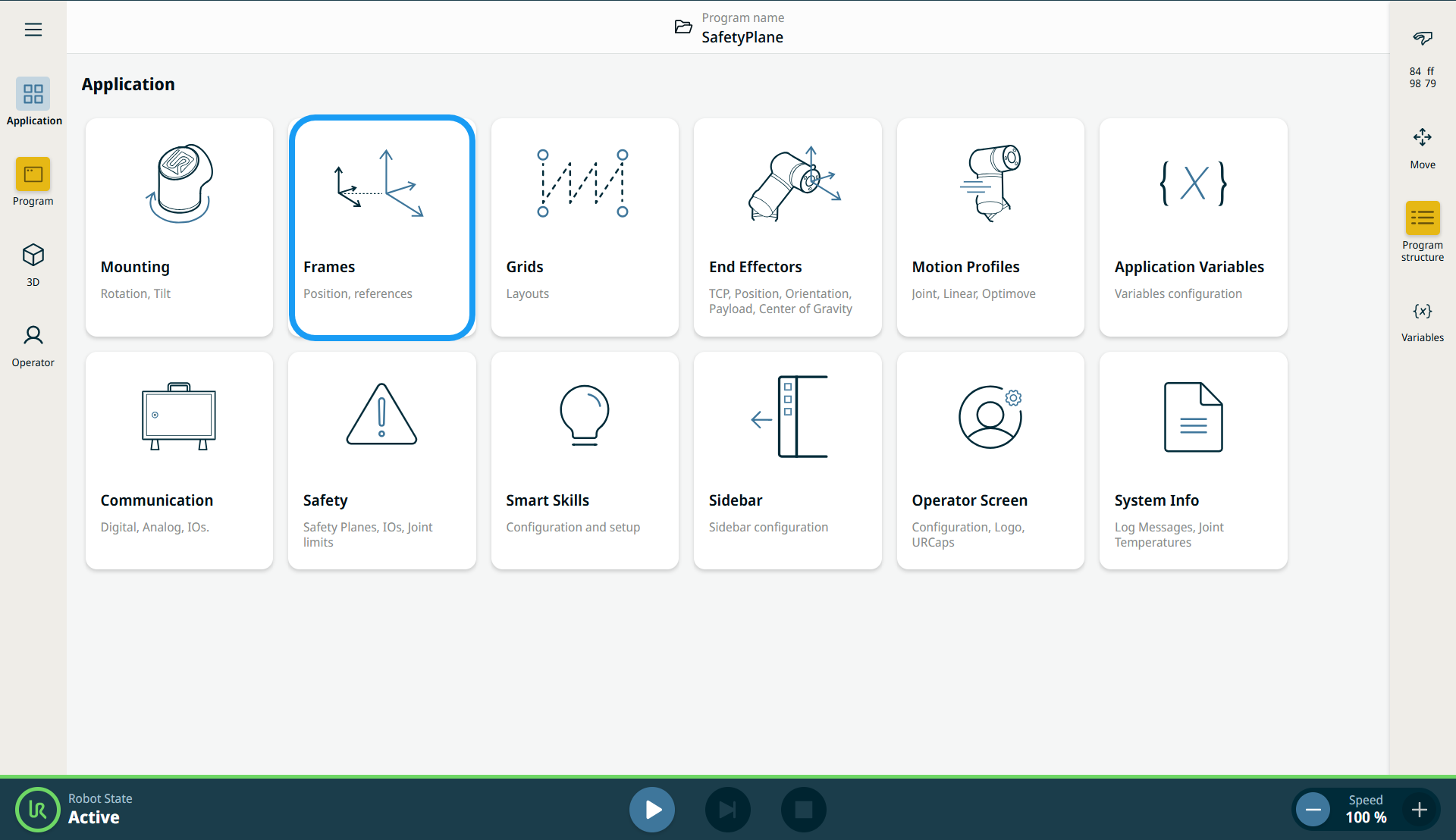
A screen appears, divided into three panels.
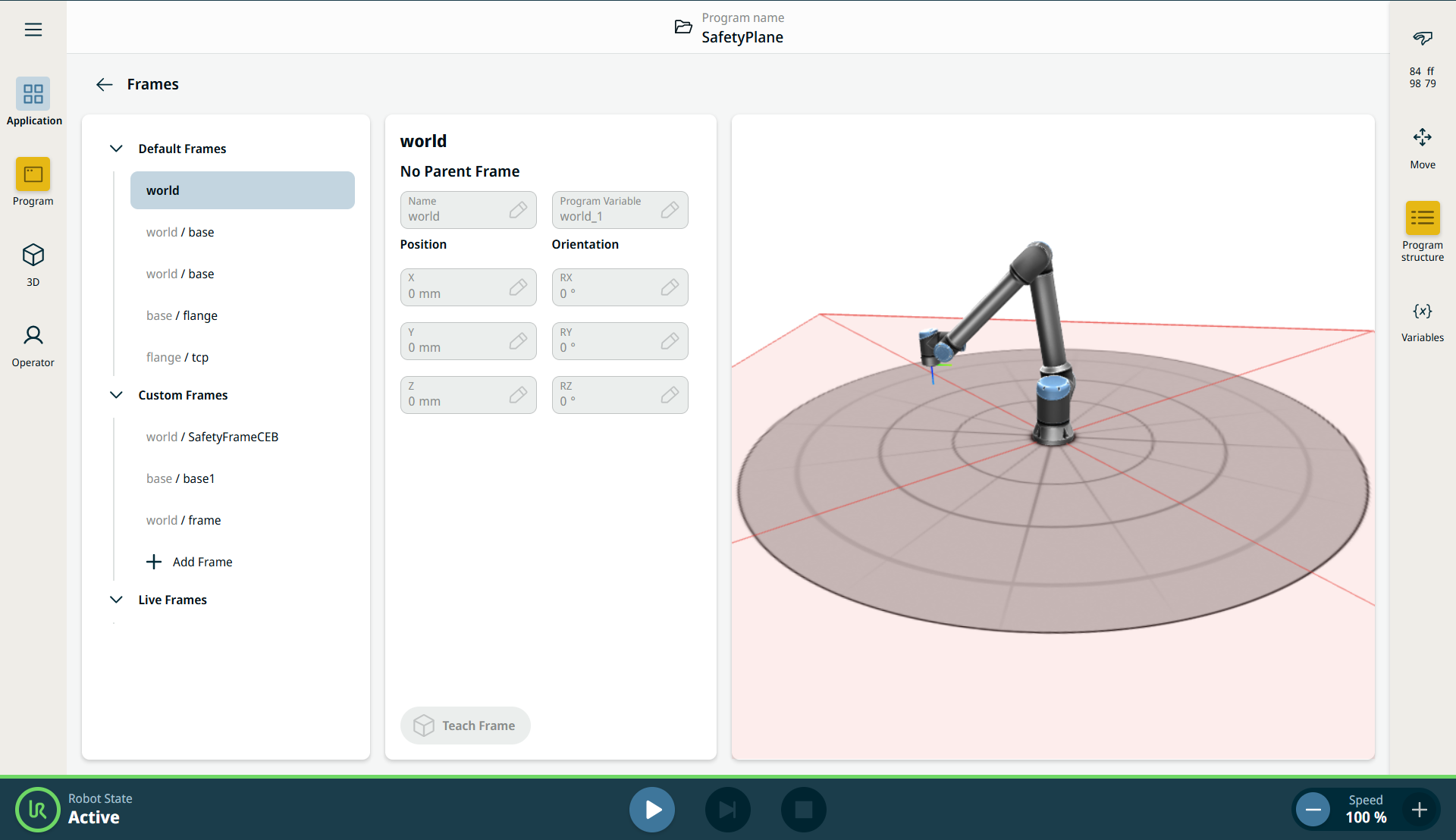
The left panel contains the Default Frames, Custom Frames, and Live Frames.
The center panel contains eight fields:
-
Name field
-
Program Variable field
-
X Position field
-
Y Position field
-
Z Position field
-
RX Orientation field
-
RY Orientation field
-
RZ Orientation field
The right panel shows the robot arm in X, Y, Z coordinates.
|
|
|
The Default Frames section contains three predefined PolyScope X frames:
-
Basis. The center of the robot base. If the robot is mounted in a fixed location, this frame does not change, and you can define other fixed locations relative to it.
-
TCP. The position of the active TCP. It updates as the robot moves when jogged or while a program runs.
-
Welt. When the robot is mounted in a fixed location, this frame is the same as the Base frame. However, if the robot is mounted on a moveable rail or gantry, you can update the Base frame as the robot moves, while the World frame remains fixed.
Selecting any of the predefined frames allows you to view their values. However, you cannot edit them.
-
Under Custom Frames, tap + Add frame. The eight fields in the center panel are activated.
-
In the Parent field, select a frame. Koordinatensysteme werden relativ zu Basis erstellt.
-
Enter the values in the X, Y, Z Position fields and tap Confirm.
-
Enter the values in the RX, RY, RZ Orientation fields and tap Confirm.
-
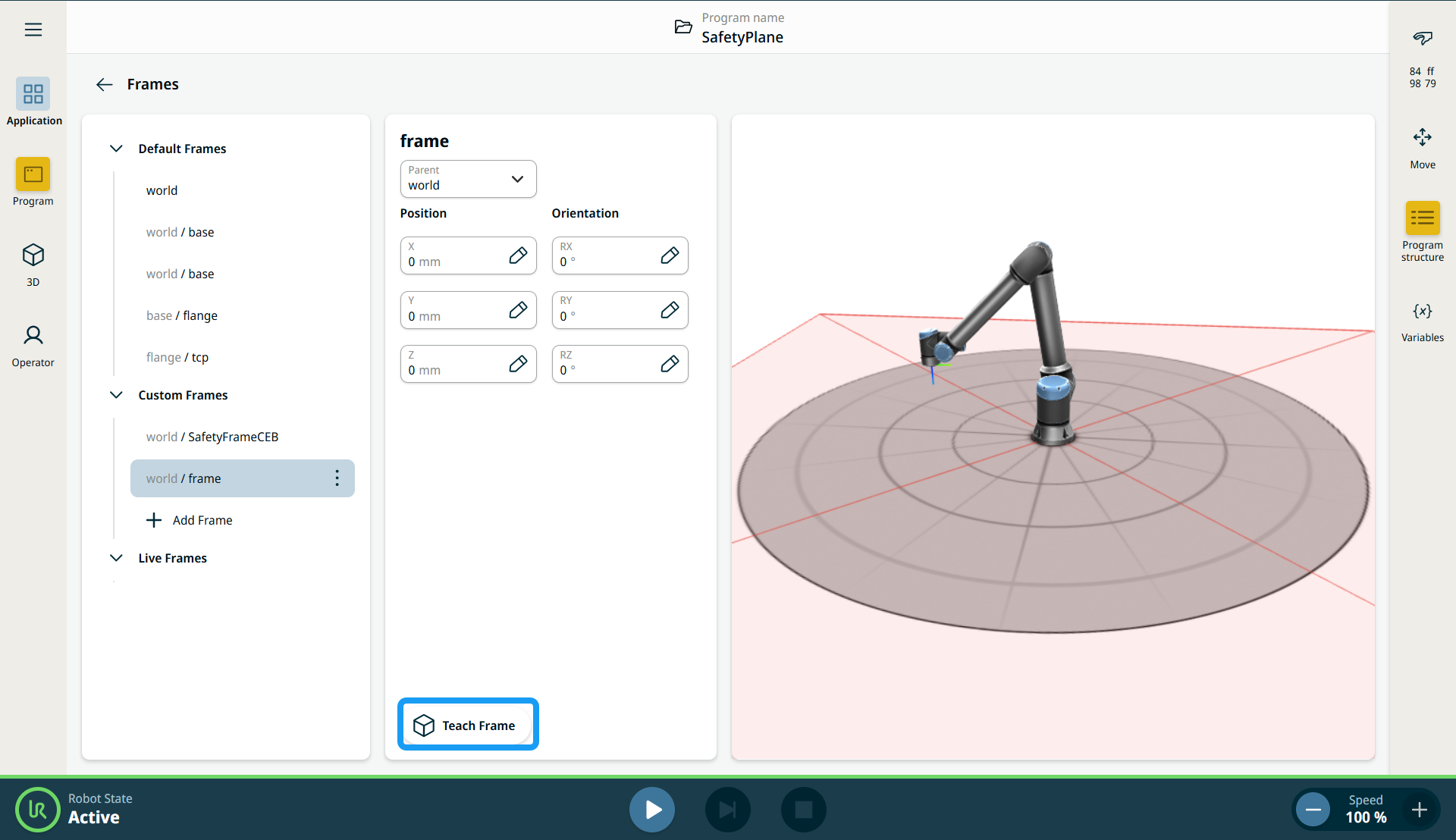
Tap the Teach Frame button at the bottom of the panel.
|
| |
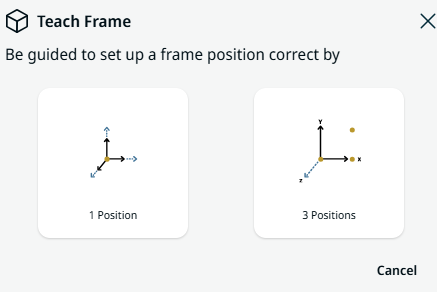
A pop-up appears with two options to set up a frame position.
-
1 Position
-
3 Positions
-
When you select 1 Position, the 3D Viewer becomes the main screen. Use the plus-minus button to translate and rotate the robot arm's three coordinates.
-
Tap Save.
-
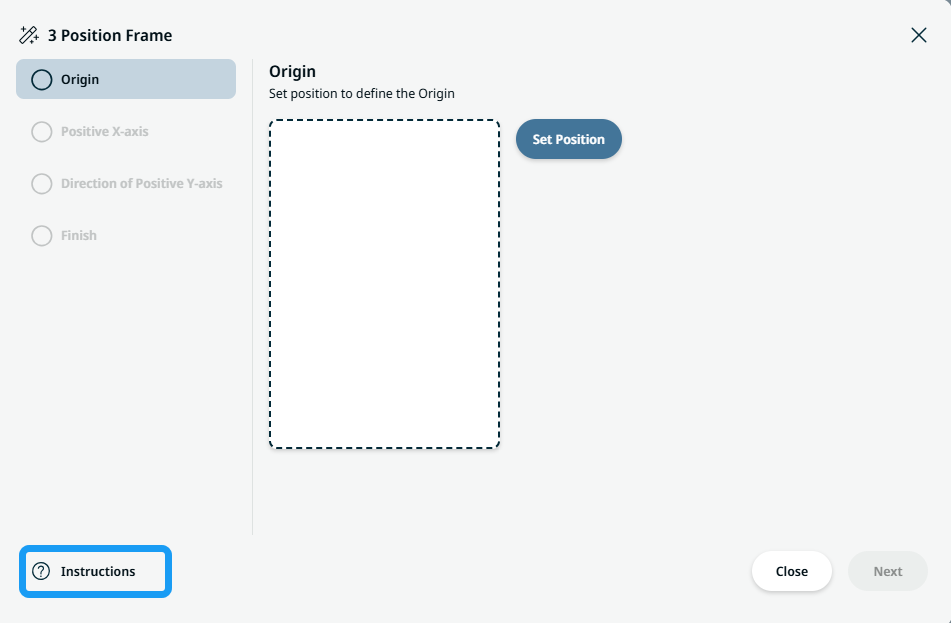
When you select 3 Positions, a pop-up appears. Tap the Instructions icon on the bottom left.
|
| |
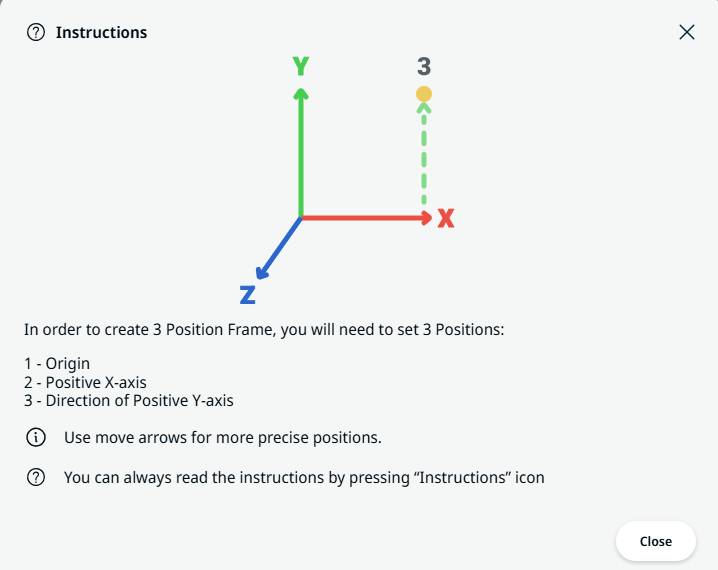
The Instructions box for creating a 3-Position Frame appears.
-
Tap Set Position for Origin.
-
The 3D Viewer becomes the main screen. Use the plus-minus button to translate and rotate the robot arm's three coordinates.
-
Tap Save.
-
An option to edit the position is provided. If no edit is needed, tap Next.
-
Tap Set Position for Positive X-axis.
-
Repeat steps 12–14.
|
| |
-
Tap Set Position for Direction of Positive Y-axis.
-
Repeat steps 12–14.
-
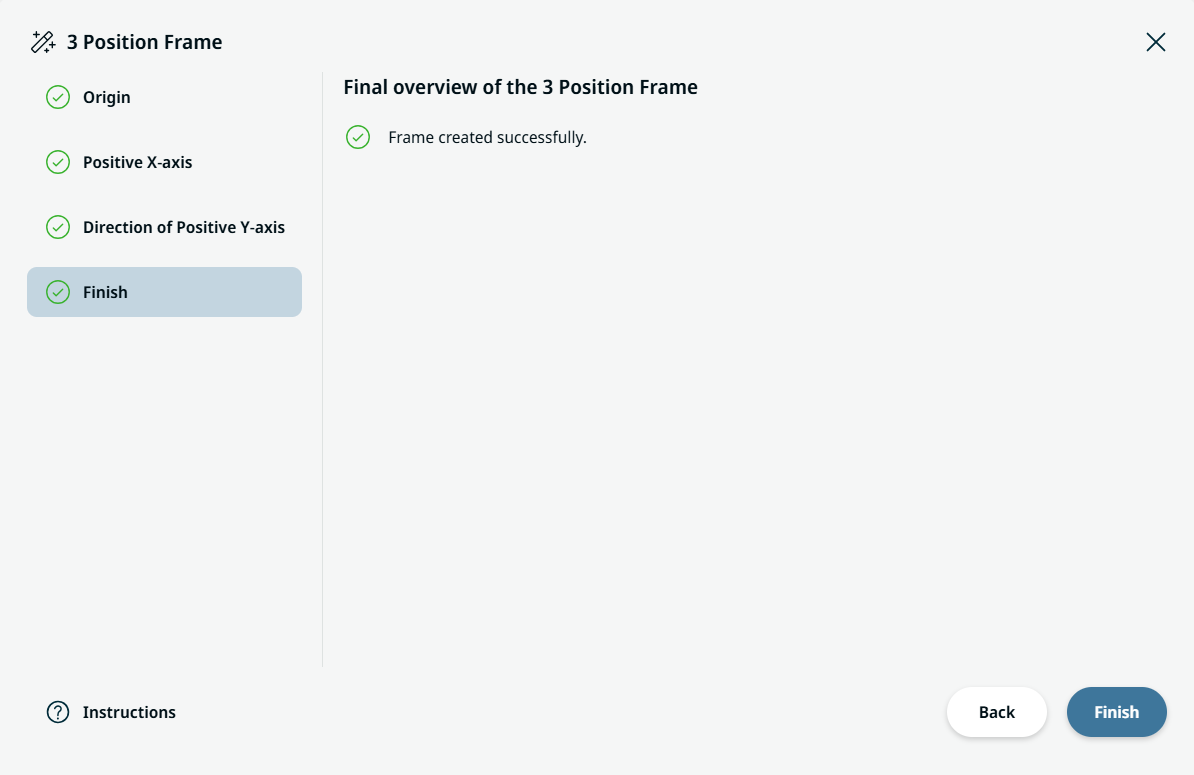
Tap Finish when the frame is created successfully.
|