| Tracking Parameters
|
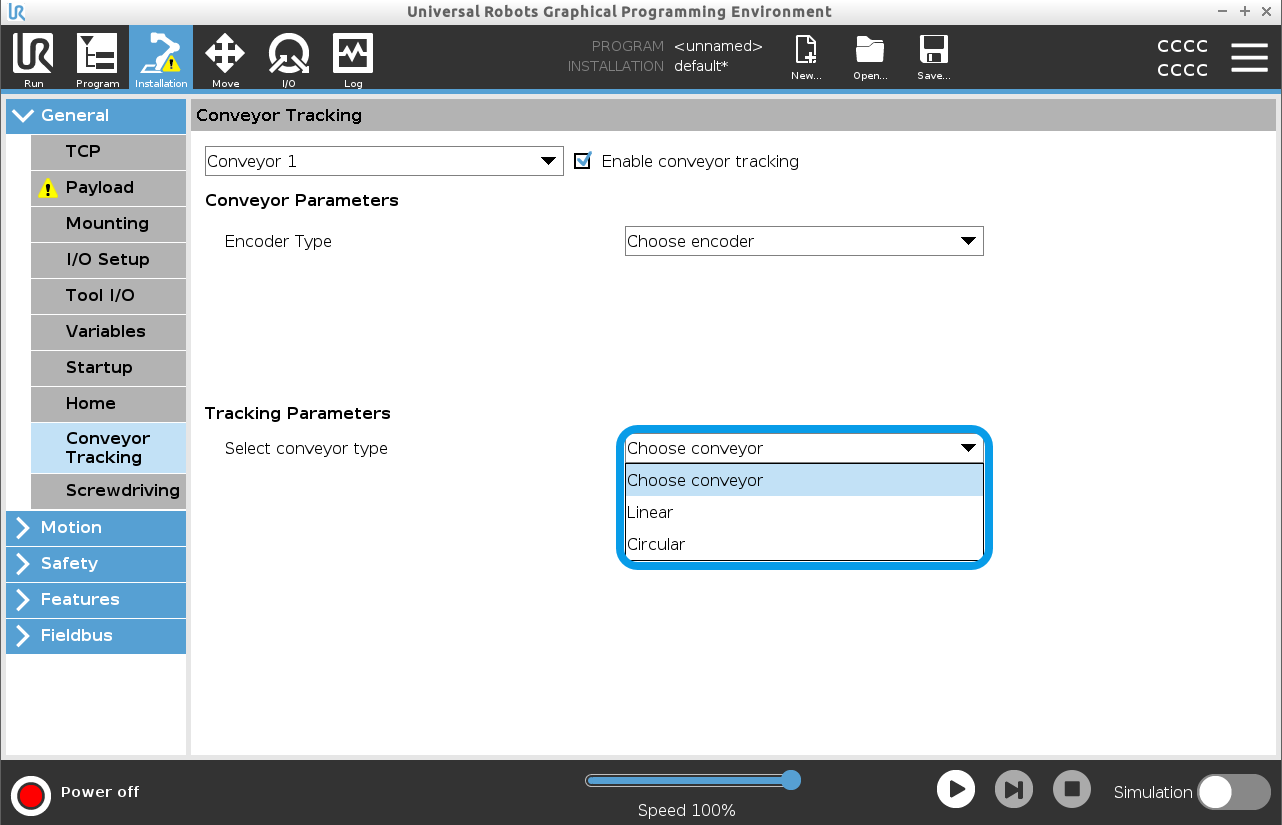
- Linear Conveyors
-
When a linear conveyor is selected, a line feature must be configured in the Features part of the installation to determine the direction of the conveyor. Ensure accuracy by placing the line feature parallel to the direction of the conveyor, with a large distance between the two points that define the line feature. Configure the line feature by placing the tool firmly against the side of the conveyor when teaching the two points. If the line feature’s direction is opposite to the conveyor’s movement, use the Reverse direction button.
The Ticks per meter field displays the number of ticks the encoder generates when the conveyor moves one meter.
- Circular Conveyors
-
-
When tracking a circular conveyor, the conveyor center point must be defined.
-
Define the center point in the Features part of the installation. The value of Ticks per revolution must be the number of ticks the encoder generates when the conveyor rotates one full revolution.
-
Select the Rotate tool with conveyor checkbox for the tool orientation to track the conveyor rotation.
-
|
|
|
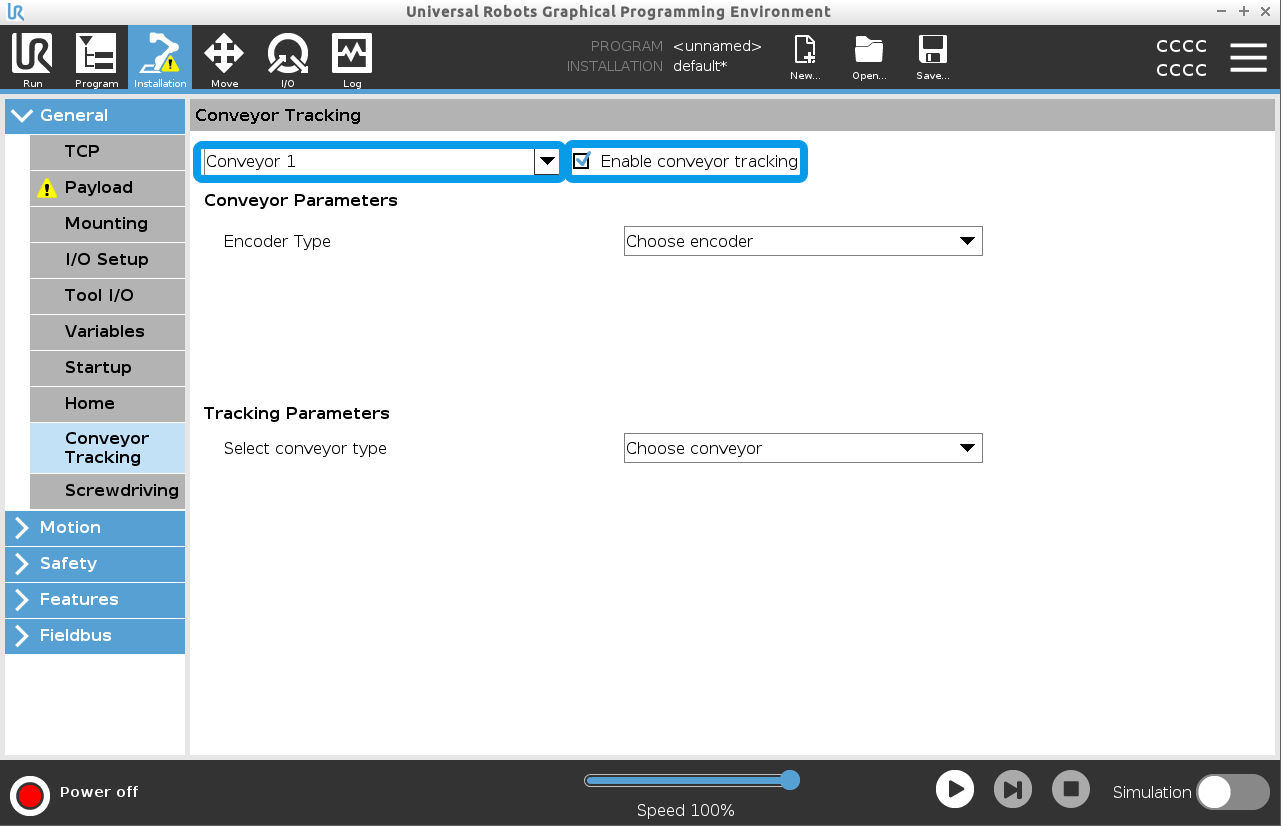
When using a conveyor, the robot can be configured to track its movement. A program node, Conveyor Tracking, is available for tracking a conveyor. When the Conveyor Tracking defined in the installation is configured correctly, a linear or circular conveyor can be tracked. The node can be added from the Wizard Program node under the Structure tab. While the program is executing under the Conveyor Tracking node, the robot will adjust its movements to follow the conveyor. Other movements are allowed while tracking the conveyor but are relative to the motion of the conveyor belt.
|