Redefining key waypoints
This subsection illustrates an example of a simple Pick and Place program, to describe how to redefine a key waypoint.
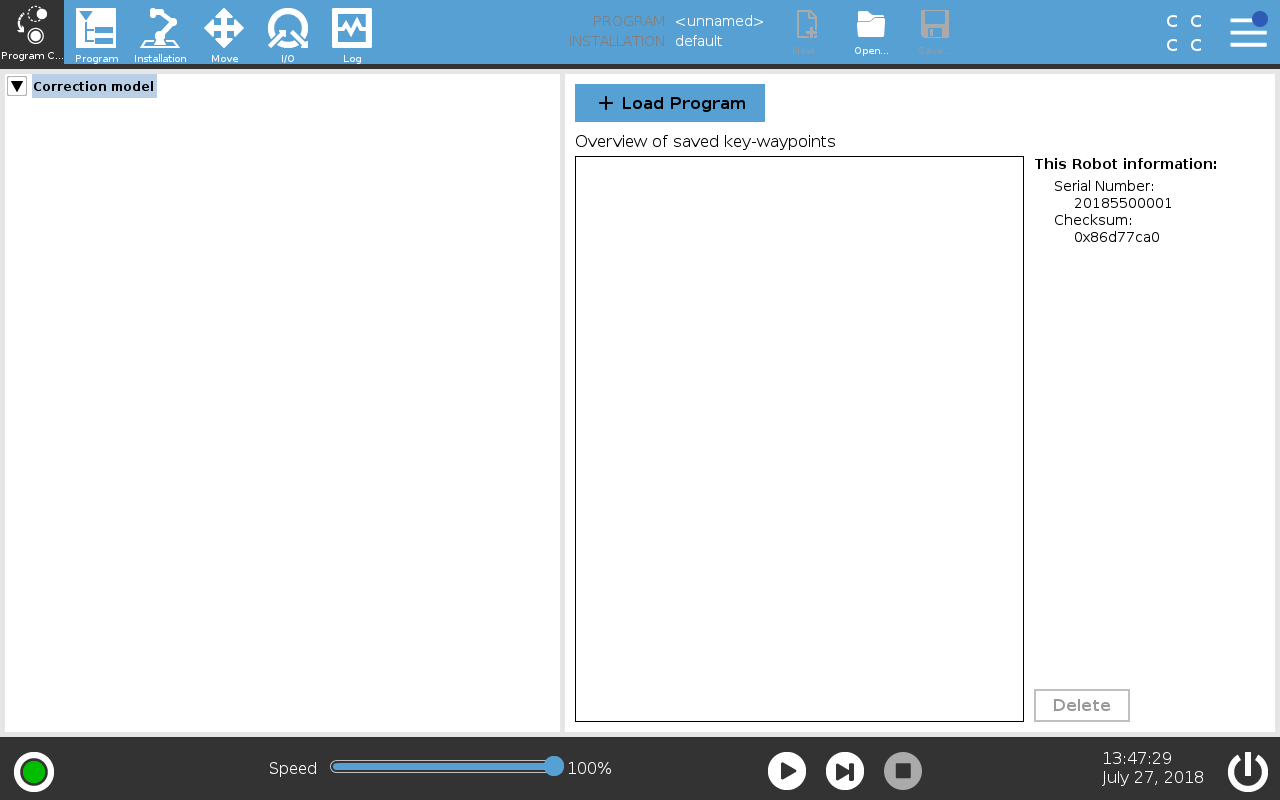
To redefine a key waypoint
-
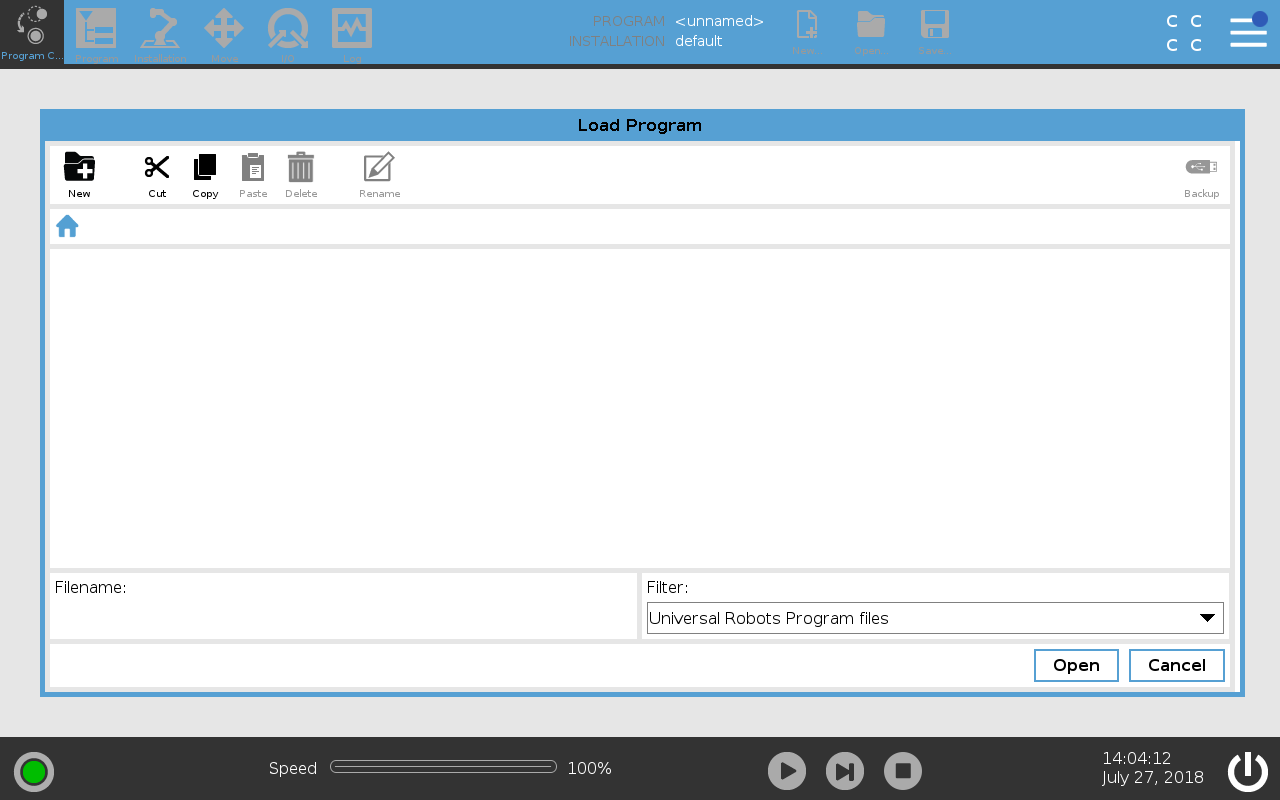
Tap Load Program and select a program to load into the Correction Model, to create a correction model program tree.
-
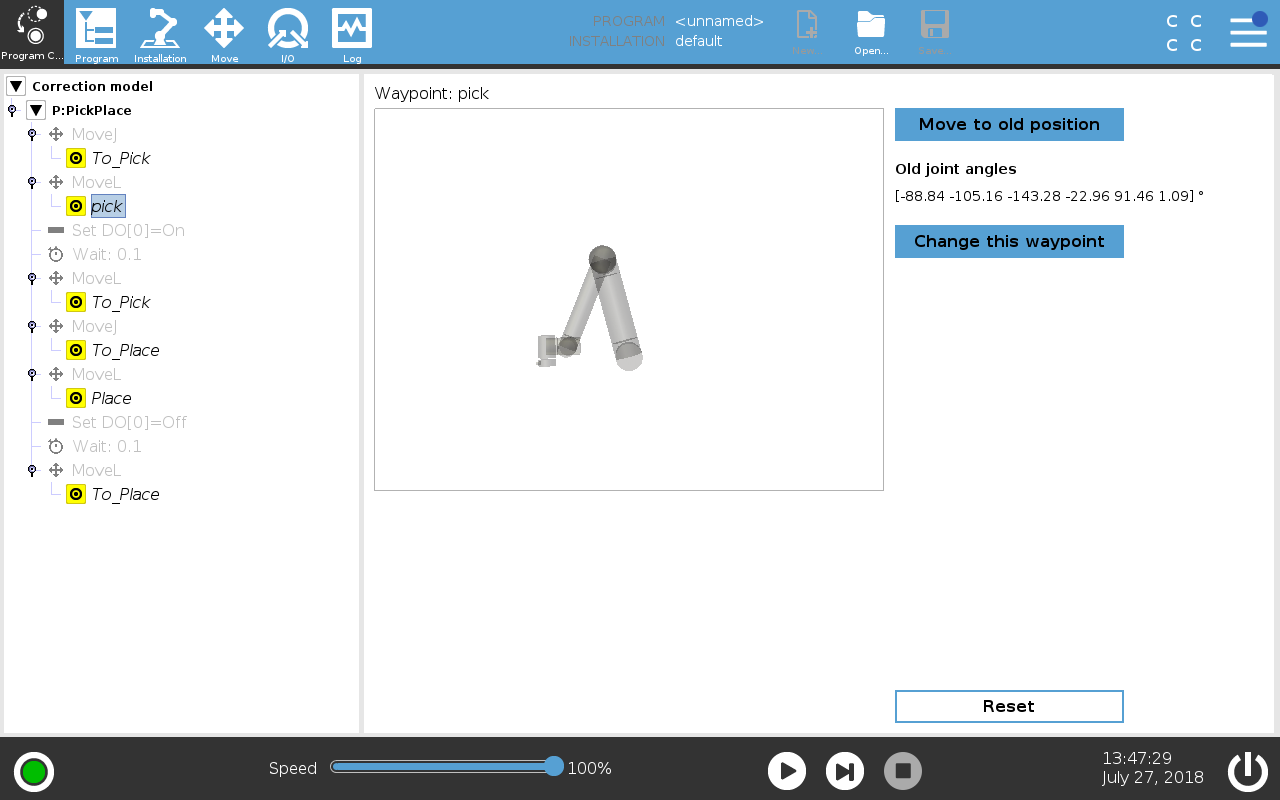
In the new correction model program tree, select one of the key waypoints.
The waypoints in the Correction Model tree that are not re-taught are displayed in italics with the undefined waypoint icon.
-
Tap Change this waypoint to redefine the configuration for the selected waypoint.
-
When the Move Tab is activated, teach the robot a new position and tap OK.
Using the Corresponding Tool Position (CTP)
The CTP is the endpoint of the robot with, or without, picked objects. The CTP improves the accuracy of the correction by redefining the waypoint and defining individual key waypoints.
Typical CTP locations include: The Tool Center Point (TCP) where the object is picked and the end point where the object is placed.
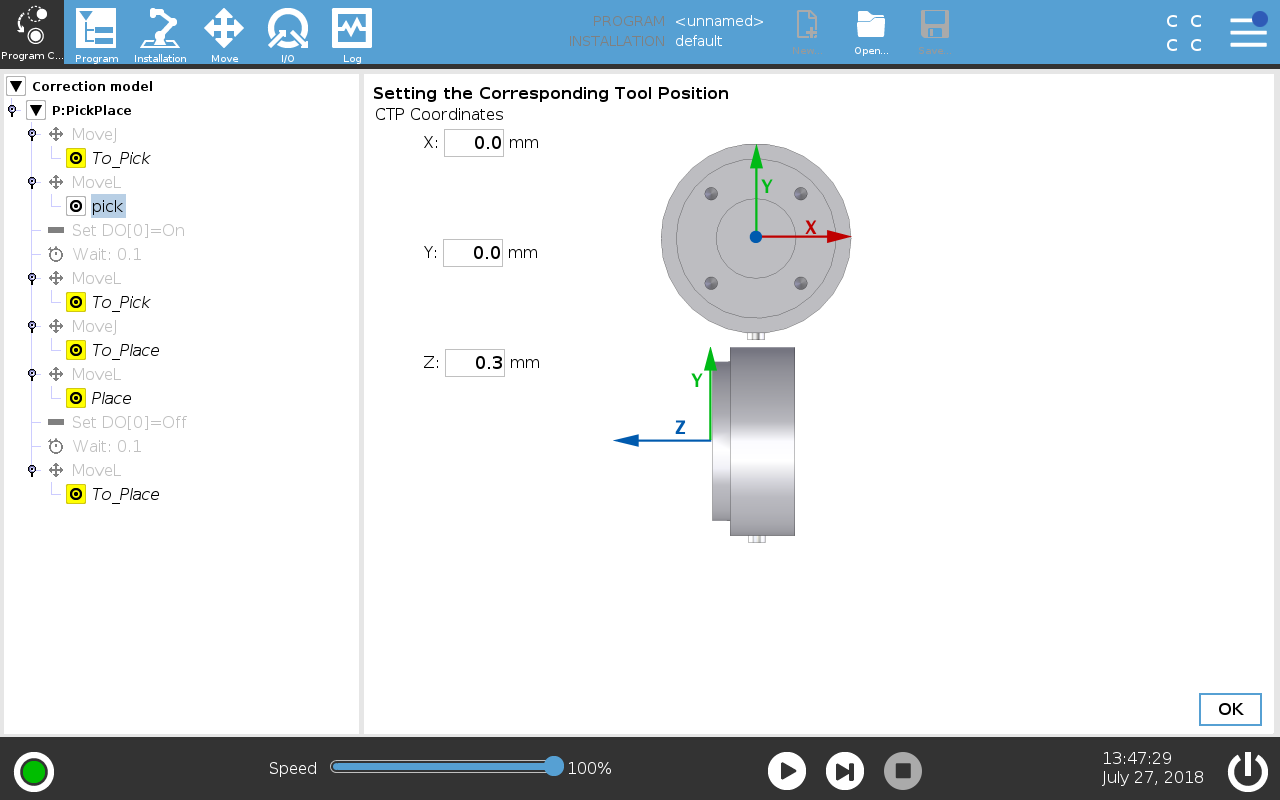
To use the CTP
-
Tap Change CTP to specify the CTP location.
-
Change the CTP coordinates and tap OK to redefine the "pick" key waypoints.
-
Continue to redefine waypoints until all key waypoint are redefined.
Using waypoints from multiple programs
Add key waypoints from multiple programs, if the key waypoints are distributed over multiple programs.
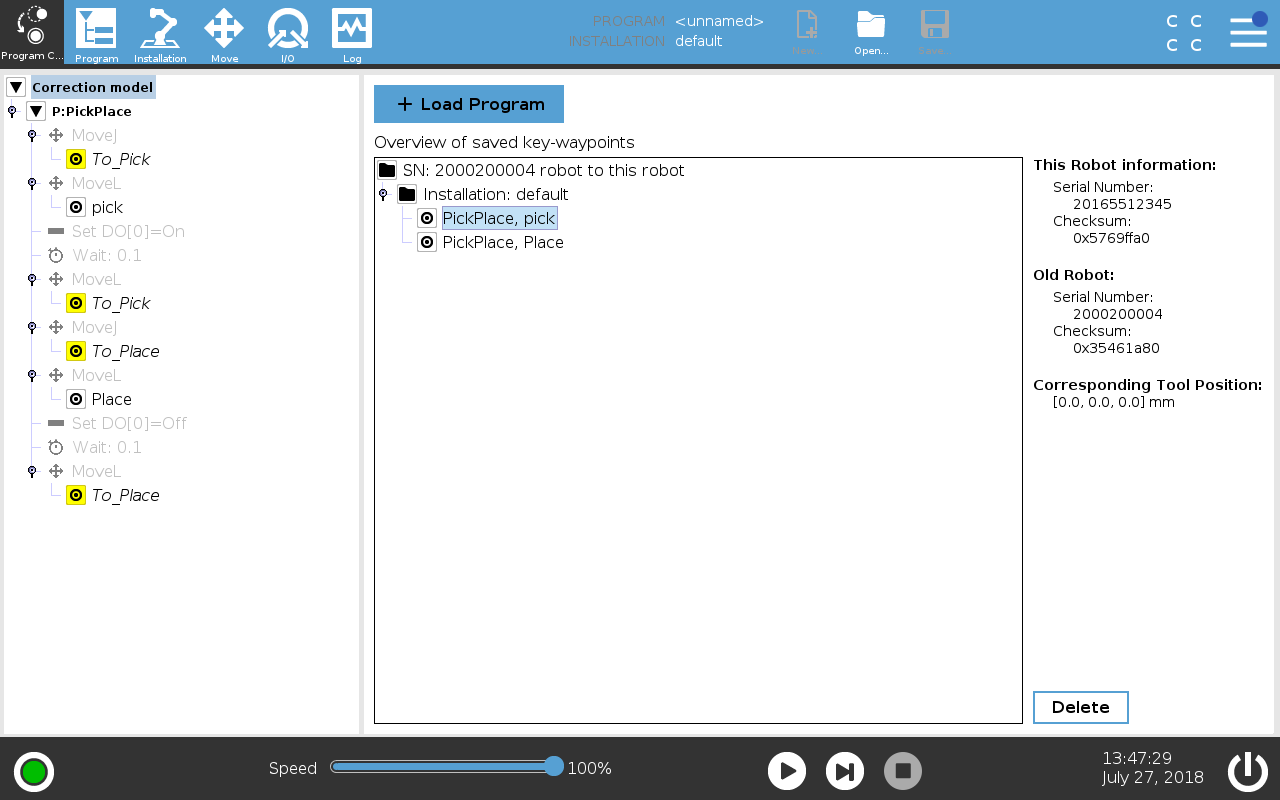
To use waypoints from multiple programs
-
Select the root node of the Correction Model tree and tap Load Program.
Using key waypoint groups
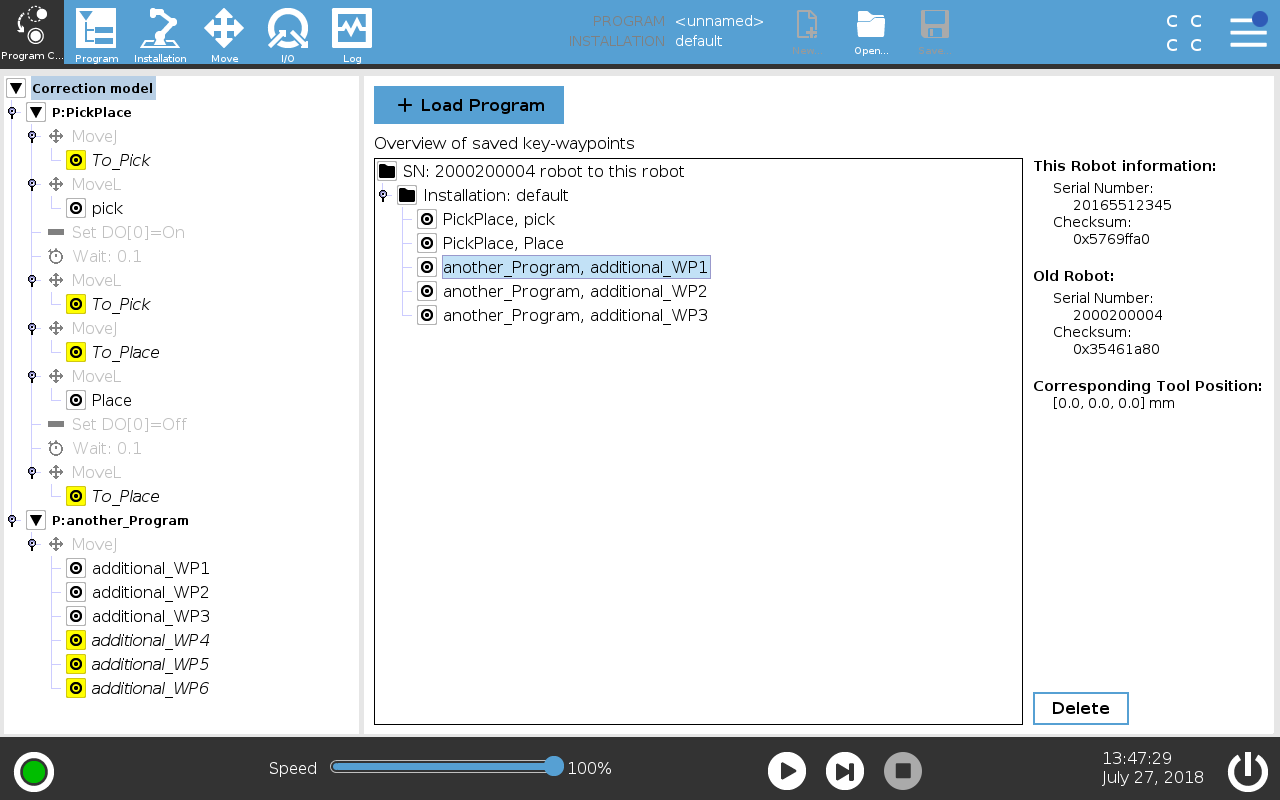
The key waypoints are grouped according to the source robot's relationship to new robot's installation. Each key waypoint is named and refers to the source source program.
-
You can expand the Correction Model node for an overview in the Correction Model tree.
-
You can select a waypoint, or a group of waypoints, and tap Delete to remove selected key waypoints from the Correction Model tree.