First Boot

Description

The first boot is the initial sequence of actions you can take with the robot after assembly.

This initial sequence requires you to:

  • Power on the robot

  • Insert the serial number

  • Verify Installation

  • Initialize the robot arm

  • Test the Mount and Payload using Freedrive

  • Power down the robot

Failure to verify the payload and installation before starting up the robot arm can lead to injury to personnel and/or property damage.

  • Always verify the actual payload and installation are correct before starting up the robot arm.

Incorrect payload and installation settings prevent the robot arm and Control Box from functioning correctly.

  • Always verify that the payload and installation settings are correct.

Starting up the robot in low temperatures can result in lower performance, or stops, due to temperature-dependent oil and grease viscosity.

  • Starting up the robot in low temperatures can require a warm-up phase.

Powering On the Robot

To power on the robot

Powering on the robot turns on the Control Box and loads the display on the TP screen.

  1. On the Teach Pendant, press the emergency stop button.

  2. Press the power button on the Teach Pendant to power on the robot.


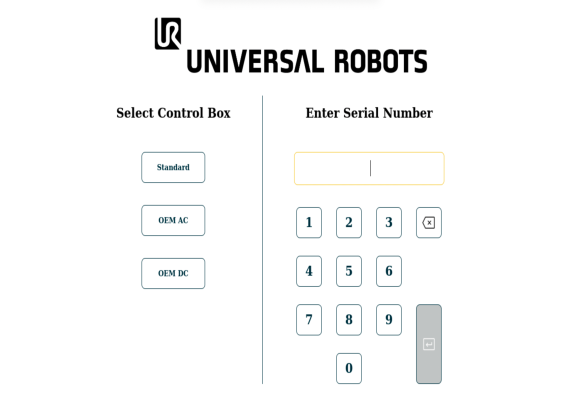
Inserting the Serial Number

To insert the serial number

Installing your robot for the first time requires you to enter the serial number on the robot arm.

This procedure is also required when you re-install the software. For example, when you install a software update.


  1. Select your Control Box.

  2. Add the serial number as it is written on the robot arm.

  3. Tap OK to end.

It can take a few minutes for the start screen to load.


Verifying the Installation

Verify robot mounting

Mounting settings describe whether the robot is mounted vertically, horizontally, or at an angle. This allows the robot to determine the direction of gravity, enabling smooth and precise movement.

This screen also allows you to specify the orientation of the robot base in relation to the viewer, giving the robot an accurate appearance in the visualizations.


Always verify the actual payload and installation are correct before starting up the robot arm. If these settings are incorrect, the robot arm and Control Box will not function correctly and may become dangerous to people or equipment.

Ensure the robot arm is not touching an object (e.g., a table) because a collision between the robot arm and an obstacle might damage a joint gearbox.


To change the mounting settings of the robot arm:

  1. On the Teach Pendant, press the emergency stop button.

  2. On the Teach Pendant, press the power button and allow the system to start and load PolyScope X.

  3. On the screen, tap OK when the Robot Emergency Stop dialog appears.

  4. Tap the Application icon in the Main Navigation on the left side of the Teach Pendant screen.

    Tap the Mounting icon.

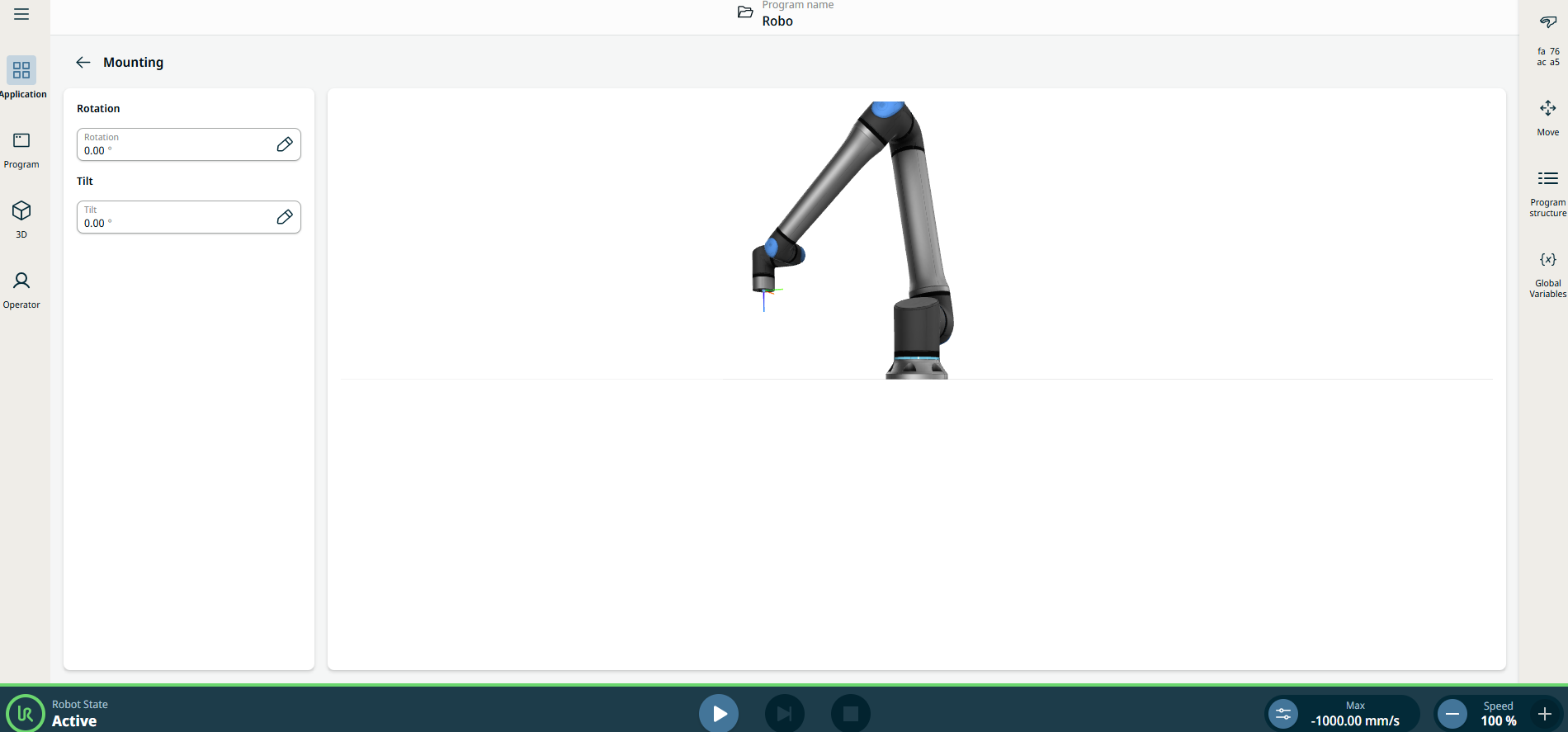
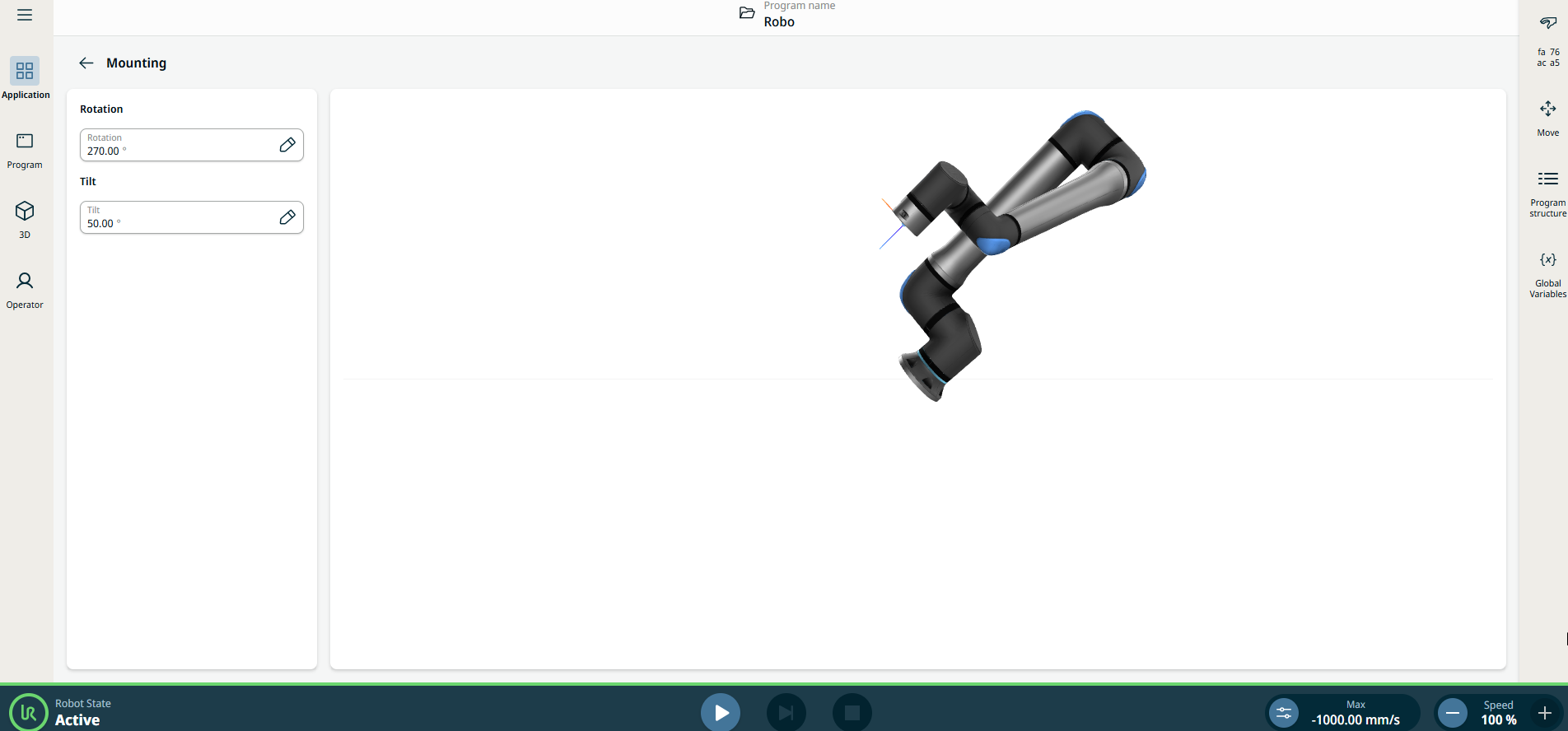
    A screen appears with two fields on the left side:

    Rotation. The alignment with respect to the power cable.

    Tilt. The angle of the base in degrees: 0 being horizontal floor mounting, 90 being wall mounting, and 180 being a ceiling mounting.

    The robot arm is seen in the center screen.


  1. You can use the following touch gestures to adjust the view of the robot arm. Only the current view is changed.

    • Press and rotate clockwise or counterclockwise.

      Function: Changes your viewing direction of the robot.

    • Pinch. Touch the screen with two fingers and bring them closer together.

      Function: Zooms out the robot image.

    • Spread. Touch the screen with two fingers and move them apart.

      Function: Zooms in the robot image.

  2. Tap the Rotation field, enter your value in degrees, and Confirm.

  3. Tap the Tilt field, enter your value in degrees, and Confirm. The current view is updated to show the corresponding change in the robot arm configuration.


  4. Tap the back arrow to return to the previous screen.


Verify active payload

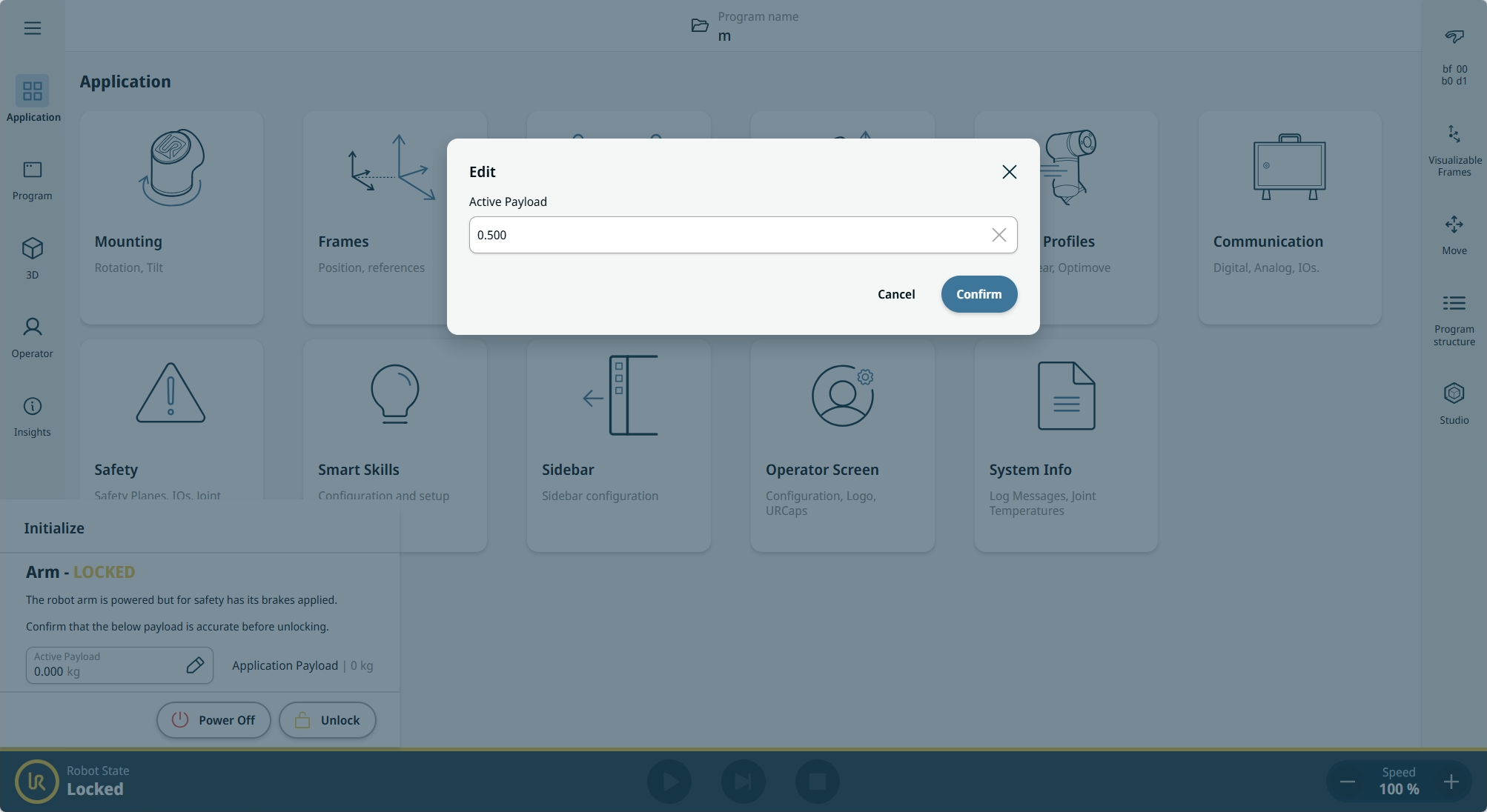
Starting the robot arm disengages the braking system, allowing you to start moving the robot arm and to start using PolyScope X. Before powering on the robot arm, you need to verify that the correct active payload is configured.

  1. Check the Robot State in the footer of the screen.

    If the state is Emergency Stopped, hold and twist the emergency stop button to reset. The arm will then be in Off state.

  2. Step outside the reach (workspace) of the robot arm.

  3. Tap the on-screen Power button.

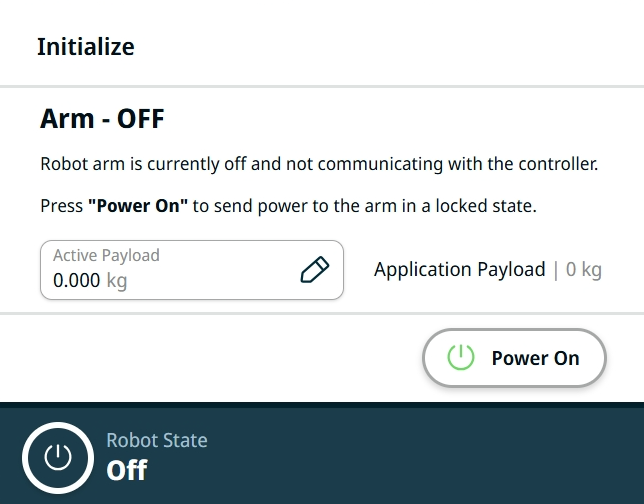
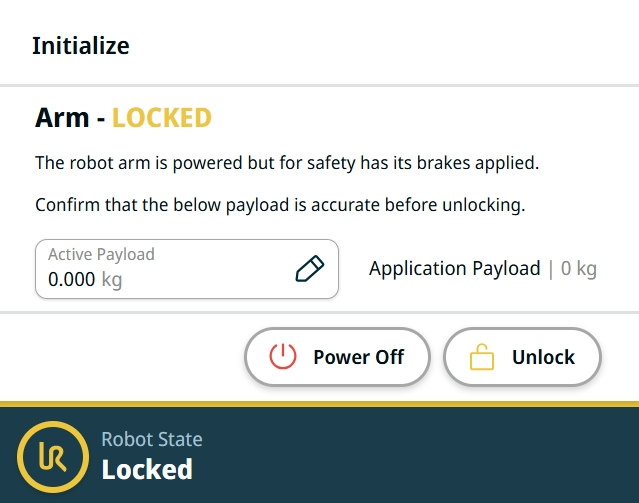
  4. In the Initialize box, tap Power On. On a new robot or the first boot after the software update, an Updating Firmware dialog may appear. When the arm firmware update is complete, the robot state will change to Locked.

  5. In the Active Payload field, verify the payload mass.

  6. Tap the Active Payload field, and an Edit field appears in the main screen.

  7. Enter your active payload and tap Confirm.

You can now Unlock the brakes and start moving the robot arm.


Starting the Robot Arm

To start the robot

Starting the robot arm disengages the braking system, allowing you to start moving the robot arm and to start using PolyScope X.

  1. On the left side of the footer, tap the power or Robot State icon.

  2. If the robot arm state is Off, tap Power On in the Initialize box. The robot arm state will change to Booting and Locked.

  3. Tap Unlock to release the brakes.


    Robot arm initialization is accompanied by sound and slight movements as the joint brakes are released.

 
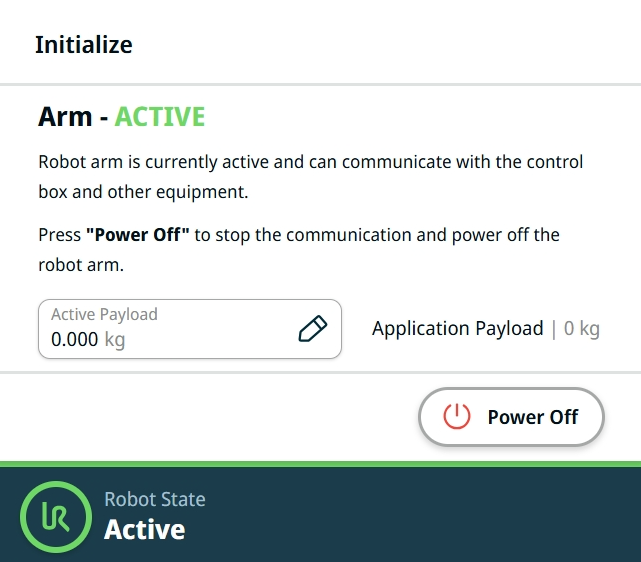
  1. The robot arm state is now Active, and you can start to use the interface.


  2. You can tap Power Off to turn off the robot arm or check Freedrive to verify robot arm mounting.


Testing Mount and Payload using Freedrive

Description

Freedriving the robot allows quickly check if the robot is functioning normally and mounting settings and payload are correctly specified.

Detailed description of the Freedrive could be found in the Freedrive section.

To test Freedrive
  1. Set Active Payload to zero if there are no tools attached to the robot arm.
    Alternatively, set the Active Payload, TCP (tool center point) and CoG (center of gravity) according to tool specifications.
    See Payload and Center of Gravity for details.

  2. To move the robot arm in Freedrive, see figure below.

    Standard TP 3PE TP

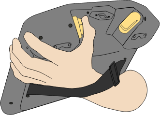
    On a standard teach pendant (TP), press and hold the Freedrive button.

    On a 3PE TP, rapidly light-press, release, light-press again, and keep holding the 3PE button in this position.
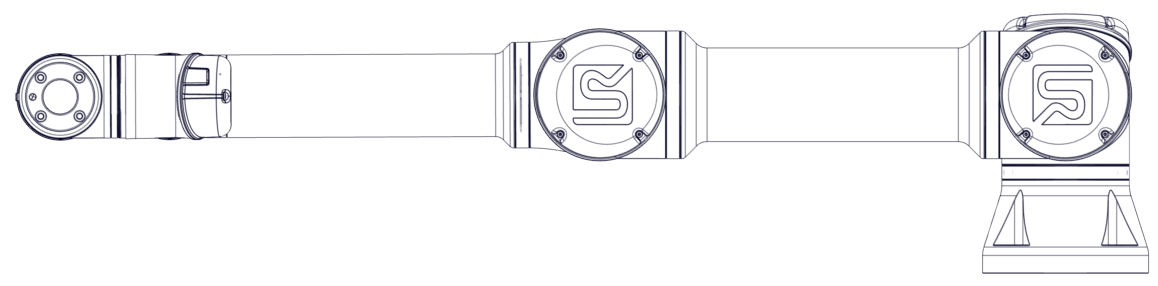
  3. Pull/Push the robot arm to a horizontally elongated position and release. See figure below.

    Elongated horizontal position of UR robot

  4. Verify the robot arm can maintain this position without support while you are pressing the Freedrive or 3PE button.


Powering Down the Robot

To power down the robot arm

Unexpected startup and/or movement can lead to injury.

  • Power down the robot arm to prevent unexpected startup during mounting and dismounting.

  1. On the left side of the footer, tap the Robot State icon to turn off the robot arm.

    The icon color changes from green to white.

  2. Press the power button on the Teach Pendant to turn off the Control Box.

  3. If a Shutdown dialog box appears, tap Power Off.

You can now:

  • Unplug the mains cable/power cord from the wall socket.

  • Wait 30 seconds for the robot to discharge any stored energy.