Advanced Force

Description

The Advanced Force command lets you set force and speed limits in the X, Y, Z, RX, RY, and RZ directions.


Access the Advanced Force command

  1. Open the main program screen. For more information, see Command Nodes.

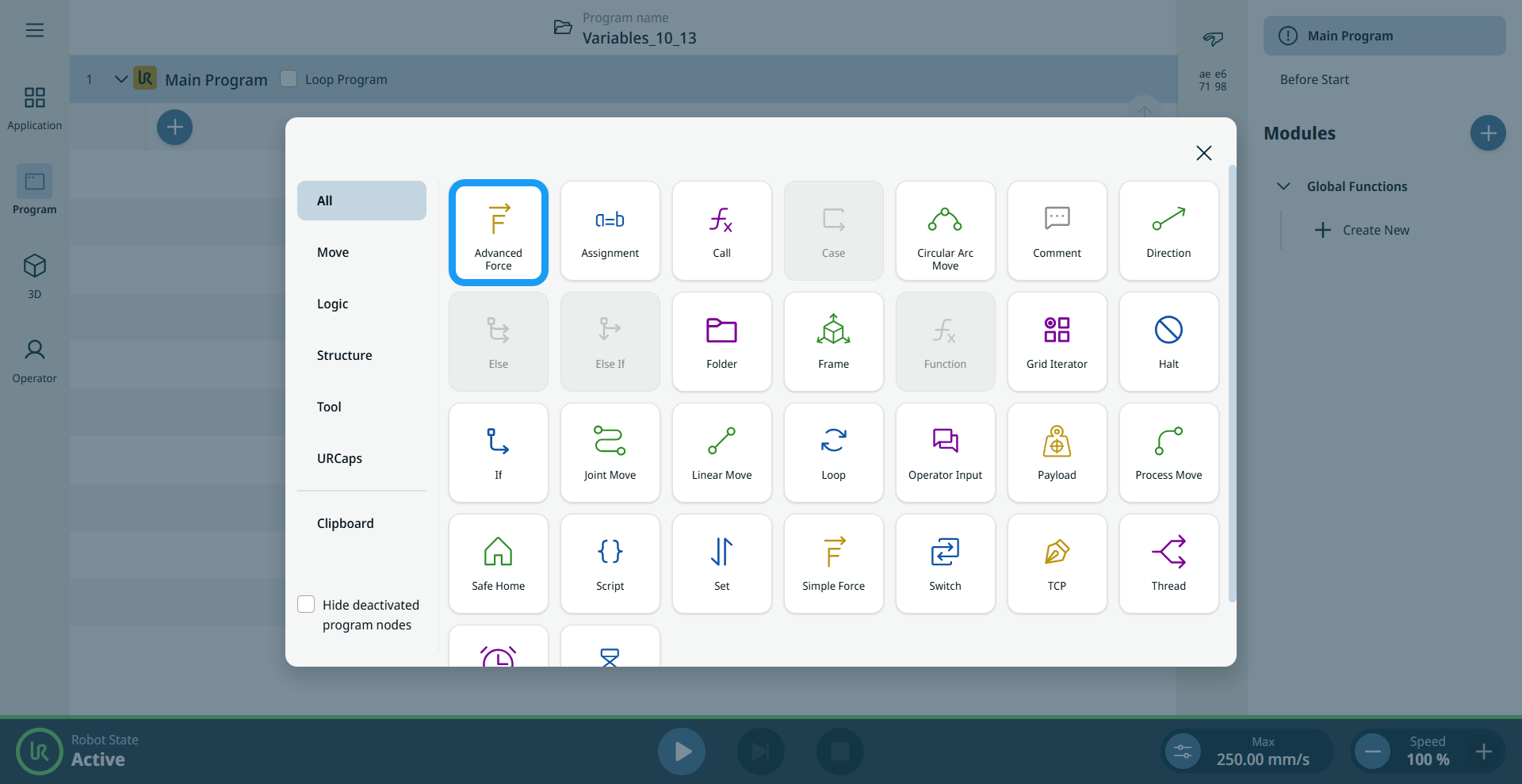
  2. Tap the Advanced Force icon in the Commands toolbox.

  3. The system inserts a Force Mode node into the program tree.

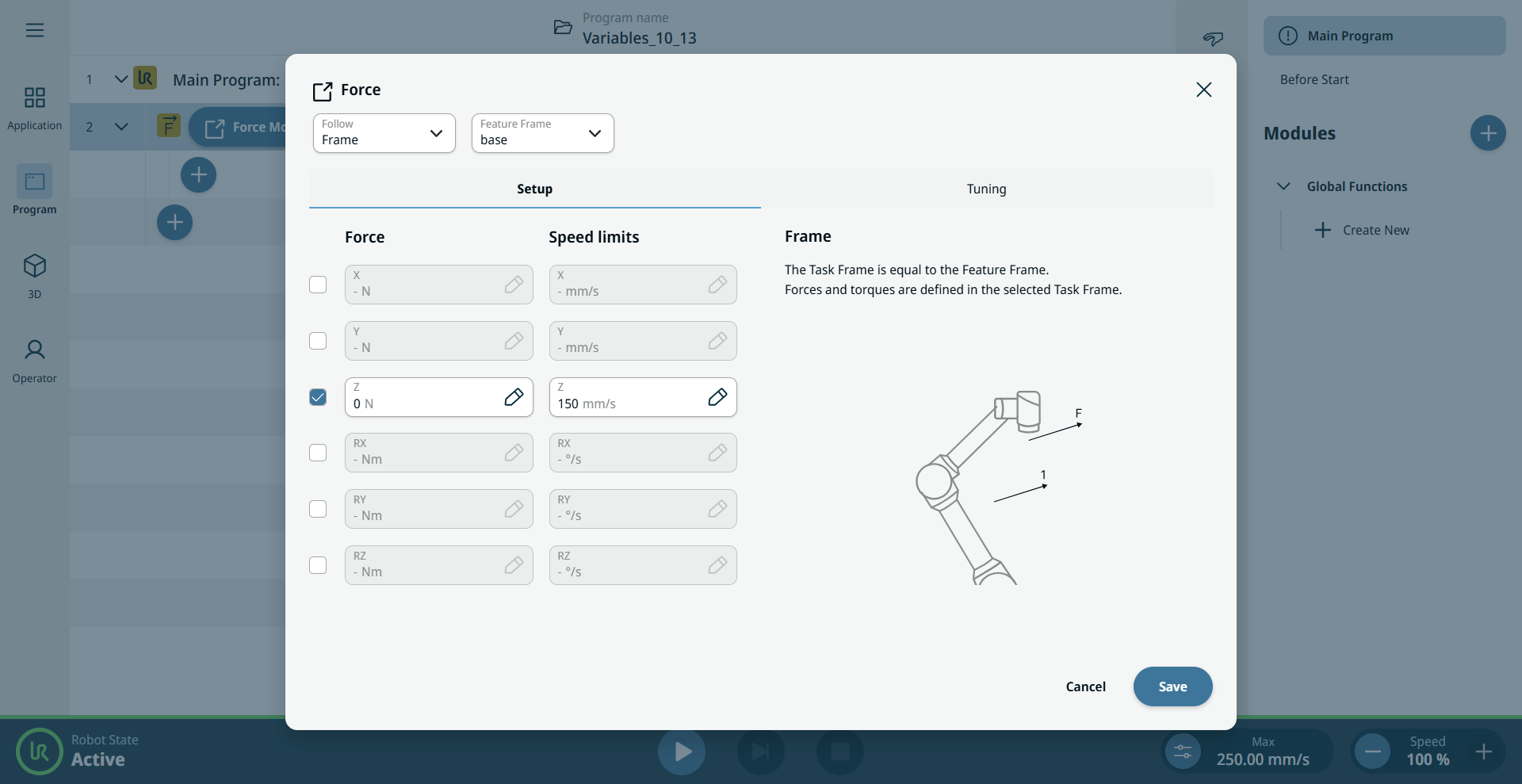
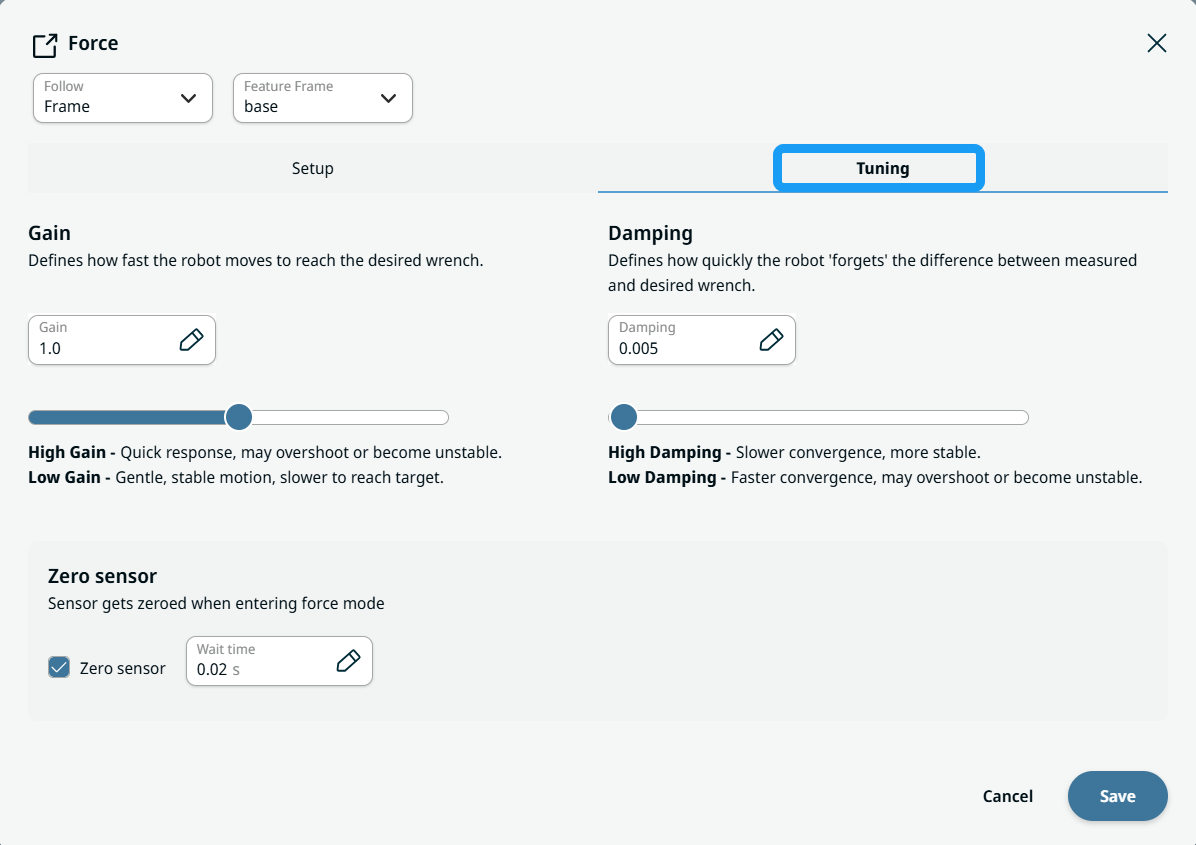
  4. Tap the Force Mode node. The Force screen opens with tabs and the Setup and Tuning panels.


Follow and Feature Frame fields

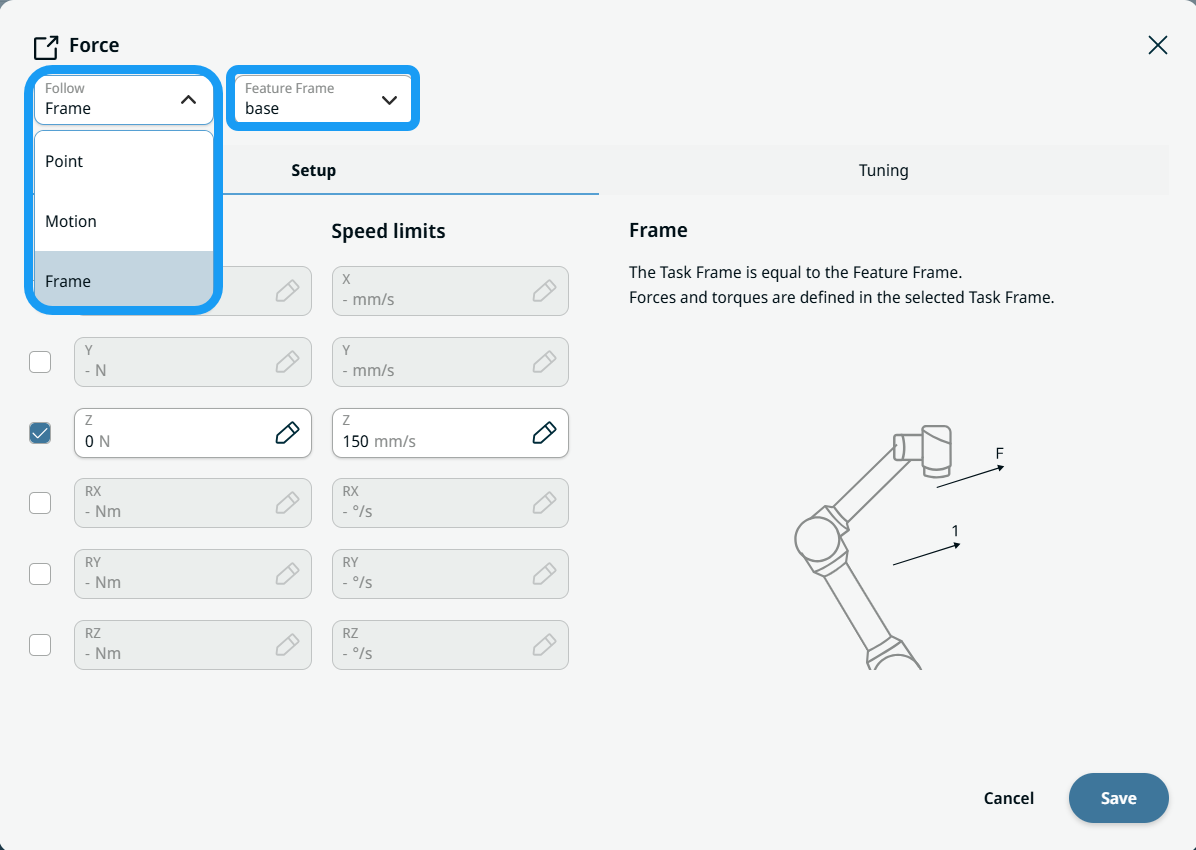
In the Follow field, you can select one of three modes: Point, Motion, or Frame.

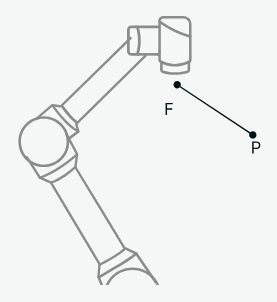
  1. Point

    • The Feature Frame is a point.

    • The task frame Y+ axis points toward the selected point.

    • Use this mode to apply force toward the center of a circular path.

    Do not specify forces in the X or Z direction.


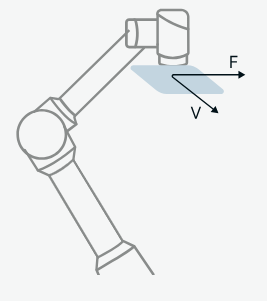
  1. Motion

    The task frame follows the TCP movement direction:

    • The X axis aligns with the motion projected in the X, Y plane of the Feature Frame.

    • The Z axis is parallel to the Z axis of the Feature Frame.

    This mode is active only while the robot is moving. The orientation remains from the most recent motion.
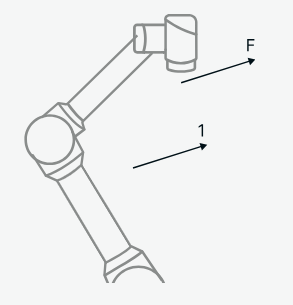
  2. Frame

    • The task frame matches the Feature Frame.

    • Forces and torques are defined in the selected task frame.

In the Feature Frame field, you can select:

  • Base

  • TCP

  • World

  • Flange

  • Frame


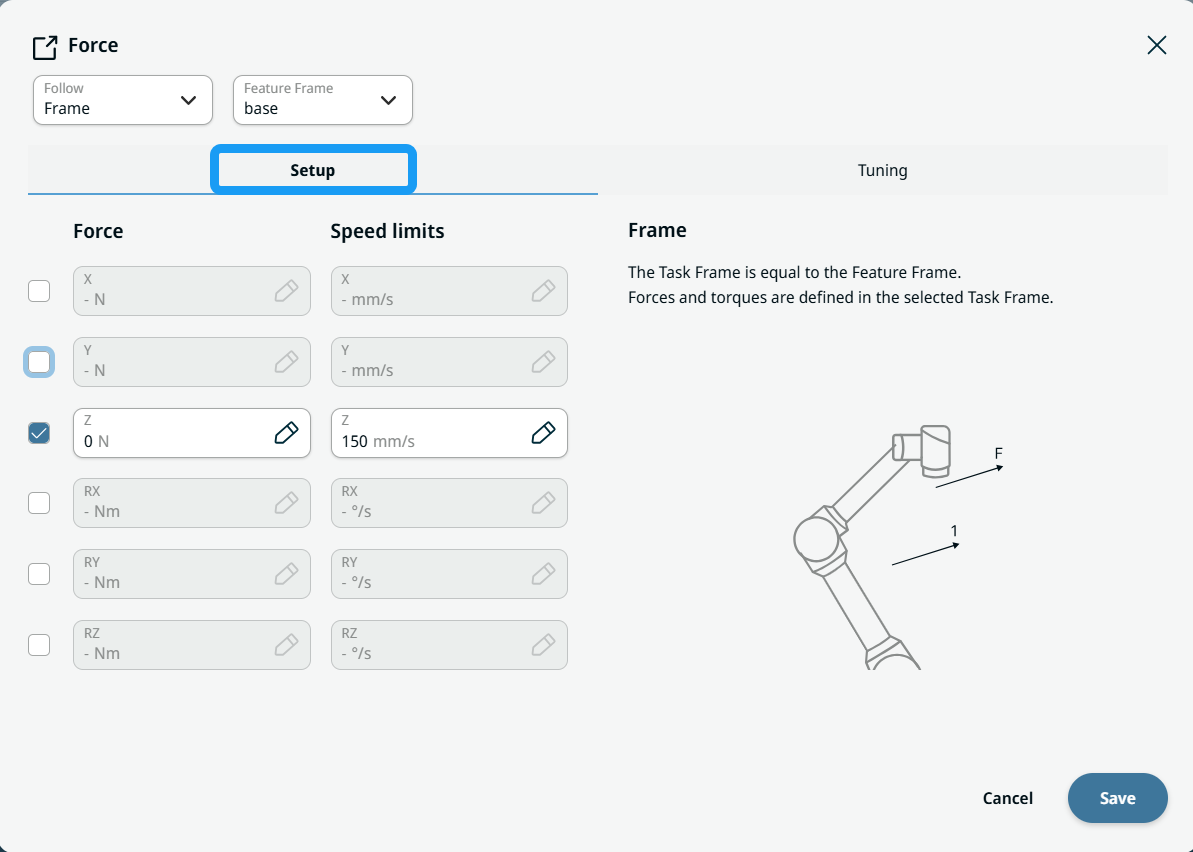
Setup panel

  1. Tap the checkboxes for X, Y, Z, RX, RY, and RZ to activate them.

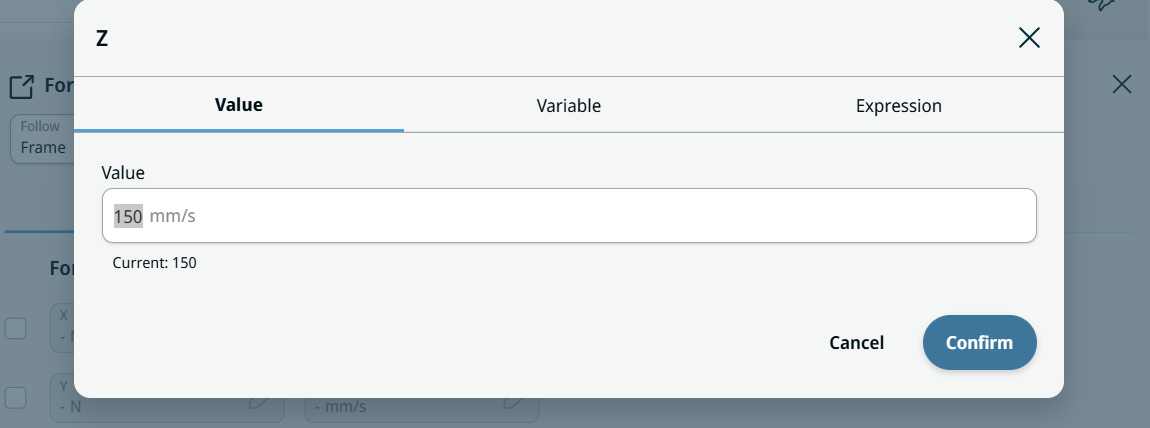
  2. In the Force and Speed Limits fields, you can use the Value, Variable, and Expression tabs and the Expression Editor.


  3. After you set the force and speed limits, tap Save.


Tuning panel

Tap Tuning, then use the Gain, Damping, and Zero sensor functions.

  • Gain defines how quickly the robot moves to reach the desired wrench.

  • Damping controls how quickly the robot “forgets” the difference between the measured and desired wrench.

  • Zero sensor: The sensor is zeroed when entering force mode.

  1. Use the Gain slider or tab to set the gain level.

  2. Use the Damping slider or tab to set the robot damping level.

  3. Select the Zero sensor check box to enable it and set the wait time.